The pattern is maddeningly consistent: Windows 11 installs an update overnight, and in the morning your laptop feels like it’s wading through mud. Apps crawl, the disk churns, fans spin — and you’re left wondering whether to wait it out or start ripping things out. The answer depends on which of three situations you’re in, and this guide tells you how to tell.
Situation one: legitimate post-update background work that finishes on its own (wait). Situation two: a driver or software conflict the update exposed (fix the driver). Situation three: a genuinely bad update (remove it). Most troubleshooting guides treat all three the same — they shouldn’t be, because the fixes are opposites: waiting vs. acting vs. uninstalling. The 24H2 update deserves special mention here: as a full build replacement it triggers the heaviest post-update workload of any recent release, so Situation One lasts the full 48 hours on it.
Work through the diagnosis in order and you’ll land in the right situation within an hour. If the update specifically spiked CPU rather than general slowness, our high CPU in 24H2 guide pairs with this one.
Why this happens
- Post-update background optimization — Re-indexing, .NET optimization, and app re-registration legitimately saturate the system for 24-48 hours after feature updates. The most common ‘cause’ — and not a problem.
- Carried-over incompatible drivers — Feature updates keep third-party drivers; old audio, network, and storage drivers misbehave on the new build — the top real cause of persistent post-update slowness.
- Stuck update components — A partially installed cumulative update retries endlessly (TiWorker.exe), burning CPU/disk indefinitely until the corrupted cache is cleared.
- Reset power and visual settings — Updates sometimes reset power plans to Balanced-with-aggressive-saving or re-enable visual effects you’d disabled — free performance lost silently.
- Old update debris — Each update leaves superseded components; without cleanup, WinSxS and the SoftwareDistribution cache bloat, costing disk space and slowing servicing.
- Antivirus re-scanning everything — After system files change en masse, Defender and third-party AV re-scan the system — days of elevated background scanning on slow disks.
- A genuinely bad KB — Occasionally Microsoft ships a cumulative update with a real performance regression — rare, but it happens, and uninstalling that KB is the fix.
How to fix it
Work through these in order — diagnose first, then act.
Fix 1: Diagnose first: wait or act?
The 10-minute triage that prevents fixing a non-problem.
- Open Settings > Windows Update — is everything installed, including optional driver updates? If installs are pending, let them finish first.
- Check the update date: if the feature update landed <48 hours ago and Task Manager shows SearchIndexer/mscorsvw/TiWorker busy, you’re in Situation One — leave it plugged in overnight and re-evaluate tomorrow.
- If it’s been 3+ days, updates are complete, and it’s still slow — you’re in Situation Two or Three; continue below.
- Also glance at Task Manager’s Startup tab — updates sometimes re-enable startup entries you’d previously disabled; re-disable them. And check Device Manager for yellow warning icons, which signal a device the update left driverless.
- Note exact symptoms: general sluggishness (continue) vs. specific app broken (update that app) vs. no boot (recovery options).
Fix 2: Clear stuck update components
For the TiWorker-always-busy pattern — a corrupted download cache retrying forever.
- Run Settings > System > Troubleshoot > Other troubleshooters > Windows Update > Run.
- If it doesn’t resolve: admin Command Prompt,
net stop wuauserv+net stop bits, renameC:\Windows\SoftwareDistributionto.old,net start wuauserv+net start bits. - Re-check for updates and install whatever appears.
- Microsoft’s Windows support hub documents this reset procedure officially.
Fix 3: Update the drivers the update disturbed
The highest-yield real fix for persistent post-update slowness.
- Get chipset, storage/IRST, graphics, and network drivers from your laptop maker’s support page — Dell , HP, or Lenovo — for your exact model.
- Install chipset first, restart, then the rest — one restart between chipset and graphics at minimum.
- Pay special attention to audio drivers (Conexant/Realtek): post-update audio driver conflicts cause the stuttery-sluggish feeling many report.
- If a driver was working before, note its version — rollback is your fallback.
Fix 4: Restore your power and visual settings
Updates silently reset tunings. Reclaim them.
- Settings > System > Power & battery > Power mode: set back to Best performance (plugged in) if the update reset it.
- Check your custom power plan still exists in Control Panel > Power Options — recreate if the update wiped it.
- Re-disable visual effects you’d turned off: our transparency guide has the steps.
- These silent resets explain a surprising share of ‘update made me slower’ reports.
Fix 5: Clean up update debris
Reclaim the gigabytes and servicing speed.
- Settings > System > Storage > Temporary files: check Windows Update Cleanup and Delivery Optimization Files, then remove.
- Run
dism /Online /Cleanup-Image /StartComponentCleanupfrom admin Command Prompt to trim WinSxS. - Also enable Storage Sense (Settings > System > Storage) so temporary update files clean themselves up going forward.
- Don’t use third-party ‘update cleaners’ — they cause more corruption than they fix.
- Reboot after cleanup; servicing operations speed up noticeably.
Fix 6: Uninstall the bad KB (Situation Three)
When slowness started the day a specific cumulative update installed.
- Settings > Windows Update > Update history: note the most recent KB number and its install date.
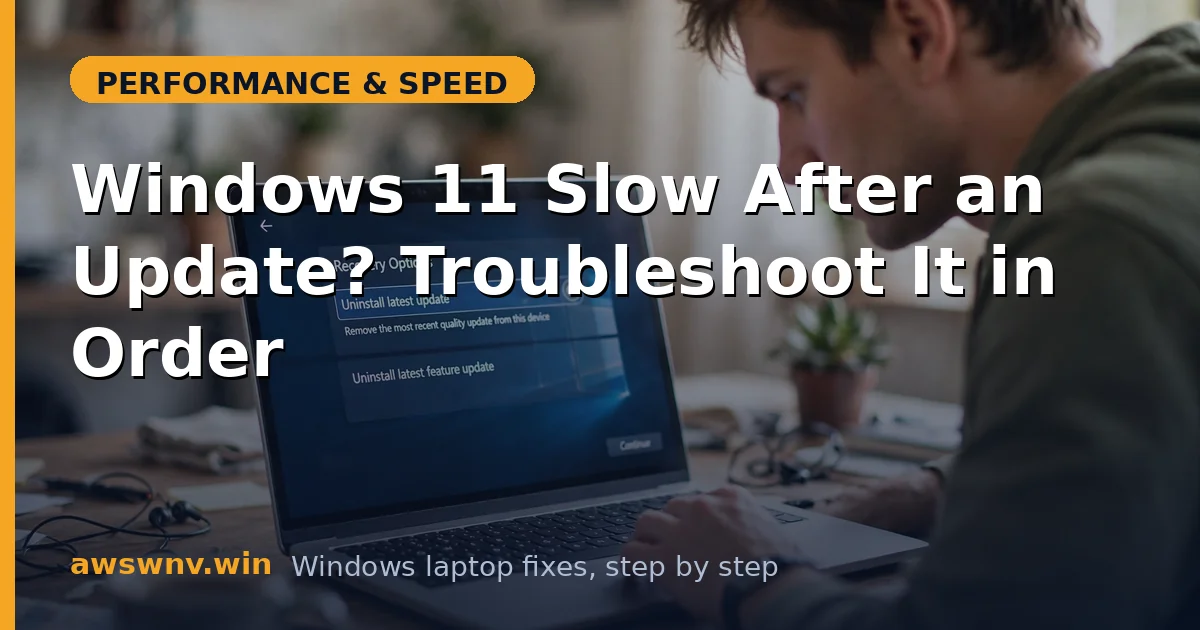
- Uninstall updates > select that KB > uninstall, then restart.
- If speed returns, pause updates for 2 weeks (Pause updates) to skip the bad KB while Microsoft fixes it.
- For feature-update regressions within 10 days: Settings > System > Recovery > Go back. Grab fresh drivers from the Microsoft Update Catalog before retrying the update later.
Closing
Post-update slowness is usually patience (48 hours), drivers (update them from your maker), or one bad KB (uninstall it) — in that order of likelihood. Diagnose which situation you’re in first, and you’ll fix it in an hour instead of fighting it for a week.