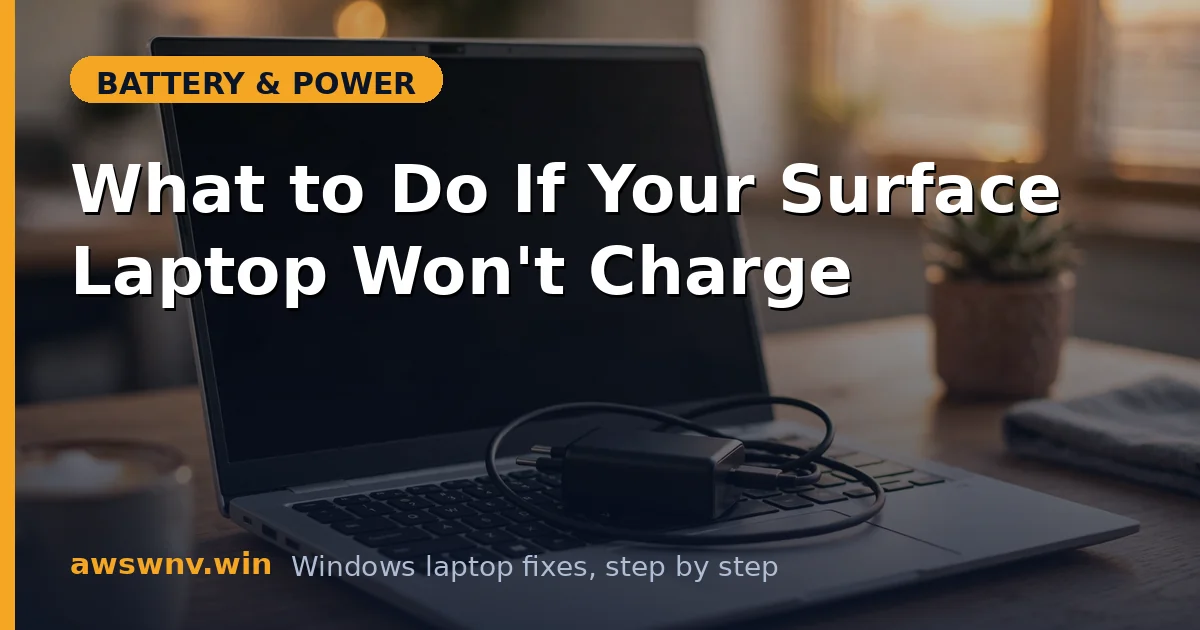
Your Surface Laptop is plugged in, and nothing is happening — or the percentage is frozen, or it charges for a minute then stops. Before you do anything drastic, take a breath: Surface charging failures follow a predictable pattern, and there’s a clear action plan. This guide is that plan, written for someone who just wants the laptop working again.
We’ll go from the 30-second checks to the deeper fixes, and end with exactly when (and how) to escalate to Microsoft. Don’t skip the early steps — they resolve the majority of cases.
Why this happens
- The connector isn’t making proper contact. The magnetic Surface Connect plug can sit slightly crooked or collect grime on its pins — connected enough to look right, not enough to charge.
- Battery Limit Mode caps charging at 50%. This UEFI setting, meant for docked/kiosk use, is the classic “charges to 50% and stops” cause.
- The power supply is underperforming. Surface bricks fail gradually — detected by the laptop, but delivering too little power to actually charge.
- Drivers or firmware glitched. The Surface battery driver stack and firmware updates can leave charging in a stuck state.
- The battery is worn out. Sealed-in Surface batteries degrade like all lithium packs. A heavily worn battery may refuse to charge as a safety measure.
How to fix it
Work through these in order. Each step either fixes it or rules something out.
Fix 1: Check the charger’s LED and connection
Thirty seconds, and it catches the most common failure.
- Look at the LED on the magnetic connector. Solid light = power is flowing. Flickering = poor contact. Dark = no power at all.
- If it’s flickering or dark, unplug from the wall, detach the magnetic end, and reconnect everything firmly — wall first, then the Surface with a straight, decisive snap.
- Try a different wall outlet, directly — no power strips for this test.
- No LED at all after reseating in a known-good outlet? The charger is the prime suspect. Borrow an identical Surface charger to confirm before buying a replacement.
Fix 2: Clean the magnetic connector and port
Grime on the pins is the silent killer of Surface charging.
- Power everything off and detach the connector.
- Examine the pins on the charger plug and the port on the Surface Laptop. Look for dark buildup, lint, or bent pins.
- Wipe with a dry soft cloth. For stubborn grime, a cotton swab lightly dampened with isopropyl alcohol — then let it dry completely before reconnecting.
- Snap the connector on firmly and check the LED. This alone fixes a remarkable number of “won’t charge” Surfaces.
Fix 3: Rule out Battery Limit Mode
If your Surface charges to exactly 50% and parks there, stop troubleshooting hardware — it’s this setting.
- Shut down completely.
- Hold Volume Up, press and release Power, and keep holding Volume Up until the UEFI screen appears.
- Find Battery Limit Mode and set it to Off.
- Exit > Restart, then check charging. The battery should now charge past 50%.
- Only turn this back on if the Surface Laptop lives permanently on a desk — that’s the use case it was built for.
Fix 4: Do a two-button shutdown
Surface’s version of an embedded-controller reset clears stuck charging states.
- Press and hold the Power button for 30 seconds straight. (On some models: hold Power + Volume Up together for 15 seconds.)
- Release, wait 10 seconds, then power on normally.
- Reconnect the charger firmly after booting and observe for 10 minutes.
- If the Surface was hot, let it cool down first — thermal protection pauses charging, which looks identical to a charging failure.
Fix 5: Reinstall the battery drivers
Driver hangs produce exactly this symptom: charger detected, battery not charging.
- Press Win + X > Device Manager > Batteries.
- Uninstall every battery entry (Surface-specific ACPI battery entries) plus Microsoft AC Adapter if present.
- Restart with the charger connected. Windows reinstalls the Surface drivers on boot.
- Give it 5–10 minutes after boot before judging — driver reinstallation can take a moment to start reporting correctly. For the full Surface charging deep-dive, see how to fix a Microsoft Surface that won’t charge .
Fix 6: Run Surface Diagnostic Toolkit and update firmware
Microsoft’s own tool checks the hardware and firmware together.
- Open Surface Diagnostic Toolkit (Microsoft Store if missing) and run the complete diagnostic.
- Pay attention to the battery and power sections — apply any fixes it recommends.
- Install any firmware updates it finds. Surface firmware updates regularly include charging fixes.
- Also check Settings > Windows Update for pending updates — Surface driver updates arrive through Windows Update and can resolve charging glitches.
Fix 7: Check battery health, then escalate properly
If nothing worked, get the data and contact support efficiently.
- Open Terminal (Admin), run
powercfg /batteryreport, and compare Design Capacity to Full Charge Capacity. Under ~70% is heavily worn. - Surface Laptop batteries are sealed — replacement means Microsoft service. Check your warranty and Microsoft Complete status first.
- Contact Microsoft Support with your findings ready: what the LED does, what the battery report shows, and which steps you tried. It dramatically speeds up the support process.
- Don’t attempt to open the Surface Laptop yourself. The display assembly is glued and fragile, and a punctured lithium pack is dangerous. This is one repair that’s genuinely worth paying the manufacturer for.
Closing
When a Surface Laptop won’t charge, the action plan is short: check the LED, clean and reseat the magnetic connector, rule out Battery Limit Mode, do the two-button reset, reinstall drivers, and run the diagnostic toolkit. Those six steps resolve the overwhelming majority of cases — usually at step one or two. For charging failures on non-Surface laptops, the general plugged in but not charging guide applies the same logic without the Surface-specific steps. If they don’t, the battery report plus Microsoft support is the right ending, not a teardown. Surfaces reward methodical troubleshooting; give it the method and it usually gives you back a charging laptop.