“Not detecting headphones” splits into two very different problems depending on whether your headphones are wired or wireless — but the frustration is identical. Wired headphones that produce no popup, no device entry, and no sound when plugged in. Bluetooth headphones that pair and then vanish, or never appear in the pairing list at all. This guide covers both paths, starting with the quick checks that identify which kind of failure you’re dealing with.
First, establish the basics: confirm the headphones work on another device (your phone is perfect for this). If they don’t work anywhere, stop here — it’s the headphones. If they work elsewhere, the laptop is the problem, and the fixes below are ordered from fastest to most involved.
It also helps to know exactly which failure mode you have before starting, because the two paths diverge quickly. Plug the headphones in (or attempt pairing) and watch what Windows does: does the system show any reaction at all — a popup, a new device entry, a flicker in the sound settings? Total silence from the OS points at detection (jack sensor, Bluetooth radio, driver), while headphones that appear but produce no sound point at routing (default device, disabled device, app settings). Keep that distinction in mind as you work through the steps — it tells you which fixes are worth your time.
For wired issues, Microsoft’s Windows support hub also documents the built-in audio troubleshooting path as a complement to these steps.
Why this happens
- Realtek jack detection is disabled in the audio console, so insertion never registers.
- Worn or dirty headphone jack — the insertion sensor or contacts have failed.
- Wrong default playback device selected in Windows Sound settings.
- Audio device disabled in the Playback tab and hidden from view.
- Corrupted Realtek or Intel audio driver after a Windows update.
- Bluetooth pairing succeeded but audio profiles failed to load (wireless).
- Headphones still connected to your phone, blocking the laptop (wireless).
- Bluetooth Support Service stopped, killing all Bluetooth audio (wireless).
How to fix it
Work through these in order — diagnose first, then act.
Fix 1: Confirm the headphones and test the jack physically
Rule out the simple stuff with your hands, not software.
- Test the headphones on your phone or another device to confirm they work.
- Plug them into the laptop firmly, with a slight twist — laptop jacks wear, and partial insertion is a classic miss.
- Gently wiggle the plug while listening. Audio that cuts in and out means worn jack contacts.
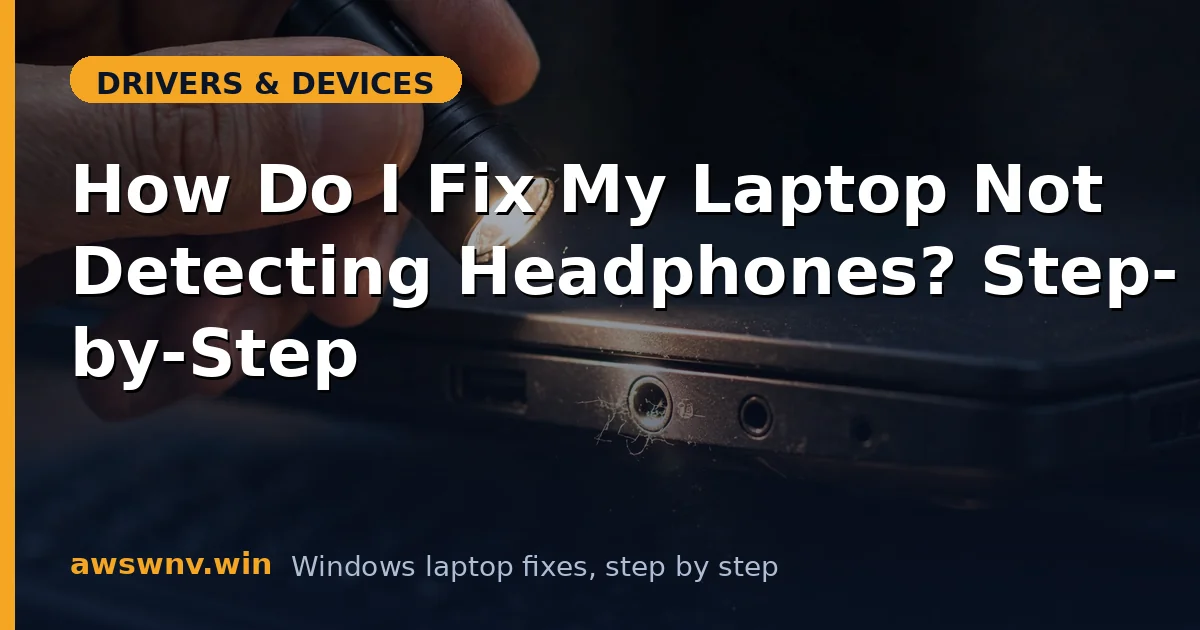
- Blow out the jack with compressed air. Pocket lint packed into a 3.5mm jack prevents full insertion.
- If you have a USB-C to 3.5mm dongle or USB headphones, test those — if USB audio works but the 3.5mm jack doesn’t, the jack hardware is the fault.
Fix 2: Check Realtek jack detection settings
Realtek’s console has a toggle that silently disables plug detection.
- Open the Realtek Audio Console from the Start menu (install it from the Microsoft Store if missing).
- Go to Device advanced settings (usually a gear icon).
- Make sure Enable auto popup dialog when device has been plugged in is on, and that front/rear panel jack detection is enabled.
- Plug the headphones in and watch for the popup asking what you connected — select Headphones.
- If there’s no popup option at all, your driver may be the generic Windows one — continue to Fix 5.
Fix 3: Set the right playback device in Sound settings
Windows sometimes sees the headphones but routes audio elsewhere.
- Right-click the speaker icon in the taskbar and choose Sound settings.
- Under Output, see if your headphones appear. If they do, select them.
- Click More sound settings to open the classic panel. In the Playback tab, right-click empty space and enable Show Disabled Devices and Show Disconnected Devices.
- If the headphones appear grayed out, right-click and Enable them, then Set as Default Device.
Fix 4: Fix Bluetooth headphone detection (wireless)
For headphones that won’t pair or pair without audio.
- Disconnect the headphones from your phone and any other device first — single-connection headphones can’t pair twice.
- Put the headphones in pairing mode (long-press until the LED blinks in the pairing pattern).
- On the laptop, go to Settings > Bluetooth & devices > Add device > Bluetooth.
- If they pair but produce no sound, remove them, restart the laptop, and pair again — this reloads the audio profiles.
- Check that Bluetooth audio services are running:
services.msc> Bluetooth Audio Gateway Service and Bluetooth Support Service.
For the full Bluetooth repair sequence, see our step-by-step Bluetooth fix guide .
Fix 5: Reinstall the audio driver
The definitive software fix for detection failures.
- Press Win + X, open Device Manager, and expand Sound, video and game controllers.
- Right-click the Realtek Audio (or Intel Smart Sound) device and choose Uninstall device, ticking driver deletion if offered.
- Restart — Windows installs a baseline driver. Test the headphones now.
- If the baseline works but lacks features, install the full audio driver from your laptop maker’s support site.
- Avoid generic “audio enhancer” utilities during testing — they hook the audio stack and cause detection weirdness.
Fix 6: Run the audio troubleshooter
Quick and occasionally effective.
- Go to Settings > System > Sound and click Troubleshoot under Output, or use Settings > System > Troubleshoot > Other troubleshooters > Audio.
- Apply its recommendations and restart.
Fix 7: Check for Windows updates and BIOS updates
Rare, but some detection bugs are firmware-level.
- Check Windows Update > Optional updates for audio driver offerings.
- Check your laptop maker’s support site for a BIOS update mentioning audio or jack detection.
- Install, restart, and retest.
Closing
Headphone detection failures are a process of elimination: prove the headphones work elsewhere, prove the jack or Bluetooth radio responds, then repair the driver layer that connects them. The Realtek jack-detection toggle and the Bluetooth re-pair are the two highest-yield fixes — they resolve the majority of cases without touching a driver. If your audio works but sounds wrong — crackling or distortion rather than silence — that’s a different problem, covered in our speaker crackling troubleshooting guide .