A laptop fan screaming while the machine does nothing is maddening. You’re staring at the desktop, no apps open, and the fan sounds like a hair dryer. Your first instinct — that something is broken — is half right: something is wrong, but it’s usually a runaway background process or a cooling system fighting dust, not a dying laptop. The fan is just the messenger.
The key insight: fans respond to heat, and heat comes from work. A loud fan at idle means the CPU or GPU is secretly working, or the cooling system can’t shed normal heat. So the diagnosis splits immediately: is there hidden load, or is the cooling compromised? For the closely related always-on fan problem, see fixing a laptop fan that always runs ; for identifying runaway background services, see fixing Service Host high CPU .
Why this happens
- Hidden background CPU load: Updaters, indexers, and sync tools working while Task Manager’s headline number looks calm.
- Stuck GPU process: A crashed game or browser tab pinning the GPU, invisible in the CPU column.
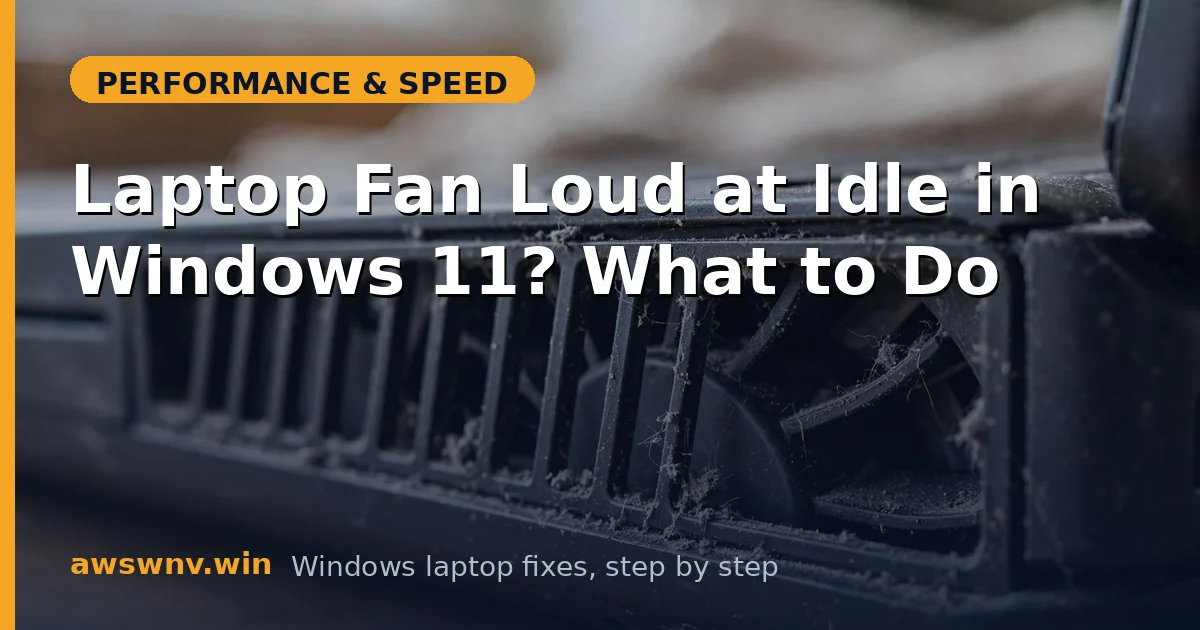
- Dust-clogged heatsinks and fans: Reduced airflow forces maximum fan speed for normal heat.
- Dried-out thermal paste: Heat can’t transfer from CPU to heatsink, so temperatures — and fan speed — climb.
- Aggressive fan curve in firmware: Some vendors default to loud curves, worsened by BIOS updates.
- Windows maintenance at “idle”: Indexing, Defender scans, and update preparation that Windows schedules precisely when you’re not looking.
- Blocked vents: Using the laptop on a bed or couch, suffocating the intakes.
How to fix it
Work through these in order — diagnose first, then act.
Fix 1: Find the hidden load
Catch what’s actually generating heat.
- Open Task Manager (Ctrl+Shift+Esc), go to Details, click the CPU column to sort descending, and watch for a full minute — catch intermittent spikers, not just the current top.
- Check the GPU column too (enable it via right-click on the headers if missing) — a stuck 3D process explains loud fans with low CPU.
- Look at the Users tab to catch processes running under other accounts, and the App history tab for cumulative background burners.
- Open Resource Monitor (
resmon.exe) > CPU tab for a finer-grained view, including services grouped under svchost. - If a specific process is the burner, search our guides for it — common ones include search indexer, Defender scans, and Windows Update workers — or end it temporarily to confirm the fan responds.
Fix 2: Check actual temperatures
Decide whether this is a heat problem or a control problem.
- Install a hardware monitor (HWiNFO or Core Temp) and read CPU package temperature at idle — a healthy idle is 40–55°C on most laptops.
- If idle temps are 70°C+, you have a genuine heat problem: skip to Fixes 5–6 (cleaning and thermal solutions).
- If idle temps are normal but the fan still roars, the fan control is wrong — focus on Fixes 3–4 (curves and firmware).
- Also note GPU temperature — a hot discrete GPU at idle (stuck awake) spins fans independently of the CPU.
- Log temperatures for 10 minutes of true idle (no apps open) to distinguish a brief maintenance burst from a permanent condition.
Fix 3: Calm Windows’ background maintenance
Stop the “idle” work that isn’t really idle.
- Go to Settings > Windows Update and install everything pending — Windows works hardest when updates are staged but uninstalled.
- Open Indexing Options (search it in Start), click Modify, and exclude folders that churn constantly (downloads, build outputs, game libraries) — indexing is a classic idle-time CPU burner.
- In Task Scheduler, check Microsoft > Windows > Windows Defender scheduled scans and move them to hours you’re away, not “whenever idle.”
- Pause OneDrive/Dropbox sync temporarily — if the fan quiets, sync was the load; schedule large syncs for when you’re actively using the machine.
- Disable Startup apps you don’t need (Task Manager > Startup apps) — fewer background residents means a calmer idle.
Fix 4: Fix the fan curve and firmware
When temperatures are fine but the fan disagrees.
- Check your vendor’s control app (MyASUS, Legion Zone, OMEN Hub, Dell Power Manager) for fan/thermal profiles — switch from Performance or Turbo to Silent or Balanced for idle use.
- Look for a custom fan-curve option and set a gentle slope: 30% speed under 55°C, ramping only past 70°C.
- Update the BIOS from the vendor’s support page — Dell , HP , or Lenovo — since fan-curve bugs are regularly fixed in BIOS updates.
- Reset BIOS to defaults if a previous tweak made things worse — an misconfigured thermal setting can lock fans high.
- Never use third-party fan-control hacks that fight the firmware — conflicting controllers cause fans to stick at 100%.
Fix 5: Clean the cooling system
The physical fix for genuine heat problems.
- Power off, unplug, and inspect the intake and exhaust vents — visible dust mats are the number-one cause of idle overheating.
- Blow out the vents with short bursts of compressed air (hold the fan blades still with a toothpick to prevent overspinning, which damages bearings).
- If comfortable opening the chassis (check your warranty terms first), remove the bottom panel and clean the fan blades and heatsink fins directly — the difference is dramatic.
- While inside, check that the fans actually spin freely — a seized bearing means replacement, not cleaning.
- Reassemble, boot, and re-check idle temperatures — expect a 10–20°C drop on a badly clogged machine.
Fix 6: Address thermal paste and hardware
For heat problems that survive cleaning.
- If the laptop is 3+ years old and idle temps stay high after cleaning, the thermal paste has likely dried out — repasting typically drops temperatures 10–15°C.
- Repasting involves removing the heatsink: follow a teardown guide for your exact model, use quality paste (or a PTM7950 pad), and clean old paste thoroughly with isopropyl alcohol.
- Not comfortable with a teardown? A reputable repair shop does repasting cheaply — it’s routine work.
- Check that heatsink screws are evenly tightened — uneven mounting pressure creates hot spots that fool temperature sensors.
- Rule out a failing temperature sensor: if reported temps swing wildly or read impossibly high at a cold boot, the sensor (not the cooling) is lying — a board-level issue for a shop.
Fix 7: Change how and where you use it
Environment matters more than people think.
- Always use the laptop on a hard, flat surface — beds, couches, and laps block intake vents on the bottom panel.
- Elevate the rear slightly (even a book works) to improve intake airflow — worth several degrees.
- Keep ambient temperature reasonable — a laptop in a hot room idles hotter, full stop.
- If you run it docked with the lid closed, make sure the dock doesn’t block the vents — some vertical docks suffocate intakes.
- For desk-bound machines, a simple aluminum stand beats a powered cooling pad for idle noise — passive airflow improvement with zero added fan noise.
Closing
A loud fan at idle is either hidden work or compromised cooling, and ten minutes with Task Manager plus a temperature reading tells you which. Kill the background burner or clean the heatsink, set a sane fan curve, and the machine goes back to the near-silence it had on day one. The fan was never the problem — it was just the only part brave enough to complain.