You plug in the charger and… nothing. No charging icon, no LED change, no “plugged in” message. Windows acts like the charger doesn’t exist. This is different from “plugged in, not charging” — here, the system doesn’t acknowledge power at all.
The break is somewhere in a short chain: outlet → charger → cable → port → motherboard → Windows. We’ll test each link in order until we find the dead one.
Why this happens
- The charger has died. Power bricks fail — internal fuses blow, cables fray internally, and output drops to zero with no visible damage.
- The cable or connector is damaged. Barrel plugs develop internal breaks near the strain relief; USB-C cables fail from bent pins or worn contacts.
- The wall outlet is dead. Switched outlets, tripped breakers, and dead power strips cause more “charger failures” than people expect.
- The charging port is loose or dirty. A worn DC jack or lint-filled USB-C port can’t make reliable contact.
- The EC protection tripped. Power surges or static can trip the embedded controller’s protection, making it ignore the charger until reset.
- Windows drivers are corrupted. The Microsoft AC Adapter driver or ACPI battery driver can glitch, especially after updates.
How to fix it
Work through these in order — hardware first, then software.
Fix 1: Verify the outlet
Don’t skip this — it’s embarrassingly common.
- Plug a phone charger or lamp into the same outlet to confirm it has power.
- If you’re using a power strip, plug the laptop charger directly into the wall instead.
- Check for wall switches controlling the outlet (common in bedrooms and offices) and tripped breakers.
Fix 2: Inspect the charger and cable
Eyes and nose on the hardware.
- Check the entire cable for fraying, kinks, discoloration, or melted spots — especially near the brick and the plug.
- Smell the brick — a burning or chemical smell means it’s dead; stop using it.
- Check the charger’s LED (if it has one): no light on a confirmed-good outlet means charger failure.
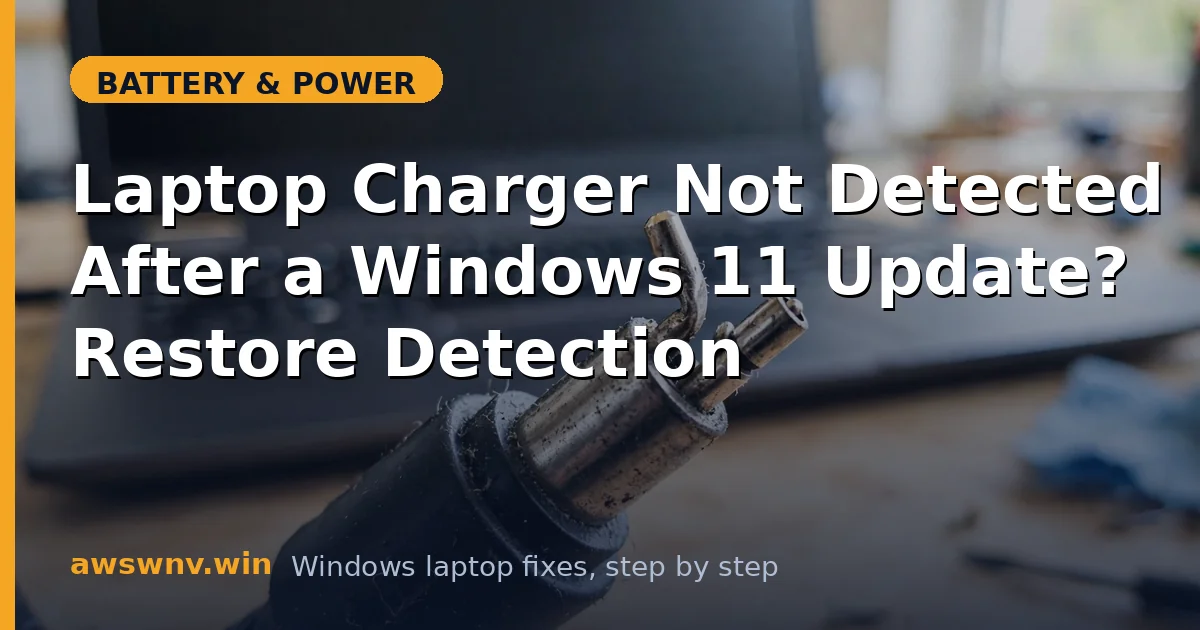
- For barrel plugs, check the center pin isn’t bent or pushed in; for USB-C, inspect for bent pins or debris.
Fix 3: Test with a known-good charger
The definitive charger test.
- Borrow a compatible charger with the correct wattage and plug type for your laptop.
- If the laptop detects the borrowed charger, yours is dead — replace it with the correct wattage for your model.
- If the borrowed charger also isn’t detected, the problem is in your laptop — continue below.
- Underpowered replacements cause their own problems — see our guide on underpowered chargers before buying.
Fix 4: Clean and check the charging port
A bad connection mimics a dead charger.
- Power off, unplug everything, and inspect the port with a light — look for lint, debris, or bent contacts.
- For USB-C, gently remove debris with a wooden toothpick (never metal) and compressed air.
- For barrel jacks, gently wiggle the plug while inserted — if detection flickers, the jack is worn and needs professional replacement.
- Try a different USB-C port if your laptop has more than one.
Fix 5: Reset the embedded controller
A tripped EC ignores chargers until reset.
- Shut down, unplug the charger and all peripherals.
- Hold the power button for 60 seconds (or remove a removable battery for 5 minutes).
- Plug the charger back in, wait 30 seconds, then power on.
- This clears protection trips and EC glitches that block charger detection.
Fix 6: Reinstall the AC and battery drivers
Clear Windows-side driver corruption.
- Open Device Manager, expand Batteries.
- Right-click Microsoft AC Adapter, choose Uninstall device — then do the same for Microsoft ACPI-Compliant Control Method Battery.
- Restart — Windows reinstalls both automatically.
- Plug in the charger and check for detection.
Fix 7: Update BIOS and check for hardware failure
When everything else fails, it’s firmware or the board.
- Update the BIOS from the maker’s support site (Dell , HP , Lenovo ) — BIOS updates can fix charger-detection bugs.
- If a known-good charger, clean port, EC reset, and fresh drivers all fail, the DC jack, charging IC, or motherboard is faulty — that’s a repair-shop diagnosis.
- If the charger is detected but the battery won’t charge, you’re dealing with a different problem — see our slow charging guide instead.
Closing
Charger detection is a chain, and the fix is finding the broken link: outlet, charger, cable, port, EC, drivers — in that order. Most cases resolve in the first three steps with a bad outlet, dead charger, or damaged cable. The EC reset (Fix 5) is the dark horse that fixes a surprising number of “nothing works” cases. One more thing to rule out: if detection is intermittent — works sometimes, not others — suspect the port or cable rather than the charger brick, since bricks tend to fail completely while connections fail gradually. Wiggle-test the connector gently and watch the charging indicator; flickering means the physical connection is the weak link. And if you’ve been through everything and a known-good charger still isn’t seen, stop swapping parts and get a professional diagnosis — board-level charging faults need proper tools.
Keep the charger you retire as a labeled spare only if it still works reliably — a charger that “sometimes works” is worse than no spare at all, because it sends you chasing phantom laptop problems the next time it acts up. And when you buy the replacement, check the connector fit in the store or on arrival: a plug that seats with a firm, positive click is what you want; anything loose or wobbly will give you intermittent detection headaches within months, which is exactly the problem you just solved.
One more habit that prevents repeats: coil the cable loosely rather than wrapping it tightly around the brick, and avoid sharp bends near the strain relief. Most cable failures start as internal wire breaks from repeated tight bending long before any visible damage appears. A charger that lives a gentle life lasts years; one that’s yanked and kinked daily is on borrowed time.