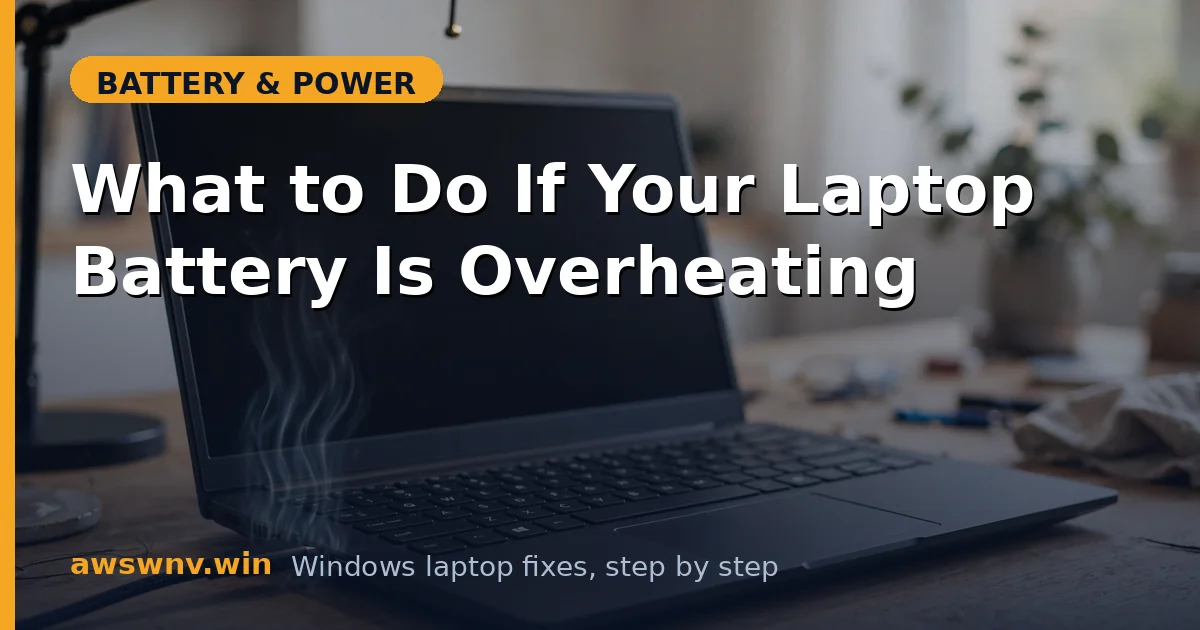
A warm laptop is normal. A laptop that’s uncomfortably hot to touch on the bottom, with the fan screaming and the battery draining fast — that’s your cue to act. Heat is the number-one enemy of battery lifespan, and in extreme cases it’s a safety issue, not just a comfort one.
The key skill here is telling “normal warm” from “something’s wrong.” Normal: warmth while charging or gaming, cooling down afterward. Wrong: extreme heat at idle, heat that keeps rising, or heat plus swelling, smells, or sudden shutdowns. This guide covers both — cooling down the normal kind, and recognizing the dangerous kind.
Why this happens
- Charging generates heat. Pushing current into lithium cells is an exothermic chemical process. Fast charging and the final top-off phase generate the most heat.
- Heavy workloads stack heat on top. Gaming, video rendering, or compiling while charging means the CPU/GPU and the battery are both producing heat in the same small chassis.
- Blocked vents trap everything. Dust-clogged vents and fans, or using the laptop on a bed or couch, suffocate the cooling system. The heat has nowhere to go, so the battery soaks it up.
- Aging batteries run hotter. As cells wear, their internal resistance rises, and more charging energy converts to heat instead of stored charge. A battery that never used to get warm but does now is telling you it’s aging.
- High ambient temperature matters. A laptop in a 35°C room starts with a massive handicap — cooling systems can only do so much when the “cool” air isn’t cool.
- Swelling batteries overheat dangerously. A swollen battery can press against internal components, impair cooling, and is itself at risk of thermal runaway. Heat plus any physical deformation is the red-flag combination.
How to fix it
Work through these in order. Start cooling immediately; diagnose as you go.
Fix 1: Cool it down right now
Immediate triage before anything else.
- Save your work, then shut down or hibernate the laptop — don’t just close the lid on a hot machine.
- Unplug the charger. Charging a hot battery adds heat to heat.
- Move the laptop to a hard, flat, cool surface in a ventilated spot. Never put an overheating laptop on a bed, couch, or in a bag.
- Let it cool for at least 20–30 minutes before using it again. If it doesn’t cool down significantly in that time while off and unplugged, treat it as a potential battery fault and skip to Fix 7.
Fix 2: Check for the red flags
Before assuming it’s “just heat,” rule out the dangerous stuff.
- With the laptop cool and off, inspect the chassis: is the bottom panel bulging? Are there gaps in the seams that weren’t there before? Is the trackpad lifting or hard to click?
- Smell near the vents — a sweet chemical smell or anything acrid is a bad sign.
- If you find swelling, smell, or deformation: do not charge it, do not puncture it, do not try to “fix” it. Back up your data, power it off, and take it to a professional for battery replacement. A swollen battery is the one battery problem you don’t troubleshoot at home.
- No red flags? Continue — yours is a cooling problem, which is very fixable.
Fix 3: Restore airflow
Most chronic overheating is just suffocation.
- Power off and unplug. Blow short bursts of compressed air into the intake and exhaust vents to clear dust. Hold fans still with a toothpick so they don’t overspin and damage their bearings.
- If you’re comfortable opening the bottom panel, clean the fans and heatsinks directly — the dust bunnies in there are often impressive.
- Change the habit that caused it: always use the laptop on a hard flat surface. If you work from couches or beds, get a lap desk — it’s a $20 fix for a $1000 problem.
- Elevate the rear of the laptop slightly (even a book under the back edge works) to improve intake airflow. A proper cooling stand is better, but elevation alone helps measurably.
Fix 4: Reduce the heat sources
Less heat generated means less heat to remove.
- While charging, avoid heavy workloads. If you must game or render, consider capping frame rates or using Best power efficiency mode: Settings > System > Power & battery > Power mode.
- Check what’s actually working the CPU: Task Manager > Processes, sorted by CPU. Kill runaway processes and check Startup apps for junk that loads at boot.
- Reduce background drain too — fewer busy cores means less heat. Settings > System > Power & battery > Battery usage shows the worst offenders; restrict background activity for apps you don’t need.
- Lower screen brightness a notch. The display doesn’t heat the battery directly, but every watt you save is a watt the cooling system doesn’t fight.
Fix 5: Change your charging habits
How you charge affects how hot the battery gets.
- Avoid charging while gaming or doing heavy work — this is the single hottest scenario. If you must stay plugged in during heavy use, at least ensure maximum ventilation.
- Enable your manufacturer’s battery-care limit (usually 60–80% cap). A battery held at 80% generates less heat during charging than one pushed to 100%, and it ages slower too. See our guide to limiting charge to 80% .
- If your charger supports it, avoid “fast charge” modes for overnight charging — slow overnight charging is cooler and gentler.
- Unplug when fully charged if you don’t have a charge limit set. Modern laptops stop charging at 100%, but the top-off cycling still generates periodic heat.
Fix 6: Update firmware and drivers
Power management bugs can cause unnecessary heat.
- Update the BIOS from your manufacturer’s support page — Dell , Lenovo . Thermal and charging behavior is firmware-controlled, and updates fix fan-curve and charge-rate bugs.
- Update chipset drivers from the same page — they govern CPU power states, and a stuck high-power state cooks everything.
- Check your manufacturer’s app for thermal modes: many offer Cool & Quiet, Silent, or similar profiles that trade a little performance for a lot less heat.
- After updating, monitor temperatures during your typical workload for a day. Free tools like HWMonitor (from a reputable source) show actual numbers if you want data instead of vibes.
Fix 7: Evaluate the battery itself
If heat persists after all cooling fixes, the battery may be the heat source.
- Generate a battery report:
powercfg /batteryreportin an elevated Terminal. Compare FULL CHARGE CAPACITY to DESIGN CAPACITY — high wear plus heat is the classic aging-battery signature. - Time a discharge: if the battery also drains much faster than it used to, wear is confirmed. Our guide to fast battery drain helps separate normal drain from battery failure.
- A battery that gets hot even at idle, while the laptop is cool otherwise, is failing internally — replace it. Don’t wait for swelling to make the decision for you.
- Buy a genuine replacement matched to your model, and recycle the old one properly (taped terminals, battery recycling point — never household trash). Microsoft has general device guidance on the Windows support site .
Closing
Most overheating batteries are victims of circumstance — blocked vents, charging while gaming, a hot room — and respond well to airflow, lighter workloads, and smarter charging habits. But heat plus swelling, smell, or deformation is a different category entirely: that’s a battery telling you it’s unsafe, and the only right move is professional replacement. Cool first, inspect always, and never ignore the red flags.