Coffee, water, soda — it doesn’t matter what it was. Liquid is inside your laptop, the battery won’t charge, and every minute you spend reading this with the machine powered on is a minute corrosion spreads. So first: if it’s on right now, hold the power button until it’s off, unplug it, and flip it upside down. Then keep reading.
A spill that kills charging usually attacked one of three places: the battery connector, the charging port area, or the power circuitry on the motherboard. The good news is that fast action saves most spill laptops. The bad news is that powering on too soon kills the ones that would have survived.
Why this happens
- Corrosion on the battery connector. Liquid bridges the battery’s pins, and the resulting corrosion raises resistance until the EC can’t communicate with the pack.
- Short in the charging circuit. Wet power circuitry can short the charger input, and the protection circuits then refuse to charge as a safety measure.
- The EC got wet. The embedded controller manages charging; moisture on it produces erratic behavior including no-charge states.
- Residue from sugary drinks. Sugar doesn’t evaporate — it leaves conductive, corrosive residue that keeps damaging the board long after the liquid dries.
- The battery’s own protection tripped. A short across the pack’s terminals can trip its internal protection permanently.
- Delayed corrosion. The laptop worked for a day after the spill, then charging died — classic corrosion timeline as oxidation builds up on wet contacts.
How to fix it
Work through these in order — and do not skip the drying wait, no matter how urgent it feels.
Fix 1: Emergency shutdown and drain (do this NOW)
- Hold the power button until the laptop powers off — don’t do a graceful shutdown, just kill it.
- Unplug the charger and every peripheral, especially the charger (it’s an active current source).
- If the battery is externally removable, remove it immediately.
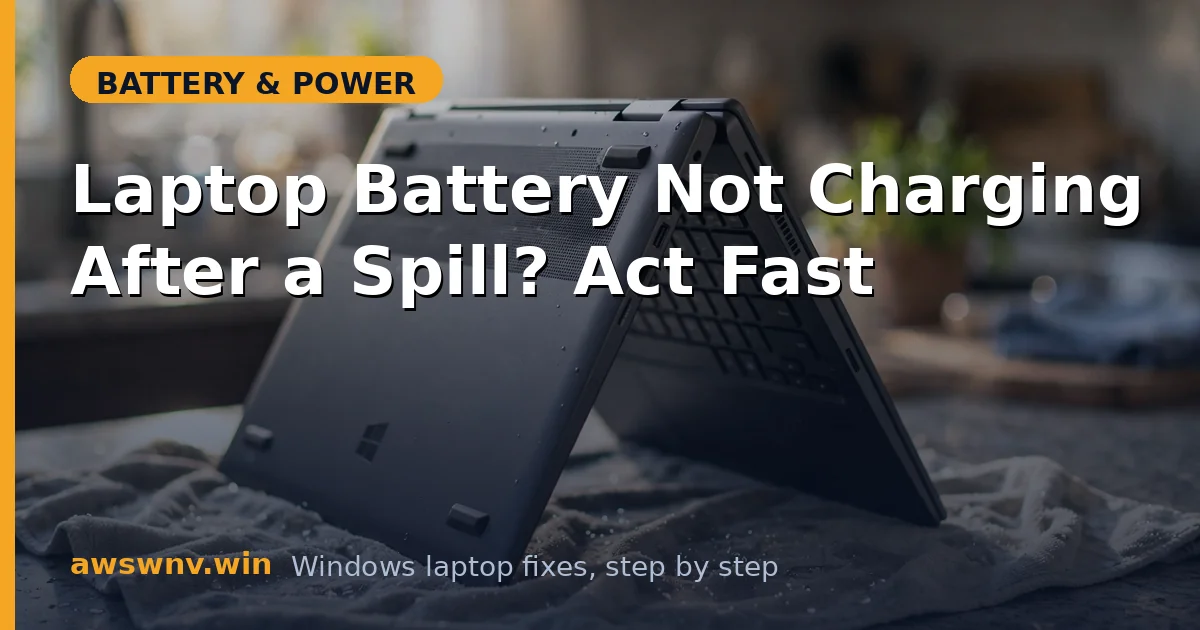
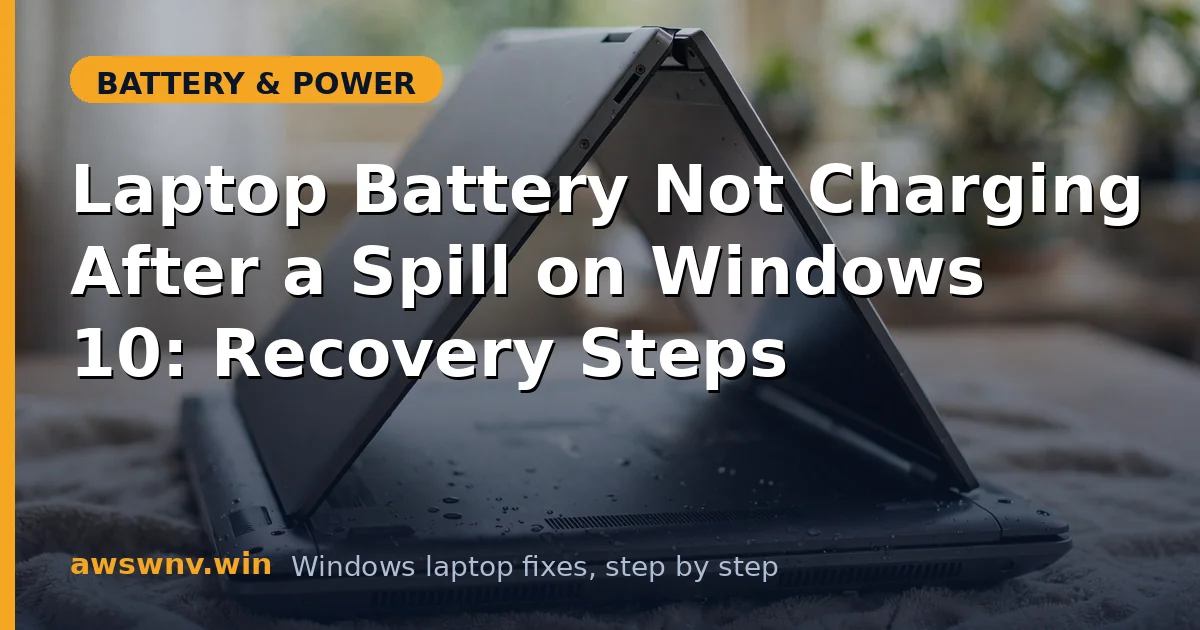
- Flip the laptop upside down in an inverted-V (“tent”) position so liquid drains out instead of pooling on the motherboard.
- Blot visible liquid with a lint-free cloth — don’t wipe it deeper into the keyboard.
Fix 2: Dry it properly for 48–72 hours
- Keep the laptop tented or open in a dry, ventilated room with a fan blowing across it.
- Do NOT use a hair dryer on hot — heat warps keycaps and drives moisture deeper. Cool air only, if any.
- Do NOT put it in rice — use silica gel packets around it if available.
- Wait a full 48 hours for water, 72+ for coffee/soda/juice. Set a timer. Don’t “just check quickly” — that quick check is what kills boards.
- More spill-recovery detail is in laptop battery not charging after spill — the deep-dive companion to this emergency guide.
Fix 3: Inspect and clean the battery contacts
- After drying, if the battery is removable, inspect its contacts and the laptop’s battery bay for white/green corrosion or sticky residue.
- Clean contacts with a cotton swab lightly dampened with 90%+ isopropyl alcohol, then let dry completely.
- For internal batteries (only if comfortable opening the chassis): disconnect the battery cable, inspect both sides of the connector, clean with isopropyl, and reconnect firmly.
- Never use water or household cleaners on contacts.
Fix 4: Try charging with the battery removed
- With the battery out (or disconnected), plug in AC only and try to boot.
- If it boots and runs on AC, the motherboard survived and the problem is isolated to the battery or its connector.
- If it doesn’t boot on AC either, the spill reached the power circuitry — that’s a professional repair, not a DIY fix.
Fix 5: Reset the charging system
- Once fully dry, perform the EC reset: unplug everything, hold power for 30 seconds.
- Reconnect the battery, then AC, and boot.
- In Device Manager > Batteries, uninstall Microsoft ACPI-Compliant Control Method Battery and restart so Windows rebuilds the driver stack clean.
- Check Settings > System > Power & battery for charging status.
Fix 6: Deep-clean sugary residue
- If the spill was soda, juice, or sweetened coffee, surface drying isn’t enough — sugar residue stays conductive.
- This means opening the chassis and cleaning the affected board area with 90%+ isopropyl alcohol and a soft brush.
- If you’re not comfortable with disassembly, take it to a repair shop and tell them exactly what spilled and when — that information saves them diagnostic time and you money.
- Be honest with the shop: “cola, 3 days ago, I waited before powering on” gets you a better outcome than a mystery.
Fix 7: Replace the battery if the pack itself is damaged
- If the motherboard charges fine on AC but the battery won’t take charge after cleaning, the pack’s protection circuit likely tripped or its terminals corroded.
- Order a genuine replacement for your exact model.
- Dispose of the damaged battery properly — don’t throw lithium packs in the trash; use a battery recycling point.
- If the old battery shows any swelling from the incident, follow the swollen battery safety guide — heat plus damage is the risky combination.
Fix 8: Decide whether the laptop is worth saving
- After the spill, be honest about the machine’s value: a 6-year-old budget laptop with motherboard damage may not justify a $200+ board repair.
- Get a repair quote before authorizing work — reputable shops diagnose spill damage for a small fee and tell you plainly if it’s uneconomical.
- If the laptop is dead but the drive survived, your data isn’t lost: the SSD/HDD can be removed and read via a USB enclosure on another computer.
- For the future, a silicone keyboard cover and a “no drinks within elbow range” rule are the cheapest spill insurance ever invented.
Closing
Spill recovery is a race between drying and corrosion, and patience wins it. Power off fast, dry long, clean the contacts, and most “not charging after spill” cases come back to life. The laptops that don’t are almost always the ones someone powered on “just to check” on day one.