A keyboard that will not type is uniquely paralyzing — every fix seems to need the keyboard you do not have. But the diagnosis does not: the on-screen keyboard (Win+Ctrl+O) covers input needs, and the fault splits cleanly into scope questions. All keys dead points at drivers, settings, or the whole keyboard; some keys dead points at the keyboard matrix or debris; USB keyboard works points away from Windows entirely.
This guide runs that diagnosis first, then the fixes in order: the settings traps, the driver layer, the BIOS, and finally the hardware. Keep the on-screen keyboard handy and work top to bottom.
Why this happens
- Filter Keys enabled accidentally, swallowing keystrokes.
- Keyboard driver corrupted or blocked by a bad filter driver.
- Chipset driver failed, breaking the keyboard’s bus interface.
- Keyboard disabled in Device Manager or by a utility.
- Liquid damage or debris killing individual keys or zones.
- Ribbon cable loose after drops or battery swelling.
- Third-party keyboard utilities intercepting all input.
- BIOS-level failure where even firmware setup gets no keys.
How to fix it
Work through these in order — diagnose first, then act.
Fix 1: Scope the fault with a USB keyboard
Plug in a USB keyboard (or open the on-screen keyboard with Win+Ctrl+O for navigation). If the USB keyboard types fine, Windows’ input stack is healthy and the fault is the laptop’s keyboard hardware or its driver — continue with this guide. If the USB keyboard also fails, the problem is OS-level: jump to the driver and settings fixes. Also note exactly which keys fail on the laptop keyboard: everything dead versus a dead zone tells hardware from software later. The keyboard troubleshooting hub organizes these branches.
- Plug in a USB keyboard and test typing.
- USB works = laptop keyboard/driver fault; continue here.
- USB fails too = OS-level fault; focus on drivers/settings.
- Note whether all keys or only some keys fail.
Fix 2: Turn off Filter Keys and Sticky Keys
Open Settings > Accessibility > Keyboard (navigate with the on-screen keyboard or USB keyboard) and turn off Filter Keys, Sticky Keys, and Toggle Keys. Filter Keys is the notorious one — holding the right Shift for eight seconds enables it via a popup, and then keystrokes feel dead or delayed. This single settings page resolves a remarkable number of ‘keyboard stopped working’ reports with zero driver involvement. Also dismiss any stuck Ease of Access prompts that may be intercepting input. Microsoft’s keyboard guidance is in the Windows support hub .
- Open Settings > Accessibility > Keyboard.
- Turn off Filter Keys, Sticky Keys, and Toggle Keys.
- Dismiss any accessibility popups intercepting keys.
- Test typing immediately.
Fix 3: Reinstall the keyboard and chipset drivers
In Device Manager, uninstall the keyboard device (Standard PS/2 Keyboard or HID Keyboard Device) and reboot — Windows rediscovers it. If that fails, the deeper fix is the chipset driver: the keyboard’s controller lives on the platform bus, so reinstall the chipset driver from the laptop maker’s support page for your exact model. Also check Human Interface Devices for flagged entries from keyboard utilities and uninstall those. Function-key-specific failures have their own diagnostics in the function-key guide .
- Uninstall the keyboard device in Device Manager and reboot.
- Reinstall the chipset driver from the laptop maker.
- Clear flagged HID entries from keyboard utilities.
- Test the laptop keyboard after each step.
Fix 4: Remove interfering keyboard software
Third-party tools that hook the keyboard — AutoHotkey scripts, PowerToys Keyboard Manager, gaming macro software, some VPN clients’ filters — can swallow all input when they malfunction. Boot into Safe Mode: if the keyboard works there, a startup program is the culprit. Use msconfig to clean-boot, re-enabling items in halves until the keyboard dies again — the last enabled half contains the offender. Uninstall or update it. This binary search takes twenty minutes and definitively identifies software interference.
- Boot into Safe Mode and test the keyboard.
- If it works there, clean-boot with msconfig.
- Re-enable startup items in halves to find the offender.
- Uninstall or update the interfering software.
Fix 5: Test in the BIOS
Reboot and try the keyboard in the BIOS/UEFI setup — navigate menus, change a harmless setting. Keys working in the BIOS but not Windows convicts the Windows driver stack: return to Fix 3 and also try System Restore to before the failure. Keys dead in the BIOS too means the fault is at or below the firmware: the keyboard hardware, its cable, or the embedded controller. No Windows reinstall fixes a keyboard the BIOS cannot see, so this test decides whether software effort continues.
- Reboot into the BIOS/UEFI setup.
- Test navigation keys in the BIOS menus.
- Works in BIOS = Windows software fault; revisit drivers.
- Dead in BIOS = hardware or embedded-controller fault.
Fix 6: Clean under the keys and check for damage
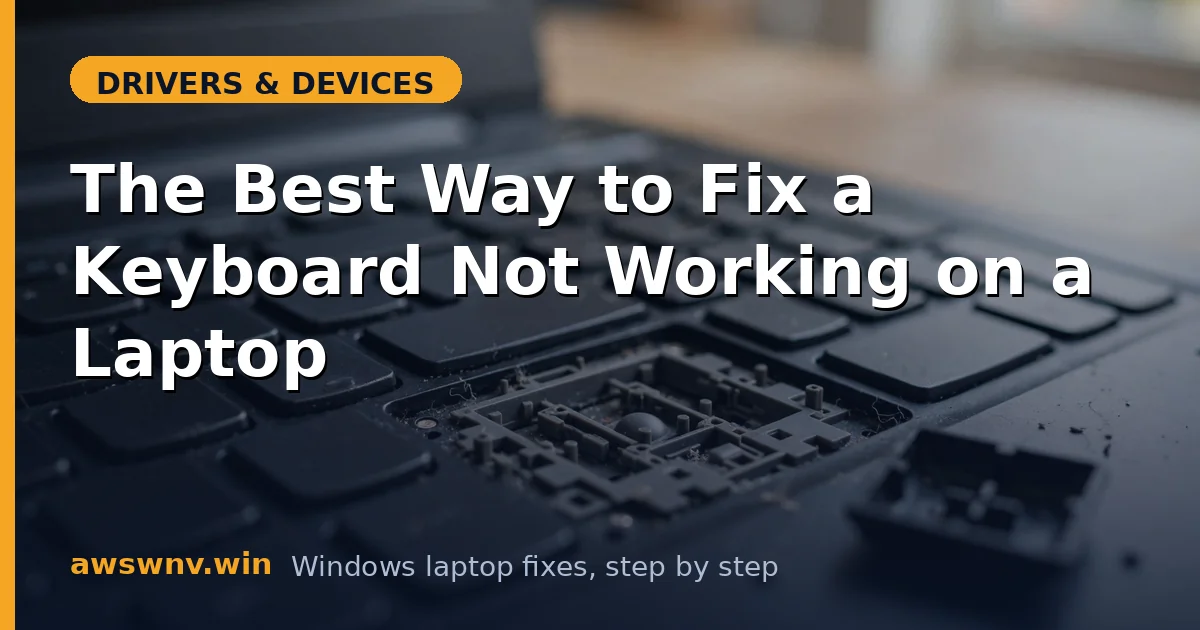
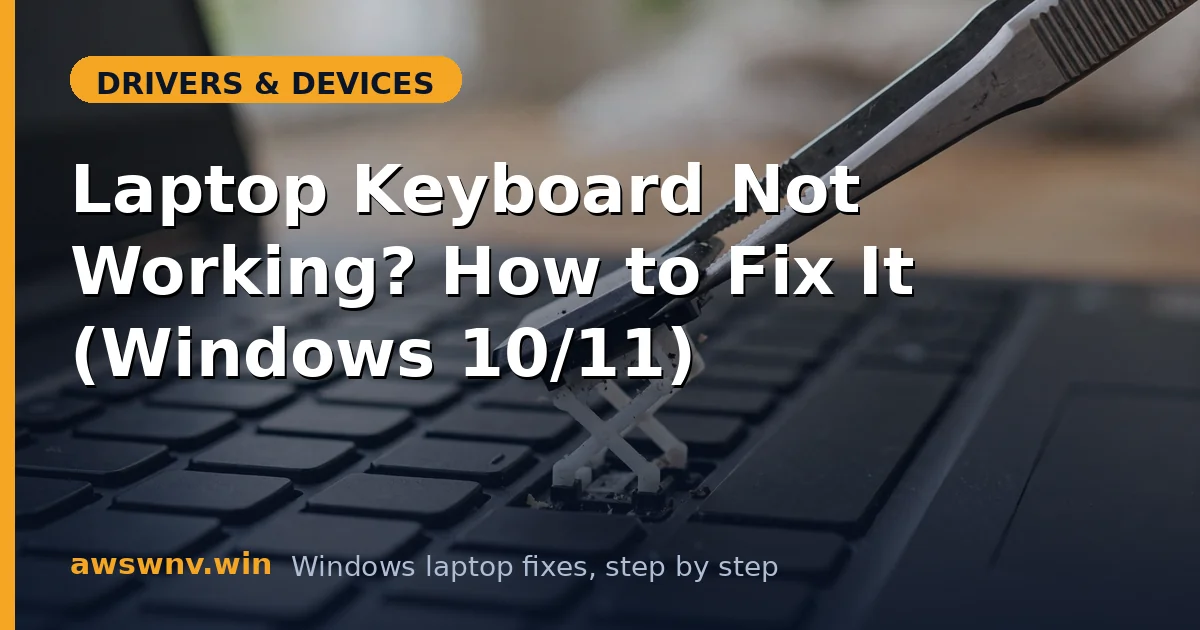
For partial failures — specific dead keys or a dead zone — power down and inspect. Pop off a suspect keycap gently and look for debris, crumbs, or corrosion; clean with compressed air and a dry swab. Consider liquid history honestly: even a small spill months ago corrodes the matrix traces progressively. If a whole row or column is dead, the matrix trace for that line is broken — sometimes repairable by cleaning the ribbon connector, usually requiring keyboard replacement. The step-by-step keyboard guide details keycap removal per type.
- Power down and pop off a suspect keycap carefully.
- Clear debris and clean contacts with dry air/swab.
- Note row/column patterns indicating matrix damage.
- Consider any liquid-spill history.
Fix 7: Reseat the cable or replace the keyboard
For a fully dead laptop keyboard that fails the BIOS test, the ribbon cable connecting it to the board is the next check — drops and battery swelling loosen it. Opening the bottom cover to reseat the cable is moderate difficulty; HP, Lenovo, and Dell publish service manuals per model. If reseating fails, the keyboard itself is bad: replacement keyboards are model-specific and inexpensive, though some ultrabooks fuse the keyboard into the top case (making it a bigger job). Get a quote before ordering — a shop replaces most laptop keyboards in under an hour.
- Open the bottom cover per the model’s service manual.
- Reseat the keyboard ribbon cable firmly.
- Test before reassembling fully.
- Replace the keyboard or get a repair quote.
Closing
Keyboard failures reward the scope-first diagnosis: the USB keyboard test splits Windows from hardware in seconds, the BIOS test splits drivers from the keyboard itself, and the all-keys versus some-keys question splits settings from matrix damage. Most ‘dead keyboard’ cases are Filter Keys, a wedged driver, or a meddling utility — all software, all fixable without parts. The hardware cases announce themselves clearly (dead in BIOS, dead zones, spill history) and have a fixed remedy in the cable or the replacement keyboard. Keep the on-screen keyboard shortcut (Win+Ctrl+O) memorized; it turns a keyboard emergency from a crisis into a methodical repair.