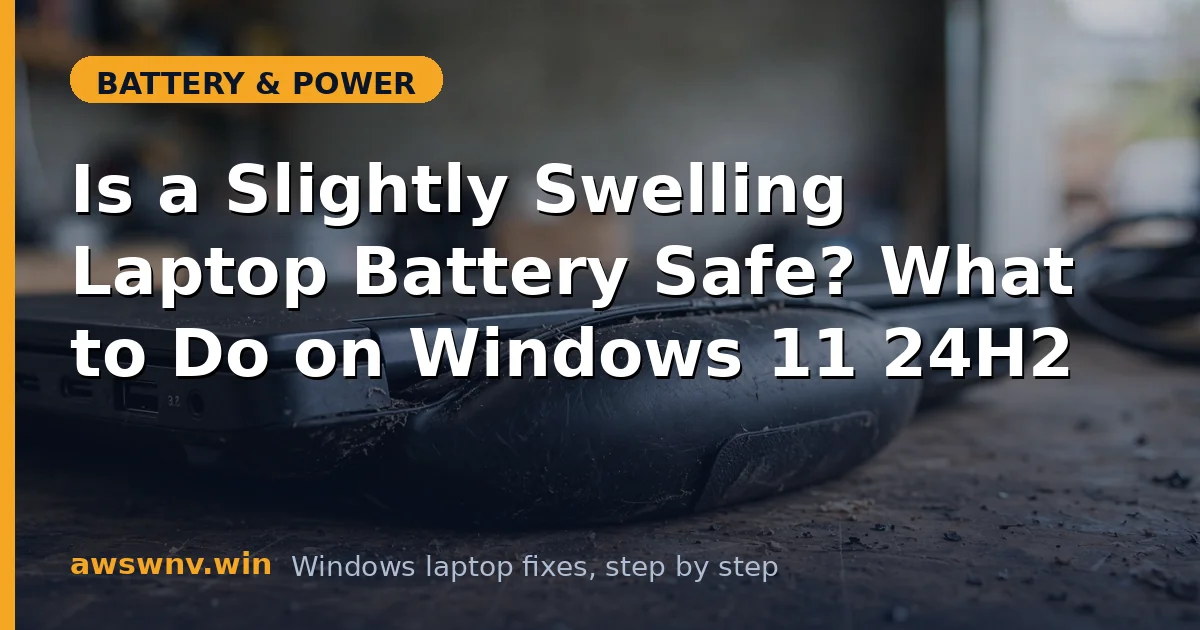
If your laptop’s bottom panel is starting to bulge, the trackpad feels raised, or the case no longer sits flat on the desk, your battery is swelling. “Slightly” swollen is still swollen — and while this isn’t a reason to panic, it is a reason to act promptly and carefully. Here’s what’s happening inside the pack, what’s safe, what isn’t, and how to get back to a normal laptop.
First, the reassurance: a mildly swollen battery in a powered-off, unplugged laptop sitting on a desk is not about to explode. The danger comes from heat, charging, puncture, or crushing. So the plan is simple — stop stressing the battery, back up your data, and replace the pack.
Why this happens
- Electrolyte breakdown releases gas. As lithium cells age or overheat, the electrolyte decomposes and releases gases (mostly CO₂ and other compounds) that inflate the sealed pouch. This is the swelling you see.
- Chronic heat accelerates it. Laptops that run hot — blocked vents, heavy gaming on soft surfaces, always-on charging at 100% in warm rooms — age their batteries far faster.
- Overcharging and deep discharges. Keeping a lithium battery pinned at 100% for months, or repeatedly draining it to zero, stresses the chemistry and speeds gas generation.
- Manufacturing defects. Occasionally a cell has an internal flaw from the factory. This is why swelling sometimes appears in relatively young batteries, and why manufacturers often replace them under warranty.
- Physical damage. A drop or crush can damage a cell’s internal layers, triggering slow swelling days or weeks later.
- Age. All lithium batteries degrade. After 3–5 years, some degree of swelling risk is simply part of the chemistry’s end of life.
How to fix it
There is no repair for a swollen battery — only safe handling and replacement. Work through these in order.
Fix 1: Assess the severity right now
Stay calm and look closely.
- Power the laptop down completely — hold Shift while clicking Shut down to do a full shutdown.
- Unplug the charger and every peripheral.
- Look at the bottom panel, keyboard deck, and trackpad. Slight swelling: a gentle bulge, case still closes. Severe swelling: gaps in the seams, trackpad popped up, screen hinge strained, or any hissing/smell.
- If you notice a sweet chemical smell, hissing, or heat — move the laptop to a non-flammable surface (tile, concrete, a metal tray) away from anything burnable, and don’t touch the battery area.
- For severe cases, skip the DIY steps and contact the manufacturer or a professional repair shop today.
Fix 2: Back up your data immediately
Do this before anything else, while the machine still works.
- If the swelling is slight and the laptop still powers on, boot it on charger power just long enough to copy your important files to an external drive or cloud storage.
- Don’t run a full system image or lengthy backup that heats the machine — grab documents, photos, and work files first.
- Verify the backup opens on another device.
- Then shut down and unplug. Every charge cycle on a swollen pack adds risk for zero benefit.
Fix 3: Stop charging and store it safely
A swollen battery should not be charged, period.
- Do not plug in the charger “just to check” — charging a swollen pack is the single riskiest thing you can do.
- Store the laptop powered off in a cool, dry place on a non-flammable surface.
- Keep it away from direct sunlight, radiators, and anything that could press on the swollen area. Don’t stack things on top of it.
- If the battery is removable (older business laptops, some gaming models), you may remove it and store the laptop and battery separately — but only if removal doesn’t require prying against the swollen cells. When in doubt, leave it assembled.
Fix 4: Check warranty and manufacturer options
Swelling is often covered even outside the standard battery warranty.
- Find your serial number (usually on a bottom sticker or in BIOS) and check warranty status on Dell Support , HP Support , or Lenovo Support .
- Many manufacturers treat swelling as a safety issue and replace the battery free or at reduced cost, sometimes beyond the normal warranty period — always ask.
- If covered, follow their process: they may send a technician, issue a mail-in box, or direct you to an authorized service center. Don’t attempt a self-repair that would void remaining coverage.
- If out of warranty, get a quote from the manufacturer and from a reputable local repair shop for comparison.
Fix 5: Get the battery replaced professionally
This is the actual fix — everything else is preparation.
- Insist on a genuine or manufacturer-approved replacement pack. Cheap third-party batteries are the most common source of repeat swelling.
- Professional replacement is strongly recommended for internal (glued-in) batteries — technicians have the tools and ESD-safe procedures to remove swollen pouches without puncturing them.
- After replacement, the technician should verify the new pack charges and the system reports it correctly. Run
powercfg /batteryreportyourself to confirm healthy capacity numbers. Our guide on checking battery health shows what good numbers look like. - Ask about the old pack’s disposal — reputable shops recycle through proper e-waste channels.
Fix 6: Prevent it happening to the replacement
New battery, new habits.
- If you mostly use the laptop plugged in, enable a charge limit (usually 80%) in the manufacturer’s app — Dell Power Manager, Lenovo Vantage, MyASUS, or HP BIOS settings. Less time at 100% means less electrolyte stress. See how to limit battery charge to 80% .
- Keep vents clear and avoid using the laptop on beds and couches where heat builds up. If it runs hot while charging, our article on laptops overheating while charging can help.
- Don’t store the laptop fully charged in a hot car or attic — heat plus full charge is the worst combination for swelling.
- Replace batteries proactively around the 3–4 year mark if the laptop is a daily driver.
Closing
A slightly swollen battery is your laptop’s way of asking for retirement of that pack — not an emergency, but not something to ignore either. Back up, power down, stop charging it, and get a genuine replacement fitted. Handle it calmly and methodically, and this becomes an uneventful repair rather than a horror story. And with better charging habits, the next battery will last longer than this one did.