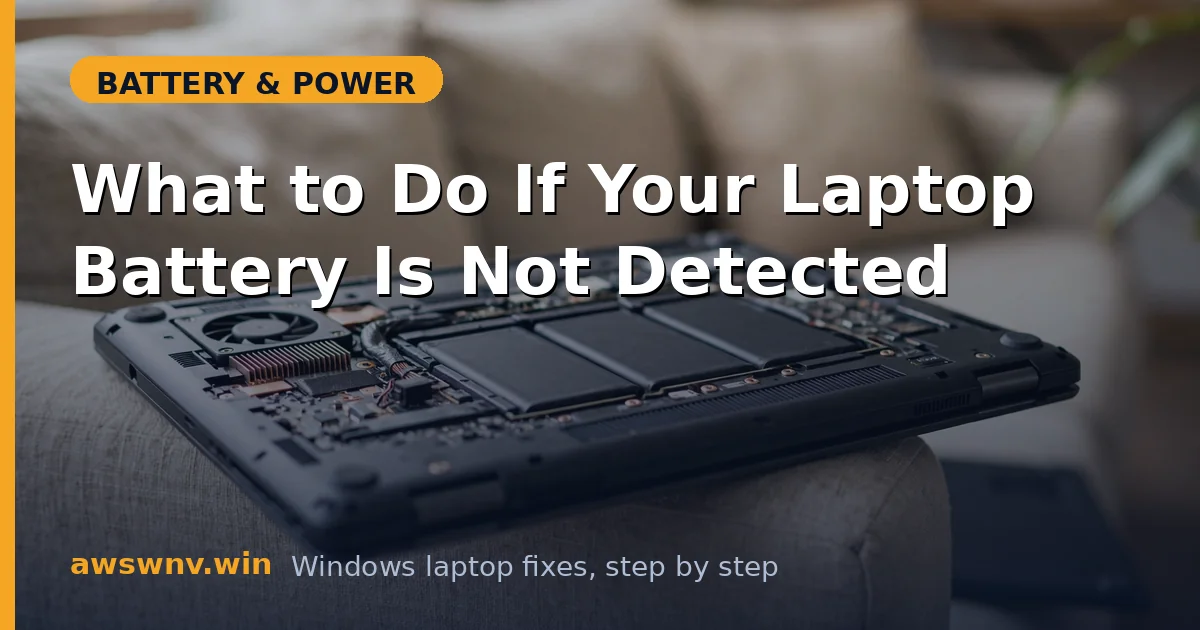
“No battery is detected” is Windows telling you the conversation with the battery pack has gone completely silent. Not “the battery is weak,” not “it’s not charging” — the system can’t see it at all. That sounds alarming, but the causes form a short list: a crashed embedded controller, a corrupted battery driver, a loose or dirty connector, a BIOS glitch, or a pack whose internal electronics have given up. Four of those five are fixable without spending money.
The key discipline here is to work from the least invasive fix upward and to test after each step, because “battery not detected” is one of those problems where the first or second fix resolves it most of the time. If your machine also only works when plugged in , these two guides overlap — start here for the detection side.
Why this happens
- Embedded controller crash: The EC manages battery communication; when it locks up, the battery vanishes from Windows until reset.
- Corrupted ACPI battery driver: A bad driver update (or a botched Windows update) breaks the software path to the battery.
- Loose or dirty connector: Vibration and thermal cycling can walk a battery connector loose over years; oxidation on contacts breaks the data lines.
- BIOS/UEFI glitch: Firmware updates can occasionally break battery detection until a subsequent update or a settings reset fixes it.
- Deeply discharged protection: A pack drained to absolute zero can take a long trickle charge before its electronics wake up enough to identify themselves.
- Dead pack electronics: The fuel-gauge board inside the battery can fail outright, especially after physical shock or liquid exposure.
How to fix it
Work through these in order — stop and test after each one.
Fix 1: Perform a full power drain (EC reset)
The highest-success first step for this exact symptom.
- Shut the laptop down completely and unplug the charger and all peripherals.
- If the battery is removable, take it out; if internal, leave it in place.
- Press and hold the power button for a full 30 seconds — you’re draining residual power and forcing the embedded controller to cold-boot.
- Reconnect everything (battery first, then charger), power on, and check the taskbar battery icon.
- Give it a minute after boot — battery detection sometimes takes 30-60 seconds to appear after an EC reset.
Fix 2: Reinstall the battery drivers
Clear any corrupted driver state.
- Open Device Manager, expand Batteries, and right-click Microsoft ACPI-Compliant Control Method Battery.
- Choose Uninstall device and confirm. If you see multiple battery entries, uninstall them all.
- Shut down the laptop fully (not restart), wait 30 seconds, then power on with the charger connected.
- Windows will redetect the battery hardware and reinstall fresh drivers during boot.
- Check Device Manager again — the battery entry should be back with no warning icon, and the taskbar should show the battery.
Fix 3: Reseat the battery connection
Fix the physical layer.
- Power off, unplug, and remove the battery if it’s externally removable — inspect the contact pads for dirt or corrosion and wipe with a dry cloth.
- For internal batteries: remove the bottom panel, locate the battery cable connector on the motherboard, and carefully disconnect it.
- Wait a full minute with it disconnected (this also power-cycles the pack’s internal electronics), then reconnect it firmly until it seats completely.
- Reassemble, plug in, and boot — check for battery detection.
- While you’re in there, look for any swelling or deformation of the pack; a swollen battery is a safety replacement, not a reseat.
Fix 4: Trickle-charge a deeply discharged pack
A battery drained to zero can be too “asleep” to identify itself.
- With the laptop powered off, plug in the original charger and leave it connected for at least 2-3 hours without touching the power button.
- Some packs need this long offline charge before their protection circuit allows the fuel gauge to wake up and talk.
- After the wait, power on while still plugged in and check for detection.
- If it appears but shows 0% and “not charging,” leave it charging powered-off for several more hours — some packs recover from deep discharge slowly.
- If it never wakes up after an overnight charge, the cells are likely beyond recovery.
Fix 5: Update or roll back the BIOS
Firmware sits between Windows and the battery.
- Check your manufacturer’s support site for a newer BIOS/UEFI than what’s installed — battery detection fixes appear in changelogs more often than you’d expect.
- If the problem started immediately after a BIOS update, look for a BIOS rollback option (many Dells, HPs, and Lenovos allow flashing the previous version).
- As a lighter step, enter BIOS setup and choose Load Setup Defaults / Restore Defaults — a corrupted battery-related setting can block detection.
- Save, exit, boot into Windows, and recheck.
- Only update BIOS on AC power with a charged-or-connected battery state, and don’t interrupt the flash.
Fix 6: Check for the battery in BIOS itself
Determine whether it’s a Windows problem or a hardware problem.
- Reboot into BIOS/UEFI Setup (F2, F1, Del, or Esc depending on brand).
- Look for a battery status page — most BIOSes show battery health, charge level, or at least “battery installed.”
- If the BIOS sees the battery but Windows doesn’t, the problem is software-side: drivers or Windows itself — consider a Windows update check or, as a last resort, a repair install.
- If the BIOS doesn’t see it either after all the resets and reseats above, the pack’s electronics or the motherboard connection have failed.
- This BIOS check saves you from reinstalling Windows for a hardware problem, or replacing a battery for a software problem.
Fix 7: Test with a known-good battery or replace
The final verdict.
- If you can borrow an identical battery (same model number), test it — detection of the loaner proves your pack is dead; no detection points at the motherboard connector or charging circuit.
- Without a loaner, weigh the evidence: no detection in BIOS + no response to resets + no physical damage visible = dead pack electronics in most cases.
- Order a replacement matching the exact battery model number from the label, from a reputable source — avoid the cheapest no-name packs.
- After installing, charge to 100% uninterrupted and verify detection plus normal charge/discharge behavior.
- For the full replacement walkthrough, see how to replace a laptop battery . Microsoft’s hardware troubleshooting reference is at Microsoft Support .
Closing
“Not detected” feels terminal, but it’s usually a communication breakdown — a crashed controller, a sulking driver, or a connector that needs reseating — rather than a dead battery. Work the list patiently, use the BIOS check to separate software from hardware, and you’ll know exactly which one you’re dealing with instead of buying parts on hope.