USB-C was supposed to simplify charging — one connector for everything. In practice, laptop USB-C charging is a negotiation between three parties (charger, cable, laptop), and if any one of them doesn’t speak the right dialect of Power Delivery, nothing happens. The laptop sits there, plugged in via USB-C, completely ignoring the power.
The frustrating part is how silent the failure is: no error, just no charging. Let’s make the negotiation succeed.
Why this happens
- Non-PD charger — the brick doesn’t support USB-C Power Delivery at all.
- Underpowered charger — below the laptop’s minimum wattage, so it’s rejected.
- Wrong cable — data-only or low-wattage cable that can’t carry PD negotiation.
- Wrong port — plugged into a data-only USB-C port instead of the charging port.
- Dock or hub in the middle — interfering with PD negotiation or siphoning power.
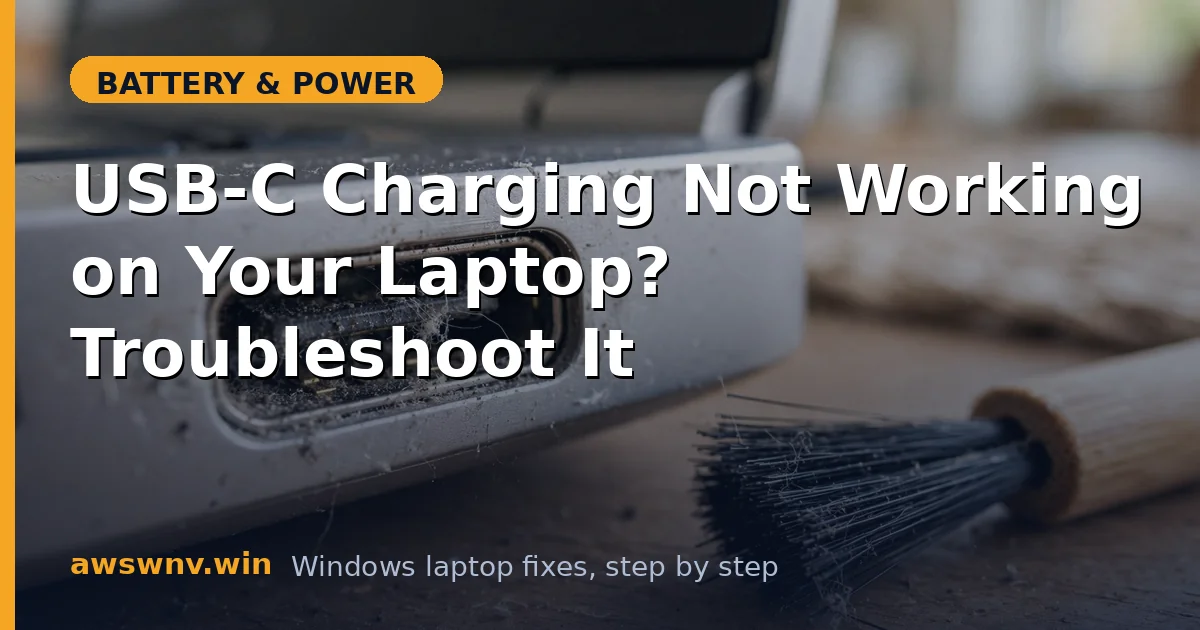
- Dirty or damaged USB-C port — lint preventing full pin contact.
- Driver or EC glitch — the power controller stuck in a bad state.
How to fix it
Work through these in order — the chain is only as strong as its weakest link.
Fix 1: Use the correct port
Not all USB-C ports are equal:
- Look for a battery/charging symbol or Thunderbolt/lightning symbol next to the ports — that’s your charging port.
- Check your laptop’s manual if the symbols are unclear; manufacturers document which ports accept power.
- Try each USB-C port in turn — on some machines the charging port is the only one that works, and it’s not always the obvious one.
If you’ve been using the same port for data accessories, you may simply have never tried the charging-capable one.
Fix 2: Get a proper USB-C PD charger with enough wattage
This is the most common failure point:
- Check your laptop’s required wattage — it’s on the original charger, near the charging port, or in the specs (common values: 45W, 65W, 90W, 100W).
- Buy a USB-C PD (Power Delivery) charger rated at or above that wattage. “USB-C charger” without the PD label isn’t enough.
- Avoid phone chargers (18-30W) — the laptop will likely reject them or charge at a trickle.
A quality 65W or 100W GaN PD charger covers most thin-and-light laptops and many larger ones. Match or exceed; never go below the requirement.
Fix 3: Use a PD-rated cable
The cable is an active participant in PD negotiation:
- Use a cable explicitly rated for USB-C PD at your wattage — for 60W+ charging, look for 100W-rated cables with the proper markings.
- Try the cable that came with your PD charger, or a known-good thick cable — thin, flimsy cables are usually phone-grade.
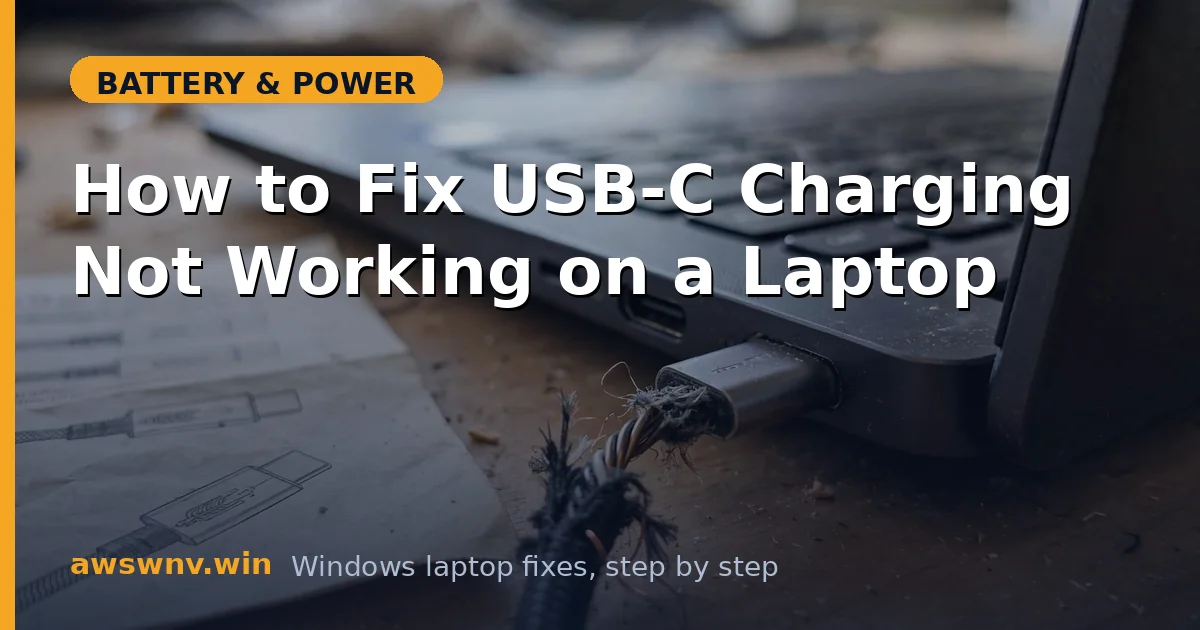
- Test a different cable even if yours “looks fine” — internal wire breaks are invisible.
If you’re using a USB-C cable from a phone box, that’s very likely your problem.
Fix 4: Remove docks and hubs from the chain
Plug the charger directly into the laptop:
- Disconnect any USB-C dock, hub, or adapter.
- Connect the PD charger straight to the charging port with a PD cable.
- If charging works directly, the dock was the problem — it may need its own firmware update, a higher-wattage power supply, or it simply doesn’t pass through enough power.
Docks are convenient but they’re a common PD negotiation failure point, especially cheaper ones.
Fix 5: Clean the USB-C port
USB-C ports are lint traps:
- Power off and unplug everything.
- Shine a light into the port and look for packed lint at the bottom.
- Gently tease it out with a wooden toothpick — never metal.
- A short burst of compressed air (can upright) finishes the job.
Even a small amount of debris can prevent the pins from seating fully, which breaks PD negotiation while leaving data connections working — a confusing combination.
Fix 6: Reset the power controller
If the hardware chain is correct but charging won’t start:
- Shut down fully, unplug the charger and all USB-C devices.
- Hold the power button for 30–60 seconds.
- Reconnect the PD charger directly and power on.
This resets the EC that handles PD negotiation. Also try reinstalling the battery drivers (Device Manager > Batteries > uninstall Microsoft ACPI-Compliant Control Method Battery, restart) — our charger detection guide covers this in detail.
Fix 7: Check what Windows reports
Plug in and observe precisely what Windows says:
- Click the battery icon — “Plugged in” without charging vs. no detection at all are different problems.
- Go to Settings > System > Power & battery and check the charging status.
- Run
powercfg /batteryreportand look at recent history for charge rate data.
“Plugged in, not charging” with a correct PD setup can indicate a charge limiter is active — check your vendor app. No detection at all points back to the charger/cable/port chain. And if the charger is detected but the percentage still falls while plugged in, that’s a battery draining while plugged in issue — related, but with its own causes.
Fix 8: Update BIOS and PD controller firmware
PD negotiation is firmware-driven, and manufacturers fix compatibility bugs:
- Check your manufacturer’s support site for BIOS updates mentioning USB-C, PD, or charging.
- Some docks and chargers have their own firmware — check the dock maker’s site too.
- Install the latest chipset drivers, which handle the USB-C controller communication.
If a specific charger brand never works while others do, a firmware update is often what finally resolves the incompatibility.
Closing
USB-C charging failures are chain problems — charger, cable, and port must all agree on Power Delivery, and any weak link silently kills the whole thing. Verify each link deliberately: the right port, a true PD charger at sufficient wattage, a PD-rated cable, no dock in the middle. Once the chain is correct, USB-C charging is as reliable as any barrel connector — it just demands more respect for the specs.
Label your cables once you sort this out — a small piece of tape marked “100W PD” on your good laptop cable saves future confusion, since USB-C cables all look identical and the wrong one will silently fail you again the next time you grab blindly from a drawer.