Maybe you never use AI assistants. Maybe your workplace forbids them. Or maybe you just want a leaner system without another background app. Whatever the reason, removing Copilot from Windows 11 is straightforward — because Microsoft turned it into a regular Store app, it uninstalls like one.
There is a difference between uninstalling the app and disabling the whole Copilot experience. Uninstalling removes the app; the Copilot key and taskbar entry may linger until you handle them too. If you only want the physical key gone, our guide on disabling the Copilot key is the lighter touch. And if Copilot is misbehaving rather than unwanted, consider fixing it first — a quick repair often resolves crashes or freezes without losing anything. But if you are sure you want it gone, here is how to remove it cleanly and keep it removed.
Why this happens
- Never used: Many users simply do not want an AI assistant and prefer the disk space and RAM back.
- Workplace policy: Some employers prohibit AI assistants on company machines for data reasons.
- Privacy preference: Users uncomfortable with cloud AI features choose to remove the app.
- Accidental key presses: Removing the app stops the Copilot key from launching anything.
- System leanness: Debloat enthusiasts strip every non-essential app as a matter of principle.
- Troubleshooting step: A clean uninstall is also the deepest reset when the app is badly broken.
How to fix it
Work through these in order — diagnose first, then act.
Fix 1: Uninstall via Settings (the standard way)
The normal, supported removal path.
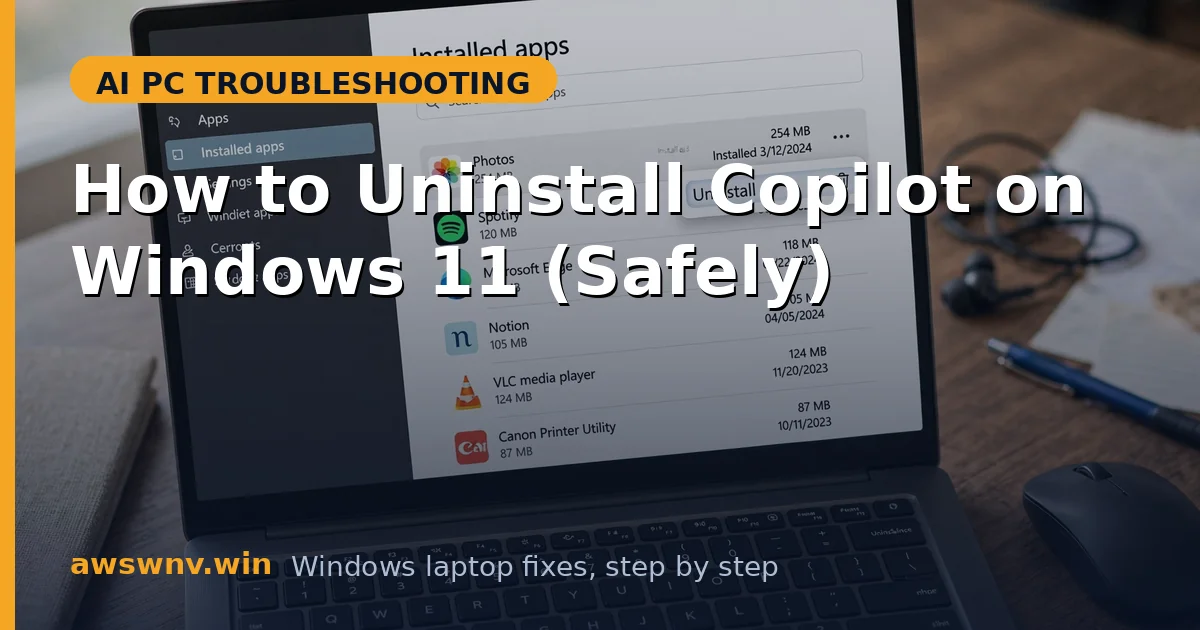
- Open Settings > Apps > Installed apps.
- Find “Microsoft Copilot” in the list (use the search box if needed).
- Click the three dots next to it and choose Uninstall, then confirm.
- Restart your laptop to clear any remaining background processes.
- Verify it is gone: search the Start menu for Copilot — nothing should appear.
- If the Copilot key now does nothing, that is expected. You can remap the Copilot key to something useful or leave it dead.
Fix 2: Uninstall via PowerShell (when Settings fails)
If the Settings uninstall button is greyed out or errors, PowerShell can force the removal.
- Open PowerShell as administrator (search PowerShell, right-click, Run as administrator).
- Run:
Get-AppxPackage *Microsoft.Copilot* | Remove-AppxPackage - Wait for the command to complete with no errors.
- To remove it for all user accounts on the machine, add the all-users scope:
Get-AppxPackage -AllUsers *Microsoft.Copilot* | Remove-AppxPackage. This catches copies provisioned for accounts that have never signed in. - Restart and verify Copilot is gone from Start search and Installed apps. Check all user profiles if the machine is shared.
- If PowerShell reports access denied, confirm you are running as administrator — standard users cannot remove provisioned apps. On some builds you may also need to remove the provisioned package with
Remove-AppxProvisionedPackage -Online -PackageName <name>to stop it reinstalling for new users.
Fix 3: Block it from coming back with Group Policy or registry
Uninstalling alone is sometimes undone by the next feature update. This locks the door.
- On Windows 11 Pro: press Win + R, type
gpedit.msc, and press Enter. - Navigate to User Configuration > Administrative Templates > Windows Components > Windows Copilot.
- Double-click “Turn off Windows Copilot,” set it to Enabled, and click OK.
- On Windows 11 Home: open Registry Editor and navigate to
HKEY_CURRENT_USER\Software\Policies\Microsoft\Windows\WindowsCopilot(create missing keys). - Create a DWORD value named
TurnOffWindowsCopilotand set it to 1. - Restart. Even if a future update reinstalls the app package, the policy keeps it deactivated.
Fix 4: Remove the taskbar entry and key behavior
Uninstalling the app can leave visual remnants. Clean those up too.
- Right-click the taskbar, open Taskbar settings, and turn off the Copilot toggle if it remains.
- If the Copilot key still tries to launch something, open the Copilot key assignment in Settings and unassign it.
- Alternatively, use PowerToys Keyboard Manager to map the key to “Disable.”
- Check Task Manager > Startup for any Copilot-related entries and disable them.
- After a restart, pressing the key and glancing at the taskbar should show zero Copilot presence.
- If high background CPU was your motivation, verify in Task Manager that Copilot processes are gone — our Copilot high CPU usage guide details what to look for.
Fix 5: Handle the enterprise case properly
On work machines, do this with IT, not around them.
- Check whether your machine is managed: Settings > Accounts > Access work or school.
- If managed, ask IT before removing anything — they may have compliance reasons for their configuration.
- IT admins can remove Copilot fleet-wide with provisioning packages or MDM policy rather than per-machine uninstalls.
- Document what you removed in case a future audit asks.
- Never use registry hacks to bypass policy on a machine you do not own.
- On personal machines, you are free to proceed — just keep the reinstall path in mind from the FAQ.
Fix 6: Reinstall cleanly if you change your mind
Removal is not permanent unless you want it to be.
- Open the Microsoft Store and search for “Microsoft Copilot.”
- Install it and launch from the Start menu.
- Sign in with your Microsoft account to restore chat history and settings.
- If you had set the Group Policy or registry block in Fix 3, reverse it first (set the policy to Not Configured, or delete the registry DWORD).
- Re-pin the app to the taskbar if desired.
- Test the Copilot key — reassign it to Copilot in Settings if needed.
Closing
Uninstalling Copilot is safe, quick, and reversible — it is just a Store app now, not part of Windows’ foundation. The only real trick is keeping it gone through feature updates, which the policy block handles. If you are removing it because it never worked in your country, our Copilot not available in your region guide explains the region blocks first. Whether you are decluttering, complying with policy, or just prefer your keyboard without an AI summoning key, these steps leave your system clean without breaking anything else.