When USB ports misbehave, most people start reinstalling drivers at random. A troubleshooter starts with isolation: which ports, which devices, when did it start, what changed. USB is a layered system — physical port, hub, host controller, driver, power policy — and each layer has a test that proves or clears it. This guide is the full isolation workflow, built for ports that stayed broken past the quick fixes.
Work it top to bottom. Do not skip the “obvious” steps; the obvious steps are where the answer usually hides.
Why this happens
- Host controller driver corruption: One corrupted controller driver takes down every port it manages simultaneously.
- Overcurrent trip from a bad device: A faulty peripheral can shut down a hub’s power until removal and reboot.
- Selective suspend resume failure: Ports suspended for power saving fail to wake their devices after sleep.
- Disabled hub entries: USB hubs disabled in Device Manager silently kill their downstream ports.
- Static-wedged controller: Electrical buildup locks the controller until a full power drain.
- BIOS-level USB disable: Firmware can switch off controllers or individual ports beneath Windows’ awareness.
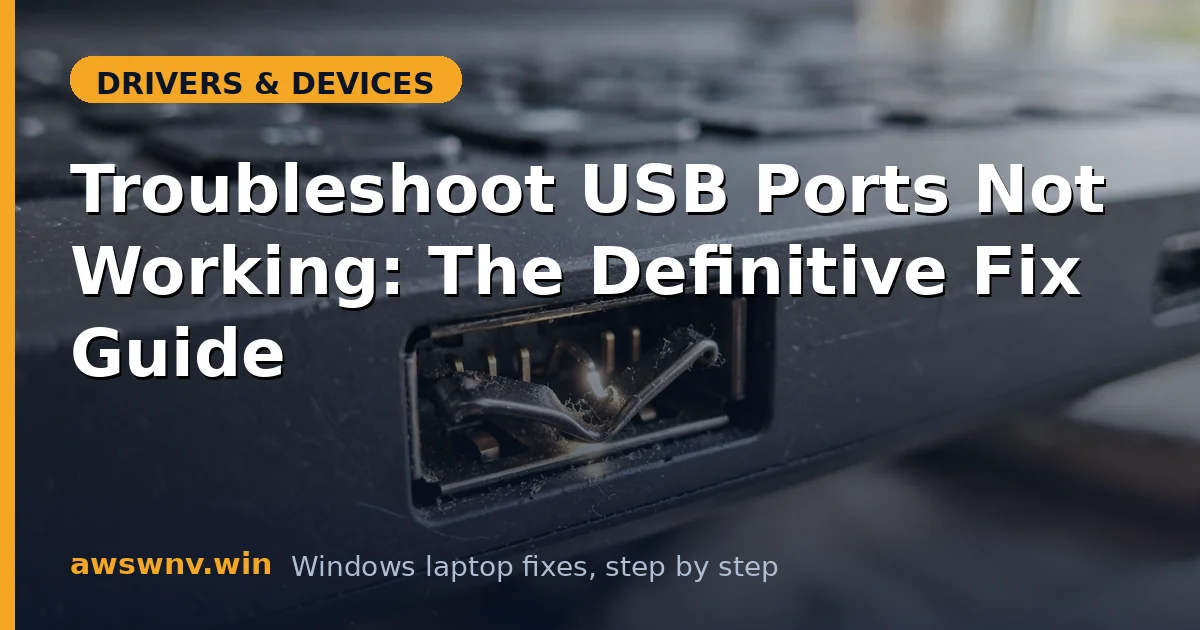
- Physical port damage: Worn or bent connectors cause single-port failures that software cannot fix.
How to fix it
Work through these in order — diagnose first, then act.
Fix 1: Map the failure precisely
Build the failure map before changing anything. Test a known-good wired mouse in every port and record which work. Then test the originally failing device in a working port. Note the timing: dead from boot, or dying after sleep? All ports or one? USB 2.0 devices, 3.0 devices, or both? This map is your diagnosis: all-ports-from-boot means controller/driver; one port means hardware or hub entry; after-sleep means power management; one device everywhere means the device. Write it down — troubleshooting from a written map beats troubleshooting from memory, and it stops you from “fixing” layers that already test clean.
Fix 2: Remove all USB devices and power drain
Unplug every USB device, including docks and hubs — a single shorted peripheral can hold a whole controller in overcurrent shutdown. Shut down fully, unplug AC, remove the battery if possible, and hold the power button 30 seconds. Boot with nothing attached, then plug in only the test mouse. If ports return, add devices back one at a time with a reboot between each; the one that kills the ports is your culprit. This step catches the surprisingly common case where the “broken ports” were actually one broken device holding the bus hostage.
Fix 3: Reinstall the USB host controllers
Open Device Manager (Win + X), expand Universal Serial Bus controllers, and uninstall every USB Root Hub, USB Host Controller, and USB xHCI entry — right-click, Uninstall device. Restart. Windows rebuilds the entire USB driver stack on boot. This is the definitive software reset for the USB subsystem and clears corruption that targeted reinstalls miss. After rebooting, confirm all controllers reappear without warnings before testing devices. If warnings persist on a controller, the chipset driver beneath it is damaged — install the manufacturer’s chipset package from Dell , HP , or Lenovo . For driver-version verification technique, see our guide on checking driver versions .
Fix 4: Disable every layer of USB power saving
Do all three: in Power Options advanced settings, set USB selective suspend to Disabled for both battery and AC; in Device Manager, uncheck “Allow the computer to turn off this device to save power” on every USB Root Hub; and in Settings, System, Power & battery, test on Best performance with AC connected. Reboot and retest, especially across a sleep cycle. Power management is the dominant cause of intermittent USB failures — ports fine at boot, dead after sleep — and partial fixes (disabling only one layer) leave the symptom alive. Our dedicated walkthrough for disabling USB selective suspend covers the registry fallback for machines where the setting will not stick.
Fix 5: Audit Device Manager for disabled and ghosted hubs
With View set to Show hidden devices, expand Universal Serial Bus controllers and look for greyed-out (disconnected) or disabled hub entries — enable anything disabled. Ghosted entries from long-removed docks can conflict with current hardware; uninstall greyed entries for devices no longer attached. Check the Events tab on suspect hubs for “device not migrated” or power errors, which are diagnostic gold. This audit catches the software-disabled hub that mimics a dead port cluster — a fault no driver reinstall fixes because the driver was never the problem.
Fix 6: Verify BIOS settings and firmware
Enter BIOS/UEFI setup and confirm USB controllers, xHCI mode, and legacy USB support are enabled; check for per-port disables on business machines. Note the BIOS version and update if the manufacturer’s release notes mention USB fixes — controller firmware rides with BIOS updates. Save, exit, and retest from a cold boot. If USB works in the BIOS (test with a keyboard in setup) but not in Windows, the fault is squarely in the Windows driver stack — valuable certainty that focuses all remaining effort correctly. Microsoft’s Windows support hub documents the OS-side USB recovery steps for reference.
Fix 7: Run diagnostics and establish the hardware verdict
Run the manufacturer’s bootable diagnostics USB tests. A port that fails diagnostics has damaged hardware — bent pins, broken solder, dead port power — and on most laptops is not economically repaired at the component level; work around it with remaining ports or a hub. All ports failing diagnostics suggests board-level controller failure, a repair-shop or warranty matter. If diagnostics pass but Windows still fails after the full software workflow, perform an in-place Windows repair install to rebuild the driver subsystem. Document every test result; a written isolation log is what turns a warranty claim from a debate into an approval.
Closing
USB troubleshooting is isolation discipline: map the failure, clear the bus, rebuild the controller stack, kill every power-saving layer, audit the hubs, check firmware, and test the hardware. Each step rules out a layer, so the fault has nowhere to hide. Run the workflow honestly and you will find the cause — usually in the software half, occasionally in a bent pin, but never again a mystery.