USB-C was supposed to make charging simple: one cable for everything. In practice, USB-C charging fails more often than the old barrel plug ever did, because the laptop, charger, and cable all have to agree on voltage and wattage before a single watt flows. When that negotiation breaks down, you get “plugged in, not charging,” painfully slow charging, or nothing at all.
The fix is a process of elimination. Most of the time the problem is the wrong charger or cable, a dirty port, or a driver glitch — not a dead motherboard. Start with the physical checks, then move into software.
Why this happens
- Underpowered charger: A phone-grade USB-C charger cannot satisfy a laptop that expects 65W or 90W of Power Delivery.
- Wrong or weak cable: Non-PD cables, or cables without an e-marker chip, cap out at low wattage and fail the handshake.
- Data-only USB-C port: Some ports physically cannot accept charge; only the port with the power icon can.
- Dirty or damaged port: Lint and bent pins inside the port break the negotiation while data pins still work.
- USB driver glitch: Corrupted USB or battery drivers in Device Manager can block charging even with perfect hardware.
- BIOS or EC setting: Some laptops disable USB-C charging in the BIOS, or need a firmware update to fix PD negotiation bugs.
How to fix it
Work through these in order — start with the cable and charger, since they cause most failures.
Fix 1: Confirm you are using the right port
Not all USB-C ports are equal on many laptops.
- Look closely at each USB-C port for a tiny battery, plug, or lightning bolt icon — that marks the charging port.
- Plug the charger into each USB-C port in turn, waiting 10 seconds each time, and watch the battery icon.
- Check your laptop’s manual or spec page for which port supports charging; some machines charge only through the left-side port.
- If none of the ports charge, move on — but note which one you will keep testing with.
Fix 2: Use a charger with enough wattage
This is the single most common cause.
- Find your laptop’s required wattage: check the original charger’s label or the spec page (common values are 45W, 65W, 90W, 100W).
- Read the label on your USB-C charger and confirm it supports USB Power Delivery (USB-PD) at or above that wattage.
- If you are using a phone charger, dock, or monitor output, check its rated output — many only supply 15–30W.
- Borrow or buy a PD charger matching your laptop’s wattage. A 65W laptop on a 30W charger may show charging but actually drain under load; see our guide on underpowered chargers for gaming laptops .
Fix 3: Swap the cable
Cables fail silently and often.
- Replace your cable with one explicitly rated for 60W or 100W USB Power Delivery with an e-marker chip.
- Keep the cable short if possible — long cheap cables drop voltage and fail negotiation.
- Test with the cable flipped over; USB-C is reversible, but one side’s contacts may be worn.
- If you have another PD-rated cable (for example from a different laptop), try it before buying anything.
Fix 4: Clean and inspect the port
Pocket lint is a classic culprit.
- Shut down the laptop and unplug everything.
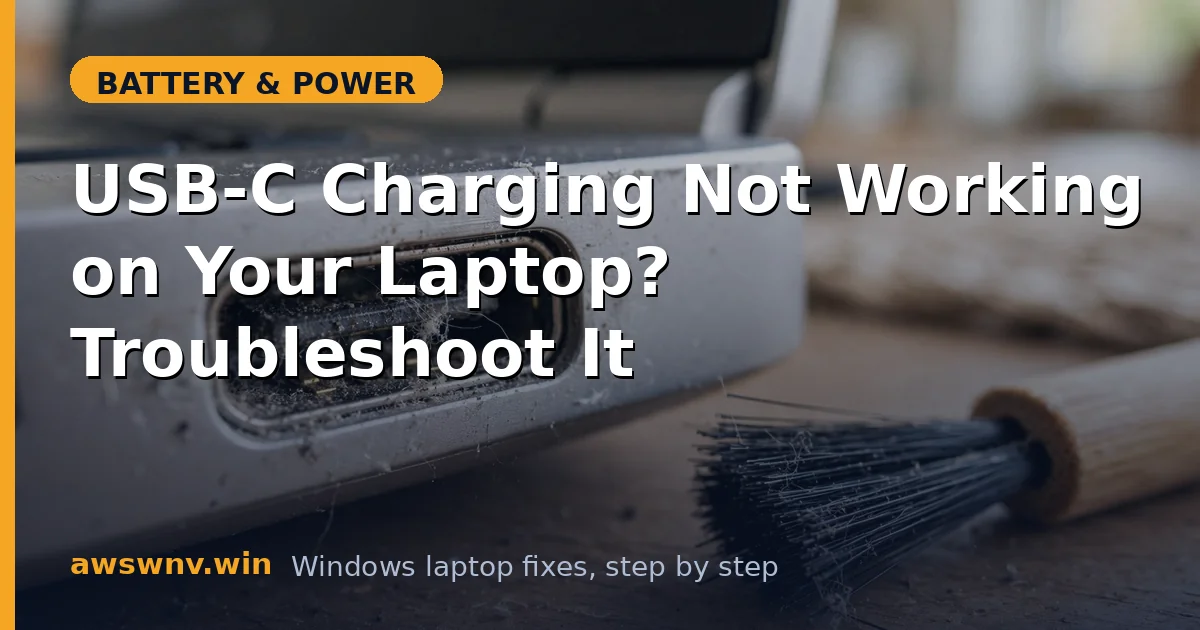
- Shine a light into the USB-C port and look for lint, dust, or bent pins.
- Gently remove debris with a wooden toothpick or a soft brush — never metal, which can short the pins.
- Blow out remaining dust with short bursts from a can of compressed air held upright.
- Plug in and test. A loose-feeling connector that wiggles side to side may indicate a worn port needing professional repair.
Fix 5: Reinstall USB and battery drivers
Software can block charging even when hardware is fine.
- Press Win + X and open Device Manager.
- Expand Universal Serial Bus controllers, right-click each USB Root Hub and USB Host Controller, and choose Uninstall device (do not delete driver software).
- Expand Batteries and uninstall Microsoft ACPI-Compliant Control Method Battery.
- Restart the laptop. Windows reinstalls all of these automatically.
- Plug in the USB-C charger after the desktop loads and check the battery icon.
Fix 6: Run a full power reset
This clears stuck charge-controller state in the embedded controller.
- Shut down the laptop completely and unplug the USB-C charger and all peripherals.
- If the battery is removable, take it out. If not, hold the power button down for 30 seconds with everything unplugged.
- Wait 2 minutes, reconnect the battery if removed, and plug the charger into the correct port.
- Power on and check whether USB-C charging has resumed.
Fix 7: Update BIOS and check BIOS settings
Firmware bugs in Power Delivery negotiation are real and get fixed in updates.
- Visit your manufacturer’s support site — Dell support , HP support , or Lenovo support — and install the latest BIOS for your exact model.
- Enter the BIOS (F2, F10, or Delete at boot depending on brand) and look for USB-C, Power Delivery, or Type-C charging options.
- Make sure USB-C charging is enabled, not disabled.
- Save, exit, and test. For a Windows 11-specific walkthrough, see fixing USB-C charging on Windows 11 .
Closing
USB-C charging problems look scary but resolve to simple causes in most cases: the wrong port, a weak charger, a tired cable, or a dirty connector. Work the list from physical to software, and test with known-good gear before assuming the laptop itself is broken. If nothing here revives charging, the port or charge controller may need a repair shop — but you will have ruled out everything cheap first.