When the fan will not quiet down, you need a method, not guesses. This guide is the systematic version of fan troubleshooting: a decision tree that separates software heat from hardware cooling problems in the first five minutes, then drills into whichever branch your symptoms point to. Follow it in order and you will know exactly what is wrong before you spend money or open anything.
The core principle is simple. Fans follow temperature, and temperature follows either workload or cooling efficiency. Task Manager tells you about workload; a temperature monitor tells you about cooling efficiency. Those two readings, taken together at idle, diagnose the large majority of loud-fan complaints without any disassembly.
You will need Task Manager, which is built in, and a free temperature monitor such as HWMonitor or Core Temp. Everything else uses tools already in Windows 11.
Why this happens
- Runaway background process: A stuck updater or indexer holds CPU at 15 percent indefinitely, and the fan correctly responds to the heat.
- Power plan reset by an update: Feature updates can silently switch Balanced back to Best performance, raising idle heat.
- Dust-choked heatsink fins: Matted dust between fan and heatsink blocks airflow far more than dusty vents alone suggest.
- Degraded thermal paste: Old paste raises idle temps 10 to 15 degrees, forcing the fan curve into noisy territory at rest.
- Failing fan bearing: A grinding or clicking fan that runs fast regardless of temperature is a mechanical failure.
- BIOS fan curve too aggressive: Some firmware revisions spin fans hard at modest temperatures; updates sometimes relax them.
- Blocked bottom intakes: Skins, stickers, or soft surfaces starve the intake side of the cooling loop.
- Malware mining in the background: Cryptominers disguised as system processes pin CPU at 100 percent and sound exactly like heavy gaming.
How to fix it
Work through these in order — diagnose first, then act.
Fix 1: Take the two key readings at idle
Close everything, wait five minutes, then record CPU usage and CPU temperature. These numbers drive every decision below.
- Close all applications and wait five minutes for the system to settle.
- Open Task Manager and note the overall CPU percentage.
- Open HWMonitor or Core Temp and note the CPU package temperature.
- Write both down: for example, 18 percent CPU at 72 degrees.
- High CPU with high temp means software; low CPU with high temp means cooling hardware.
Fix 2: Hunt down the background process
If idle CPU is elevated, find the process before changing anything else. The fan is innocent; something is making heat.
- In Task Manager’s Processes tab, sort by CPU.
- Expand any grouped entries like Windows processes to see the real consumer.
- Use the Startup apps tab to spot heavy auto-launchers contributing at boot.
- Check for unfamiliar processes and scan with Windows Security if anything looks suspicious.
- Fix or remove the specific offender, then re-take your idle readings.
Fix 3: Restore the Balanced power plan
An aggressive plan is a common post-update surprise. Balanced is the correct idle plan for almost every laptop.
- Open powercfg.cpl via Win+R.
- Select Balanced if anything else is active.
- In Settings, System, Power and battery, set Power mode to Balanced.
- Wait ten minutes and re-check temperature and fan behavior.
- If a manufacturer utility is managing thermals, set it to its Quiet or Balanced profile instead.
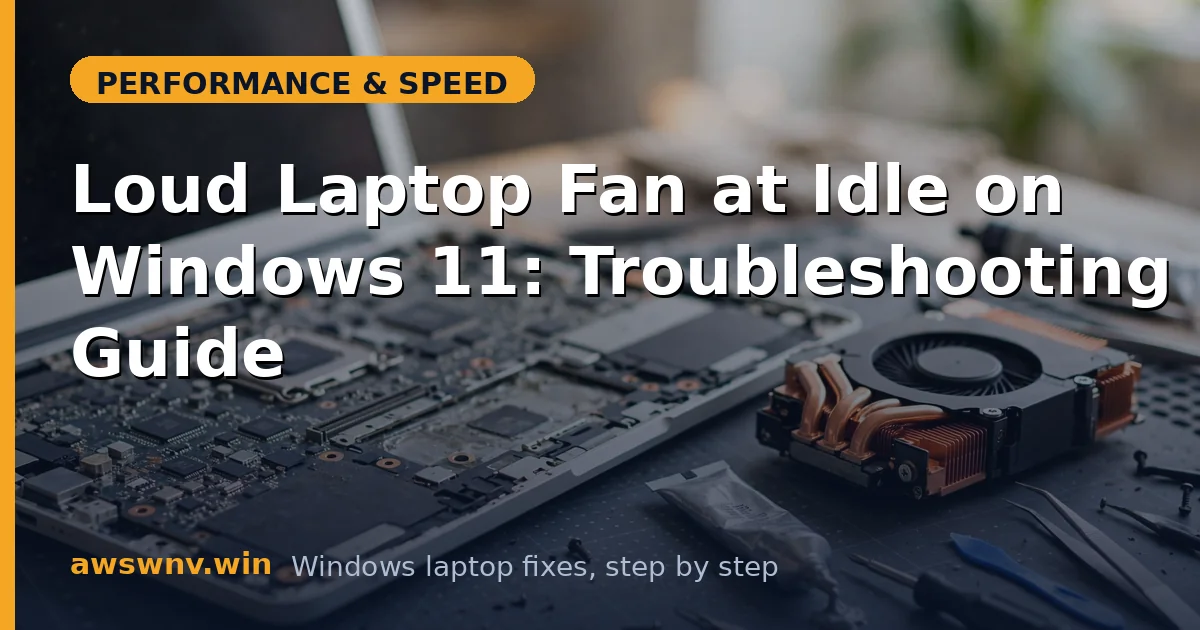
Fix 4: Deep-clean the cooling path
Surface vent blowing helps, but matted dust between the fan and heatsink fins needs more attention.
- Power off, unplug, and remove the bottom panel if your warranty and skill allow.
- Locate the fan and heatsink fins; look for felt-like dust mats.
- Use compressed air in short bursts and a soft brush for the fins.
- Never vacuum inside the chassis; static discharge can kill components.
- Reassemble, boot, and compare idle temperatures to your earlier reading.
Fix 5: Update BIOS and manufacturer thermal utilities
Fan curves live in firmware. Manufacturers do tune them in updates, and their utilities expose quiet profiles Windows cannot.
- Check your BIOS version with msinfo32 and compare to the manufacturer’s latest.
- Read release notes for thermal or fan mentions before updating.
- Install the manufacturer’s power or thermal utility, such as Dell Power Manager or Lenovo Vantage.
- Select the Quiet or Cool thermal profile.
- Re-take idle readings after a full restart.
Fix 6: Rule out malware and miners
If CPU is pinned near 100 percent at idle by a suspicious process, treat it as a potential miner before anything else.
- Note the exact process name and its file location via right-click, Open file location.
- Run a full scan with Windows Security.
- Follow with a second-opinion scan using the free Malwarebytes scanner.
- If a miner is confirmed, change passwords from a clean device after removal.
- Only after the system is clean should you judge fan behavior.
Fix 7: Perform a clean boot to isolate software heat
A clean boot starts Windows with only Microsoft services. If the fan goes quiet, the heat source is third-party software, and you can find it by re-enabling halves.
- Press Win+R, type msconfig, and press Enter.
- On the Services tab, check Hide all Microsoft services and click Disable all.
- Disable all Startup apps in Task Manager.
- Restart and listen for five minutes at idle.
- If quiet, re-enable services in halves until the noise returns.
Fix 8: Perform a clean boot to isolate software heat
A clean boot starts Windows with only Microsoft services. If the fan goes quiet, the heat source is third-party software, and you can find it by re-enabling halves.
- Press Win+R, type msconfig, and press Enter.
- On the Services tab, check Hide all Microsoft services and click Disable all.
- Disable all Startup apps in Task Manager.
- Restart and listen for five minutes at idle.
- If quiet, re-enable services in halves until the noise returns.
Closing
Systematic fan troubleshooting beats part-swapping every time: two readings at idle tell you whether to chase software or hardware, and each branch has a clear next step. Most loud-at-idle complaints end at a background process or a dust-clogged heatsink, both fixable in under an hour. When temperatures stay high with low CPU even after cleaning, that is your signal to involve the manufacturer or a repair shop rather than continuing to tweak settings. For the software side of heat, our guide to calming an always-busy laptop covers the background-process hunt in detail. A clean boot that silences the fan proves the cause is software, not cooling hardware. For heat that survives even a clean boot, see our overheating troubleshooting guide and Microsoft’s Windows support hub . A clean boot that silences the fan proves the cause is software, not cooling hardware. For heat that survives even a clean boot, see our overheating troubleshooting guide and Microsoft’s Windows support hub .