There is “battery not charging” — and then there is the deeper problem where Windows does not even know a charger is plugged in. No plug icon, no “plugged in” text, nothing. The laptop behaves as if the charger does not exist. This guide is for that case specifically.
Detection failures live at the intersection of hardware and firmware: the charger, the port, the cable, and the low-level drivers that report AC status. Work the steps in order — each one isolates a different link in the chain. If Windows sees the charger but the battery still will not charge, switch to the battery not charging guide instead.
Why This Happens
- Dead charger or broken cable. No power out means nothing to detect — the most common root cause.
- Worn charging port. Barrel jacks loosen; USB-C ports accumulate lint and bent pins.
- Corrupted Microsoft AC Adapter driver. Windows’ driver for reporting AC status can break after updates.
- USB-C PD negotiation failure. The handshake between laptop and charger fails, so the laptop ignores the charger entirely.
- BIOS not recognizing the adapter. Some laptops (especially Dell) identify the adapter wattage in firmware and reject unknown ones.
- Motherboard charging circuit fault. Rare, but a failed component means no charger is ever detected regardless of adapter.
How to Fix It
Work through these in order. Each step isolates one link: outlet, charger, cable, port, drivers, firmware.
Fix 1: Eliminate the Outlet and Power Strip
It sounds insulting. It fixes the problem often enough that technicians check it first.
- Unplug the charger from any power strip, surge protector, or extension cord.
- Plug it directly into a wall outlet — preferably one in a different room, on a different circuit.
- Test that outlet with another device (phone charger, lamp) to confirm it is live.
- Check whether the power strip has a tripped breaker or a switched-off master switch — both are embarrassingly common.
- If the charger is detected on the new outlet, your strip or original outlet was the entire problem.
- For good measure, inspect the charger’s wall plug prongs for looseness or burn marks before continuing.
Fix 2: Inspect the Charger, Cable, and LEDs
A charger that looks fine can be dead inside; a charger that looks damaged usually is.
- Check the charger’s status LED. No light where there used to be one means the brick is not producing power.
- Flex the cable gently along its length, especially near both ends, while watching the LED and the Windows battery icon. Flickering indicates broken internal wires.
- Smell the brick for burnt plastic and feel for abnormal heat. Either means retire it immediately.
- Confirm the wattage on the label matches your laptop’s requirement. An underpowered adapter may be “detected” intermittently or rejected outright.
- If you have a multimeter, verify DC output voltage against the label — the definitive test, detailed in how to test a laptop charger .
- For USB-C chargers, try a different USB-C cable rated for your laptop’s wattage. Cables fail far more often than bricks, and a charge-only cable without proper PD support causes exactly this symptom.
Fix 3: Clean and Inspect the Charging Port
Ports are mechanical parts. They wear, collect debris, and break.
- Shut down the laptop and unplug everything.
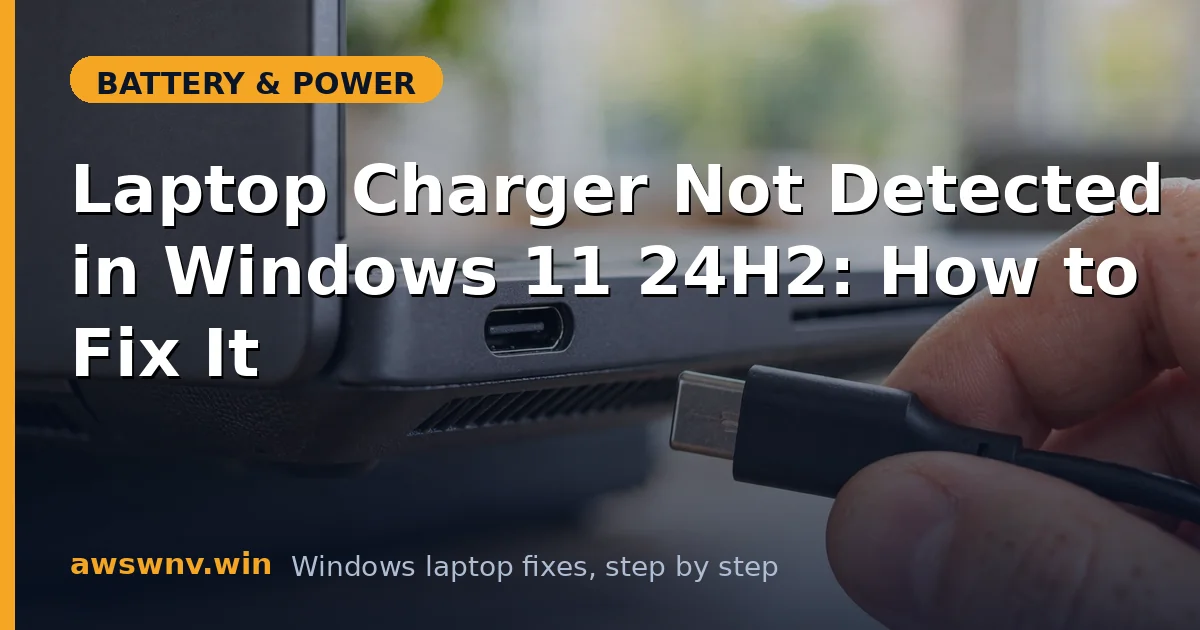
- For USB-C ports: shine a flashlight inside and look for packed lint. Remove it carefully with a wooden toothpick or plastic pick — never metal while the battery is connected.
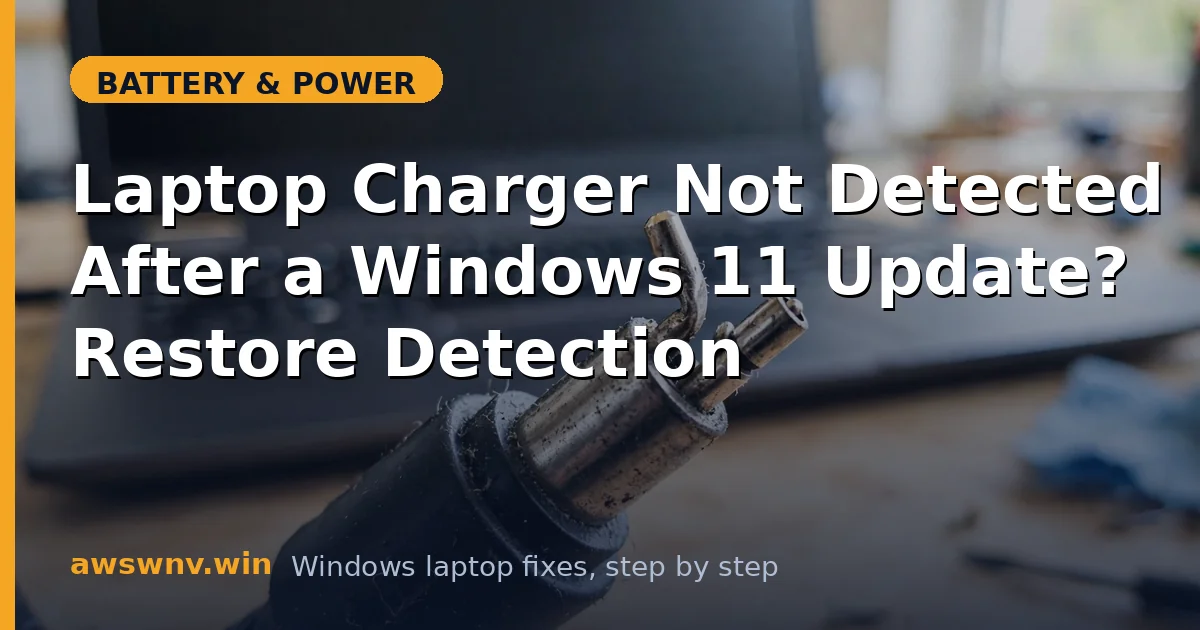
- For barrel jacks: look for a bent center pin or debris. The center pin carries the adapter ID signal on many brands; bend it and the laptop rejects the charger.
- Plug in firmly and wiggle very gently. If detection flickers with movement, the port’s solder joints are cracked — a repair-shop fix, but now you know.
- Try a different USB-C port if your laptop has more than one. Many laptops only support charging on specific ports — check your manual.
- After cleaning, reconnect and watch the battery icon for 10 seconds. USB-C negotiation can take a few seconds to complete.
Fix 4: Reinstall the AC Adapter Driver
Windows detects the charger through the Microsoft AC Adapter driver. When it corrupts, detection dies.
- Press Win + X and open Device Manager.
- Expand Batteries, right-click Microsoft AC Adapter, and choose Uninstall device.
- Also uninstall Microsoft ACPI-Compliant Control Method Battery entries while you are there.
- Shut down fully (not restart), unplug the charger for 30 seconds, then reconnect it.
- Power on. Windows reinstalls the drivers and re-enumerates the adapter during boot.
- Check the battery icon after login. If the charger is now detected, a corrupted driver was blocking it. If Windows Update reintroduces the bad driver, manage it via the Microsoft Update Catalog .
Fix 5: Reset the Embedded Controller
The EC handles charger detection at the hardware level, below Windows.
- Shut down the laptop completely and unplug the charger.
- Disconnect every peripheral — docks especially, since docks inject their own power signals.
- Hold the power button for 30-45 seconds. On models with a reset pinhole, press it with a paperclip for 15 seconds.
- Reconnect only the original charger directly to the laptop.
- Power on and immediately watch for the charging LED or battery icon response.
- If the charger is detected in BIOS (check the BIOS power page) but not in Windows, the EC is fine and the problem is Windows-side — revisit Fix 4 or consider an in-place Windows repair.
Fix 6: Check BIOS Adapter Detection
The firmware identifies the adapter before Windows ever loads — Dell laptops are particularly strict about this.
- Reboot into BIOS/UEFI (F2, Del, F10 depending on brand).
- Look for an Adapter, AC Adapter, or Power section showing detected wattage (e.g., “65W adapter detected”).
- BIOS shows the adapter but Windows does not: Windows/driver problem. Revisit Fix 4, update chipset drivers from the manufacturer.
- BIOS shows “Unknown” or no adapter: the laptop is rejecting the charger — wrong wattage, damaged ID pin, or non-genuine adapter. Dell machines famously refuse to charge on unrecognized adapters.
- Check for a BIOS update mentioning adapter detection, EC, or power — flash with AC connected.
- After updating, re-check the BIOS adapter page before booting Windows.
Fix 7: Swap-Test to Prove Where the Fault Is
When all else fails, substitution gives you certainty before you spend money.
- Test your charger on a second compatible laptop. Works there? Your laptop’s port or charging circuit is faulty.
- Test a known-good charger (same voltage, equal or higher wattage) on your laptop. Detected now? Your charger was dead — replace it with an exact-spec unit.
- Neither works? The laptop’s DC jack or motherboard charging circuit needs professional diagnosis.
- For USB-C laptops, also test with a USB-C power meter dongle to see whether any negotiation happens at all — zero activity means the port or PD controller is dead.
- Get a repair quote before authorizing motherboard work; on older laptops, the economics often favor replacement.
- When buying a new charger, match voltage exactly and buy genuine or manufacturer-certified — cheap adapters cause detection problems of their own, as covered in charger testing .
Closing
“Charger not detected” is a process of elimination, and the order matters: outlet, charger, cable, port, drivers, firmware, then substitution. Most cases end at step two or three — a dead brick or a filthy USB-C port. The cases that survive to step seven are hardware, and at least you will walk into the repair shop knowing exactly which component failed instead of paying someone to guess.