The Intel AX201 rewards methodical troubleshooting and punishes guessing. A bad driver, aggressive power saving, and a fussy router can all produce ‘Wi-Fi keeps dropping’, so this guide isolates one layer at a time with a clear verdict at each step.
Each step is both fix attempt and diagnostic. By the end you will know whether the fault is the driver version, power management, the router’s Wi-Fi 6 handling, or the physical card and antennas — no disassembly until the final step.
If you prefer the condensed fix list without the diagnostic reasoning, our AX201 fix guide covers the same ground in fix-first order.
Why this happens
- Faulty driver version: Specific AX201 driver releases have documented regressions: connection drops, disappearance from Device Manager, and power-state crashes.
- Windows Update driver churn: Windows Update silently replaces Intel’s driver with its own builds, moving you onto untested versions without warning.
- Power management suspending the card: PCIe link-state power management and the adapter’s own power-saving mode disconnect the AX201 or prevent it from waking.
- Router Wi-Fi 6 incompatibility: Some routers — especially older ‘Wi-Fi 6 ready’ firmware — negotiate poorly with the AX201, causing drops, slow speeds, or 5 GHz failures.
- Channel congestion and interference: The AX201 is sensitive to congested channels; neighboring networks on the same channel cause the drops users blame on the card.
- Antenna lead disconnection: The two tiny antenna connectors pop off easily during repairs or drops, collapsing range and killing the 5 GHz band.
- Failing card hardware: Least common but real: the card itself degrades, producing faults on every network with every driver version.
How to fix it
Work through these in order — diagnose first, then act.
Fix 1: Establish the Baseline: When and Where It Fails
Before changing anything, characterize the failure: does the adapter disappear from Device Manager or stay visible while connections drop? All networks or just yours? Both bands or only 5 GHz? Does sleep trigger it? This baseline tells you which steps matter.
Connect to a phone hotspot for 30 minutes: stable means your router is implicated, broken means the laptop side is at fault. This single test halves the troubleshooting space.
- Note exactly how the AX201 fails: disappears, drops, or slow.
- Test both 2.4 GHz and 5 GHz bands separately.
- Test whether sleep/wake triggers the failure.
- Run a 30-minute phone-hotspot test.
- Record the results — they guide every step below.
Fix 2: Clean-Install the Intel Driver
Download Intel’s Wi-Fi driver package via Intel’s driver detection tool . Uninstall the AX201 driver with driver deletion in Device Manager, restart, and install Intel’s package — or the previous stable if the newest has reported AX201 regressions.
Verify the version in Device Manager and decline Windows Update driver offerings so your chosen version stays. Retest for an hour of real use — AX201 driver faults often need time to manifest.
- Download Intel’s Wi-Fi driver package for the AX201.
- Uninstall the current driver with driver deletion.
- Restart and install the chosen Intel version.
- Block Windows Update driver replacements.
- Test with an hour of normal use.
Fix 3: Eliminate Power Management as a Variable
In Device Manager, open the AX201’s properties: uncheck power-saving on the Power Management tab, and set Power Saving Mode to Maximum Performance and Transmit Power to Highest on the Advanced tab. Also disable PCIe ASPM in BIOS temporarily and set wireless power saving to Maximum Performance in the power plan.
Retest sleep-wake cycles specifically — ten cycles is a reasonable sample. If the card survives all ten, power management was your problem and you can keep these settings permanently; they cost a small amount of battery.
- Disable all power-saving options on the AX201 in Device Manager.
- Set wireless power saving to Maximum Performance in the power plan.
- Disable PCIe ASPM in BIOS temporarily as a diagnostic.
- Run ten sleep-wake cycles and observe.
- Keep the settings if the card stays stable.
Fix 4: Interrogate the Router
Update your router’s firmware. Temporarily disable Wi-Fi 6 (802.11ax) mode: if the AX201 stabilizes on Wi-Fi 5, the router’s ax implementation is the problem. Use separate SSIDs for 2.4 and 5 GHz instead of band steering, and move 5 GHz to a clean channel (36, 40, 44, or 48).
If the Step 1 hotspot test was stable, your fix lives here — the AX201’s pickiness about ax negotiation makes this one of the most productive steps.
- Update the router’s firmware.
- Temporarily disable 802.11ax mode on the router as a diagnostic.
- Use separate SSIDs for 2.4 GHz and 5 GHz.
- Move 5 GHz to a clean channel (36, 40, 44, or 48).
- Retest for an hour on each change.
Fix 5: Tune Advanced Adapter Settings
In the AX201’s Advanced tab, set Roaming Aggressiveness to Lowest (single-AP environments), set Preferred Band explicitly, and try disabling ‘U-APSD support’. Change one setting at a time, testing between changes.
Document each change and result — shotgun-changing five settings at once means you cannot reproduce the fix after the next driver update resets everything.
- Set Roaming Aggressiveness to Lowest (single-AP) or Medium (roaming).
- Set Preferred Band explicitly.
- Disable U-APSD support as a diagnostic.
- Change one setting at a time, testing between changes.
- Record what worked for future driver updates.
Fix 6: Reveal Hidden Devices and Check Enumeration
In Device Manager, enable Show hidden devices. Look for a grayed-out AX201 (driver failed to start) or unknown devices (hardware detected, driver missing). Code 10/43 points at the driver; intermittent appearance points at power or hardware.
If the card never appears even as hidden, review hidden-device steps and run Action, Scan for hardware changes. Complete absence moves suspicion to the physical card.
- Enable Show hidden devices in Device Manager.
- Look for grayed-out AX201 or unknown devices.
- Note any error codes (Code 10, 43).
- Run Action, Scan for hardware changes.
- Persistent total absence implicates hardware.
Fix 7: Inspect Antennas and Consider Replacement
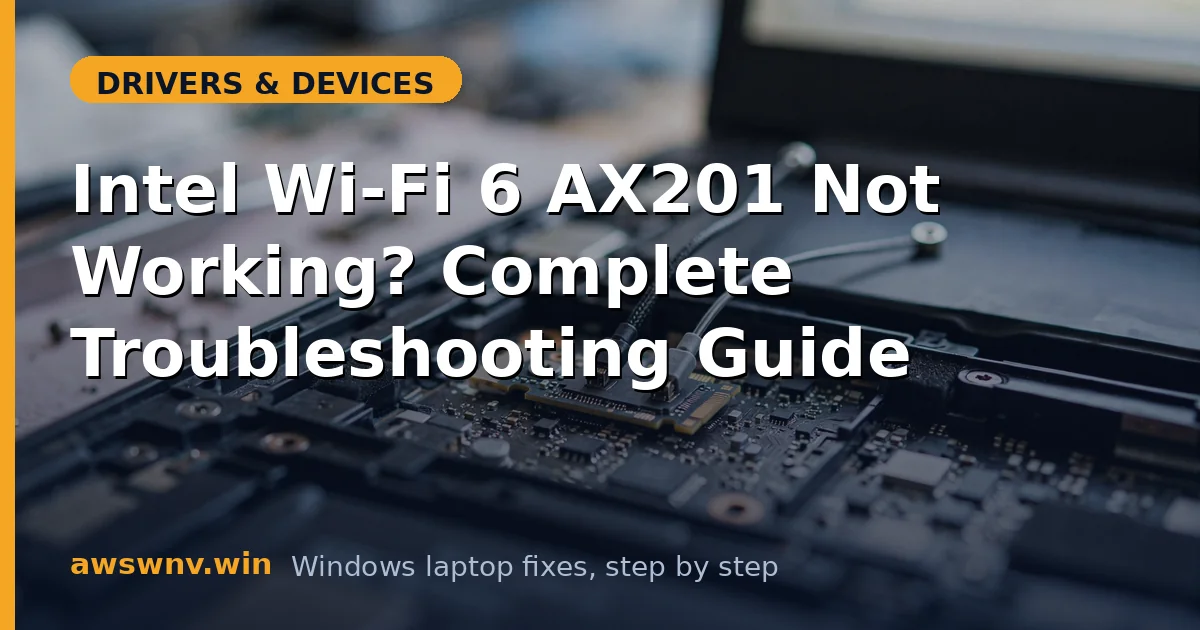
Power off, remove the bottom panel, and press each antenna connector straight down to confirm it is snapped on. Reseat the M.2 card itself: unscrew, remove at its angle, reinsert firmly, screw down. Reassemble and test range on both bands near and far from the router.
If the card fails on every network, with every driver version, and antennas are secure, the card is bad. The Intel AX210 is a well-regarded drop-in replacement for the same M.2 slot and costs little. For soldered-down cards (rare with the AX201), a USB Wi-Fi 6 adapter is the practical alternative.
- Power off and remove the bottom panel.
- Confirm both antenna leads are snapped on.
- Reseat the M.2 card itself.
- Test range on both bands at multiple distances.
- Replace with an AX210 (or USB adapter) if the card is confirmed bad.
Closing
This sequence is designed so each step’s result narrows the field: hotspot test separates network from laptop, driver reinstall separates software, power settings isolate sleep faults, router tests isolate negotiation issues, and the physical inspection closes the loop.