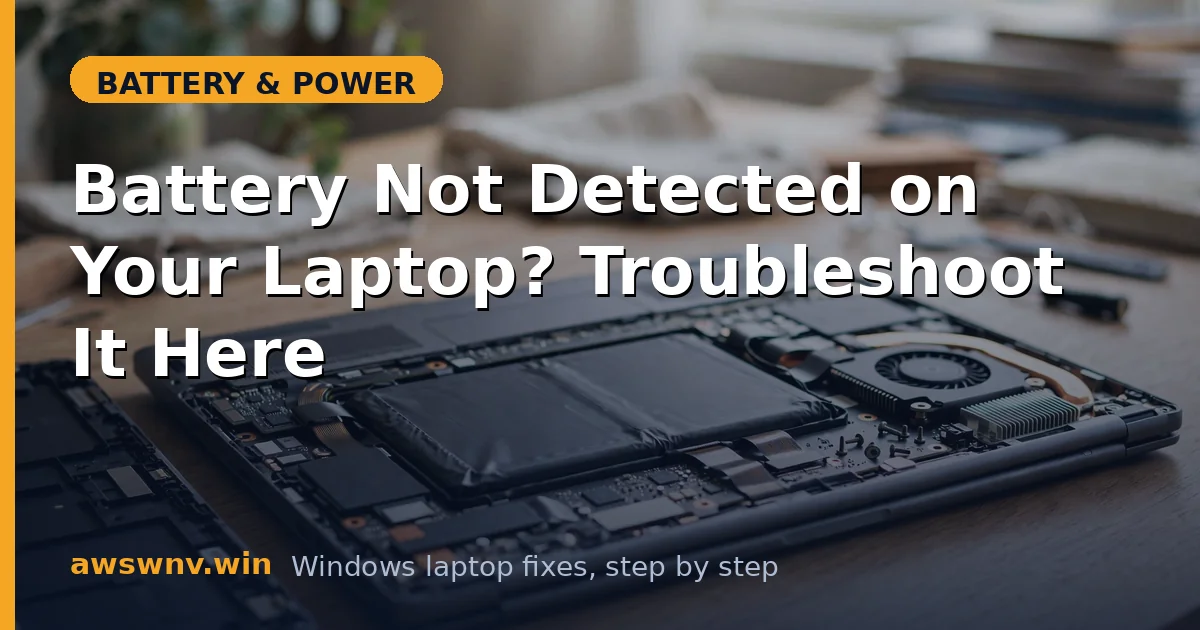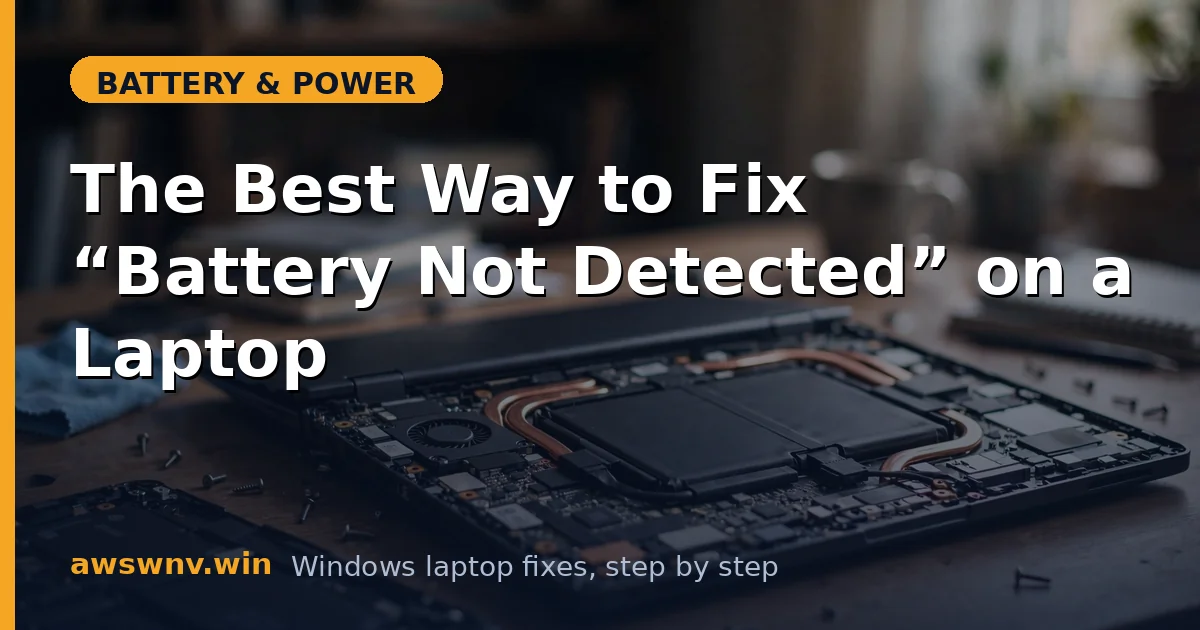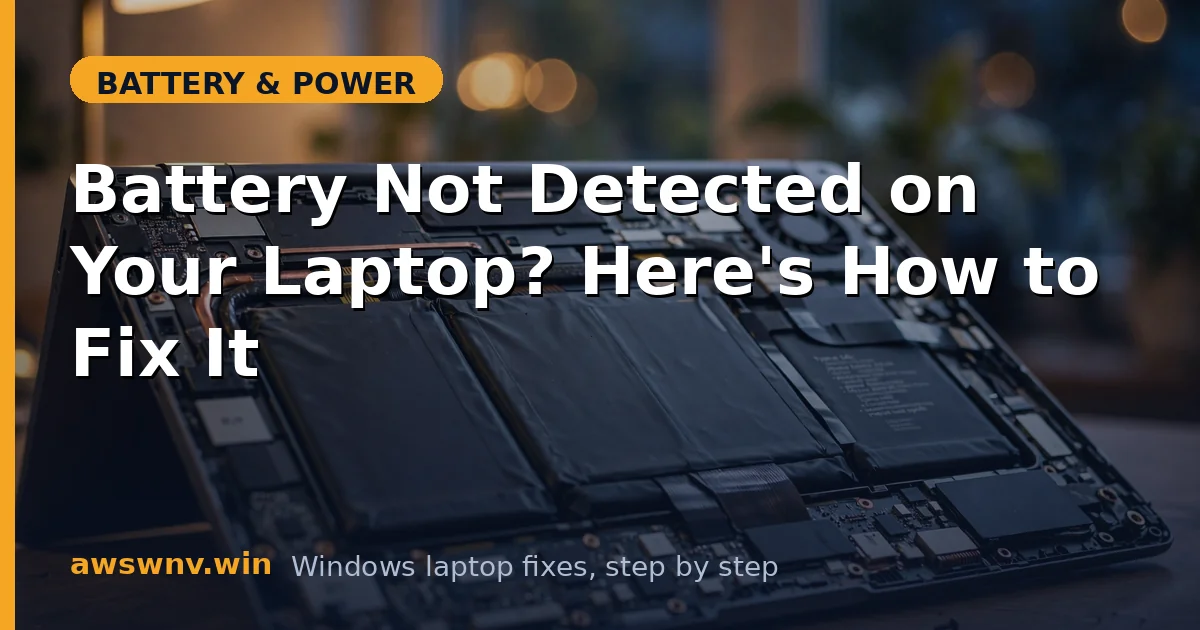
“No battery is detected” is one of the scarier messages Windows can show you. Your laptop becomes a desktop: unplug the charger and it dies instantly. The good news is that this is frequently a communication problem rather than a dead battery, and communication problems are fixable.
The trick is figuring out which layer lost track of the battery: the physical connection, the BIOS, or Windows itself. Work from the outside in and you will find it.
Why this happens
- Loose internal battery connector: Drops, bumps, or even heat cycling can work the battery cable loose from the motherboard, especially on laptops with internal batteries.
- Corrupted ACPI battery driver: The Microsoft ACPI-Compliant Control Method Battery driver is Windows’ link to the battery. Corrupt it and Windows reports no battery at all.
- BIOS lost the battery: A failed BIOS update, a drained CMOS battery, or a BIOS bug can make the firmware stop enumerating the battery, so Windows never gets told it exists.
- Dead or swollen battery: A battery whose protection circuit has tripped — from deep discharge or swelling — can stop identifying itself to the system.
- Chipset driver problems: The chipset driver handles hardware enumeration. An outdated or broken chipset driver can hide devices from Windows.
- Faulty battery cable or motherboard circuit: Less common, but the ribbon cable or the charging circuit on the board can fail.
How to fix it
Work through these in order, from quickest to most involved. Stop at the step that solves it.
Fix 1: Do a full power reset
This clears the embedded controller state that sometimes “forgets” the battery.
- Shut down the laptop completely — not sleep, a full shutdown.
- Unplug the charger and every USB device.
- If the battery is removable, take it out. If it is internal, hold the power button down for 30 seconds with everything unplugged.
- Reconnect only the charger (and the battery if you removed it) and power on.
- Check Settings > System > Power & battery to see if the battery is recognized again.
Fix 2: Reseat the battery connection
If the power reset did nothing, the connector may have walked loose.
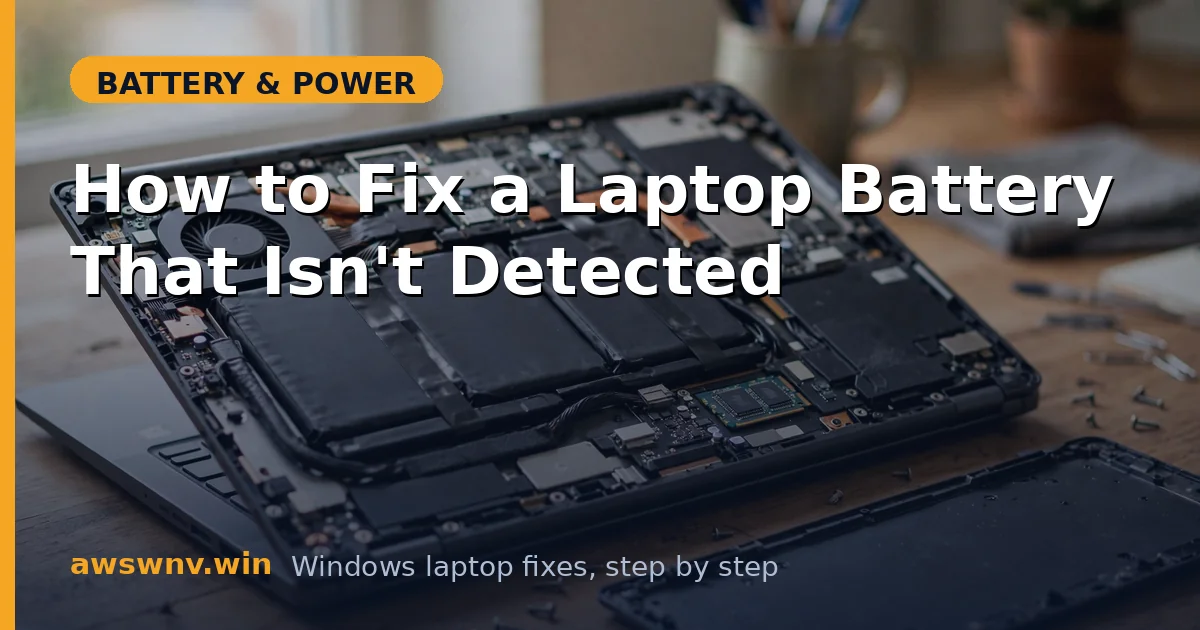
- Power off, unplug everything, and if possible remove the bottom panel. On many laptops this means removing 8 to 12 Phillips screws — keep them organized.
- Disconnect the laptop’s own internal battery cable from the motherboard first (safety: you do not want to work around a live battery).
- Find the battery’s main connector, unplug it carefully, check for bent pins or corrosion, and plug it back in firmly until it clicks.
- Reconnect the internal battery cable, close the panel, and boot.
If the battery feels swollen, the trackpad is lifting, or the bottom panel bulges, stop here. A swollen battery needs professional replacement, and you can read about whether a slightly swollen battery is safe .
Fix 3: Check whether the BIOS sees the battery
This tells you whether the problem is hardware-level or Windows-level.
- Restart and press the BIOS key for your brand: F2 (Dell, ASUS), F1 or F2 (Lenovo), F10 (HP), or Del.
- Look for a battery section — often under Main, Advanced, or Power.
- If the BIOS shows battery information (charge level, health), the hardware is fine and Windows is the problem — skip to Fix 4.
- If the BIOS also shows no battery, the issue is the connection, the battery, or the motherboard — continue with the hardware steps and then Fix 6.
Fix 4: Reinstall the battery drivers in Windows
If the BIOS sees the battery but Windows does not, the drivers are the culprit.
- Press Win + X and open Device Manager.
- Expand Batteries. You may see greyed-out entries or entries with warning icons.
- Right-click every Microsoft ACPI-Compliant Control Method Battery and Microsoft AC Adapter entry and choose Uninstall device.
- In the Action menu, click Scan for hardware changes — or simply restart.
- After reboot, open Device Manager again and confirm the battery entries are back without warning icons.
This is the same reset described in the ACPI battery driver reset guide , which covers the procedure in more detail.
Fix 5: Update chipset drivers and BIOS
Stale chipset drivers can fail to enumerate the battery after a Windows feature update.
- Visit your manufacturer’s support page — Dell , HP , or Lenovo — and enter your exact model number.
- Download the latest chipset driver and install it, then restart.
- If the battery is still not detected, download the latest BIOS update from the same page.
- Run the BIOS update with the charger plugged in and all apps closed. Do not interrupt it.
Fix 6: Test with another battery or charger
Now you are isolating hardware.
- If you can borrow an identical battery, install it. If it is detected, your original battery has a failed protection circuit — replace it.
- Try a different charger of the correct wattage. A failing adapter can cause the battery controller to misbehave in odd ways.
- If neither helps and the BIOS still shows no battery, the motherboard’s battery circuitry is likely faulty. That is a board-level repair for a shop.
Fix 7: Check the battery report and health status
If detection comes back intermittently, gather evidence before it disappears again.
- Open Terminal (Admin) with Win + X and run
powercfg /batteryreport /output "C:\battery-report.html". - Open the report and look at the design capacity versus full charge capacity. A battery that is barely detected and shows near-zero capacity is done.
- Run your manufacturer’s diagnostics — Dell SupportAssist, Lenovo Vantage, or HP PC Hardware Diagnostics — and run the battery test for a second opinion.
For context on what the numbers mean, see how to check battery health on Windows 11 .
Closing
A “no battery detected” message looks catastrophic but is usually a loose connector, a confused BIOS, or a corrupted driver — all things you can sort out at home. The BIOS check in Fix 3 is the key fork in the road: it tells you in thirty seconds whether you are fighting software or hardware.