When a laptop touchscreen stops responding, the natural assumption is a broken screen — but the digitizer is one of the more durable components in the display assembly. Far more often, the failure is in the software stack: a disabled HID device, a corrupted I2C driver, power management that put the digitizer to sleep permanently, or calibration data that went wrong. This guide gives you a complete, systematic troubleshooting sequence that separates software from hardware definitively.
Follow it in order. Each stage either fixes the problem or narrows the suspects, and by the end you will know exactly what failed — driver, configuration, cable, or digitizer.
Touch input on Windows travels a longer road than most people realize, and mapping that road is the key to systematic troubleshooting. A finger touch changes capacitance on the digitizer grid; the touch controller converts that into coordinates; those travel over an I2C bus to the chipset; the I2C HID driver hands them to Windows’ HID stack; and finally the input reaches your application. A failure at any stage — a disabled HID device, a corrupted I2C driver, a suspended controller, bad calibration data — produces the same visible symptom of a dead screen. The diagnostic strategy is therefore to test each stage in order from the top down, which is exactly how the fixes below are organized. The outside-Windows tests near the end are the decisive ones: if touch works in BIOS or Linux, every hardware stage is proven healthy and the fault must be in Windows’ half of the road.
Why this happens
- HID touch device disabled: Windows can disable the digitizer’s HID entry; all touch input stops instantly.
- Corrupted HID/I2C drivers: Update damage to the touch driver or its underlying I2C bus driver.
- Digitizer power management: Sleep/wake failures leave the touch controller unresponsive.
- Calibration corruption: Bad calibration data makes touches register wrong or not at all.
- Posture sensor issues (2-in-1s): The hinge sensor reports a mode where touch is suppressed.
- Conflicting utilities: Pen, touch, or display management software intercepting input.
- Display cable partially seated: Touch signals share the display cable; partial seating kills touch first.
- Digitizer physical damage: Cracks, pressure spots, or controller failure — the hardware end.
How to fix it
Work through these in order — diagnose first, then act.
Fix 1: Verify and enable the touch device
- Open Device Manager → Human Interface Devices and locate HID-compliant touch screen.
- If disabled (down-arrow), right-click → Enable device and test.
- If missing, click Action → Scan for hardware changes.
- If present and enabled but touch is dead, do a disable-wait-10-seconds-enable cycle to restart the driver cleanly.
Fix 2: Reinstall touch and I2C drivers
- Right-click HID-compliant touch screen → Uninstall device, then restart — Windows reinstalls on boot.
- Look for I2C HID Device entries (the bus many digitizers use) and reinstall those too, using your laptop maker’s chipset/IO driver package.
- Check Device Manager for any remaining yellow warnings on HID or system devices.
- Install pending Windows updates including optional drivers — digitizer fixes ship quietly. The vendor-driver-first principle here matches touchpad repair practice.
Fix 3: Eliminate power management causes
- In the touch device’s Properties → Power Management, disable all power-saving options (tab may be on the parent USB/I2C controller).
- Disable USB selective suspend in advanced Power Options.
- Specifically test the sleep/wake cycle: sleep the laptop, wake it, test touch — this is the signature failure pattern.
- Disable Fast Startup (Control Panel → Power Options) as an additional resume-stability measure.
Fix 4: Recalibrate
- Press Win + R, type tabcal, press Enter.
- Tap each crosshair precisely with your fingertip and save the calibration.
- Test edge-to-edge coverage, especially corners where drift shows first.
- If touches are consistently offset, calibration fixes it; if regions are completely dead, skip to hardware evaluation — calibration cannot revive a dead digitizer zone. The focused touchscreen repair guide covers calibration nuances in more depth.
Fix 5: Isolate software conflicts
- Boot into Safe Mode and test touch — working there means a third-party driver or utility interferes.
- Clean boot via msconfig (disable non-Microsoft services) and re-enable in halves to find the culprit.
- Uninstall pen/touch utilities, display managers, and screen annotation tools temporarily.
- On 2-in-1s, cycle the hinge through all positions while testing — position-dependent failure implicates the posture sensor or its driver.
Fix 6: Test outside Windows
- If your UEFI/BIOS supports touch or mouse input, test there.
- Boot a Linux live USB and test touch — Linux uses completely different drivers, making this the definitive software/hardware separator.
- Run the laptop manufacturer’s built-in display/touch diagnostics.
- Touch working anywhere outside Windows = Windows problem (consider a repair install). Dead everywhere = hardware.
Fix 7: Check physical factors
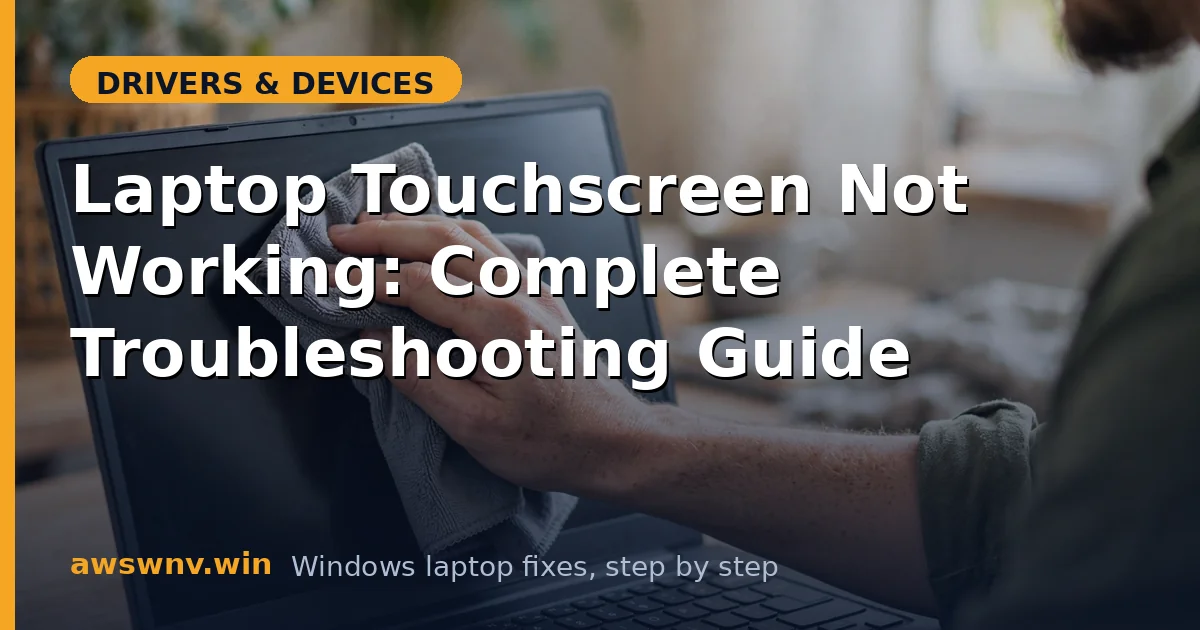
- Clean the screen thoroughly — heavy grime and screen protectors can degrade capacitive sensing.
- Remove any screen protector temporarily as a test.
- Inspect for hairline cracks under bright light; even tiny cracks over the digitizer create dead zones.
- If touch died after a drop or repair, the display cable is the prime suspect — reseating it requires opening the machine, so weigh professional service.
Fix 8: Firmware, BIOS, and final options
- Check the manufacturer’s support site for BIOS, touch firmware, and chipset updates — digitizer fixes do ship in these.
- As a last software resort, perform a Windows repair install (keeps files) to rebuild the entire input stack.
- For confirmed digitizer failure, get a repair quote — touch failure usually means replacing the full display assembly, so compare against the laptop’s value and warranty status.
- Microsoft’s official touch troubleshooting lives at Microsoft support .
Closing
Touchscreen troubleshooting is really an elimination exercise with a clear order: enable the HID device, reinstall the touch and I2C drivers, kill the power management that breaks resume, recalibrate, then test outside Windows for the definitive hardware verdict. Most touchscreens come back at step two or three — the digitizer was never broken, just unheard.