You plug your dock or external SSD into the Thunderbolt 5 port on your Intel AI PC and nothing happens — or the dock’s USB ports work but the display stays dark and the fast storage crawls. Thunderbolt 5 promises 80Gbps of bandwidth, but only when every link in the chain — port, cable, device, driver, and approval — agrees.
On Intel Core Ultra (Lunar Lake / Arrow Lake) AI laptops, Thunderbolt 5 is handled by the CPU’s integrated Thunderbolt controller plus the Intel Thunderbolt driver and a security approval layer. A failure at any one of those layers looks identical from the outside: a dead port.
This guide gives you six fixes in technician order: approval and cabling first (the two most common culprits), then driver repair, then firmware. Work through them in sequence and test the device after each step.
Why this happens
- Device not approved in Thunderbolt Control Center: Thunderbolt’s security model requires you to approve new devices on first connection. An unapproved dock may pass basic USB signals while Thunderbolt features stay blocked.
- Non-Thunderbolt cable: A regular USB-C cable — even a good charging cable — lacks the wiring and certification for Thunderbolt negotiation. The port falls back to plain USB mode and the advanced features never engage.
- Outdated Thunderbolt driver or BIOS: Thunderbolt 5 needs a driver and firmware that actually know about TB5. An older driver from Windows Update or a stale BIOS leaves the controller running in a degraded mode.
- Dock or device firmware outdated: The device on the other end has firmware too. Older dock firmware predating TB5 hosts can fail negotiation with a new controller.
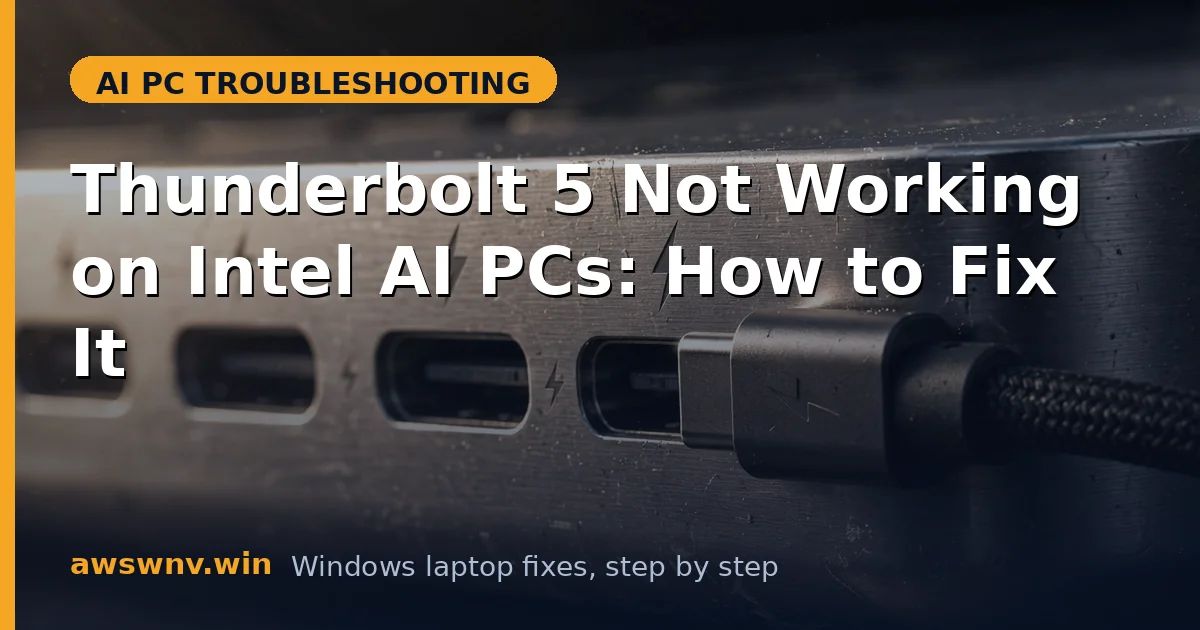
- Wrong port on the laptop: Not every USB-C port on an Intel AI laptop is a Thunderbolt port. Plugging into a plain USB-C port gives you USB speeds and no Thunderbolt features — check the lightning-bolt marking.
- Power delivery negotiation failure: Thunderbolt docks negotiate both data and power. A failed PD handshake can leave the dock half-initialized — USB works, displays and PCIe do not.
- Dev-environment driver conflicts: On machines used for development, third-party virtualization or hardware-access tools can interfere with the Thunderbolt driver stack — the same class of deep driver tangle seen in Dev Home issues on ARM .
How to fix it
Work through these in order — diagnose first, then act.
Fix 1: Approve the device and confirm the right port
Thunderbolt security approval is the single most overlooked step. Windows may show the USB parts of a dock working while the Thunderbolt layer waits for your permission.
- Look for the lightning-bolt Thunderbolt symbol next to the port — plug the dock into that port specifically, not a plain USB-C port.
- Open Thunderbolt Control Center from the Start menu (install it from the Microsoft Store if missing — it ships with the Intel Thunderbolt driver).
- Look for your device under attached devices with a status like “not approved” or “pending” and click Approve, choosing Always connect for a dock you trust.
- Disconnect and reconnect the dock, then check whether displays, Ethernet, and high-speed storage all come alive.
- If the device never appears in Control Center at all, the cable or driver is the problem — move to Fix 2, but keep this approval step in mind for every new Thunderbolt device you connect.
Fix 2: Use a certified Thunderbolt cable
Cables are the second most common failure point, and they fail silently: power flows, basic USB works, and Thunderbolt does not. Only a certified cable guarantees the full negotiation.
- Inspect your cable for Thunderbolt branding — a lightning-bolt logo and a “5” or “4” marking. No marking usually means no Thunderbolt support.
- Swap in a cable explicitly certified for Thunderbolt 5, or at minimum Thunderbolt 4 / USB4 40Gbps, rated for the length you need (passive cables over 0.8m lose bandwidth).
- Keep the chain short for testing: plug the dock directly into the laptop with no extenders, adapters, or cable joins.
- Retest every dock function — display output, USB ports, Ethernet, and any connected storage. If everything works with the certified cable, the old cable was the entire problem.
- Label your Thunderbolt cables afterward; mixing them up with look-alike USB-C charging cables is how this problem recurs.
Fix 3: Reinstall the Intel Thunderbolt driver
A driver that predates TB5 — often installed by Windows Update over the OEM’s newer package — leaves the controller unable to negotiate Thunderbolt 5 features. A clean reinstall of the maker’s Thunderbolt driver package fixes it.
- In Device Manager, expand System devices and look for Thunderbolt Controller entries; note any yellow warnings.
- Download the Thunderbolt driver for your exact model from Dell , HP , or Lenovo — make sure the package mentions Thunderbolt 5 or your specific Core Ultra generation.
- Right-click the Thunderbolt controller in Device Manager, choose Uninstall device with “Attempt to remove the driver for this device” checked.
- Restart, then run the OEM Thunderbolt installer as administrator and restart again when prompted.
- Reopen Thunderbolt Control Center, re-approve the dock (approval resets with the driver), and test all dock functions.
Fix 4: Update BIOS and the dock’s firmware
Thunderbolt negotiation involves firmware on both ends. A BIOS older than the TB5 controller’s expectations — or a dock running launch-day firmware — breaks the handshake in ways no driver can paper over.
- On your maker’s support page, check for a BIOS update newer than your current version (
msinfo32shows BIOS Version/Date) and install it with the charger connected and all apps closed. - Check the dock maker’s support page for a firmware updater for your dock model and run it while the dock is connected and powered.
- After both updates, shut down fully (Shift + Shut down for a cold boot), unplug the dock, power on, then reconnect the dock.
- Re-approve the device in Thunderbolt Control Center if prompted — firmware updates can reset the approval state.
- If the dock has its own power supply, confirm it is plugged in; bus-powered docks sometimes fail PD negotiation on TB5 ports without their adapter.
Fix 5: Reset the Thunderbolt authorization and power state
Stale authorization records and stuck power states can persist across driver reinstalls. A full reset of both clears the invisible blockers — similar to how stuck downloads need their state cleared before they can restart, as with local model downloads that get stuck .
- In Thunderbolt Control Center, remove all approved devices (there is usually a manage/remove option per device), then disconnect the dock.
- Shut down the laptop fully with Shift + Shut down, unplug the charger and the dock, and wait 60 seconds to drain residual power.
- Reconnect the charger, power on, then connect the dock with the certified cable and approve it fresh when prompted.
- In Device Manager > System devices, check the Thunderbolt controller’s Power Management tab and uncheck “Allow the computer to turn off this device to save power” if the dock dies after sleep.
- Test a sleep/wake cycle with the dock connected to confirm the fix survives resume.
Fix 6: Isolate whether the port, dock, or device is at fault
If nothing above works, stop guessing and bisect the chain: one variable at a time until the faulty link reveals itself.
- Test the dock on a different Thunderbolt-capable computer with the same cable — if it works there, your laptop’s port or driver is the problem.
- Test a different Thunderbolt device (any TB drive or dock) on your laptop’s TB5 port — if it works, the original dock or device is faulty.
- Try every Thunderbolt/USB4 port on the laptop; on some models only certain ports are wired for full Thunderbolt 5.
- Check Event Viewer (Windows Logs > System, filter for Thunderbolt or USB sources) for error entries at the moment you plug in — controller errors here point to hardware.
- If the port fails with every device and cable while other ports work, the port’s controller or board connection is damaged — and note that unrelated PDF and document workflows, like opening PDFs in Edge with AI features , are unaffected by this; contact your maker’s support for a hardware repair.
Closing
Thunderbolt 5 failures on Intel AI PCs are a chain problem: approval, cable, driver, and firmware all have to agree before 80Gbps flows. Approve the device, use a certified cable, and reinstall the OEM Thunderbolt driver before suspecting the port itself — in most cases one of those three is the entire story.