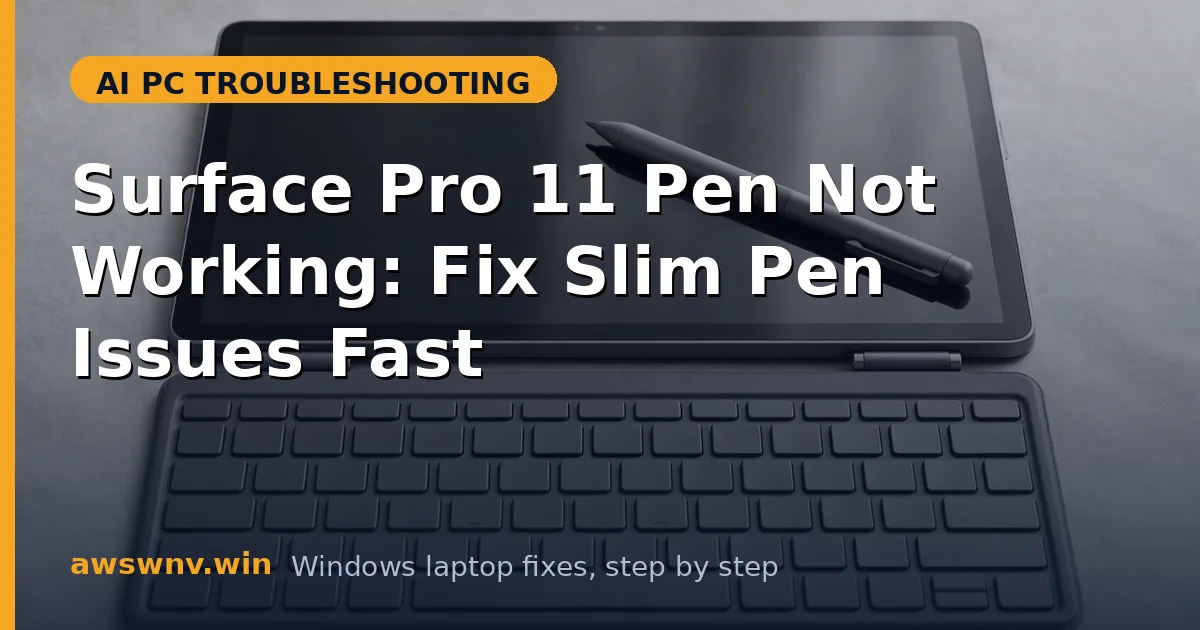
The Surface Pro 11 pairs Microsoft’s Snapdragon Copilot+ platform with the Surface Slim Pen 2, and when the pen stops working — no inking, no pairing, no pressure sensitivity — the 2-in-1 loses half its purpose. Pen problems feel hardware-like, but the vast majority are pairing, driver, or app-setting issues that you can fix in minutes.
Pen troubleshooting has a useful property: the failure mode tells you exactly where to look. No pairing at all means Bluetooth or battery; inking in some apps but not others means app settings; no pressure anywhere means driver or pen hardware. This guide follows that logic so you find the cause fast.
Below are the fixes ordered from quickest to deepest, covering pairing, inking, pressure, and haptics. If you are also sorting LG Gram AI Copilot issues on another machine, the Bluetooth advice overlaps, and anyone seeing blue screens should read our Copilot+ PC blue screen guide first.
Why this happens
- Pen battery depleted: The Slim Pen charges on the keyboard or via USB-C; a dead pen will not pair or ink.
- Stale Bluetooth pairing: Corrupted pairings after Windows updates are the most common “suddenly stopped working” cause.
- App ink settings: Many apps have their own pen, pressure, and palm-rejection toggles that reset or default off.
- Windows Ink service glitches: The ink pipeline can stall, breaking inking system-wide until restarted.
- Driver issues: The Surface pen and touch drivers update through Windows Update; missing updates break features.
- Haptic hardware requirements: Slim Pen 2 haptics need the pen, the Pro 11, and app support all aligned.
- Physical damage or tip wear: A worn tip or damaged pen causes intermittent inking that looks like software trouble.
How to fix it
Work through these in order — diagnose first, then act.
Fix 1: Charge the pen and check the basics
Before any software troubleshooting, rule out power. The Slim Pen 2’s battery lasts weeks but dies silently, and a pen with no charge will not pair, ink, or show up in Bluetooth at all. A full charge plus a pen restart clears a surprising number of “dead pen” reports.
- Attach the Slim Pen to the charging cradle on the keyboard or connect it via USB-C for at least 30 minutes.
- Check the pen’s LED if it has one, or test inking after charging.
- Make sure Bluetooth is turned on: Settings, Bluetooth & devices, Bluetooth toggle.
- Remove any case or cover that might block the pen’s charging contacts.
- Inspect the pen tip — if it is visibly worn or loose, replace it with a spare tip kit.
Fix 2: Re-pair the pen over Bluetooth
A stale pairing is the classic cause of a pen that worked yesterday and does nothing today. Windows remembers the pen but the handshake fails silently. Removing the pairing completely and starting fresh resolves it in nearly all cases.
- Go to Settings, Bluetooth & devices, and find your pen in the device list.
- Click the three dots next to it and choose Remove device, then confirm.
- Restart the Surface Pro 11 — this clears the Bluetooth stack state.
- Put the pen in pairing mode (press and hold its top button until the LED flashes).
- In Bluetooth settings, click “Add device”, choose Bluetooth, and select the pen.
Fix 3: Fix inking that works in some apps but not others
When the pen inks in OneNote but not in your drawing app, the hardware and drivers are fine — the problem lives in the app’s settings. Each app handles Windows Ink differently, with its own toggles for pen input, pressure, and palm rejection. Work through the app’s settings before reinstalling anything.
- Confirm the pen inks correctly in OneNote or Windows Sticky Notes as a baseline.
- Open the problem app’s settings and look for pen, stylus, ink, or tablet options.
- Enable pen input and pressure sensitivity if those toggles exist and are off.
- Check the app for a “Windows Ink” versus “Wintab” mode and try Windows Ink.
- Update the app to its latest version from the Store or the vendor’s site.
Fix 4: Restore pressure sensitivity system-wide
No pressure in any app points below the app layer — at the driver or the pen itself. The Surface pen driver stack updates through Windows Update, and a missing or corrupted driver kills pressure while leaving basic inking working. Verify with a system-level test before suspecting the pen hardware.
- Test pressure in a built-in app like OneNote’s drawing tools or the Snipping Tool’s pen.
- Open Settings, go to Windows Update, and install all updates including optional driver updates.
- In Device Manager, expand Human Interface Devices and look for Surface pen entries without warnings.
- If a pen device shows a warning, uninstall it and restart to let Windows reinstall it.
- Try a different pen tip — worn tips cause pressure anomalies that mimic driver problems.
Fix 5: Restart the Windows Ink pipeline
When inking stops working across every app at once, the Windows Ink input pipeline itself has usually stalled. A restart of the relevant services — or simply a clean reboot after updates — restores it. This also fixes the pen working as a mouse but not inking.
- Save your work and restart the Surface Pro 11 cleanly (not just sleep/wake).
- After restart, test inking in Sticky Notes before opening other apps.
- If inking works after reboot but breaks later, note which app was open when it broke — some apps destabilize the ink pipeline.
- Check Task Manager for stuck instances of drawing apps and end them.
- Make sure Windows is fully updated, since ink pipeline fixes ship in cumulative updates.
Fix 6: Fix Slim Pen 2 haptics and advanced features
Haptic feedback — the subtle vibration that simulates pen-on-paper — needs the Slim Pen 2, a supported app, and correct settings all at once. Missing haptics with working inking is a feature-configuration issue, not a defect. Check each layer.
- Confirm you are using the Surface Slim Pen 2, not an older pen without haptics.
- Open Settings, Bluetooth & devices, Pen & Windows Ink, and review the pen settings.
- Look for haptic or tactile feedback toggles and make sure they are enabled.
- Test haptics in an app known to support them, such as OneNote or Whiteboard.
- Update the pen’s firmware through Windows Update — pen firmware ships with Surface updates.
Closing
Pen problems are rarely the pen’s fault: charge it, re-pair it over Bluetooth, check app ink settings, and keep Windows updated. Work through pairing, per-app inking, pressure, and haptics — and if AI features also fail, check whether the NPU is detected .