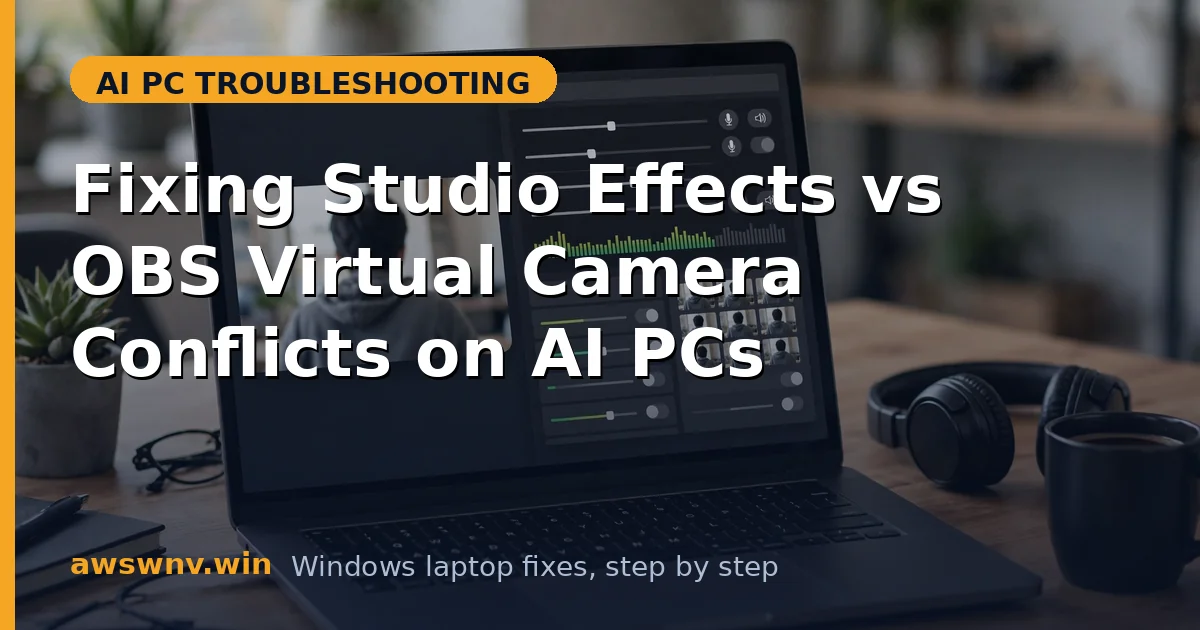
Windows Studio Effects and OBS Virtual Camera are both fantastic tools — until they try to control your webcam at the same time. On a Copilot+ AI PC, Studio Effects runs in the camera pipeline using the NPU, while OBS Virtual Camera creates a second virtual device carrying its own processed feed. When both are active, apps like Zoom, Teams, or Discord can see a black screen, a frozen frame, or a flickering image that switches between the two sources.
The root of the problem is layering: Studio Effects is applied by Windows before frames reach any app, while OBS Virtual Camera is a separate device fed by OBS. Enable blur in both places and your video gets processed twice, with the NPU and CPU fighting over the same frames.
Before diving in, make sure the camera pipeline is healthy — if effects are not showing up at all, fix a camera that Studio Effects cannot detect first. On ASUS AI laptops, MyASUS AI noise cancellation can compound video glitches, and Recall snapshot encryption issues are worth ruling out too.
Why this happens
- Two effects pipelines, one camera: Studio Effects lives in the Windows camera pipeline, while OBS Virtual Camera is a separate virtual device. Enabling both means two layers of processing compete for the same frames.
- Exclusive camera locks: Some camera drivers grant exclusive access to the first app that claims the device, so the second tool gets a black or frozen feed.
- Double-processing latency: Applying background blur or framing in both places stacks AI workloads on the NPU and CPU, which introduces lag, dropped frames, and stutter.
- Device name confusion: OBS Virtual Camera and the physical webcam appear as separate devices in calling apps. Picking the wrong one while Studio Effects is active produces a blank preview.
- NPU contention: On Copilot+ PCs, Studio Effects uses the NPU while OBS encoding uses CPU or GPU. Both running at once can saturate the system during heavy scenes.
- OBS source misconfiguration: Adding the physical camera to OBS as a source while the virtual camera is also running creates a feedback loop or duplicated effects.
- Outdated OBS version: Older OBS builds had virtual camera drivers that did not play well with Windows 11 camera privacy and AI effect frameworks.
How to fix it
Work through these in order — diagnose first, then act.
Fix 1: Decide which tool owns the effects
The single most effective step is to stop running effects in both places. Pick one: either let Windows Studio Effects handle background blur and auto framing, or let OBS handle everything with its own filters. The paragraph to follow matters because double-processing is the number one cause of the flicker and lag people report.
- Open Settings, then Bluetooth & devices, then Cameras, and select your webcam.
- If you want OBS in charge, turn off every Studio Effects toggle: background effects, eye contact, auto framing, portrait light, and voice focus.
- If you want Windows in charge, skip OBS filters: remove any Chroma Key or background removal filters from your OBS scene.
- Restart OBS and your calling app so both pick up the clean pipeline.
- Test with a quick call and confirm the flicker is gone before re-enabling anything.
Fix 2: Select the correct camera device in your calling app
Many conflicts are actually just the wrong device selected. Your calling app may list both “OBS Virtual Camera” and your physical webcam, and choosing the physical one while OBS is capturing it can produce a frozen frame.
- In OBS, go to Tools and click Start Virtual Camera to make sure the virtual device is actually running.
- Open your calling app’s video settings, such as Zoom’s Video tab or Teams’ device settings.
- Choose “OBS Virtual Camera” as the camera if you want the OBS-processed feed.
- Alternatively, choose your physical webcam and stop the OBS virtual camera to avoid duplication.
- Do a test call and verify the preview updates smoothly without freezing.
- Set the chosen device as the default so it persists between sessions.
Fix 3: Turn off Studio Effects on the physical camera inside OBS
Even when OBS is your effects owner, Windows can still apply Studio Effects to the raw camera feed before OBS sees it, because OBS reads the physical camera through the Windows pipeline. Disabling them at the OS level gives OBS a clean frame.
- Open Windows Settings and navigate to Bluetooth & devices, then Cameras.
- Click your webcam to open its device page.
- Scroll to the Camera effects section and switch off every Studio Effects toggle.
- In OBS, remove and re-add the Video Capture Device source for your camera.
- Check the OBS preview to confirm no blur or framing is being applied by Windows.
- Rebuild your OBS filters (chroma key, color correction) now that the base feed is clean.
Fix 4: Update OBS and the virtual camera driver
Older OBS versions shipped virtual camera drivers with known conflicts against Windows 11 camera extensions, including the AI effect framework. Updating fixes a whole class of black-screen and device-lock problems at once.
- In OBS, open Help and choose Check for Updates, then install the latest stable release.
- During setup, confirm the Virtual Camera component is installed.
- Download your camera’s latest driver from the manufacturer’s site: Dell support or HP support depending on your laptop brand.
- Restart Windows after both updates to reset the camera driver stack.
- Start the virtual camera again and test with your calling app.
Fix 5: Check Windows camera privacy permissions
Windows 11 can silently block one of the two tools from the camera, which looks exactly like a conflict: one app shows video while the other shows black. Verifying privacy permissions rules this out.
- Open Settings, then Privacy & security, then Camera.
- Make sure “Let apps access your camera” is turned on.
- Scroll down and confirm both OBS Studio and your calling app have camera access enabled.
- If either was blocked, enable it and restart both apps.
- Retest the virtual camera feed alongside Studio Effects.
Closing
Studio Effects and OBS Virtual Camera are both powerful, but they were designed to each own the camera pipeline — so give ownership to one of them. Disable effects in Windows when OBS is in charge, pick the right device in your calling app, and keep OBS and your camera drivers updated. With a single clean effects layer, your AI PC webcam will run smoothly in every call.