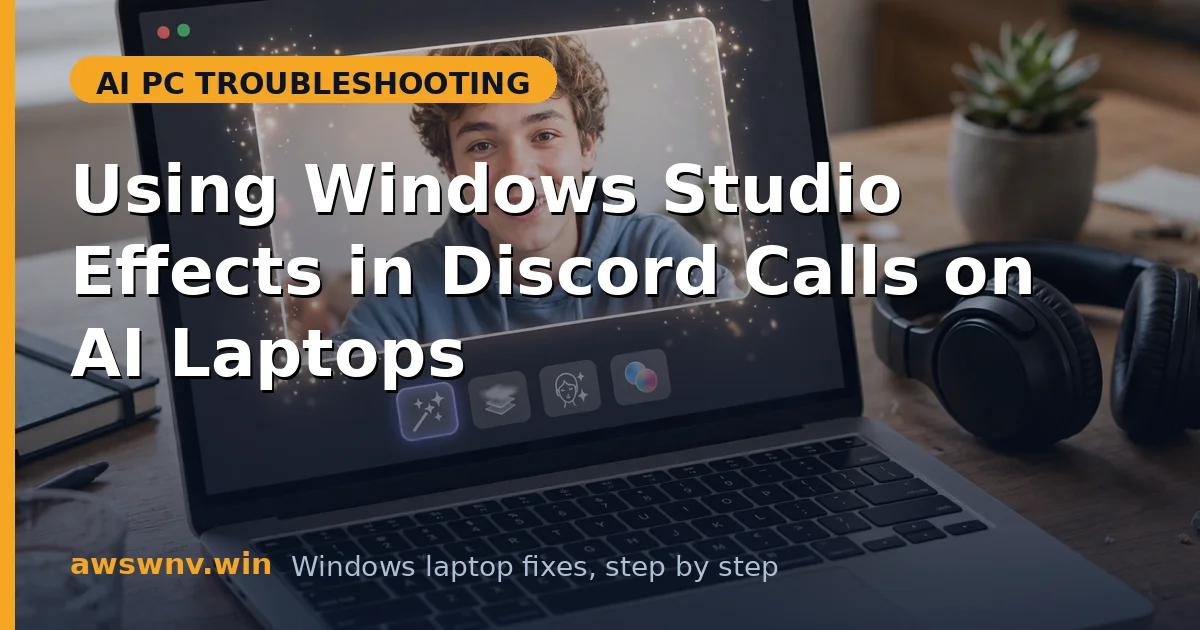
Discord is where many AI laptop owners first notice Studio Effects — or first notice they are missing. Unlike Teams or Zoom, Discord has no built-in background blur button and no effects menu of its own. It simply takes whatever the Windows camera pipeline hands it. That means Studio Effects either apply invisibly in the background or fail silently, and Discord gives you almost no feedback about which is happening.
The good news is that this simplicity is also the fix: because Discord rides on the standard Windows camera stack, enabling Studio Effects in Settings is usually enough. The bad news is that Discord’s habit of caching camera devices, running in the background, and grabbing exclusive camera locks creates a handful of specific failure modes that look like Studio Effects are broken when they are merely being ignored.
If you share your screen in Discord from an ARM-based AI laptop and hit different problems, our guide to Discord screen sharing on ARM laptops covers that side. Skype users with similar symptoms should check Studio Effects not available in Skype . For a broader cleanup of the AI features that can interfere with calls, see our safe debloating guide for Copilot+ PCs , and if a recent Windows update broke things, read about Recall breaking after the 25H2 update since platform updates often affect the camera stack too. Now let us get your Discord video looking right.
Why this happens
- Discord has no effects controls of its own: All Studio Effects are managed in Windows Settings, so Discord users often do not realize anything is configurable.
- Discord caches the camera device: If effects were enabled after Discord started, the running session keeps the old unprocessed stream until you restart the app.
- Exclusive camera locks: Discord can hold the camera exclusively, preventing the Studio Effects pipeline from attaching if it was not already in the chain.
- Wrong camera selected: Laptops with multiple camera devices (IR camera, virtual cameras) may have Discord pointed at a device without effects support.
- Background Discord instances: A Discord process lingering in the system tray holds the camera with old settings even after you “close” the window.
- Hardware acceleration conflicts: Discord’s hardware acceleration can clash with NPU-driven camera processing on some Copilot+ configurations.
- Outdated Discord client: Older Discord builds predate full support for Windows 11 camera extensions and may not pick up the effects pipeline.
How to fix it
Work through these in order — diagnose first, then act.
Fix 1: Enable Studio Effects in Windows Settings first
Since Discord has no toggle of its own, everything starts in Windows. Confirm the effects are actually on for your webcam before touching Discord at all.
- Press Win + I to open Settings, then go to Bluetooth & devices, then Cameras.
- Select your webcam and scroll to the Camera effects section.
- Turn on the effects you want: background blur, eye contact, automatic framing, or portrait light.
- Watch the live preview pane to confirm the effects visibly apply.
- Leave Settings open for a moment while you move to Discord in the next fix.
Fix 2: Fully restart Discord so it re-reads the camera
Discord only negotiates the camera pipeline at startup. If you enabled effects while Discord was running, the call keeps using the old stream. A real restart — not just closing the window — is required.
- Right-click the Discord icon in the system tray and choose Quit Discord.
- Open Task Manager and confirm no Discord.exe processes remain; end any stragglers.
- Relaunch Discord from the Start menu.
- Join a voice channel and turn your camera on to test.
- If the effects still do not appear, reboot the laptop so every process starts fresh.
Fix 3: Re-select the correct camera in Discord settings
Discord sometimes latches onto the wrong device, especially on AI laptops with IR cameras or leftover virtual camera drivers. Pointing it at the right webcam fixes a surprising number of “effects missing” reports.
- In Discord, open User Settings (the gear icon) and go to Voice & Video.
- Under Video Settings, open the Camera dropdown.
- Select your physical webcam by name — avoid anything labeled Virtual, OBS, or IR.
- Click Test Video and watch for the Studio Effects you enabled.
- If the correct camera is already selected, switch to another device and back to force renegotiation.
Fix 4: Use Quick Settings to toggle effects during a call
Once the pipeline is working, you do not need to dig through Settings every time. Windows 11 exposes camera Studio Effects in Quick Settings for live toggling.
- During a Discord call, press Win + N or click the system tray to open Quick Settings.
- Look for the camera Studio Effects button (camera icon with sparkles).
- Toggle background blur, framing, or eye contact live and watch your Discord preview update.
- If the button is missing, your camera driver does not expose quick controls — use the full Settings page instead.
- Note that changes apply within a few seconds; brief freezing during the switch is normal.
Fix 5: Disable Discord hardware acceleration if video stutters
On some Copilot+ laptops, Discord’s hardware acceleration fights with the NPU-driven camera pipeline, producing stutter or dropped frames even when effects are technically working.
- In Discord User Settings, go to Advanced.
- Turn off Hardware Acceleration.
- Fully quit and relaunch Discord as described in Fix 2.
- Test your camera in a voice channel and check for smooth motion.
- If disabling acceleration makes other things sluggish, re-enable it and instead lower your camera resolution in Voice & Video.
Fix 6: Update Discord and your camera drivers
An outdated Discord client or camera driver is the most common root cause when effects never appear at all. Both ends of the pipeline need to understand Windows 11 camera extensions.
- In Discord, press Ctrl + R to force a client refresh, or download the latest installer from discord.com and reinstall.
- Open Device Manager, expand Cameras, right-click your webcam, and choose Update driver.
- For the newest vendor drivers, check Dell , HP , or Lenovo support for your model.
- Also install pending Windows updates, which can include improved Studio Effects models.
- Restart the laptop and repeat Fix 1 through Fix 3 to re-establish the pipeline.
Closing
Discord and Studio Effects work well together once you remember the division of labor: Windows owns the effects, Discord just displays them. Enable everything in Settings, restart Discord fully so it picks up the pipeline, double-check the selected camera, and you will get background blur and auto framing in every call without touching a single Discord-specific setting.