Windows Studio Effects can make a messy room disappear behind a soft, professional blur — but the default blur is often stronger than people want, swallowing hair edges and looking artificial. The blur strength is adjustable; the catch is that Microsoft hides the control in a settings page most people never visit.
Getting the blur right matters. A subtle blur keeps you the focus of the call while looking natural; max-strength blur triggers the edge flicker that makes coworkers ask if your camera is broken. The NPU handles segmentation, so cranking it up costs almost no battery — but visual quality is a different story.
If blur is not working at all, start with our guide to background blur not working in Studio Effects to rule out driver problems. You can also turn off Studio Effects entirely if you prefer. For a clean setup, our clean install driver guide for AI laptops covers the full control set, and Recall users should check why Recall search operators stop working .
Why this happens
- Blur defaults to maximum on many drivers: Several camera drivers ship with Studio Effects blur preset to the strongest level, which looks harsh on most faces.
- The slider is buried in Settings: The blur intensity control lives under Bluetooth & devices, then Cameras, not in the Quick Settings panel, so most users never find it.
- Some drivers expose only on/off: Older or generic camera drivers implement background blur as a binary toggle with no intensity control at all.
- Poor lighting exaggerates blur artifacts: In dim rooms, the segmentation model struggles with edges, so even medium blur can look aggressive and flickery.
- High-contrast backgrounds confuse segmentation: Busy patterns, mirrors, or bright windows behind you make the AI work harder, producing halos at any blur level.
- Auto framing compounds the problem: When auto framing zooms the crop, it also magnifies blur edge artifacts, making the strength feel higher than it is.
How to fix it
Work through these in order — diagnose first, then act.
Fix 1: Find and set the blur intensity slider
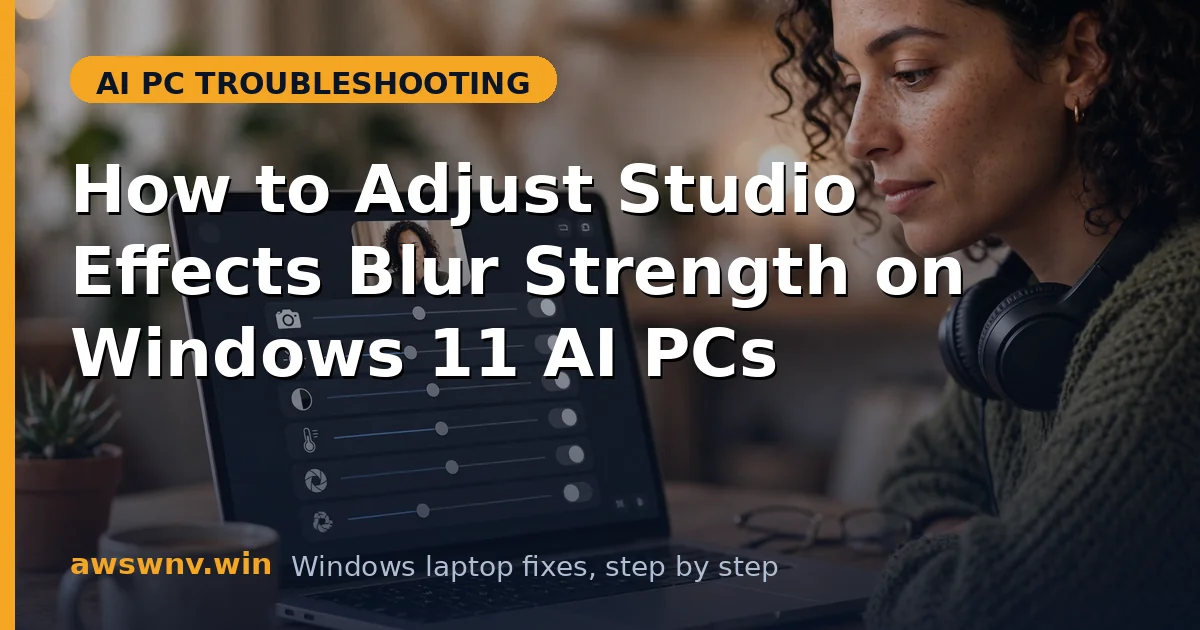
The actual control exists on most Copilot+ laptops — it is just well hidden. Getting to it takes less than a minute, and one adjustment usually solves the “too aggressive” complaint.
- Open Windows Settings with Win + I.
- Go to Bluetooth & devices, then Cameras.
- Click your webcam to open its dedicated device page.
- Scroll to the Camera effects section and find Background effects.
- If a slider appears under the blur option, drag it to around 30 to 50 percent for a natural look.
- Preview the change in the camera preview pane before closing Settings.
Fix 2: Update the camera driver to unlock the slider
If step 1 shows only an on/off toggle with no slider, your driver is the limiting factor. Camera vendors add the extended Studio Effects controls, including blur intensity, in newer driver packages.
- Open Device Manager and expand the Cameras section.
- Right-click your webcam and choose Update driver, then Search automatically for drivers.
- If Windows finds nothing new, visit your manufacturer’s support page: Dell , HP , or Lenovo .
- Download and install the latest camera driver package for your exact laptop model.
- Restart the laptop, then revisit Settings, then Bluetooth & devices, then Cameras to check for the slider.
- For Intel-based AI PCs, also run the Intel Driver & Support Assistant to catch related platform drivers.
Fix 3: Improve your lighting to tame edge artifacts
Even a perfect blur setting looks bad in a dark room. The segmentation model needs to clearly see where you end and the room begins, and good lighting is the cheapest fix for flickery edges.
- Face a window or place a lamp in front of you, slightly above eye level.
- Avoid strong backlight, such as a bright window directly behind you.
- Keep at least a meter of space between you and the wall behind you so the model has depth to work with.
- Re-check the blur preview after improving the light; you may be able to raise the strength again.
- If you use portrait relight, set it to a low level so it does not fight the blur edges.
Fix 4: Lower blur when auto framing is active
Auto framing crops and zooms the video, which magnifies every imperfection in the blur mask. If you need framing on, the blur strength usually needs to come down to compensate.
- In the same Camera effects section, note whether Automatic framing is enabled.
- If it is, reduce the background blur slider by about 20 points from your preferred setting.
- Sit a little farther from the camera so framing does not need to zoom aggressively.
- Test by moving side to side and watching the blur edges in the preview.
- If artifacts persist, turn auto framing off and use a fixed crop instead.
Fix 5: Reset Studio Effects to defaults and start over
Layered tweaks across blur, relight, and framing can interact in confusing ways. A full reset gives you a clean baseline so you can dial in just the blur.
- Go to Settings, then Bluetooth & devices, then Cameras, and open your webcam.
- Turn off every Studio Effects toggle: background effects, eye contact, auto framing, and portrait light.
- Close Settings, wait ten seconds, and reopen the camera page.
- Turn background blur back on alone and set the slider to a moderate level.
- Add other effects back one at a time, checking the preview after each.
- Stop when the image looks right — fewer simultaneous effects almost always look better.
Fix 6: Check for Windows updates that refine the blur model
Microsoft periodically ships improved Studio Effects AI models through Windows Update, and these updates genuinely change blur quality — newer models track hair and glasses edges far better.
- Open Settings, then Windows Update.
- Click Check for updates and install everything offered, including optional driver updates.
- Pay special attention to updates mentioning camera, NPU, or Studio Effects.
- Restart after installing, then revisit the blur slider and preview.
- You may find you can now use a higher strength with fewer artifacts than before.
Closing
Background blur strength is one of those settings that is trivial to fix once you know where it lives. Head to the camera device page in Settings, set the slider to a moderate level, give the segmentation model good light to work with, and resist the urge to stack every effect at once. Your video calls will look naturally polished instead of aggressively filtered.