MEMORY_MANAGEMENT (stop code 0x0000001A) means Windows found serious corruption in how memory is being managed. The name points at RAM, and RAM is indeed suspect number one — but drivers that corrupt memory and disk problems that corrupt the page file cause this exact code too.
The trick is testing in the right order so you don’t buy new RAM for a driver problem. Our MEMORY_MANAGEMENT reference has the background; the diagnostic sequence below is the practical version. Start at Fix 1. The order matters more than usual here: test the RAM first, because a confirmed hardware fault ends the software hunt immediately and saves real time.
Why this happens
Defective or mismatched RAM sticks corrupting data in physical memory.
A buggy driver writing to memory it doesn’t own — graphics and storage drivers are common culprits.
Disk errors corrupting the page file, making the disk look like bad RAM.
Overclocked RAM (XMP/EXPO) running beyond what the sticks stably support.
Corrupted system files in the memory management components themselves.
Malware or rootkits hooking memory management functions.
A corrupted hibernation file resuming garbage memory state on every fast-startup boot, poisoning memory management from the first second.
How to fix it
Work through these in order, starting with Fix 1. Most of these crashes are resolved by one of the first three fixes, so don’t skip ahead.
Fix 1: Run Windows Memory Diagnostic
Start with the built-in RAM test. It’s quick, and if it finds errors you’ve got your answer in 15 minutes.
Press Win + R, type
mdsched.exe, and press Enter.Choose Restart now and check for problems.
Let the test complete without interrupting it.
After reboot, open Event Viewer > Windows Logs > System and filter for MemoryDiagnostics-Results to see the verdict.
Fix 2: Run MemTest86 for a definitive answer
The built-in test misses subtle faults. MemTest86 from a USB drive is the gold standard — if it passes 4+ passes, your RAM is fine.
Download MemTest86 and write it to a USB drive with their included tool.
Boot from the USB (use the boot menu key — often F12 or Esc).
Let it run at least 4 full passes — overnight is ideal.
Any red errors mean bad RAM. Test sticks one at a time to find the faulty one.
Fix 3: Disable XMP and run RAM at stock speed
If MemTest86 shows errors only with XMP enabled, your RAM is fine — the overclock isn’t. Stock speed is the fix.
Enter BIOS/UEFI setup during boot.
Find memory settings and disable XMP / EXPO / DOCP.
Save and exit, then re-run MemTest86 for 2 passes.
Clean at stock speeds confirms the overclock was the problem — leave it off or try a milder profile.
Fix 4: Update graphics and storage drivers
When RAM tests clean, drivers are the next suspect. These two categories corrupt memory most often.
In Device Manager, uninstall the display adapter driver (tick Attempt to remove the driver).
Restart and install the latest driver from the GPU maker — NVIDIA users can use the official NVIDIA download page .
Update the storage controller drivers from your laptop maker’s support site.
Use the laptop heavily for a day — gaming or video work stresses the drivers most.
Fix 5: Check the disk and page file
A corrupt page file produces MEMORY_MANAGEMENT crashes with perfectly healthy RAM. This fix is free and fast.
Open Command Prompt (Admin) and run
chkdsk C: /f /r(type Y, restart, let it run).Then open Settings > System > About > Advanced system settings > Performance Settings > Advanced > Virtual memory.
If the page file is on a secondary drive, move it back to C: with System managed size.
Restart and monitor. If chkdsk found many bad sectors, check drive health with CrystalDiskInfo.
Fix 6: Run SFC and DISM
Corrupted Windows memory-management components need system-level repair. This pair handles it.
Open Terminal (Admin) and run
sfc /scannow.Then run
DISM /Online /Cleanup-Image /RestoreHealth.Restart afterward.
Microsoft documents both tools on their Windows support pages .
Fix 7: Scan for malware
Rootkits that hook memory functions can trigger this stop code. Worth ruling out before concluding it’s hardware.
Open Windows Security > Virus & threat protection.
Run a Full scan first.
Then run a Microsoft Defender Offline scan (under Scan options) — it reboots into a clean environment.
If the offline scan finds and removes threats, re-test stability for a few days.
Fix 8: Reseat the RAM and clean the slots
Oxidized contacts and dust in the slots cause the intermittent faults MemTest86 flags. A proper reseat with cleaned contacts fixes errors that look exactly like dying RAM.
Shut down, unplug the charger, and remove the battery if removable.
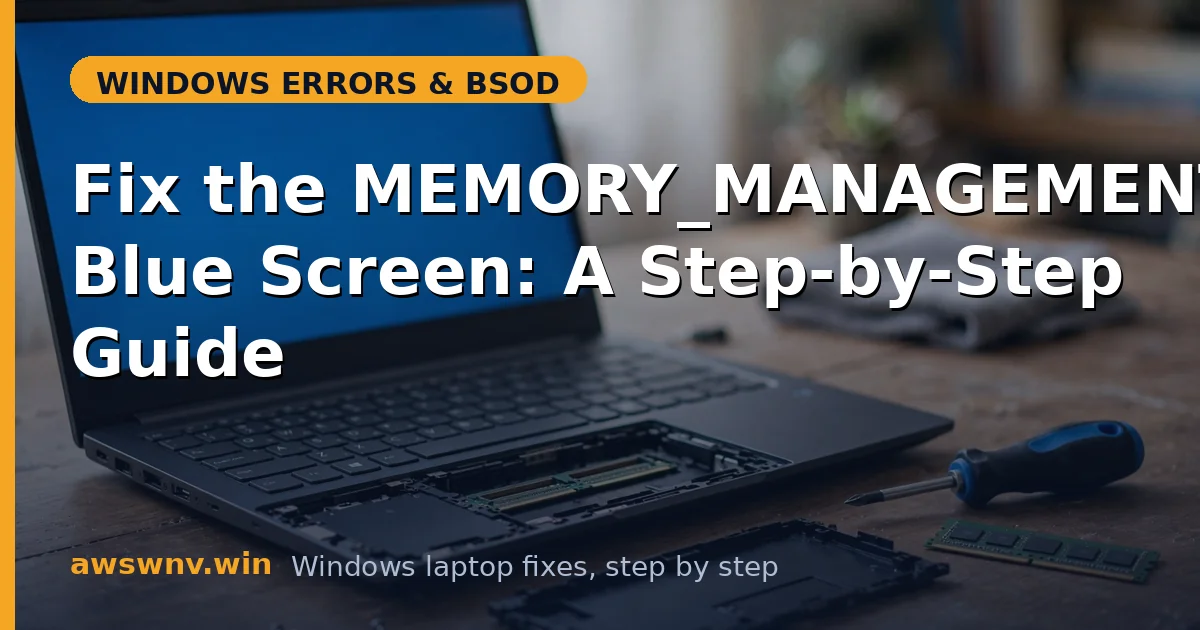
Open the memory compartment and release the clips on each stick.
Gently clean the gold contacts with a soft pencil eraser, then wipe with a lint-free cloth.
Blow compressed air into the empty slots.
Reseat each stick firmly until both clips click — a half-seated stick is worse than none.
Boot and re-run MemTest86 for 2 passes to confirm the errors are gone.
Closing
MEMORY_MANAGEMENT is a diagnosis, not a sentence: test the RAM properly with MemTest86, drop any overclock, then work through drivers and the page file. Most cases end at one of those three. And if MemTest86 does show errors, replace the stick with confidence — you’ve proven it’s hardware, not a guess, and no amount of driver updating will fix physically faulty memory. Handle sticks by the edges and ground yourself first — static discharge kills RAM faster than almost anything else. And if a stick fails in only one particular slot, suspect the slot (the motherboard), not the stick; that distinction saves you buying RAM you don’t need. File this diagnostic order away — test memory, drop the overclock, check drivers, check the disk — because it works for nearly every memory-corruption stop code, not just this one. It’s the closest thing to a universal playbook these errors have. On 24H2 specifically, the Memory Management BSOD guide for 24H2 covers the build’s own driver-model wrinkles.