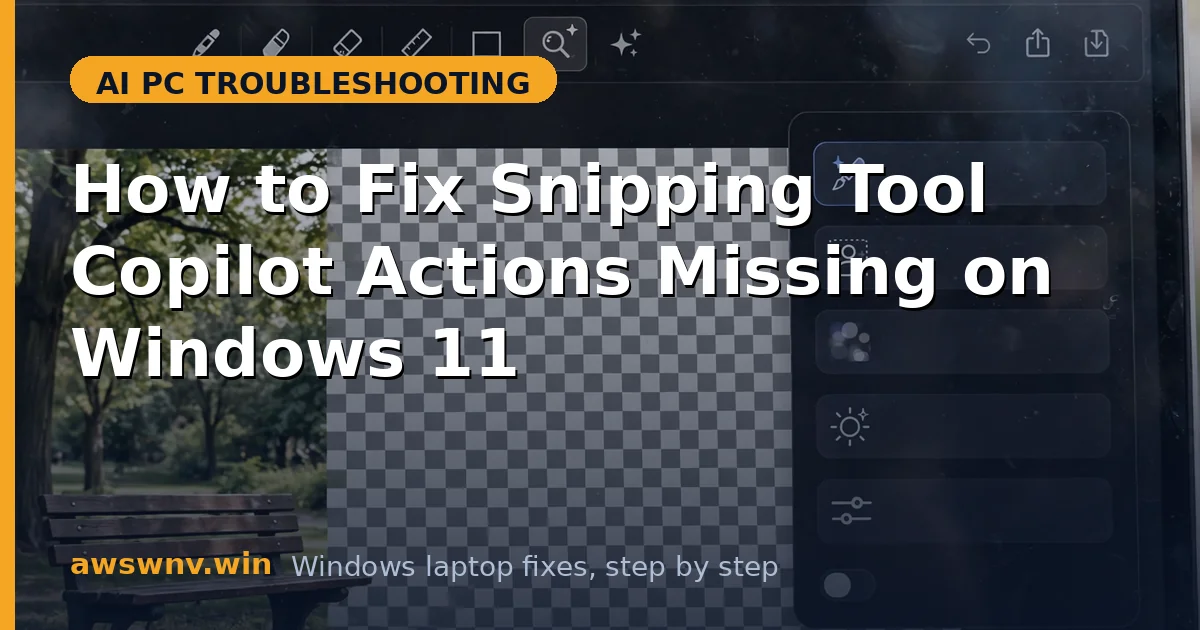
The Snipping Tool got smarter — screenshot something and AI actions appear: summarize the text, ask Copilot about it, rewrite it. Except on your machine, those actions never show up. The snip works, Text Extractor works, but the Copilot magic is absent. Another AI feature that’s supposed to “just be there” and isn’t.
Copilot actions in the Snipping Tool are part of Microsoft’s Click to Do system — AI actions surfaced contextually on screen content. They’re gated harder than basic OCR: Copilot+ hardware for the on-device actions, current Snipping Tool and system apps, Click to Do enabled, and region settings. Each gate fails silently.
This guide restores them in technician order: eligibility, Snipping Tool version, Click to Do itself, AI components and NPU, region and account, and app repair. The same gating logic runs through all AI PCs — our Rust on ARM install guide covers the shared platform stack, and Elgato devices on ARM show the same driver-maturity pattern — while Live Captions system audio issues involve the same on-device AI family.
Why this happens
- Not a Copilot+ PC: The on-device Copilot actions require a qualifying NPU — non-qualifying hardware doesn’t get them.
- Outdated Snipping Tool: Copilot actions arrived via Store updates — old builds lack the integration entirely.
- Click to Do disabled or missing: The actions are Click to Do actions — if Click to Do is off or its components missing, the Snipping Tool shows no AI options.
- AI components not downloaded: The on-device models are separate downloads; actions fail or hide until they arrive.
- NPU driver issues: On qualifying hardware, a broken NPU driver kills the on-device action path.
- Region or language gating: Click to Do and its actions are heavily region-gated — wrong settings hide everything silently.
- Copilot app missing or signed out: Cloud actions route through the Copilot app — missing or signed-out states break them.
How to fix it
Work through these in order — diagnose first, then act.
Fix 1: Verify Copilot+ eligibility and Click to Do status
Two checks up front: does your hardware qualify, and is Click to Do itself working? The Snipping Tool actions are downstream of both — fix the upstream first.
- Confirm Copilot+ status in Settings > System > About and the NPU in Device Manager > Neural processors.
- Test Click to Do independently: press Win+Click on some screen text — if Click to Do doesn’t appear at all, that’s your real problem.
- Check Settings > Privacy & security > Click to Do (or Settings > System > Click to Do on some builds) and ensure it’s enabled.
- If Click to Do works elsewhere but not from Snipping Tool, the issue is the Snipping Tool’s integration — continue to Fix 2.
- If hardware doesn’t qualify, the on-device actions won’t come — but cloud actions via the Copilot app may still work (see Fix 5).
Fix 2: Update the Snipping Tool
The Copilot actions integration is Store-delivered. An outdated Snipping Tool is the most common fixable cause of missing actions.
- Open Microsoft Store > Library > Get updates; wait for Snipping Tool to finish.
- Open Snipping Tool, take a snip with text in it, and check the toolbar for Copilot/AI action buttons.
- Confirm a recent app version in settings — the Click to Do integration needs 2024+ builds.
- Fully close and reopen the app after updating.
- Also update the Copilot app from the Store — cloud actions depend on it.
Fix 3: Enable and repair Click to Do
When the Snipping Tool is current but actions stay missing, Click to Do itself is usually disabled, uninstalled, or broken — and the Snipping Tool just reflects that.
- Open Settings and search Click to Do — confirm the toggle is on.
- If the settings page doesn’t exist, check Settings > Windows Update — Click to Do components arrive via system updates on Copilot+ PCs.
- Try the Win+Click gesture on text in another app — working there but not in Snipping Tool points back at the app (Fix 6).
- Check that you’re signed in with a Microsoft account — Click to Do’s cloud actions verify identity.
- Restart Windows Explorer (Task Manager > Windows Explorer > Restart) — the Click to Do overlay hooks Explorer, and a stale hook hides actions.
Fix 4: Get the NPU driver and AI components right
On-device Copilot actions need the NPU driver plus downloaded models. This is the same stack as every other Copilot+ feature — fix it once, benefit everywhere.
- Verify the NPU in Device Manager > Neural processors — no warning icons.
- Install the NPU/chipset driver from your laptop maker’s support site if missing or flagged.
- Run Windows Update with optional updates — AI model components download separately.
- Stay on unmetered Wi-Fi with free disk space; leave the PC idle and plugged in 1-2 hours.
- Retest: take a snip with clear text and check whether Copilot actions now appear.
Fix 5: Check region, language, and Copilot account
Click to Do is among Microsoft’s most aggressively region-gated features. With everything else correct, gating is the usual invisibility cause.
- Set Windows display language to English (United States).
- Set Country or region to United States (or another supported region).
- Sign out and back in, then retest both Click to Do (Win+Click) and the Snipping Tool actions.
- Open the Copilot app and sign in with your Microsoft account — cloud actions need the signed-in app.
- Check the Microsoft Windows support hub for current Click to Do availability by region.
Fix 6: Repair or reset the Snipping Tool
The last resort when the platform is healthy but the Snipping Tool’s integration specifically is broken — corrupt app data breaking just the AI action path.
- Go to Settings > Apps > Installed apps > Snipping Tool > Advanced options.
- Click Repair, wait for the checkmark, and test with a fresh text snip.
- If repair fails, click Reset — saved snips in Pictures are safe on disk.
- Reopen Snipping Tool and check the toolbar after taking a snip.
- Final measure: uninstall and reinstall Snipping Tool from the Microsoft Store.
Closing
Snipping Tool Copilot actions sit at the end of a dependency chain: Copilot+ hardware, current Snipping Tool, working Click to Do, NPU driver plus AI models, region settings, and a signed-in Copilot app. Diagnose upstream first — test Click to Do independently before blaming the Snipping Tool — then work the list in order. When the chain is healthy, screenshot-to-AI-action just works.