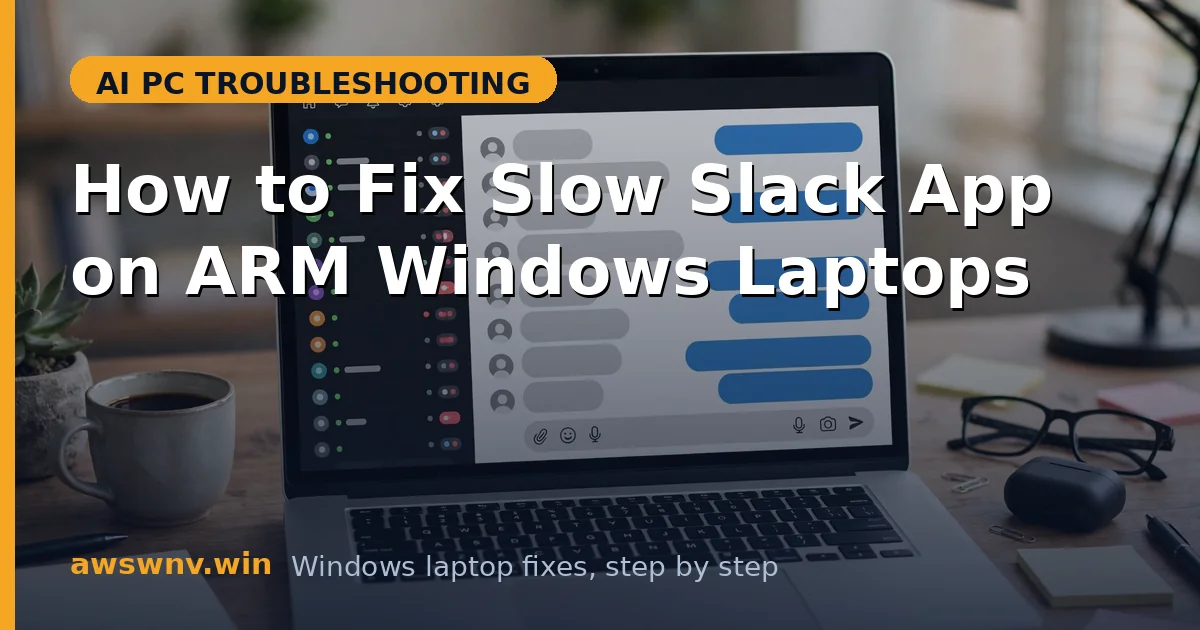
Slack is one of those apps that can make a fast Snapdragon laptop feel slow. The desktop app’s Electron runtime, message indexing, animated emoji, and constant sync churn add up — and if you are running the x64 build under Prism emulation, every one of those operations pays a translation tax. The result is laggy channel switching, delayed notifications, and a fan that spins up for a chat app. Slack’s Electron architecture makes it unusually sensitive to emulation overhead, which is why the build you run matters more here than with almost any other app.
Check which Slack build you have first: in Task Manager’s Details tab, an emulated Slack shows the x64 architecture. If Teams is your other daily driver, compare notes with our guide to Teams crashing on Snapdragon laptops — both are Electron apps with the same ARM pitfalls. Encryption and security features can also interact oddly on these machines; Recall snapshot encryption issues are a different feature, but they illustrate how ARM platform quirks surface in unexpected places.
The path to a fast Slack is straightforward: get on the right build, trim what the app does in the background, and know when the browser version is the pragmatic choice. If Click to Do misbehaves on images while you multitask, our Click to Do image troubleshooting covers that separately.
Why this happens
- x64 Slack running under emulation: Emulated Electron apps are the worst ARM performers because the entire Chromium runtime runs translated. This alone can explain severe sluggishness.
- Outdated Slack version: ARM64 support in Slack’s Electron base improved markedly across releases. Old versions lack those gains.
- Hardware acceleration misbehaving: On some Snapdragon graphics drivers, Slack’s GPU acceleration causes stutter instead of smoothness.
- Oversized cache and message index: Years of cached files and indexed messages bloat the local database and slow every search and switch.
- Animated content and autoplay: GIFs, animated emoji, and link previews force constant re-rendering that hits emulated apps hardest.
- Startup launch plus background sync: Slack launching at boot and syncing aggressively competes with everything else starting up.
How to fix it
Work through these in order — diagnose first, then act.
Fix 1: Switch to the ARM64-native Slack build
The single biggest speedup available. Verify the architecture before and after.
- Check Task Manager Details to see if Slack runs as x64 (emulated).
- Download the latest Slack installer, which carries improved ARM support.
- Install over the existing copy — your workspaces and login persist.
- Confirm the new process architecture in Task Manager.
- Compare channel-switch speed and CPU usage against the old build.
Fix 2: Clear Slack’s cache
A bloated cache slows search, switching, and startup. Clearing it is safe and often transformative.
- In Slack, open the menu, then Help, then Troubleshooting.
- Choose Clear Cache and Restart.
- Wait for Slack to rebuild its cache on launch.
- Test search and channel switching speed.
- Repeat every few months if you are in very active workspaces.
Fix 3: Disable hardware acceleration
Counterintuitively, turning GPU acceleration off can smooth out an emulated or driver-mismatched Slack.
- Open Slack preferences, then Advanced.
- Uncheck hardware acceleration and restart Slack.
- Use it for a full workday before judging.
- If scrolling and typing feel smoother, keep the setting off.
- Recheck after each graphics driver update, since fixes land there.
Fix 4: Trim animations and previews
Less visual churn means less work for the renderer — a big deal under emulation.
- In Slack preferences, under Accessibility or Appearance, reduce motion.
- Disable animated emoji and autoplaying GIFs.
- Turn off large link previews if your workspace allows it.
- Collapse the sidebar sections you rarely open.
- Notice the drop in CPU usage in Task Manager during busy channels.
Fix 5: Stop Slack launching at startup
Freeing boot-time resources helps the whole laptop, and Slack launches fast enough on demand.
- Open Task Manager, then Startup apps, and disable Slack.
- In Slack preferences, turn off launch-on-login options.
- Restart the laptop and confirm Slack stays closed.
- Launch it manually when your workday starts.
- For general Windows app guidance, see Copilot in Windows support .
Fix 6: Use the web app in an ARM64 browser when needed
The pragmatic fallback: Slack in a native ARM64 browser is often faster than the emulated desktop app.
- Open Slack in your ARM64-native browser and sign in.
- Enable browser notifications for Slack so you miss nothing.
- Pin the tab or install it as a web app for quick access.
- Compare responsiveness against the desktop build for a week.
- Keep the desktop app installed for calls if the web version lacks a feature you need.
Fix 7: Reinstall Slack and reset its local data
When cache clears and setting tweaks only help temporarily, the local data store itself may be corrupt. A full reinstall with local data removed gives Slack a genuinely fresh start — workspaces and history live in the cloud, so you lose nothing but the cruft.
- Sign out of Slack and note your workspace URLs.
- Uninstall Slack, then delete its leftover folders under AppData.
- Restart the laptop to clear any locked files.
- Install the latest Slack build and sign back into your workspaces.
- Reconfigure only the settings you need and test performance for a day.
Closing
Slack on ARM Windows does not have to be painful. Get onto the right build, clear the cruft, calm the animations, and keep it out of your startup sequence — and if the desktop app still drags, the browser version in a native ARM64 browser is a perfectly respectable daily driver. A native build with a lean cache and calm startup behavior turns Slack from a resource hog back into the lightweight chat tool it is supposed to be. Revisit these settings after major Slack updates, since new versions occasionally reset preferences and reintroduce the slowdowns you just fixed.