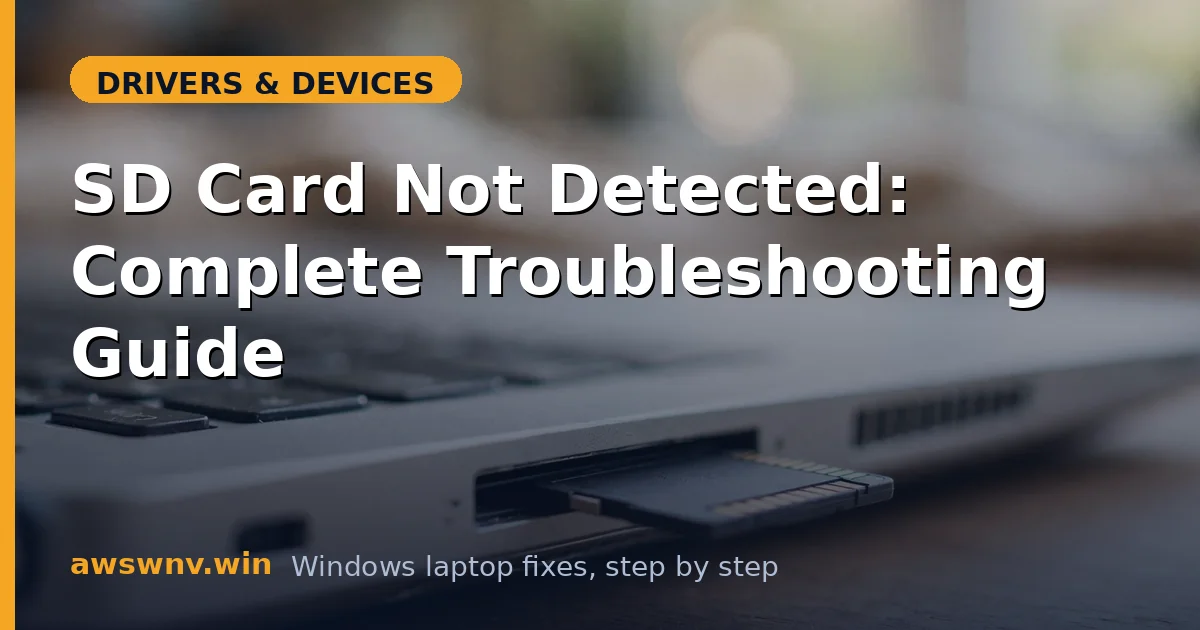
SD card detection failures are a perfect troubleshooting exercise because the system has exactly four layers — card, reader hardware, reader driver, Windows mounting — and each layer has a clean test. Most people skip the testing and jump straight to formatting or buying a new card, which is how data gets lost and money gets wasted. This guide takes the methodical path: prove which layer is broken, then fix that layer.
The headline rule: never format a card that contains data you have not backed up, and never assume the card is dead until you have tested it in a second reader. Work the layers from the outside in. For the quickest version of this problem, our best way to fix SD card detection covers the highest-probability fixes, while the DVD drive detection guide follows the same diagnostic logic for optical drives.
Why this happens
- Card not fully seated. Spring-loaded laptop slots can leave the card one click short of contact.
- Dirty contacts. Oxidation or debris on the card’s gold contacts breaks the connection intermittently or completely.
- Reader driver replaced by Windows Update. Generic drivers often fail to initialize specific reader chips.
- Missing drive letter. Windows detects the card but never mounts it visibly.
- Corrupted filesystem. A damaged FAT32/exFAT structure makes Windows refuse to mount the card.
- USB power management. Built-in readers hang off the internal USB bus, which selective suspend can put to sleep.
- Failed reader hardware. The reader chip or slot pins can fail, particularly on older laptops.
How to fix it
Work through these in order — diagnose first, then act.
Fix 1: Perform the two swap tests
Establish which layer is broken before changing anything.
- Insert the problem card into a different reader — a phone, camera, or USB reader. Note whether it works.
- Insert a different, known-good card into the laptop’s built-in slot. Note whether it is detected.
- Interpret the matrix: problem card works elsewhere = laptop problem; good card fails in laptop = reader/driver problem; problem card fails everywhere = card problem; everything fails everywhere = test with a third card before concluding anything.
- Clean the problem card’s contacts with a dry microfiber cloth and reinsert firmly until the slot clicks positively.
Fix 2: Inspect Disk Management
See what Windows knows about the card.
- With the card inserted, press Win + X and open Disk Management.
- Identify the card in the lower pane — it may appear as Removable, RAW, unallocated, or without a drive letter.
- If it has no letter: right-click, Change Drive Letter and Paths > Add, assign a letter, and check File Explorer.
- If it appears as RAW or unallocated and holds needed data: stop here and use data recovery software first. Only format (right-click > Format, exFAT for cards over 32GB) when the data is expendable or already recovered.
Fix 3: Reinstall the card reader driver
The most effective software fix.
- Open Device Manager. Built-in readers usually appear under Memory technology devices or as USB devices under Universal Serial Bus controllers.
- To identify the right entry: remove the card and watch which entry disappears from Device Manager, then reinsert it.
- Right-click the reader entry, choose Uninstall device, and restart the laptop.
- Install the card reader driver from your laptop manufacturer’s support page rather than relying on the Windows-installed version — the manufacturer’s package matches your reader chip. Start at Dell , HP , or Lenovo as appropriate.
Fix 4: Disable USB power management for the reader
Built-in readers are USB devices and subject to USB power saving.
- In Device Manager, expand Universal Serial Bus controllers.
- For each USB Root Hub, open Properties > Power Management and uncheck Allow the computer to turn off this device to save power.
- Open Control Panel > Power Options > Change plan settings > Change advanced power settings, expand USB settings, and set USB selective suspend to Disabled.
- Restart and test. This particularly helps readers that work right after boot but stop detecting cards later.
Fix 5: Check the card’s filesystem health
If the card is detected but misbehaves, the filesystem may be damaged.
- Open an elevated Command Prompt and run
chkdsk X: /f(replace X with the card’s drive letter). Let it complete — it can repair filesystem errors without data loss. - If chkdsk cannot access the drive, the card may need reformatting: back up any accessible data first, then format as exFAT (best for large cards) or FAT32 (best for maximum device compatibility on small cards).
- After formatting, test with a full write-read cycle: copy a large file to the card, eject properly, reinsert, and verify the file. Cards that corrupt data during this test are failing physically.
- Always use Safely Remove Hardware before removing cards — yanking cards mid-write is the top cause of filesystem corruption.
Fix 6: Rule out interference and check BIOS
Eliminate software and firmware variables.
- Boot into Safe Mode and test the card there. If it works in Safe Mode, a third-party program (encryption software, antivirus, disk utilities) is interfering.
- Enter the BIOS and look for a card reader or media card toggle — enable it if disabled.
- Check for a BIOS update from the manufacturer; reader initialization bugs are occasionally fixed in firmware.
- Also test in a different Windows user account to rule out a corrupted user profile affecting drive mounting.
Fix 7: Confirm hardware failure with an external reader
The definitive final test.
- Obtain an inexpensive USB SD card reader and test the problem card in it on the same laptop.
- If the card works in the USB reader, the built-in reader has failed — the USB reader serves as a permanent, cheap replacement.
- If the card fails in the USB reader too but works in a camera, try one more known-good card in the USB reader to make sure the reader itself is not faulty.
- For a built-in reader you want properly repaired, get a quote from a repair shop — but compare it against the cost of a USB reader, which is usually under $15 and requires no disassembly.
Closing
The swap-test matrix at the start of this guide is the whole game: it tells you in minutes whether to fix the card, the reader, the driver, or Windows itself. From there, the Disk Management check catches mounting problems, the driver reinstall fixes the software layer, and the external reader test delivers the final verdict on hardware. Resist the urge to format first and ask questions later — detection problems are solved by diagnosis, not by erasing.