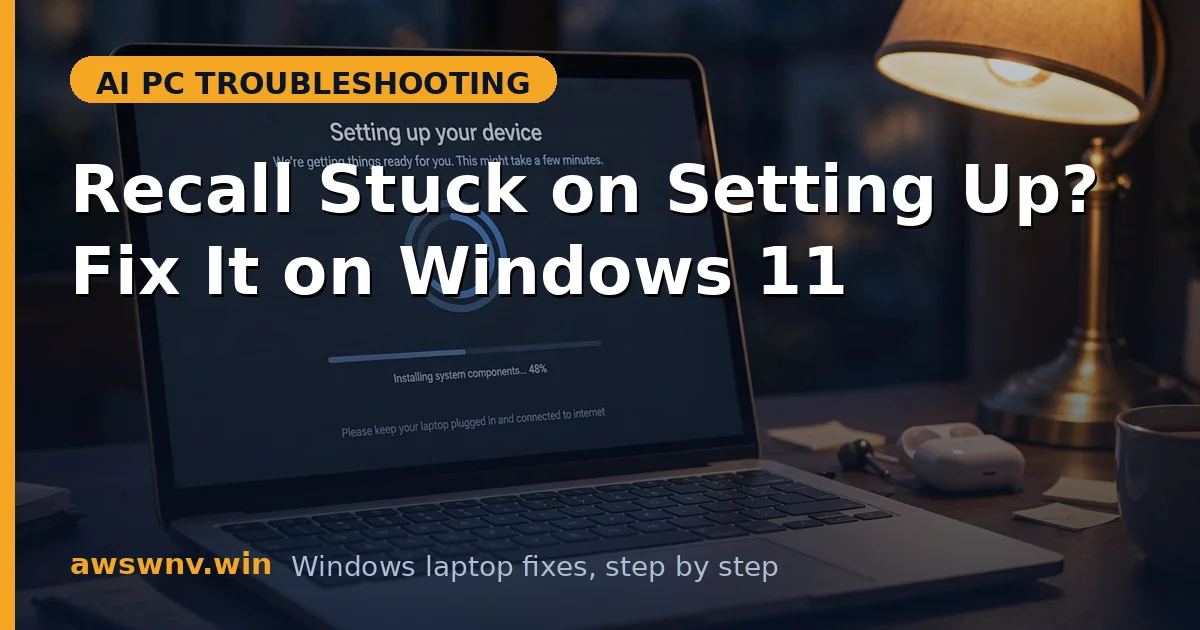
You enabled Recall, and now it just sits there — ‘Setting up’ spinning forever, never reaching the timeline. It is a special kind of frustration: the feature is technically on, but functionally you have nothing. Most people let it spin for an hour, assume it needs time, and only start troubleshooting when it is still stuck the next morning.
Setup involves several one-time jobs: verifying hardware eligibility, provisioning the encrypted snapshot store, downloading the on-device AI models, and building the first index. A stall at any of these stages freezes the whole screen, and Windows is not great at telling you which stage failed.
This guide identifies where setup is stuck and how to push it through, in order of likelihood. A corrupt partial download sometimes needs a clean slate — see how to delete Recall snapshots before retrying. If setup finished but broke later, see Recall not working after an update . And if Recall never appeared on this PC, check Recall not available on my PC .
Why this happens
- Hardware eligibility re-check failing: Setup re-validates the NPU, RAM, and storage. If a driver hiccup makes the NPU momentarily invisible, setup waits forever.
- AI model download stalled: Recall downloads on-device models during setup. A metered connection, VPN, or interrupted download stalls it silently.
- Snapshot store provisioning blocked: The encrypted store needs free disk space and a healthy drive. Low space or disk errors block provisioning.
- Windows Hello not ready: Recall setup waits for Hello enrollment to secure the store. Skipping Hello setup leaves Recall hanging.
- Pending restart required: Some setup steps only complete after a reboot. Users who keep postponing the restart stay stuck.
- Corrupt prior partial setup: A previously failed setup attempt can leave half-provisioned state that blocks every retry.
How to fix it
Work through these in order — diagnose first, then act.
Fix 1: Give it a real deadline, then restart
Setup has a reasonable duration — roughly half an hour to an hour on a good connection — and anything far beyond that is stuck, not slow. The most common false stall is simply a restart Windows has been waiting for; setup stages queue behind it indefinitely. One proper restart separates the trivial cases from the real problems in minutes.
- Note how long setup has been spinning — over two hours means intervene.
- Restart your laptop; many stalls are just a pending reboot in disguise.
- After restarting, open Recall again and watch for 20 minutes.
- If it is still stuck, move on — the restart ruled out the trivial cause.
Fix 2: Check disk space and connection
Two resources silently gate setup: free disk space for the AI models plus the encrypted store, and a stable unmetered connection to download the models. A nearly-full system drive or a metered/VPN connection stalls the download phase with no useful error. Fixing both is unglamorous but resolves a large fraction of endless-setup cases.
- Ensure at least 10–15GB free on the system drive; Recall needs room for models plus the store.
- Connect to stable, unmetered Wi-Fi — pause any VPN during setup.
- If you are on a metered connection, temporarily allow downloads over metered connections in Settings > Network.
- Retry setup and watch whether the progress state changes.
Fix 3: Confirm Windows Hello is fully set up
Recall will not finish provisioning its encrypted snapshot store until Windows Hello is fully enrolled — the feature is architecturally dependent on it. Users who skipped Hello during Windows setup hit an invisible wall here: everything looks ready, but provisioning waits. Completing face, fingerprint, or PIN enrollment and signing out and back in often unsticks setup within minutes.
- Go to Settings > Accounts > Sign-in options.
- Complete face, fingerprint, or PIN setup if anything is pending.
- Sign out and back in once to make sure Hello is active.
- Return to Recall — setup often completes within minutes after Hello is ready.
Fix 4: Clear the failed setup state and retry
A failed setup attempt leaves half-provisioned state — partial stores, half-downloaded models — that blocks every subsequent attempt at the same invisible wall. Toggling Recall off, clearing the partial data, restarting, and starting genuinely fresh is the only way past it. The critical detail: let the fresh attempt run on a plugged-in, awake machine without interruption.
- Turn Recall off in Settings > Privacy & security > Recall & snapshots.
- Delete any partial snapshots if the option is available.
- Restart the laptop, then turn Recall back on to trigger a genuinely fresh setup.
- This time, leave the laptop plugged in and idle during setup — do not sleep it mid-provisioning.
Fix 5: Update Windows and NPU drivers
Setup-time bugs are exactly what cumulative updates fix, and NPU visibility glitches are exactly what driver updates fix. An update pass before the next setup attempt is not busywork — it is the highest-probability single action for stalls on otherwise qualifying hardware. Microsoft’s support pages document the known setup blockers per build, so check there too.
- Install all pending Windows updates and restart as requested.
- Update the NPU driver from your laptop maker’s support page.
- Check Microsoft’s guidance at Microsoft’s Windows support hub for any known setup issues on your build.
- Retry setup after updating — this resolves a large share of stuck setups.
Fix 6: Check the AI model download directly
The AI model download is setup’s longest phase and its quietest failure point. Unlike the rest of setup it gives almost no progress feedback, so a stalled download looks identical to normal slowness. Verifying the download is actually moving — via Update history and network state — replaces hope with evidence, and an uninterrupted hour on stable Wi-Fi is the fair test.
- Open Settings > Windows Update and look for stalled or pending downloads.
- Check Settings > Network and confirm you are on an unmetered connection.
- Temporarily disable VPNs and third-party firewalls that can block Microsoft’s CDN.
- Leave the laptop plugged in and awake for one uninterrupted hour, then recheck.
Fix 7: Test with a new local user account
When setup stalls identically for every attempt, the question is whether your user profile or the whole system is at fault. A fresh local admin account is the perfect control experiment: if Recall sets up there, your main profile carries corrupt state; if it stalls there too, the problem is system-level. That single test halves the troubleshooting space instantly.
- Create a new local administrator account in Settings > Accounts.
- Sign into it and try enabling Recall there.
- If setup completes in the new profile, your main profile has corrupt Recall state — migrate or reset it.
- If it stalls there too, the problem is system-level: drivers, disk, or Windows itself.
Closing
A Recall setup that spins forever is waiting on something: disk space, a model download, Hello enrollment, or a reboot. Work through the list and you will find the blocker. If setup still will not complete on hardware that meets every requirement, the Windows installation itself may be damaged — an in-place repair install is the next step before assuming the hardware is at fault.