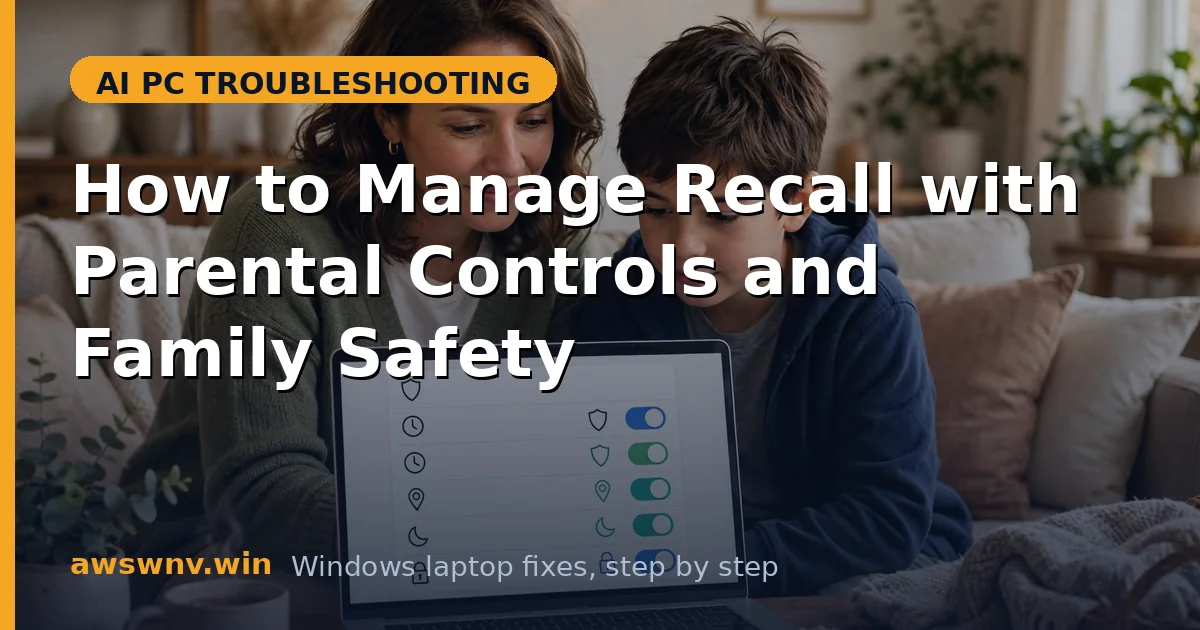
Handing a Copilot+ PC to a child raises an obvious question: what does Recall — a feature that screenshots everything — mean for a kid’s privacy? Microsoft thought about this, and Recall behaves differently on child accounts than on adult ones, but the details are not spelled out in one place.
The key facts: Recall requires the user to opt in, it is not available in the same way for managed child accounts, and Microsoft Family Safety controls sit above it. Parents get both technical guardrails and settings to review — similar to how Studio Effects camera fixes need a deliberate setup pass before a shared family PC’s camera behaves.
This guide covers six areas: how Recall treats child accounts, what Family Safety adds, the settings to review together, and how to disable Recall entirely on a kid’s PC if you prefer.
Why this happens
- Unclear defaults on child accounts: Recall’s opt-in screen and requirements interact with child-account restrictions in ways Microsoft documents thinly, leaving parents unsure what is actually active — the same settings fog that makes Recall privacy settings worth reviewing on any new PC.
- Snapshots of a child’s activity existing at all: Even with good intentions, some parents are uncomfortable with a searchable screenshot history of everything their child does, regardless of who can technically access it.
- Shared PCs with mixed accounts: On a family PC, an adult’s Recall timeline and a child’s account coexist. Misunderstanding which account’s snapshots exist where causes most of the confusion.
- Family Safety web filtering vs. Recall capture: Family Safety can block websites for a child, but blocking and not-capturing are different things — a blocked page never loads, while an allowed page may still be snapshotted.
- Kids disabling protections: A tech-savvy child with admin rights could change Recall settings. Account privilege levels matter as much as the Recall toggles themselves.
- School accounts with their own policies: School-issued Copilot+ PCs may have Recall managed by the school’s IT policy, overriding anything the family configures at home.
How to fix it
Work through these in order — diagnose first, then act.
Fix 1: Understand Recall on a child Microsoft account
Start with what Microsoft actually enforces, so your decisions rest on facts rather than assumptions.
- Sign in as the child account and open Settings > Privacy & security > Recall & snapshots to see what is offered.
- Note whether the opt-in screen appears: Recall requires explicit opt-in, and child accounts face additional consent requirements.
- Check whether snapshot saving is on or off by default for that account — do not assume it matches the adult account.
- If anything is unclear, Microsoft’s family documentation linked from Microsoft’s Windows support hub is the authoritative reference.
Fix 2: Set up Microsoft Family Safety properly
Family Safety is the umbrella: screen-time limits, web filtering, and activity reporting all live there, above Recall.
- At account.microsoft.com/family, confirm the child account is in your family group with the correct birthdate.
- Enable web filtering and SafeSearch so inappropriate content is blocked before Recall could ever snapshot it.
- Review activity reporting settings so you see a summary of the child’s activity without needing Recall at all.
- Keep the Family Safety app installed on your own phone for approvals and alerts.
Fix 3: Decide: keep, restrict, or disable Recall
There is no single right answer — but there should be a deliberate one, made with the child’s age in mind.
- For young children, the simplest choice is leaving Save snapshots off entirely in the child’s account.
- For teens, consider leaving Recall on but reviewing the exclusion lists together so they understand what is captured.
- Whatever you choose, explain it to the child in age-appropriate terms — secret monitoring erodes trust fast.
- Revisit the decision yearly; a setting that made sense at 9 may not at 14.
Fix 4: Lock the settings with account privileges
Recall settings are only as secure as the account holding them. A child with admin rights can undo your choices.
- Make the child’s account a Standard user: Settings > Accounts > Family & other users.
- Keep the administrator account’s password private and strong.
- Verify the child cannot re-enable snapshots: sign in as the child and confirm the Recall toggles require elevation or are unavailable.
- This same privilege principle protects other AI features too — clearing the x64 emulation cache shows how low-level caches stay healthy when only admins can touch them.
Fix 5: Use exclusions and filters as a middle ground
If you keep Recall enabled, exclusions let you carve out the sensitive corners without losing the feature’s benefits.
- Add messaging apps, email, and any school portals to the app exclusion list in the child’s Recall settings.
- Add specific websites to the website exclusion list for anything you want never captured.
- Turn on Filter sensitive information as an extra safety net.
- Review these lists together with older children so they learn the habit of managing their own privacy.
Fix 6: Handle school-managed devices separately
A school-issued Copilot+ PC plays by the school’s rules, and home settings may not apply at all.
- Check for a message in Recall settings saying the feature is managed by your organization.
- If managed, contact the school’s IT department with questions — home Microsoft Family settings do not override school policy.
- Do not try to bypass school management; it can violate the school’s acceptable-use policy.
- For a personal device used for schoolwork, keep the home configuration and add school apps to exclusions if needed.
Closing
Recall on a child’s Copilot+ PC comes down to three deliberate choices: know what the child account actually does, put Microsoft Family Safety in place as the umbrella, and decide whether Recall stays on, gets restricted with exclusions, or gets switched off. Make the child a standard user so the choice sticks, and revisit it as they grow. The technology is manageable — the conversation with your child matters more than any toggle.