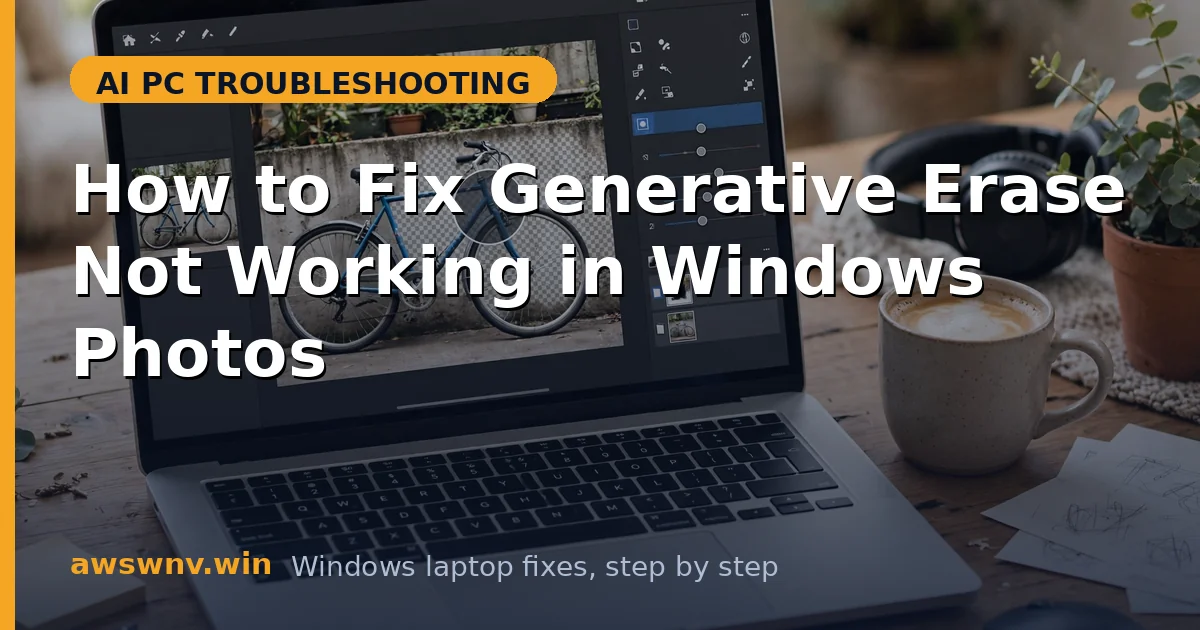
You brush over a photobomber in the Photos app, hit Erase — and nothing happens. Or the Generative Erase option is grayed out entirely, or it spins forever and then fails. Removing distractions from photos was supposed to be the easy AI win, and yours won’t even try.
Generative Erase is the Photos app’s AI object-removal tool: paint over the unwanted thing and the AI fills the background plausibly. Unlike Cocreator, it doesn’t require a Copilot+ PC — it works on any Windows 11 machine with a current Photos app, using on-device AI where available and cloud processing otherwise. That flexibility means more failure modes: app version, AI components, network, credits, and region all matter.
This guide fixes Generative Erase in technician order: app version first, then the erase workflow itself, then AI components and drivers, then network and account issues, then region gating, and finally app repair. The same layered logic applies across AI PCs — our Edge video enhance guide covers the shared media AI stack, and Canon printer issues on ARM show the same driver-maturity pattern — while Docker Desktop on ARM is a good reminder that platform quirks affect everything.
Why this happens
- Outdated Photos app: Generative Erase shipped in Photos updates through the Store. Older versions have only the basic (non-AI) erase or nothing at all.
- Using the wrong erase mode: The Photos app has both a basic Erase and Generative Erase — selecting the wrong tool, or brushing incorrectly, produces the “nothing happens” experience.
- AI components not downloaded: The generative models are separate downloads. Without them, the option grays out or fails silently.
- No internet on the cloud path: Non-Copilot+ PCs process erases in the cloud — offline, the feature fails with a generic error.
- Unsupported region or language: Like other Photos AI features, Generative Erase is region-gated — wrong settings hide it without explanation.
- Corrupted app cache: Damaged Photos data breaks the AI pipeline while basic viewing and editing work fine.
- GPU driver issues on the local path: Where erase runs on-device via GPU, a broken graphics driver can stall or crash the operation.
How to fix it
Work through these in order — diagnose first, then act.
Fix 1: Update the Photos app
Generative Erase is a Store-delivered feature — the inbox Photos version doesn’t have it, and stalled Store updates are the top cause of the grayed-out button. This takes two minutes.
- Open the Microsoft Store, go to Library, click Get updates, and wait for Microsoft Photos to finish.
- Open Photos, click the gear (Settings), and confirm you’re on a recent build — Generative Erase needs a 2024+ version.
- Open a photo, click Edit, and look for the Erase tool — the generative option appears within the erase brush settings.
- Fully close Photos (check the taskbar overflow) and reopen it — the feature sometimes needs a fresh launch after updating.
- If the Store shows no update, check Settings > Windows Update — some Photos AI features gate on the OS build.
Fix 2: Use the erase workflow correctly
A surprising number of “not working” reports are workflow issues — the wrong brush mode, brushing over too large an area, or expecting the AI to read minds. The tool has real limits; work within them.
- Open the photo in Edit mode and select the Erase tool, then confirm Generative Erase (not basic erase) is active in the tool options.
- Adjust the brush size to just cover the object — slightly larger than the target, not the whole region.
- For large objects, erase in smaller sections rather than one giant brush stroke — the AI fills small areas far more convincingly.
- After brushing, wait for processing to complete — on the cloud path this takes several seconds; don’t click away mid-process.
- If the result looks wrong, use Undo and try a smaller selection — the AI works best with tight selections and clear surrounding context.
Fix 3: Get the AI components and drivers right
Generative Erase needs its AI models whether it runs on-device or not — and on Copilot+ PCs, the NPU driver is part of the chain. Missing components produce the silent-failure pattern.
- Open Settings > Windows Update and install everything including optional updates — AI model components arrive this way.
- On Copilot+ PCs, verify the NPU in Device Manager > Neural processors — a flagged NPU breaks the on-device path.
- Update the graphics driver from your laptop maker’s support site — the local erase path uses the GPU on non-NPU machines.
- Ensure you’re on unmetered Wi-Fi with several GB free — model downloads won’t complete otherwise.
- Leave the PC idle and plugged in for 30-60 minutes after updates, then retest the erase.
Fix 4: Fix the network and account path
On non-Copilot+ PCs, Generative Erase calls Microsoft’s cloud AI — which means sign-in, network, and sometimes credits all matter. An offline or signed-out state fails the operation with a useless generic error.
- Confirm you have an active internet connection — the cloud path genuinely needs it; test by loading a webpage.
- Sign into the Photos app / Microsoft Store with your Microsoft account — AI features check identity.
- Check your VPN or firewall — overzealous filtering can block the AI service endpoints while normal browsing works.
- If you use a work or school account, try a personal Microsoft account — organizational policies sometimes block consumer AI features.
- Test with Windows Firewall temporarily at default settings if you run third-party security software — then re-enable protection.
Fix 5: Check region and language gating
Generative Erase follows the same region and language gating as other Photos AI features. When everything else checks out but the option stays hidden, this is usually why.
- Open Settings > Time & language > Language & region and set Windows display language to English (United States).
- Set Country or region to United States (or another supported region) on the same page.
- Sign out and back in so the changes fully apply, then reopen Photos and check the Edit tools.
- You can switch back to another display language after confirming — but the feature follows the language setting.
- Check the Microsoft Windows support hub for current AI feature availability by region.
Fix 6: Repair or reset the Photos app
When version, workflow, components, network, and region are all correct, the Photos app’s cache is the last suspect — corruption breaks the AI pipeline while everything else looks fine.
- Open Settings > Apps > Installed apps, find Microsoft Photos, click the three dots, then Advanced options.
- Click Repair, wait for the checkmark, and retest Generative Erase on a test photo.
- If repair changes nothing, click Reset — your photo files are untouched; only the app’s data clears.
- Reopen Photos, let it re-index, and test the erase workflow from Fix 2.
- As a final measure, uninstall Photos from Advanced options and reinstall from the Microsoft Store — a clean install eliminates every local-state cause at once.
Closing
Photos Generative Erase fails at predictable gates: an outdated app, wrong brush workflow, missing AI components, no network on the cloud path, region gating, or a corrupt app cache. Update Photos first, learn the small-brush technique, and work the list in order. The AI fill is genuinely good once the pipeline is healthy — photobombers don’t stand a chance.