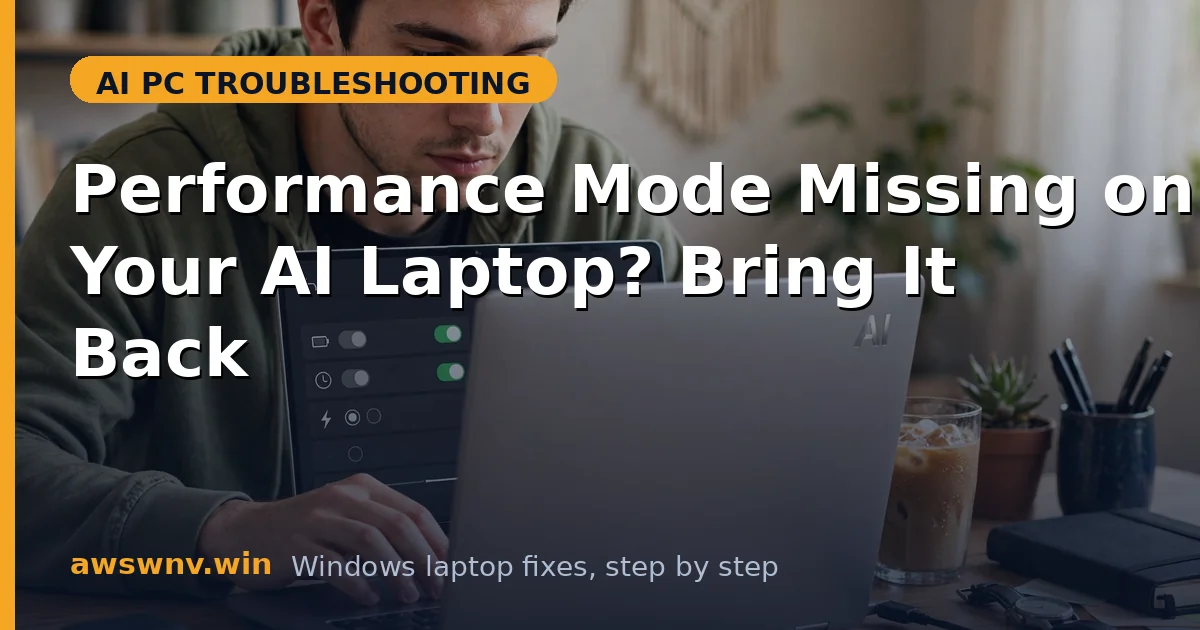
You open Power settings expecting the familiar slider — Best power efficiency, Balanced, Best performance — and it is gone. Or your manufacturer’s app no longer shows its performance mode, and your laptop feels capped at half speed. On AI laptops this is more than cosmetic: a missing performance mode can mean the CPU is wattage-limited during exactly the heavy work you bought the machine for.
The slider disappears for a handful of reasons, and they are all fixable. Sometimes a manufacturer utility takes exclusive control of power plans and hides the Windows slider. Sometimes a Windows update or a driver update corrupts the power scheme. Sometimes the laptop is running on a power plan created by an old utility that no longer exists. The trick is figuring out which one applies to your machine.
This problem often travels with other configuration oddities. A 3D engine that fails under emulation, like Unreal Engine on ARM Windows , can expose power management gaps. A Copilot app sync problem can indicate account or service issues that sometimes accompany broken power profiles. And if Copilot in Teams is not working on your laptop, treat that as another sign that system services need attention alongside power settings.
Why this happens
- Manufacturer utility takeover: Dell, HP, Lenovo, and others can hide the Windows slider when their own power app is active.
- Corrupted power schemes: A failed update or a removed utility can leave power plans in an inconsistent state.
- Missing chipset drivers: Without the right power management driver, Windows cannot expose performance modes.
- Battery saver stuck on: Battery saver can lock out performance modes until it is turned off.
- Group policy restrictions: Work or school laptops may have power options restricted by IT policy.
- BIOS power settings: Some BIOS versions expose or hide performance profiles that Windows reads.
- Windows update side effects: Feature updates occasionally reset or replace power plans.
How to fix it
Work through these in order — diagnose first, then act.
Fix 1: Check for a manufacturer power app
- Look for your manufacturer’s utility, such as Lenovo Vantage, HP Support Assistant, or Dell Power Manager.
- Open it and check its thermal or power section for performance modes.
- If the utility has a performance mode, use it; the Windows slider may be intentionally hidden.
- If the utility is missing or broken, download it fresh from the manufacturer’s site.
- After reinstalling, check both the utility and Windows Power settings again.
Fix 2: Turn off Battery saver and check the slider
- Open Settings, then System, then Power & battery.
- Turn off Battery saver if it is on.
- Plug the laptop into AC power, since some modes only appear while charging.
- Click the battery icon in the taskbar and look for the slider.
- If the slider appears on AC power but not on battery, that is normal behavior on some models.
Fix 3: Restore default power schemes
- Open Command Prompt as administrator.
- Run
powercfg /restoredefaultschemesand wait for it to complete. - Restart the laptop.
- Open Settings, then System, then Power & battery, and check for power mode options.
- If the slider returns, set it to Best performance while plugged in and test heavy work.
Fix 4: Update chipset and power drivers
- Visit your manufacturer’s support site for your exact model.
- Download the latest chipset, BIOS, and power management drivers.
- Install them in that order, restarting after the BIOS update.
- Open Windows Update and install any optional driver updates.
- Check Power settings again for the restored slider or utility modes.
Fix 5: Create a custom high-performance plan
- Open Control Panel, then Power Options.
- Click “Create a power plan” and base it on High performance.
- Name it clearly, such as “My Performance Mode.”
- Set display and sleep timeouts that suit plugged-in heavy work.
- Select the new plan and verify CPU performance improves under load.
Fix 6: Check BIOS and policy settings
- Restart into BIOS or UEFI and look for performance or thermal profile options.
- Set the BIOS profile to Performance if one exists, then save and exit.
- On Pro editions, run
gpedit.mscand check Power Management policies for restrictions. - If the laptop is managed by work or school, ask IT whether power plans are restricted.
- If nothing else works, use the manufacturer utility’s mode or your custom plan as the permanent answer.
For official Windows power help, see Microsoft Support for Windows .
Fix 7: Check for a hidden OEM power service
Some laptops run a manufacturer power service in the background that does not appear as a visible app but still controls power modes, and when that service crashes or is disabled, the Windows slider can vanish with it. This is common on business laptops where the manufacturer installs a power management service rather than a full utility, and it is easy to miss because there is no app window to check. The service may also have been disabled by a system cleanup tool that flagged it as unnecessary. Finding and restarting it can restore the missing modes without reinstalling anything.
- Open the Services app and search for services with your manufacturer’s name, such as Dell, HP, or Lenovo.
- Look for power, thermal, or power manager services and check whether they are running.
- If a relevant service is stopped, right-click it and choose Start, then set its startup type to Automatic.
- If the service is missing entirely, reinstall the manufacturer utility or system software package.
- Check Task Manager’s Services tab for disabled manufacturer services you may have turned off during cleanup.
- Restart and check Power settings again to see whether the slider or utility modes have returned.
Closing
A missing performance mode is frustrating, but it is almost never permanent. Check the manufacturer utility first, restore default schemes, update chipset drivers, and create a custom plan if needed. Once the mode is back, your AI laptop can stretch its legs properly during heavy work, and you will feel the difference immediately.