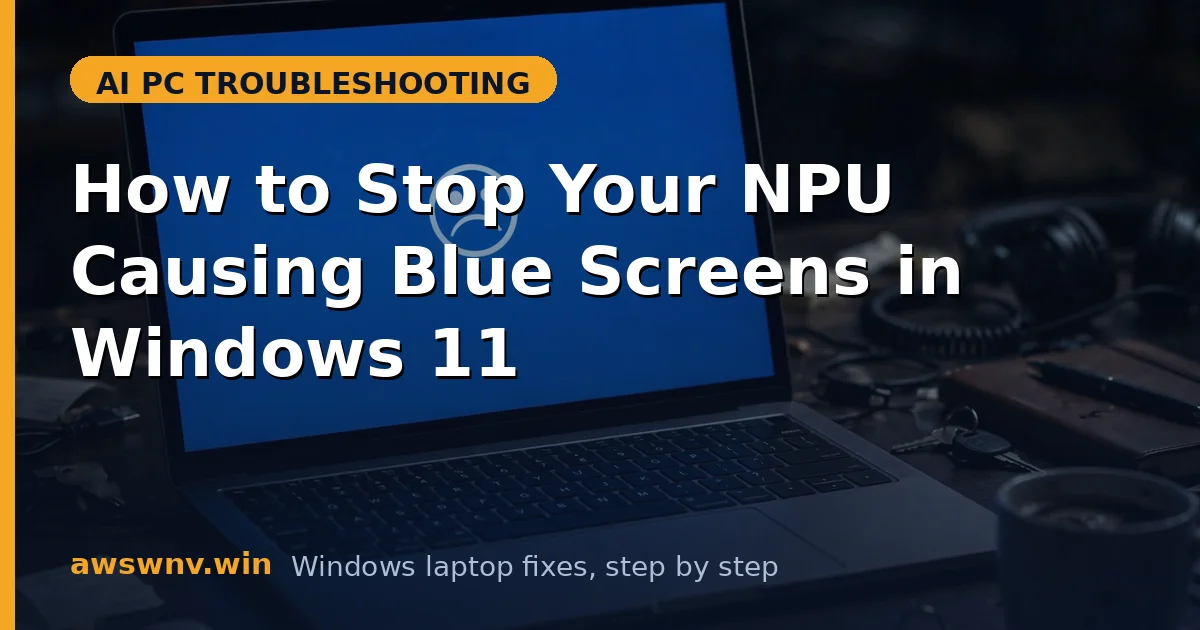
Few things are more frustrating than a laptop that blue-screens in the middle of a video call — especially when the crash only started after you enabled background blur or live captions. On AI PCs, those features run on the neural processor, and a faulty NPU driver can take the whole system down with a SYSTEM_THREAD_EXCEPTION_NOT_HANDLED or DRIVER_IRQL_NOT_LESS_OR_EQUAL stop code.
The pattern is usually distinctive: the machine is stable for days, then crashes the moment an AI workload starts — your best diagnostic clue. The NPU driver misbehaves under load — bad memory handling, a power-state race, or a version mismatch with the firmware — and Windows halts to protect itself.
This guide gives you six fixes in technician order: confirm the NPU is the culprit, stabilize the driver, then fix the underlying firmware and power causes. Do not skip the confirmation step — chasing the wrong driver wastes an afternoon.
Why this happens
- Buggy NPU driver under AI load: The driver works fine at idle but crashes when Studio Effects or Recall actually exercise the chip. Driver bugs in memory handling and interrupt routines are the most common cause of NPU-linked BSODs.
- Driver/firmware version mismatch: The NPU driver expects firmware behavior that your BIOS doesn’t provide (or vice versa). The handshake fails mid-workload and the kernel panics.
- Power-state race during clock changes: When Windows aggressively switches the NPU between power states — common on battery-saver plans — the driver can touch hardware that hasn’t woken yet, triggering a crash.
- Windows Update pushed a bad driver: A newer-but-broken NPU driver arrives via Windows Update and the blue screens start days later, seemingly out of nowhere.
- Overheating under sustained AI workloads: Long Recall indexing sessions or continuous Studio Effects push the NPU hard. If cooling is marginal, thermal trips can be misattributed to the NPU driver.
- Corrupt driver files from an interrupted install: A half-written driver package loads partially, works until the damaged code path runs, then crashes the kernel.
How to fix it
Work through these in order — diagnose first, then act.
Fix 1: Confirm the NPU driver is the crashing module
Guessing wastes time. Read the actual crash data first so every later step hits the right component.
- Open Event Viewer > Windows Logs > System and filter for BugCheck events around each crash time.
- Note the faulting module name in the event details — NPU crashes typically name the neural processor driver.
- For certainty, open the latest minidump in
C:\Windows\Minidumpwith WinDbg Preview (free from the Microsoft Store) and run!analyze -v. - If the analysis blames the NPU driver, continue. If it blames something else, stop here — this guide is for NPU-caused crashes only.
Fix 2: Disable the NPU temporarily as a controlled test
This is a diagnostic, not a solution: one crash-free day with the NPU disabled proves the diagnosis before you invest in driver surgery.
- In Device Manager, expand Neural processors, right-click the NPU, and choose Disable device.
- Use the laptop normally for a day — especially apps that used to crash, like video calls with portrait light effects .
- If the blue screens stop, the NPU driver is confirmed guilty. Re-enable the device and continue.
- If crashes continue with the NPU disabled, look elsewhere — the fault lies with another driver.
Fix 3: Install the correct NPU driver from your laptop maker
The single most effective fix: OEM drivers are validated against your exact model’s BIOS and power firmware, which is exactly where generic or Windows Update drivers go wrong under load.
- Find your exact model in Settings > System > About.
- Search that model on Dell , HP , or Lenovo support and download the latest NPU/chipset package for Windows 11.
- In Device Manager, uninstall the current NPU driver with “Attempt to remove the driver for this device” checked, then restart.
- Run the OEM installer as administrator, restart, and stress-test with an AI workload for at least an hour.
Fix 4: Stop Windows Update from reinstalling the bad driver
A classic trap: you fix the driver, then Windows Update quietly replaces it with the crashing version and the blue screens return a week later. If your crashes started after a Windows Update, suspect this.
- Open Settings > Windows Update > Update history and check whether an NPU driver update coincides with the start of the crashes.
- If so, roll it back in Device Manager via the NPU’s Properties > Driver > Roll Back Driver.
- Then block future replacements: note the NPU’s hardware ID (Properties > Details > Hardware Ids) and use the device-installation restriction in gpedit.msc to stop Windows installing drivers for that ID.
- Reinstall your known-good OEM driver, restart, and confirm stability past Patch Tuesday.
Fix 5: Tame power management and thermals
If the crash is a power-state race or thermal trip rather than a pure driver bug, stabilizing the NPU’s power environment stops it.
- Open Control Panel > Power Options > Change advanced power settings and set PCI Express > Link State Power Management to Off — this stops the aggressive lane parking behind wake-up races.
- Keep the laptop’s vents clear and the machine on a hard surface during long AI workloads like Recall indexing .
- Check your maker’s support page for a BIOS update that mentions NPU, power, or stability fixes; flash it with the charger connected.
- Re-test under load. If crashes only ever happened on battery with aggressive power saving, you have found your culprit.
Fix 6: Do a full clean reinstall when the driver won’t stabilize
When error code 10 or similar driver failures accompany the crashes, the driver store itself is contaminated and reinstalls keep failing. A deep clean is the last resort before suspecting hardware.
- Boot into Safe Mode, uninstall the NPU with driver deletion in Device Manager, then run your maker’s driver cleanup utility if one exists.
- Delete leftover driver packages from the Driver Store (search for the NPU vendor’s .inf packages) so Windows cannot resurrect the bad copy.
- Reboot normally, install the OEM driver package fresh, and restart.
- Monitor for a week of normal AI use. Crashes surviving a true clean reinstall plus a BIOS update point at hardware — time to call warranty.
Closing
NPU blue screens follow a predictable script: a misbehaving driver, a bad Windows Update driver, or a power-management race. Confirm the culprit from the crash data, install the correct OEM driver, and block Windows from replacing it. That sequence ends most NPU-linked BSODs — and leaves clean evidence for a warranty call if it doesn’t.