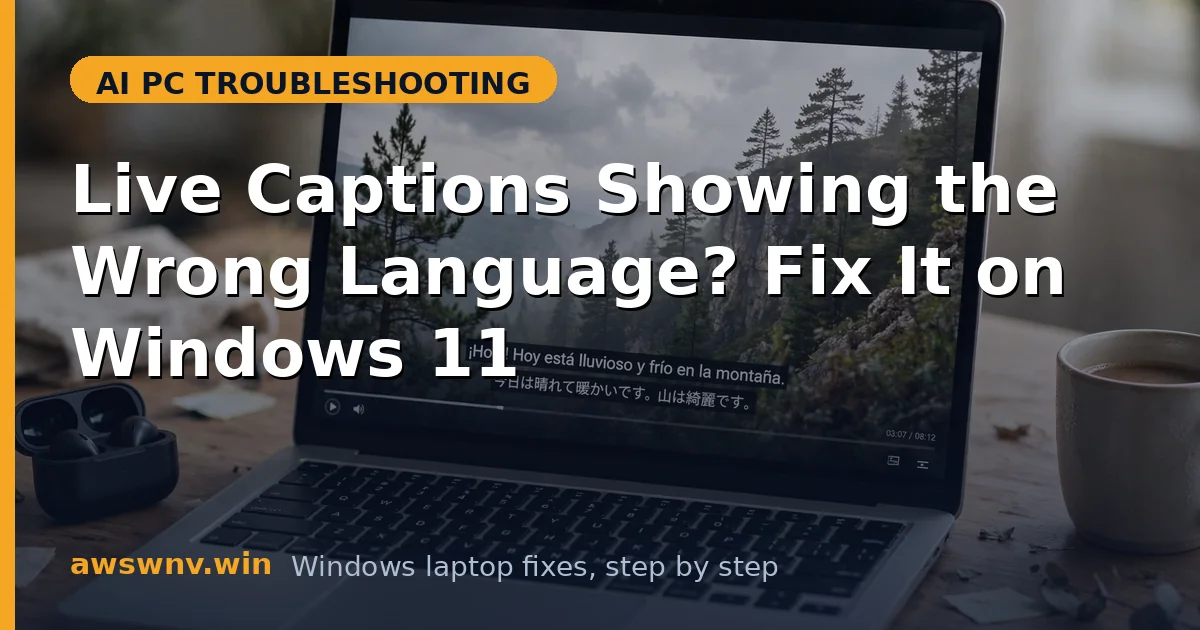
Live Captions is running, text is appearing — but in the wrong language. Or it captions English fine and mangles everything else, or it insists on a language you did not choose. Wrong-language captions are worse than none: they are confidently incorrect, and users often do not notice immediately.
The caption engine works in the language its pack tells it to. Mismatches come from the wrong pack installed, the wrong language selected in settings, or audio whose language differs from what the engine expects. Each has a distinct fix.
Sort it out here. If effects broke after a Windows update, the same update may have damaged language components — see Studio Effects broken after Windows update . To disable visual effects entirely, see how to turn off Studio Effects . If captions do not appear at all, start with Live Captions not working .
Why this happens
- Wrong caption language selected: The caption bar has its own language setting, independent of the Windows display language.
- Required language pack missing: If the pack for the needed language is not downloaded, the engine falls back to whatever is installed.
- Mixed-language audio: The engine locks to one language per session; mixed audio confuses it.
- Display language vs content language gap: Windows display in English while watching Spanish content is the classic mismatch.
- Corrupt language pack: A damaged pack produces garbled or wrong-language output instead of clean failure.
- Translation toggle confusion: With translation on, output is in the target language by design — users mistake this for a bug.
- Stale language cache: Live Captions caches language state between sessions, and a corrupted cache can lock it onto the wrong language even when every setting looks correct. Toggling Live Captions off and on clears the session state; if the wrong language survives a restart, removing and re-adding the language pack forces a fully fresh cache.
How to fix it
Work through these in order — diagnose first, then act.
Fix 1: Set the caption language explicitly
The caption language setting is independent of the Windows display language — a design choice that confuses everyone exactly once. English Windows captioning Spanish audio needs the caption language set to Spanish, full stop. Opening the caption bar’s own settings gear and choosing explicitly, rather than trusting defaults, resolves the most common wrong-language reports.
- Open the Live Captions settings gear.
- Set the caption language to match your audio, not your Windows display language.
- Download the pack if prompted and wait for it to finish.
- Replay the same audio to verify the language is now correct.
Fix 2: Install every language pack you need
Without the needed language pack installed, the engine silently falls back to whatever pack exists — producing confidently wrong-language captions with no warning. Installing every language you actually consume, with speech components, eliminates the fallback entirely. The settings list of selectable caption languages is the honest inventory of what the engine can do.
- In Settings > Time & language > Language & region, add the needed languages.
- Ensure the speech components for each are downloaded.
- In Live Captions settings, confirm each appears as a selectable option.
- Test with audio in each language you use.
Fix 3: Handle mixed-language audio realistically
The caption engine commits to one language per session; mixed-language audio breaks that assumption. Rapid code-switching within a single stream is beyond what the models handle — this is architecture, not a setting to fix. Choosing the dominant language, or switching deliberately between segments, is the workable accommodation.
- For mixed content, pick the dominant language for the session.
- Switch the caption language when the audio language changes for a stretch.
- Do not expect clean handling of rapid code-switching.
- This is a model limitation, not a settings error.
Fix 4: Check the translation toggle
Translation output in the target language is the feature working as designed, yet it reads exactly like a wrong-language bug to users who toggled it accidentally. Checking the translation toggle — and its target language — before deeper troubleshooting saves real time. What looked broken was the product doing precisely what it was asked.
- If translation is on, the captions show the target language by design.
- Turn translation off to see captions in the source language.
- Confirm the target language is the one you actually want.
- What looked like ‘wrong language’ is often translation doing its job.
Fix 5: Reinstall a corrupt language pack
A damaged language pack does not fail cleanly; it produces garbled or wrong-language output that mimics a settings problem. Removing and cleanly reinstalling the pack is the definitive fix, and it is worth trying before any deeper surgery whenever captions degraded without a settings change. Fresh, fully-downloaded packs simply behave.
- Remove the language pack in Language settings.
- Restart, then reinstall it fresh.
- Let the download complete fully before testing.
- Clean packs produce clean captions — corruption is fixable, not fatal.
Fix 6: Set the system locale to match content
Beyond the caption setting, the system locale steers language-detection fallbacks. When detection keeps choosing the wrong language family, aligning the regional format with your primary content language corrects the default guess. It is a subtle setting with an outsized effect on the cases where everything else looks right.
- Go to Settings > Time & language > Language & region.
- Set the regional format to match your primary content language.
- Restart Live Captions after the change.
- This fixes cases where detection defaults to the wrong language family.
Fix 7: Disable auto language detection if available
Automatic language detection is convenient and wrong often enough to distrust: manual selection beats it every time for reliability. If a detection toggle exists, turning it off removes a whole category of misfires. For users who work primarily in one language, manual is strictly superior.
- In Live Captions settings, look for automatic language detection.
- Turn it off and set the language manually.
- Test with known-language audio.
- Auto-detection is convenient but wrong often enough to distrust.
Closing
Wrong-language captions are a settings story: the caption language, the installed packs, and the translation toggle. Match the engine to your audio and the problem dissolves. For genuinely mixed-language content, accept the one-language-per-session limit and switch deliberately rather than fighting it. Language-pack help is at Microsoft’s Windows support hub .