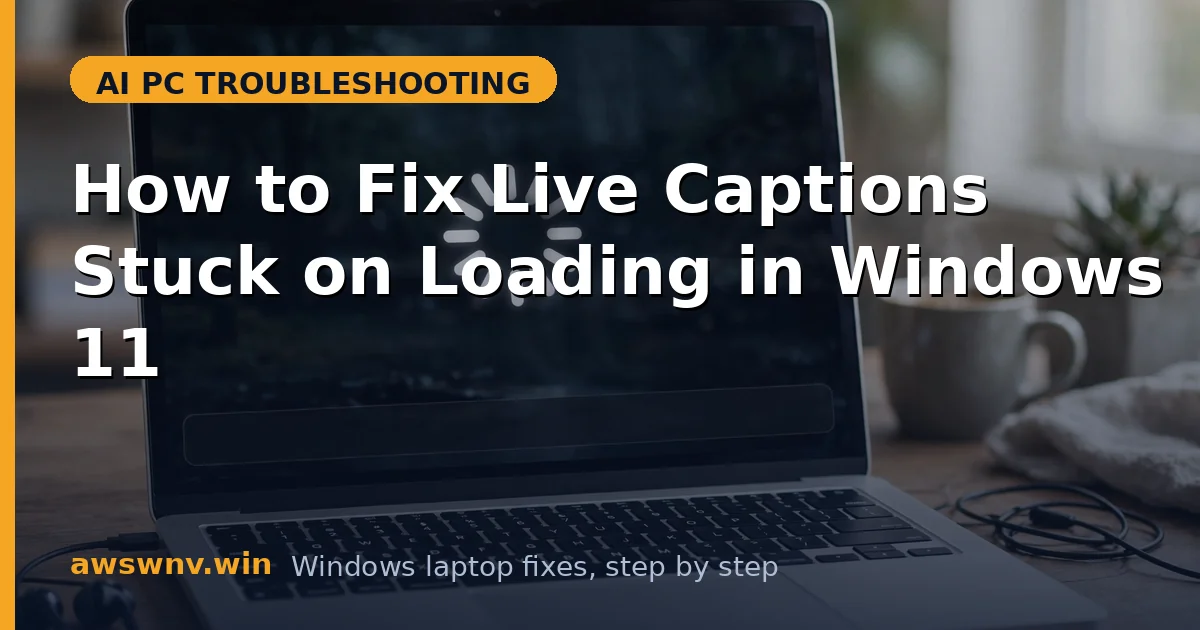
You press Win+Ctrl+L, the caption box pops up — and instead of words, you get a pulsing spinner or a “setting up” message that never finishes. Minutes pass while audio keeps playing without a single word transcribed.
That loading state means Windows is doing two jobs: pulling the speech recognition model into memory and connecting to your audio pipeline. When either step stalls — a half-downloaded model, an audio device that changed behind captions’ back, a process that froze mid-startup — the caption box waits forever for a handoff that never arrives.
This guide walks through six fixes in the order a technician would try them, from the quick process restart that solves most cases to speech model and driver repair. If captions never appear at all — no box, no spinner — that is a different failure covered in the main live captions not working guide .
Why this happens
- Stalled speech model download: The first launch downloads a language-specific speech model. A metered connection, VPN, or interrupted download leaves it half-present, and captions wait for a model that will never finish arriving.
- Audio device changed mid-launch: Captions bind to your default audio output at startup. If you connected a headset or switched speakers right as captions launched, the pipeline they hooked into no longer exists.
- Exclusive-mode audio capture: Some apps take exclusive control of the audio device, which blocks captions from reading the audio stream — they stay “loading” because no audio ever reaches them.
- Corrupt caption language pack: Windows feature updates can damage the installed speech components. The model file is there but fails its integrity check, so the loader retries endlessly instead of erroring out.
- Hung LiveCaptions.exe process: The captions process can freeze during initialization — visible in Task Manager, consuming CPU, but never rendering a word. Relaunching without killing it just attaches to the same frozen instance.
- NPU driver failing on AI PCs: On Copilot+ PCs, transcription offloads to the neural processor. If the NPU driver is broken or outdated, the handoff from CPU to NPU stalls and the spinner never clears.
How to fix it
Work through these in order — diagnose first, then act.
Fix 1: End the hung LiveCaptions process and relaunch
Nine times out of ten, the spinner belongs to a process that froze during startup. Killing it and launching fresh takes twenty seconds and clears the most common cause. If other AI features also hang on loading — say, Copilot stuck on a blank loading pane — the cause is usually system-wide.
- Press Ctrl+Shift+Esc to open Task Manager and look for LiveCaptions under Processes.
- Right-click it and choose End task. If you see two entries, end both.
- Wait five seconds, then press Win+Ctrl+L to launch captions again.
- The box should finish loading within about five seconds and start showing words.
Fix 2: Let the speech model finish downloading
If this is the first time you have enabled captions — or you recently changed the caption language — the spinner may simply mean the model has not arrived yet. A paused or blocked download masquerades as a hang.
- Open Settings > Accessibility > Live captions and check the caption language status.
- If it shows downloading or paused, connect to an unmetered network and let it finish — models are a few hundred megabytes.
- Check Microsoft’s Windows accessibility help if the download button is greyed out.
- Once the status reads ready, press Win+Ctrl+L twice (off, then on) and confirm captions load.
Fix 3: Point captions at the correct audio device
Captions transcribe whatever plays through your default audio output. If Windows quietly switched your default to a disconnected monitor speaker or an old USB device, captions bind to a dead endpoint and load forever.
- Open Settings > System > Sound and verify your actual speakers or headset are set as the output device.
- Play something with clear speech — a news clip works well — and confirm you hear it.
- Press Win+Ctrl+L to relaunch captions while that audio is playing.
- If words appear now, the earlier problem was a stale device binding, not a captions bug.
Fix 4: Turn off exclusive mode for your audio device
Some media apps and games request exclusive control of the audio hardware, which locks captions out of the stream. The caption box keeps waiting for audio it is not allowed to hear. Occasionally the spinner only appears inside one app — if Netflix itself never starts playing on your Snapdragon laptop, that is a Netflix 4K playback issue , not a caption one, since captions cannot transcribe audio that never starts.
- Right-click the speaker icon, choose Sound settings, then scroll to More sound settings.
- On the Playback tab, right-click your active device and open Properties.
- Under the Advanced tab, uncheck both boxes under Exclusive Mode and click OK.
- Restart the app you were captioning, relaunch captions, and check for words.
Fix 5: Reinstall the caption language
When the speech model is corrupt, the loader retries instead of failing visibly. Removing and re-adding the language forces a clean download of every speech component.
- Open Settings > Time & language > Language & region.
- Under your caption language, open the options and remove the Speech component (or remove and re-add the whole language).
- Restart the PC, then re-add the language and let the speech download complete fully.
- Launch captions and confirm the spinner clears on the first try.
Fix 6: Repair the NPU and speech platform drivers
On AI PCs, the final handoff goes through the neural processor. A broken NPU driver stalls that handoff, which looks exactly like an endless loading screen. This also applies after Windows feature updates that replaced your OEM driver.
- Open Device Manager and expand System devices (and Neural processors if listed).
- Right-click the NPU or AI Boost entry, choose Update driver > Search automatically, then check Windows Update > Advanced options > Optional updates for driver entries.
- If no update helps, grab the latest chipset package from the Microsoft Update Catalog by searching your laptop model.
- Restart, launch captions, and verify the box loads in a few seconds.
Closing
A spinner that never ends is almost always one of three things: a frozen captions process, a speech model that never finished downloading, or an audio device mismatch. Kill the process first, confirm the model is fully downloaded, and make sure captions are listening to the device actually playing sound. On AI PCs, keep the NPU driver current so the transcription handoff completes.