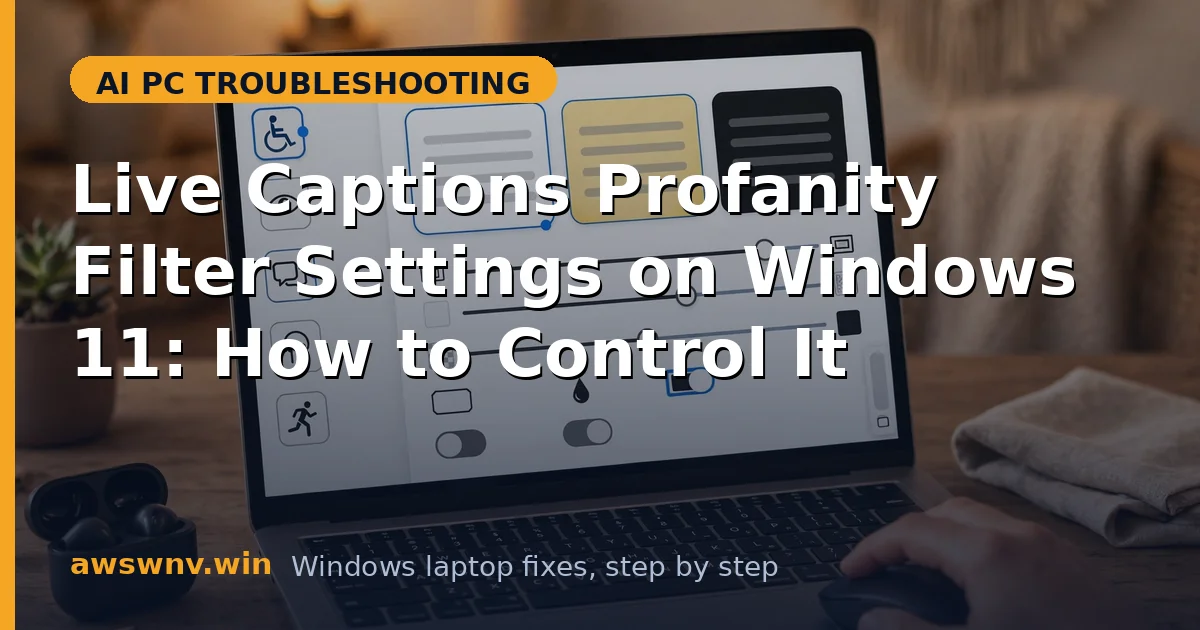
Live Captions ships with a profanity filter that masks strong language with asterisks. Some users want it on for family viewing; others — journalists transcribing interviews, adults watching late-night comedy — find it mangles the transcript. Either way, the setting should obey you.
The filter is a simple toggle in Live Captions settings, but users report it not staying off, masking innocent words, or being entirely absent on their build. Like Live Captions wrong language , where the setting exists but the behavior does not match, the fix is knowing exactly which control governs what.
This guide covers six areas: finding the toggle, making it stick, understanding its limits, and handling the edge cases — including when the filter is managed or missing.
Why this happens
- Toggle in an unexpected location: The profanity filter lives in Live Captions’ own settings gear menu, not in Windows’ general privacy settings — most ‘missing setting’ reports end here.
- Setting not persisting: The toggle flips back after restart — a settings-persistence failure, the same class of bug that plagues other Live Captions options.
- Over-aggressive word list: The filter masks by word list, not context — innocent words containing flagged substrings get asterisked, which users read as the filter ’not working correctly.’
- Build differences: The filter’s presence and exact behavior vary across Windows builds; older builds may lack the toggle or behave differently.
- Confusion with app-level filters: Teams, YouTube, and other apps have their own profanity filters. Windows’ filter and the app’s filter are independent — disabling one does not disable the other.
- Policy enforcement: Managed devices can enforce the filter on, greying out the toggle — a deliberate IT choice, not a bug.
How to fix it
Work through these in order — diagnose first, then act.
Fix 1: Find the actual profanity filter toggle
Locate the real control before concluding anything is broken.
- Open Live Captions with Win + Ctrl + L.
- Click the settings gear in the captions window and look for Filter profanity (wording varies slightly by build).
- Toggle it to your preference and immediately test with known strong language in a test video.
- If the toggle is absent on your build, skip to Fix 5 — your build predates or relocates it.
Fix 2: Make the setting stick
A toggle that reverts is not a setting. Force persistence.
- Set the toggle, close Live Captions completely, reopen, and verify the state held.
- Restart the PC and check again — some persistence bugs only appear across reboots.
- If it reverts, check for ‘managed by your organization’ notices indicating policy enforcement.
- On unmanaged PCs,
sfc /scannowrepairs the settings platform when toggles broadly refuse to persist.
Fix 3: Understand what the filter does and does not do
Set expectations correctly: it is a word-list masker, not a content moderator.
- The filter replaces flagged words with asterisks in the caption text only — the audio is untouched.
- It works on whole-word matches from its list; slang, misspellings, and novel coinages slip through.
- False positives happen: technical terms or names containing flagged substrings get masked.
- For accessibility-critical transcription, many users prefer the filter off and accept the raw text.
Fix 4: Separate Windows’ filter from app filters
Two filters can be active at once. Know which one you are seeing.
- If asterisks persist with Windows’ filter off, the app (Teams, YouTube, media player) is applying its own filter.
- Check the app’s own caption/subtitle settings for a separate profanity option.
- YouTube’s auto-captions, for example, have independent filtering from Windows Live Captions.
- Test with a local video file in the Media Player app to isolate Windows’ filter behavior cleanly.
Fix 5: Update Windows for filter improvements
Filter behavior and toggle availability improve with builds — the same ’the update brought the control I was missing’ pattern shows up across Windows on ARM, where installing Python on Windows on ARM only became smooth after recent build updates.
- Install all pending Windows updates — captioning features evolve notably between builds.
- After updating, re-check the settings gear menu; relocated toggles often reappear post-update.
- Language-pack updates can also affect filtering: Live Captions wrong language covers keeping caption languages healthy.
- Firmware-level updates occasionally matter too — checking the NPU firmware version is worth a look if captioning behaves oddly after updates.
Fix 6: Handle policy-enforced filtering gracefully
When IT mandates the filter, work with it rather than against it.
- Confirm enforcement: a greyed-out toggle with an organization notice means policy, not breakage.
- Ask IT about the policy’s scope — it may apply only to work profiles or meeting scenarios.
- Do not attempt registry bypasses on managed devices.
- On personal devices with no policy notice but a stuck toggle, a new local user profile test distinguishes profile corruption from system issues.
Closing
The Live Captions profanity filter is a simple toggle with a complicated reputation: hard to find, occasionally unwilling to stick, and blunt by design. Find it in the captions window’s settings gear, verify it persists across a reboot, separate it from app-level filters, and accept its word-list bluntness for what it is. Set it to match your household, then stop thinking about it — which is exactly what a good accessibility setting should let you do. For captioning settings that refuse to persist, Microsoft’s Windows support hub documents the settings-platform repairs.