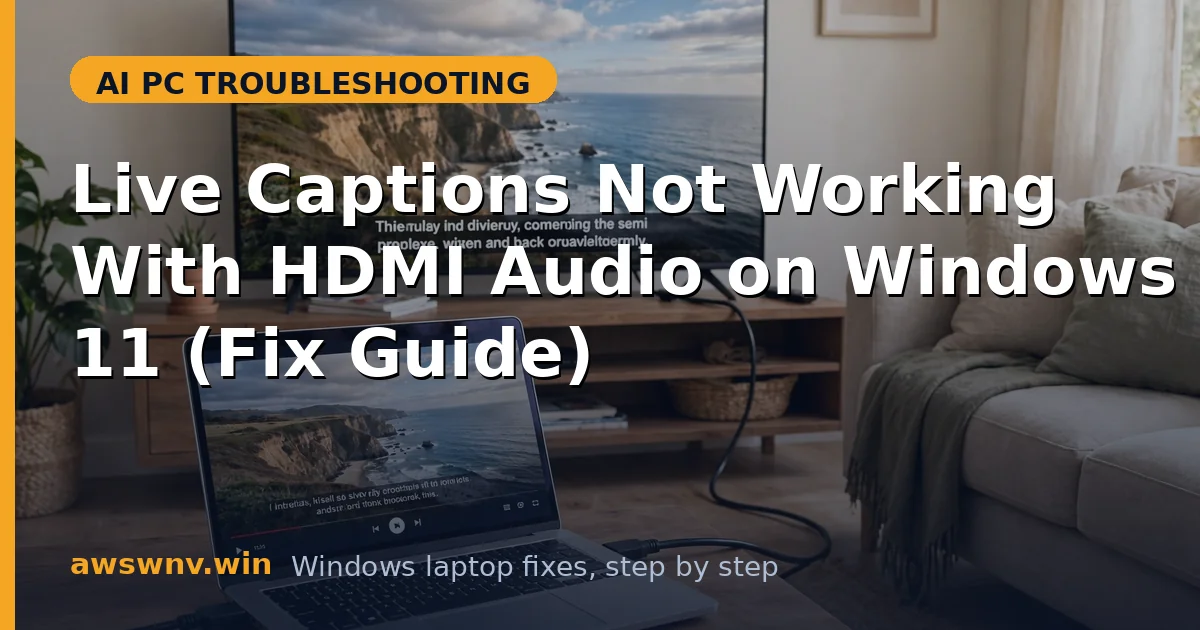
Windows 11’s Live Captions is supposed to be a universal feature: turn it on, and any audio playing on your PC gets captioned in real time. Many laptop owners discover a frustrating exception the first time they plug into a TV or monitor — captions that worked perfectly through the laptop speakers go completely silent the moment audio moves to HDMI.
This is one of the most common audio-routing quirks in Windows, and it gets trickier on modern AI laptops where Live Captions may be running on the NPU while the audio pipeline lives on the GPU. If your captions also fail on the laptop’s own speakers, the underlying cause may be different — see our guide on Live Captions showing no audio detected for that scenario.
The good news is that the problem is almost never hardware failure. It is a configuration issue in almost every case: the wrong default device, exclusive-mode apps grabbing the stream, an incompatible sample rate, or a driver mismatch between the GPU audio driver and Windows. The same class of routing confusion shows up elsewhere too — for example, if an external USB device also misbehaves, our article on audio interfaces not working on ARM laptops covers related fixes, and on Copilot+ machines a stalled Windows ML model failing on the NPU can silently block caption features.
Why this happens
- Wrong default output device: Live Captions captures from the Windows default playback device. If the laptop speakers are still set as default while sound actually routes through the TV, captions listen to silence.
- Exclusive mode applications: Media players can lock the HDMI audio stream in exclusive mode, which blocks other apps — including the caption engine — from reading the audio.
- Unsupported sample rates: TVs often advertise 96 kHz or 192 kHz output. Live Captions expects standard 48 kHz audio, and an exotic format can break the capture tap.
- GPU audio driver quirks: HDMI audio is driven by your GPU (Intel, AMD, or NVIDIA). Outdated or generic GPU drivers can mishandle the audio endpoint that captions rely on.
- Audio enhancements interference: Spatial sound, loudness equalization, or TV-side processing can alter the stream enough that the caption engine fails to recognize it.
- NPU offload stalling on Copilot+ PCs: On AI PCs, Live Captions may offload to the NPU. If the NPU driver is unstable, captions can freeze while normal audio continues — check for NPU driver updates.
How to fix it
Work through these in order — diagnose first, then act.
Fix 1: Set the HDMI device as the default output
Live Captions reads from the Windows default playback device, not whichever device is actually producing sound. Right-click the volume icon in the taskbar and open Sound settings, then look at the output list.
- Connect the HDMI cable and make sure sound plays from the TV.
- Right-click the taskbar volume icon and choose Sound settings.
- Under Output, select your TV or monitor as the default device.
- Press Win + Ctrl + L twice to restart Live Captions.
Fix 2: Disable exclusive mode on the HDMI endpoint
Exclusive mode lets apps like some media players take sole control of an audio device, which cuts off the shared-mode tap that Live Captions uses. Open the classic Sound control panel by searching for “Sound” in Settings and clicking “More sound settings.” On the Playback tab, double-click the HDMI output device and open the Advanced tab.
- Open Settings, search for Sound, and click “More sound settings.”
- On the Playback tab, double-click the HDMI/TV device.
- Open the Advanced tab and uncheck exclusive-mode control.
- Click OK and restart your media player or browser.
Fix 3: Lower the HDMI sample rate to 48 kHz
Live Captions is designed around standard 44.1/48 kHz audio. When a TV negotiates a 96 kHz or 192 kHz stream, the caption engine’s capture tap can receive a format it cannot process, resulting in a blank caption window.
- Open the HDMI device’s properties from “More sound settings.”
- Go to the Advanced tab and check the Default Format dropdown.
- Select “16 bit, 48000 Hz (DVD Quality)” or “24 bit, 48000 Hz.”
- Click Apply, then OK, and restart Live Captions.
Fix 4: Turn off audio enhancements and spatial sound
Audio enhancements — bass boost, loudness equalization, virtual surround, and Windows spatial sound formats — insert processing into the audio path that can interfere with the caption capture tap, particularly on digital HDMI output. In the HDMI device’s properties, open the Enhancements tab and check “Disable all enhancements.” Also right-click the volume icon, open Spatial sound, and set it to Off for the HDMI device.
- Open the HDMI device properties and go to the Enhancements tab.
- Check “Disable all enhancements” and click Apply.
- Right-click the volume icon and set Spatial sound to Off.
- Set the TV’s own audio mode to Standard or PCM for testing.
Fix 5: Update the GPU and audio drivers
HDMI audio is handled by your GPU’s audio driver (Intel Display Audio, AMD High Definition Audio, or NVIDIA High Definition Audio), and outdated drivers are a frequent cause of broken audio endpoints. Open Device Manager, expand “Sound, video and game controllers,” and update the driver for your GPU’s audio device. Intel users can scan for the newest package with the Intel driver support assistant .
- Open Device Manager and expand “Sound, video and game controllers.”
- Note which GPU audio device handles your HDMI output.
- Download the latest graphics driver from your GPU vendor.
- Install it (choose a clean installation if offered) and reboot.
Fix 6: Reset the Windows audio stack and NPU drivers
If nothing above works, the audio endpoint or the on-device AI pipeline may be in a corrupted state. On Copilot+ PCs, Live Captions can run on the NPU, so also check Device Manager under “Neural processors” for warning icons and update that driver from your laptop maker’s support site.
- In Device Manager, check “Neural processors” for driver warnings (Copilot+ PCs).
- Uninstall the HDMI audio device without deleting the driver, then reboot.
- Run the audio troubleshooter from Settings > System > Troubleshoot.
- Install all pending Windows updates and reboot again.
Closing
Live Captions failing over HDMI is almost always a routing or format problem, not a broken feature. Setting the TV as the default device, disabling exclusive mode, and dropping the sample rate to 48 kHz fix the overwhelming majority of cases.