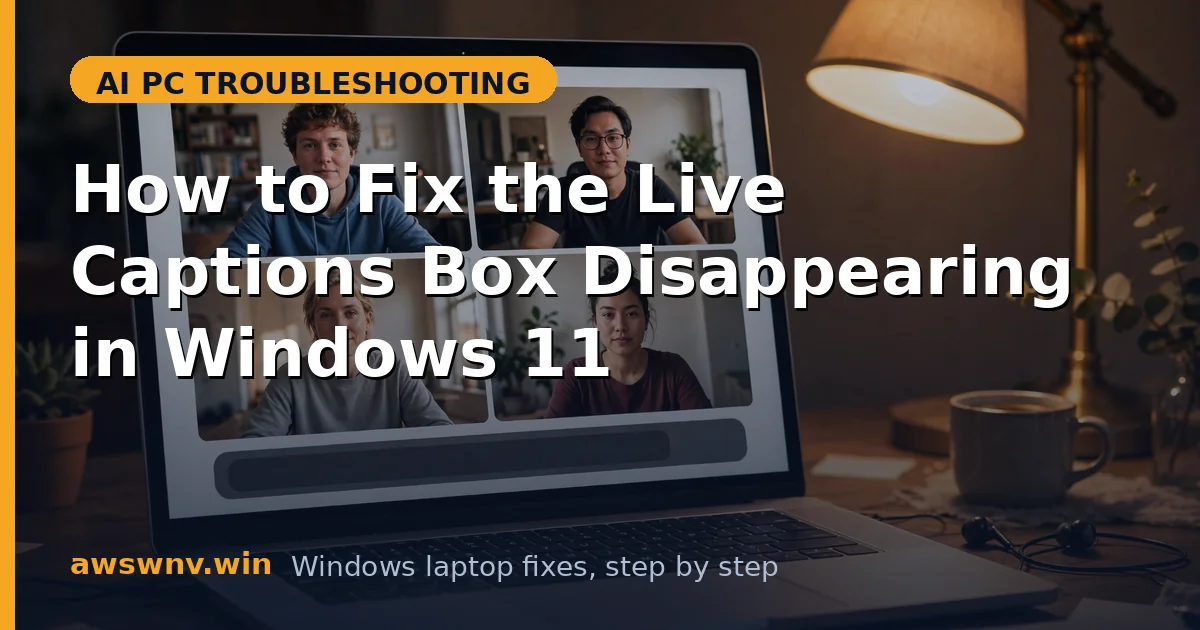
You have live captions working — words are flowing — and then the caption box just vanishes. No error, no warning. Sometimes it blinks out when you open a game or a fullscreen video; sometimes it disappears after your laptop wakes from sleep; sometimes it is gone the moment you click another window.
The caption box is a special overlay window, and overlays live at the mercy of whatever else wants the screen. Fullscreen apps, display scaling changes, multi-monitor reshuffles, and focus quirks can all knock it off its perch. The fixes below pin it down, starting with the settings that control its visibility.
If captions produce no words at all before vanishing, check the no audio detected guide first — a caption box with nothing to transcribe can look like a disappearing act.
Why this happens
- Exclusive fullscreen apps: Games and video players in exclusive fullscreen mode take over the display output entirely, hiding all overlays — including the caption box — until you leave fullscreen.
- Pinning turned off: The “always on top” style pin for captions is what keeps the box above other windows. Without it, any new window can cover or push captions aside.
- Multi-monitor position bug: With monitors at different scaling levels, the caption window can be placed off-screen or on a disconnected display after sleep, wake, or a cable change.
- Focus and click-through quirks: Clicking through or around the box can send it behind the taskbar or collapse it to a sliver, making it look like it disappeared.
- Display scaling changes: Docking, undocking, or changing resolution mid-session recalculates overlay positions, and the caption box sometimes lands outside the visible area.
- Graphics driver glitches: A buggy GPU driver can fail to composite the overlay layer after wake or during HDR transitions, so the box exists but never renders.
How to fix it
Work through these in order — diagnose first, then act.
Fix 1: Pin the caption box so it stays on top
Pinning is the captions equivalent of “always on top.” It is the single most effective setting for a box that vanishes when other windows open, and it takes five seconds to enable.
- Launch captions with Win+Ctrl+L so the box is visible.
- Click the pin icon in the caption box’s toolbar to lock it above other windows.
- Drag the box to a corner where it will not fight your main content — top-center works well for videos.
- Open the app that used to make it vanish and confirm the box stays put.
Fix 2: Switch the fullscreen app to borderless windowed
Exclusive fullscreen is the top killer of overlay windows. Borderless windowed looks identical on modern displays but lets Windows keep compositing overlays like captions on top.
- Open the game or video app’s display/video settings.
- Change the display mode from Fullscreen (or Exclusive Fullscreen) to Borderless Windowed / Windowed Fullscreen.
- Apply the change and relaunch captions with Win+Ctrl+L if needed.
- Confirm the caption box stays visible while the app fills the screen.
Fix 3: Hunt down the box on multi-monitor setups
If the box vanished after sleep, docking, or a monitor change, it is probably parked off-screen rather than gone. A quick monitor shuffle usually brings it home.
- Press Win+P and switch to PC screen only, then back to Extend — this forces Windows to recalculate window positions.
- Check every monitor, including ones you forgot were connected, for the caption box.
- If it appears, drag it to your primary monitor and pin it there.
- To prevent repeats, set all monitors to the same scaling percentage under Settings > System > Display if you can tolerate it.
Fix 4: Reset the caption box position and appearance
Corrupt position or transparency settings can render the box invisible or microscopic. Resetting its appearance returns it to a known-good state.
- Open Settings > Accessibility > Live captions and open Caption style.
- Switch to a different style, then back — this rewrites the box’s stored settings.
- Toggle captions off and on with Win+Ctrl+L twice to force a fresh window.
- If the box reappears tiny or transparent, set opacity back to solid in the style editor.
Fix 5: Rule out VPN and virtual machine quirks
Caption overlays misbehave inside some remote and virtualized environments. If the box only vanishes inside your work VPN’s tunneled apps, check the Copilot with VPN guide — tunneled display pipelines cause similar overlay issues. And if you run captions inside a virtual machine that keeps losing its overlays, the VM’s display adapter is the suspect — see the Hyper-V setup guide for ARM laptops for getting the virtual display stack healthy.
- Disconnect the VPN temporarily and test whether the caption box stays visible.
- If you use a VM, test captions on the host OS as a control case.
- Update the VPN client or VM guest additions to their latest versions.
- Reconnect and retest — if the problem follows the tunnel, keep captions on the host side.
Fix 6: Update the graphics driver
When the overlay layer itself fails to composite — box exists in Task Manager but never renders — the GPU driver is the prime suspect. Grab the latest driver from your GPU maker; NVIDIA users can find theirs at NVIDIA’s driver download page .
- Download and install the latest graphics driver for your GPU.
- Choose a clean installation if the installer offers it, to clear old overlay hooks.
- Restart, launch captions, and test across sleep/wake and fullscreen apps.
- If the box now survives everything, the old driver was failing to composite overlays.
Closing
A disappearing caption box is a window-management problem, not a transcription problem — the words are fine, the box just loses its place on screen. Pin it, keep fullscreen apps in borderless windowed mode, and watch out for multi-monitor position bugs after sleep. With those three handled, the caption box stays where you put it for the whole session.