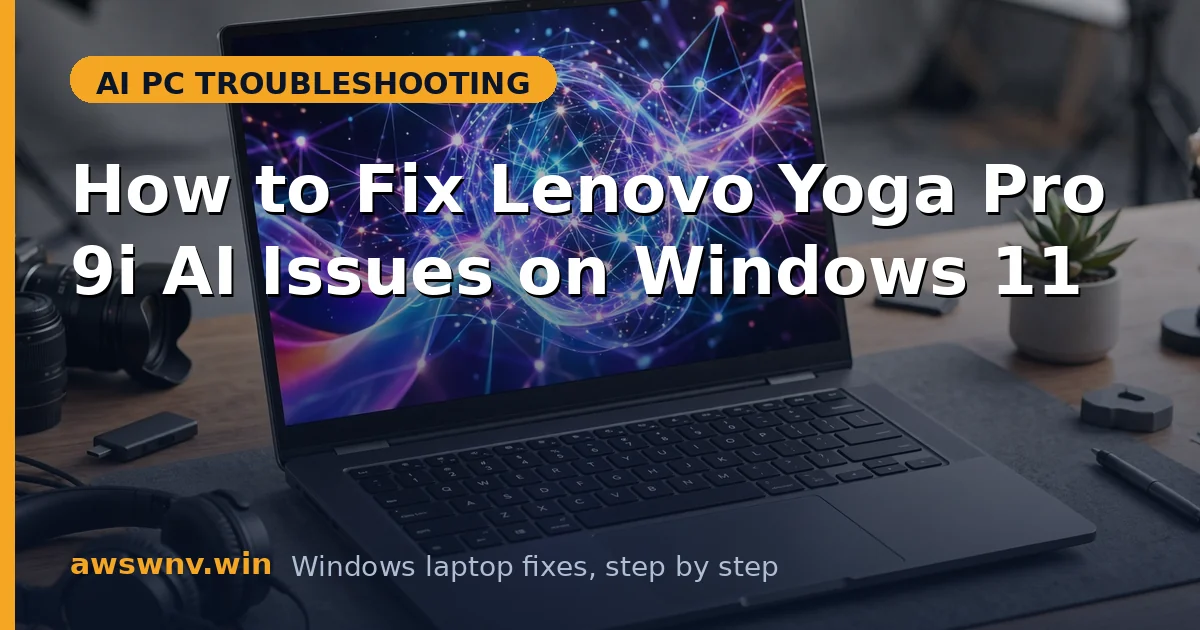
The Lenovo Yoga Pro 9i pairs a powerful Intel Core Ultra processor with a dedicated NPU, so Copilot+ features, Windows Studio Effects, and on-device AI tools should simply work. When they do not — Copilot refuses to open, Studio Effects grey out, or the NPU vanishes from Task Manager — the laptop feels like an ordinary machine wearing an AI badge.
Most Yoga Pro 9i AI problems trace back to a small set of causes: an outdated Intel AI Boost driver, a Windows feature update that reset AI permissions, Lenovo Vantage power settings that starve the NPU, or a BIOS version that predates the AI firmware. None of these require a repair shop visit, and all of them are fixable in under an hour.
This guide walks you through six fixes in the order a technician would try them, from quick settings checks to a clean driver reinstall. Follow the sequence, test after each step, and stop as soon as your AI features come back.
Why this happens
- Outdated Intel AI Boost driver: The NPU driver bundled with early Yoga Pro 9i shipments predates several Windows AI updates, so Copilot+ features fail to initialize or crash on launch.
- Windows update reset AI permissions: A feature update can toggle off the privacy permissions that Recall, Studio Effects, and Live Captions need, leaving them silently disabled.
- Lenovo Vantage power profile conflict: Aggressive battery-saving profiles in Vantage can park the NPU or throttle it so hard that AI workloads time out.
- BIOS predating AI firmware: Early BIOS releases did not fully expose the NPU to Windows, which shows up as a missing device or error codes in Device Manager.
- Corrupted Copilot runtime components: The Windows Copilot Runtime is a shared dependency; if its files corrupt, every AI feature that depends on it fails at once.
- Conflicting third-party AI software: OEM utilities, older camera apps, and some VPN or security tools hook the same camera and audio pipeline that Studio Effects uses.
How to fix it
Work through these in order — diagnose first, then act.
Fix 1: Confirm the NPU is detected and enabled
Start by proving the hardware is visible to Windows. If the NPU is missing here, driver work later in this guide is pointless until the BIOS exposes it.
- Open Task Manager with Ctrl + Shift + Esc and check the Performance tab for an NPU entry.
- If no NPU appears, open Device Manager, expand System devices, and look for Intel AI Boost.
- If Intel AI Boost shows a warning icon, right-click it, choose Properties, and note the error code for later.
- Restart into the BIOS with F2 during boot and confirm AI or NPU options are enabled, not hidden.
- Boot back into Windows and recheck Task Manager before moving on.
Fix 2: Update the BIOS and Intel AI Boost driver
Lenovo ships matched BIOS and NPU driver pairs. Updating one without the other is the most common reason AI features break after a service visit, so do both together. Use only official sources for drivers and update help, such as Lenovo support Microsoft Windows support .
- Find your exact Yoga Pro 9i model number in Settings, then open the Lenovo support site for that model.
- Download the latest BIOS update and the Intel AI Boost driver package for Windows 11.
- Install the BIOS update first, keeping the charger connected, and let the laptop restart on its own.
- Install the Intel AI Boost driver package next and restart again when prompted.
- Recheck Task Manager to confirm the NPU now reports activity, then test a Copilot+ feature.
Fix 3: Repair the Windows Copilot Runtime
When several AI features fail together, the shared Copilot Runtime is the likely culprit. Windows can repair it without touching your files or apps.
- Open Settings, then System, then Recovery, and run the Windows Update troubleshooter first for a baseline.
- Open an elevated PowerShell window and run the system file checker to repair corrupted Windows components.
- Check for Windows updates and install every pending update, since runtime fixes ship through cumulative updates.
- Restart the laptop, then open Settings and confirm AI features are listed under the appropriate privacy pages.
- If Copilot still fails, continue to the next fix rather than repeating this one.
Fix 4: Reset AI privacy permissions and Studio Effects
A feature update can quietly revoke the camera, microphone, and activity permissions that AI features depend on. Re-granting them restores features that look broken but are only blocked. The same permission reset also helps with the related fault covered in AI laptop camera problems in Teams .
- Open Settings, then Privacy and security, and review Camera, Microphone, and Activity history permissions.
- Make sure the apps using AI features are allowed, and toggle any that look off back on.
- Open Windows Studio Effects from Quick Settings and toggle each effect off and back on.
- If Studio Effects still grey out, the same camera permission problem is covered in our guide to fixing the camera on a similar AI laptop, where the permission reset steps are identical.
- Test with the Camera app first, since it uses the same pipeline without any meeting app in the middle.
Fix 5: Fix Vantage power profiles that starve the NPU
Lenovo Vantage can silently override Windows power settings. A battery-saver profile that parks the NPU makes AI workloads time out while everything else looks normal.
- Open Lenovo Vantage and switch the power mode to Performance or Balanced, not Battery Saving.
- In Windows Settings, set Power mode to Best performance while testing, then dial it back later.
- Disable any Vantage feature that limits background AI or NPU activity while on battery.
- Plug in the charger and retest the failing AI feature to isolate power as the variable.
- Once it works, choose a balanced profile that keeps AI features alive without draining the battery.
Fix 6: Clean-reinstall drivers and check linked guides
If nothing above worked, a stale driver stack is surviving normal updates. A full sweep plus fresh OEM drivers clears it, and cross-checking related guides catches shared causes. Related guides on the same platform include Asus ExpertBook P5 AI fixes and Recall snapshots after a password change .
- In Device Manager, uninstall Intel AI Boost and the graphics adapter, checking the option to remove driver software.
- Restart, then install the latest Lenovo graphics and NPU drivers from the support site, not from Windows Update alone.
- Apply all pending Windows updates, restart once more, and retest every AI feature that was broken.
- For comparison, read the companion guide on fixing similar problems on the next model in this series, which shares the same Intel AI platform.
- Also review the guide on restoring AI snapshots after account changes, since permission and identity issues often travel together.
Closing
Yoga Pro 9i AI issues almost always come down to drivers, permissions, or power profiles — not faulty hardware. Update the BIOS and NPU driver as a pair, re-grant AI permissions after every feature update, and keep Vantage out of battery-saver mode while you test. Once the NPU shows healthy activity in Task Manager, the AI features built for this laptop should stay working.