“My laptop is slow” is the vaguest complaint in computing — and the reason most speed-up guides fail is they throw twenty tweaks at you without diagnosing anything. A laptop slow because its SSD is 95% full needs a completely different fix than one slow because of thirty startup programs or a dying hard drive. The technician’s approach: measure first with Task Manager, identify the bottleneck (CPU, RAM, disk, or startup bloat), then fix that specific thing.
This guide walks the diagnostic order: startup programs, disk space and health, RAM pressure, background processes, visual effects, and the hardware upgrades that actually matter. For the startup-program cleanup in detail, see disabling startup programs ; if the slowness started after an update, see Windows 11 slow after update .
Why this happens
- Startup program overload: Dozens of programs launching at login, each eating RAM and CPU.
- Drive nearly full: SSDs slow dramatically past ~85% capacity; HDDs fragment and thrash.
- Spinning hard drive: A 5400 RPM HDD makes any modern OS feel broken — the #1 hardware cause.
- RAM exhaustion: Too little memory for the workload forces constant paging to disk.
- Background Windows activity: Updates downloading, indexing, Defender scans, and telemetry during active hours.
- Thermal throttling: Dust-clogged cooling forces the CPU to slow down to avoid overheating.
- Bloatware and manufacturer utilities: Preinstalled software running services you never asked for.
How to fix it
Work through these in order — diagnose first, then act.
Fix 1: Diagnose the bottleneck in Task Manager
Measure before you touch anything.
- Press Ctrl + Shift + Esc to open Task Manager, and click Performance — watch the CPU, Memory, Disk, and GPU graphs during your normal slow workload.
- Disk pinned at 100% with modest CPU/RAM = storage bottleneck (Fix 3). Memory above 85% constantly = RAM pressure (Fix 4). CPU pegged by specific processes = software culprit (Fix 2/5).
- Click Processes and sort by CPU, Memory, and Disk columns — identify the top consumers by name. Legitimate culprits: antivirus scans, Windows Update, search indexer, browser with 50 tabs.
- Check the Startup apps tab and note the Startup impact column — High-impact entries are your first targets (detailed in Fix 2).
- Check App history and Performance > uptime — a machine that’s been “on” for 30 days via Fast Startup accumulates cruft; a real restart (not shutdown) clears it.
Fix 2: Disable unnecessary startup programs
The highest-impact free fix.
- In Task Manager > Startup apps, disable everything you don’t need within seconds of login: chat clients, game launchers, Adobe updaters, manufacturer utilities, “quick start” helpers. Right-click > Disable.
- Keep enabled: antivirus/security, audio drivers’ control panels (if you use them), cloud sync you rely on (OneDrive/Dropbox), and anything work-required (VPN).
- Also check Settings > Apps > Startup — same list, friendlier interface.
- For the thorough pass, open
shell:startup(Win + R) and the Task Scheduler’s logon tasks — some programs hide their autostart there. - Restart (full restart, not shutdown-with-Fast-Startup) and time your boot — then enjoy the difference. Our full startup programs guide covers the edge cases.
Fix 3: Free disk space and check drive health
Storage is the most common true bottleneck.
- Check free space: Settings > System > Storage — if your system drive is over 85% full, that’s actively slowing you down (SSDs need free blocks for wear-leveling and write performance).
- Run Storage Sense (Settings > System > Storage > Storage Sense) and clean temporary files, then use Disk Cleanup (
cleanmgr) including Clean up system files for Windows Update leftovers. - Uninstall programs you don’t use (Settings > Apps > Installed apps, sort by size) — games and creative suites are the space hogs.
- Move large media to external storage or cloud — photos/videos libraries are the usual multi-gigabyte culprits.
- Check drive health: for SSDs, CrystalDiskInfo (free) shows health percentage; for HDDs, listen for clicking and check the SMART status. A failing drive is slow before it’s dead — back up immediately if health is poor.
Fix 4: Address RAM pressure
When memory is the constraint.
- In Task Manager > Performance > Memory, check two numbers during your workload: In use vs. total, and whether the Committed charge exceeds physical RAM (that means paging to disk — slow).
- If RAM is the bottleneck: close browser tabs aggressively (browsers are the #1 RAM consumer — use tab suspension extensions), close unused apps, and disable browser extensions you don’t need.
- Check how much RAM you have and whether it’s upgradeable:
msinfo32shows installed RAM; your manufacturer’s specs say if slots are soldered or socketed. Going from 4 GB to 8 GB (or 8 to 16) is transformative when RAM-bound. - ReadyBoost (USB stick as cache) is nearly useless on modern systems — don’t bother.
- If RAM is soldered and insufficient, your realistic options are lighter software (fewer concurrent apps, lighter browser) or a new machine — no tweak fixes a true RAM deficit.
Fix 5: Tame background Windows processes
Windows working against you during active hours.
- Windows Update: Settings > Windows Update > set Active hours to cover your workday so restarts and heavy downloads don’t ambush you. Pause updates for a week if one is mid-download and thrashing the disk.
- Search indexing: if
SearchIndexer.exeis constantly busy, rebuild the index (Settings > Privacy & security > Searching Windows > Advanced indexing options > Rebuild) or limit indexed locations to what you actually search. - Defender scans: reschedule to idle hours and exclude high-churn trusted folders — see our Antimalware Service Executable guide .
- SysMain (Superfetch): on SSDs it provides little benefit and sometimes causes disk thrashing — you can set it to Manual in
services.mscas a test, but don’t disable it permanently on HDDs where it helps. - Notifications and tips: Settings > System > Notifications — turn off “suggestions” and tips; minor, but they spawn background activity.
Fix 6: Reduce visual effects and animations
Small gains, but free and instant-feeling.
- Press Win + R, type
sysdm.cpl> Advanced > Performance > Settings > choose Adjust for best performance, then re-enable just Smooth edges of screen fonts and Show thumbnails instead of icons (the two that affect readability most). - Settings > Accessibility > Visual effects — turn off Animation effects and Transparency effects.
- These help most on weak integrated graphics and old CPUs — on a modern machine the difference is subtle, but on a struggling one it’s noticeable.
- Also set your power plan to Best performance (Settings > System > Power & battery) when plugged in — Balanced/Power saver caps CPU speed.
- Don’t chase “debloater” scripts promising magic — they break things more often than they speed them up. Manual, targeted changes beat scripts.
Fix 7: The hardware upgrades that actually matter
When software fixes hit their limit.
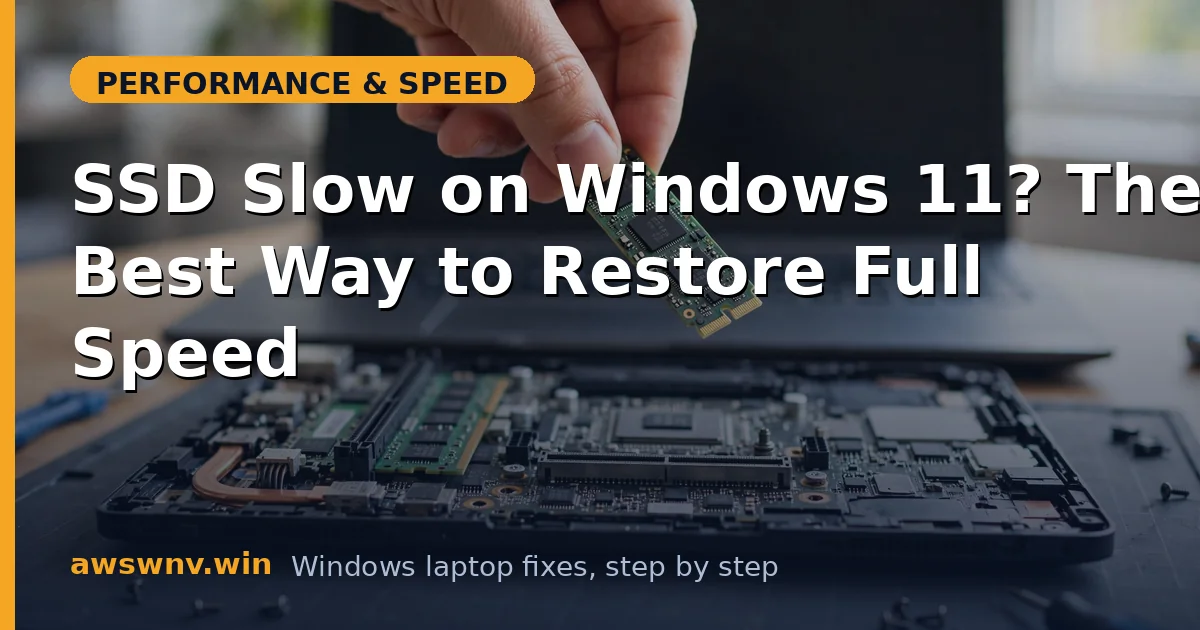
- SSD upgrade (if you still have a spinning HDD): the single most transformative laptop upgrade in existence. A $40–60 SATA SSD makes a 2015 laptop feel new. Clone with Macrium Reflect Free or do a clean install.
- RAM upgrade (if RAM-bound per Fix 4 and slots available): cheap, easy, enormous impact on multitasking.
- Clean the cooling system: dust-clogged fans cause thermal throttling that feels exactly like “slowness” — compressed air through the vents, or a repaste if the machine is old. Check temperatures with HWMonitor; sustained 90°C+ under load means throttling.
- Fresh Windows install (last resort): Settings > System > Recovery > Reset this PC — clears years of accumulated cruft. Microsoft documents the recovery options at their Windows support hub . Back up first, reinstall drivers afterward (chipset first ).
- Remove bloatware properly: uninstall manufacturer junk and trial software you never use — see our bloatware removal guide . Less background junk, fewer startup entries, more resources for you.
Closing
Speeding up a laptop isn’t about applying thirty tweaks — it’s about finding the one bottleneck and fixing it. Task Manager tells you in sixty seconds whether you’re fighting startup bloat, a full drive, RAM pressure, or an aging hard drive. Fix the constraint you actually have, and skip the rest. And if the drive is a spinning HDD, stop tweaking and buy the SSD — it’s the answer.