A laptop fan that never spins is easy to misdiagnose, because modern laptops deliberately keep fans off at idle. The real test is under load: if the fan stays silent while the CPU climbs past 85°C, something is wrong — in the fan control path, the fan itself, or the software managing it. This guide troubleshoots in the right order, because replacing a fan for what turns out to be a BIOS setting is an expensive mistake.
Safety note first: a truly dead fan plus heavy load equals overheating, throttling, and potential component damage. While troubleshooting, keep workloads light and watch temperatures with a monitoring tool like HWMonitor — and if heat is the broader symptom, see fixing laptop overheating while charging . Don’t run stress tests on a laptop you suspect has no working cooling.
Why this happens
- Semi-passive cooling by design: The fan is programmed to stay off below a temperature threshold — normal behavior.
- BIOS fan control bug: A BIOS update or corruption breaks the embedded controller’s fan curve.
- Dust-clogged heatsink: The fan spins but moves no air; from outside it can seem dead or weak.
- Fan power cable disconnected: The fan’s tiny connector works loose, especially after chassis work.
- Failed fan motor or bearing: The fan itself is mechanically dead — no spin even with power applied.
- Chipset driver issues: Corrupted chipset drivers disrupt EC communication for fan control.
- Aggressive quiet power plan: A silent/whisper power profile caps the fan at zero to reduce noise.
- EC firmware stuck: The embedded controller hangs in a bad state and never commands the fan.
How to fix it
Work through these in order — diagnose first, then act.
Fix 1: Verify the fan is actually broken
Install HWMonitor or HWiNFO and watch CPU temperature and fan RPM while putting the laptop under real load — open a dozen browser tabs with video, or run a game. If temperatures climb past 85°C with zero RPM, the fan genuinely isn’t working. If the fan spins up at high temperatures, it was just semi-passive cooling doing its job. Also listen closely at the vent during load; a faint spin you can’t feel is still a working fan. Don’t proceed to hardware fixes until this test confirms a real failure.
- Install HWMonitor or HWiNFO.
- Put the laptop under sustained load.
- Watch CPU temperature and fan RPM together.
- Zero RPM past 85°C confirms real failure.
- Fan spinning at high temps means normal semi-passive behavior.
Fix 2: Check BIOS fan settings and run diagnostics
Restart into BIOS setup and look for fan or thermal settings — some BIOSes have a fan test, a “fan always on” option, or thermal profiles. Enable any built-in fan diagnostic. Many makers (Dell, HP, Lenovo) include fan tests in their boot diagnostics (F12 on Dell, F2 on HP, F10 on Lenovo). Run the full hardware scan: a failed fan test is definitive hardware evidence, while a passing test points back at Windows-side control. Note the BIOS version too — you’ll need it for Fix 4.
- Enter BIOS setup and find fan/thermal settings.
- Enable any fan test or always-on option.
- Run the maker’s boot-time hardware diagnostics.
- Note pass/fail on the fan test specifically.
- Record the current BIOS version.
Fix 3: Clean the cooling system
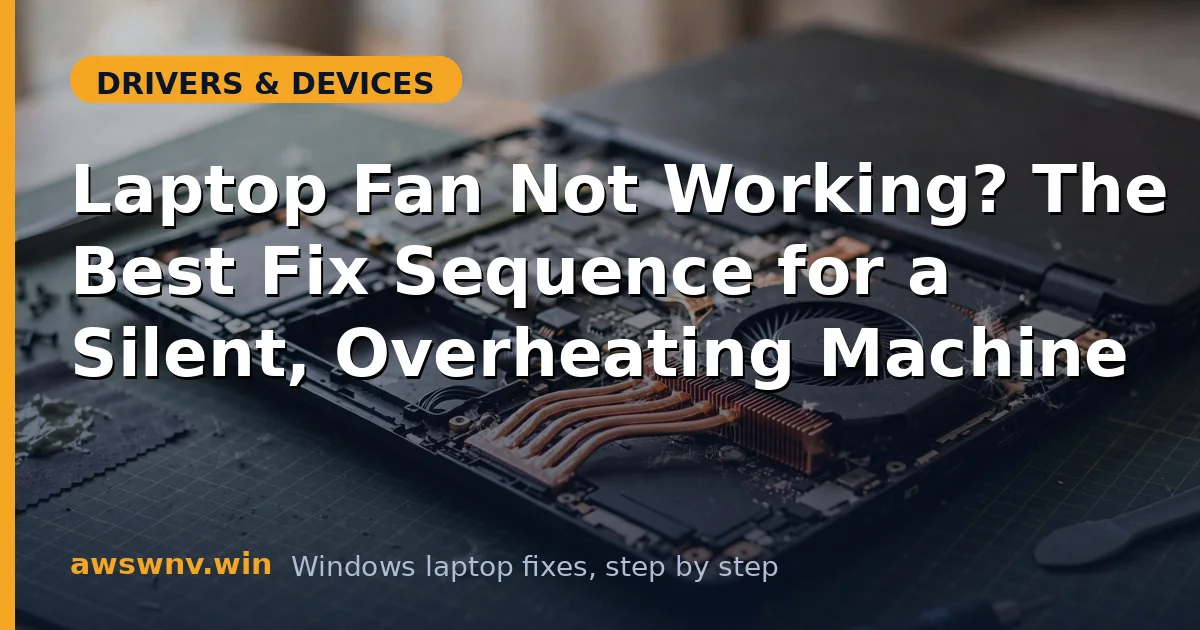
Power off, unplug, and open the chassis per the service manual. You’ll likely find the heatsink fins packed with dust — the most common “fan problem” that isn’t the fan at all. Blow out the fins and fan with compressed air (hold the fan blades still to avoid overspinning the bearing), working from inside outward. Check that the fan’s power cable is firmly seated on the motherboard header — reseat it. While inside, look at the thermal paste situation only if you’re experienced; repasting is optional and risky for beginners.
- Power off, unplug, and open the chassis.
- Blow dust from heatsink fins and fan with compressed air.
- Hold fan blades still while cleaning.
- Reseat the fan’s power connector firmly.
- Reassemble and retest under load.
Fix 4: Update BIOS and chipset drivers
The embedded controller’s fan logic lives in BIOS/EC firmware. Check your laptop maker’s support page for BIOS updates mentioning thermal, fan, or EC fixes — Dell’s support portal or Lenovo’s support site — and apply with the charger connected. Then reinstall the chipset driver package, which handles EC communication on many platforms (Intel’s Driver & Support Assistant can help on Intel systems). Reboot and retest the fan under load.
- Check for BIOS updates mentioning fan, thermal, or EC.
- Apply BIOS updates with the charger connected.
- Reinstall the chipset driver package.
- Reboot and retest under load.
- Verify fan RPM responds to temperature.
Fix 5: Reset the embedded controller
The EC can hang in a state where it never commands the fan. Reset it: shut down fully, unplug the charger, and if the battery is removable, take it out; then hold the power button for 30-60 seconds to drain residual power. On sealed-battery models, many makers have a pinhole EC reset on the bottom — hold a paperclip in it for 30 seconds. Reconnect power and boot. This clears stuck EC states without touching any software, and it revives “dead” fans more often than you’d expect.
- Shut down fully and unplug the charger.
- Remove the battery if possible; otherwise use the EC reset pinhole.
- Hold the power button 30-60 seconds to drain power.
- Reconnect and boot normally.
- Test fan behavior under load.
Fix 6: Check Windows power plans and fan curves
Open Power Options and switch to Balanced or High performance — some manufacturer “Quiet” or “Battery saver” plans suppress the fan aggressively. Check the maker’s control app (Dell Power Manager, Lenovo Vantage, HP Command Center, ASUS Armoury Crate) for thermal profiles; set it to Balanced or Performance rather than Silent for testing. If you use third-party fan control software, disable it — conflicting fan control programs fight the EC, and Microsoft’s support pages document the power plan settings involved.
- Switch to the Balanced power plan.
- Set the maker’s thermal profile to Balanced or Performance.
- Disable third-party fan control software.
- Retest fan spin-up under load.
- Re-enable quiet profiles only after confirming the fan works.
Fix 7: Replace the fan
If the fan never spins across BIOS tests, EC resets, clean drivers, and a clean heatsink, the fan motor is dead. Laptop fans are model-specific parts — order by exact part number from the service manual, not just the laptop model. Replacement is usually a few screws and one connector, though some designs bury the fan under the heatsink assembly. While you’re in there, consider fresh thermal paste if the machine is several years old. If the fan is soldered or the design is hostile, a repair shop quote is the sensible path. For related thermal issues, see our laptop fan fix guide .
- Confirm hardware failure with BIOS diagnostics.
- Order the exact fan part number for your model.
- Follow the service manual for replacement.
- Consider fresh thermal paste on older machines.
- Test thoroughly before closing the chassis.
Closing
Fan failures are guilty-until-proven-innocent in reverse: prove the fan is actually broken under load first, then work through dust, EC resets, BIOS, and drivers before buying parts. Most “dead fan” reports end at a dust-clogged heatsink or a stuck embedded controller — both free fixes. When the motor is genuinely dead, replacement is usually straightforward; just make sure the diagnosis is solid before you order.