The Intel Wi-Fi 6 AX201 is one of the most common wireless cards in modern Windows laptops, shipping in millions of machines with 10th- and 11th-generation Intel processors. When it stops working, the symptoms are unmistakable: the Wi-Fi toggle vanishes from Quick Settings, no networks appear, or Device Manager shows the adapter with a yellow warning and a Code 10 error.
What makes the AX201 different from older wireless cards is its CNVi design. Unlike a fully self-contained PCIe card, the AX201 offloads part of its logic to the Intel chipset itself. That means the wireless driver alone is not enough — the Intel chipset driver must be installed and healthy first, or the Wi-Fi card simply will not start. Most AX201 failures trace back to this dependency.
This guide walks through the fixes in the order a technician would try them: correct driver installation order first, then Windows-level resets, then BIOS and hardware checks. Work through them top to bottom and the card comes back in the great majority of cases.
Why this happens
- Chipset driver installed after — or missing entirely — the Wi-Fi driver. The AX201 is a CNVi card and cannot initialize without the Intel chipset driver in place first.
- Windows Update replaced the Intel driver with an older or generic version that cannot drive the CNVi interface.
- Corrupted driver binding from a VPN, firewall, or network filter driver, producing Code 10 or Code 31.
- Power management turned the adapter off and Windows failed to wake it, leaving it stuck in a disabled state.
- Wireless disabled in BIOS or a BIOS bug affecting the CNVi interface after a firmware update.
- Airplane mode or the physical Wi-Fi switch stuck on, blocking the radio at a level no driver reinstall can override.
- Loose or failing card — rare on soldered modules, but M.2 AX201 cards in some laptops can work loose after drops.
How to fix it
Work through these in order — diagnose first, then act.
Fix 1: Install the Intel chipset driver first
Because the AX201 depends on the chipset, always install the Intel Chipset Device Software before touching the wireless driver. Grab it from your laptop maker’s support page for your exact model — Dell, HP, Lenovo, and ASUS all package the correct chipset INF files. Run the installer, reboot, and only then move on to the Wi-Fi driver. Skipping this step is the single most common reason AX201 reinstalls fail.
- Find your exact laptop model on the manufacturer’s support site.
- Download the Intel Chipset Device Software / chipset driver package.
- Run the installer and reboot when prompted.
- Confirm no unknown devices remain under System devices in Device Manager.
Fix 2: Update the Wi-Fi driver with Intel Driver & Support Assistant
Intel’s own Driver & Support Assistant detects the AX201 and installs the matched wireless driver plus the companion Bluetooth driver. This beats Windows Update’s version in almost every case. If the tool reports the driver is current but the card still fails, download the standalone Wi-Fi driver package from Intel and install it manually over the top.
- Install and run the Intel Driver & Support Assistant.
- Install the recommended Wireless and Bluetooth driver updates.
- Reboot and check Device Manager for a clean adapter entry.
- If the problem persists, download Intel’s standalone Wi-Fi driver package and install it manually.
Fix 3: Fix Code 10 with a clean driver reinstall
When Device Manager shows Code 10 on the AX201, a clean reinstall clears the corrupted driver state. Uninstall with the driver software deleted so Windows cannot simply reload the same broken files. Our companion guide on fixing the AX201 on Windows 11 covers model-specific variations of this procedure if you need them.
- Open Device Manager, expand Network adapters, and right-click the Intel Wi-Fi 6 AX201.
- Choose Uninstall device and tick ‘Attempt to remove the driver for this device’.
- Shut down (not restart), wait 30 seconds, then power on.
- Install the chipset driver, reboot, then install the Intel Wi-Fi driver.
Fix 4: Reset the Windows network stack
Corrupted TCP/IP and Winsock catalogs can keep a healthy adapter from connecting even after the driver is fixed. A full stack reset takes two minutes from an elevated terminal and resolves the cases where the adapter looks fine in Device Manager but no networks appear. Microsoft documents these commands in the Windows support hub .
- Open Terminal (Admin) from Win + X.
- Run
netsh winsock resetand press Enter. - Run
netsh int ip resetand thenipconfig /flushdns. - Restart the laptop and check for available networks.
Fix 5: Stop Windows from powering the adapter off
Windows power management can switch the AX201 off to save battery and then fail to bring it back, especially on laptops with aggressive power plans. Disabling the power-saving option on the adapter and setting the wireless adapter to maximum performance in the power plan eliminates this entire class of intermittent failures.
- In Device Manager, right-click the AX201 and open Properties.
- On the Power Management tab, untick ‘Allow the computer to turn off this device to save power’.
- Open Power Options, change plan settings, and set Wireless Adapter Settings to Maximum Performance.
- Test by putting the laptop to sleep and waking it — Wi-Fi should return immediately.
Fix 6: Check BIOS settings and update the BIOS
Enter the BIOS (usually F2 or Del during boot) and verify the wireless card is enabled — some BIOS versions expose a WLAN or CNVi toggle that Windows updates or IT policies can flip. While there, check the vendor’s support page for a BIOS update whose changelog mentions wireless, WLAN, or CNVi fixes, and apply it only if yours is older. If Windows still shows no adapter at all after this, the missing adapter checklist is the right next step.
- Reboot into the BIOS and confirm WLAN / wireless is enabled.
- Check the vendor support page for a BIOS update mentioning wireless fixes.
- Update the BIOS with the charger connected; do not interrupt it.
- Boot into Windows and verify the adapter appears in Device Manager.
Fix 7: Rule out a hardware failure
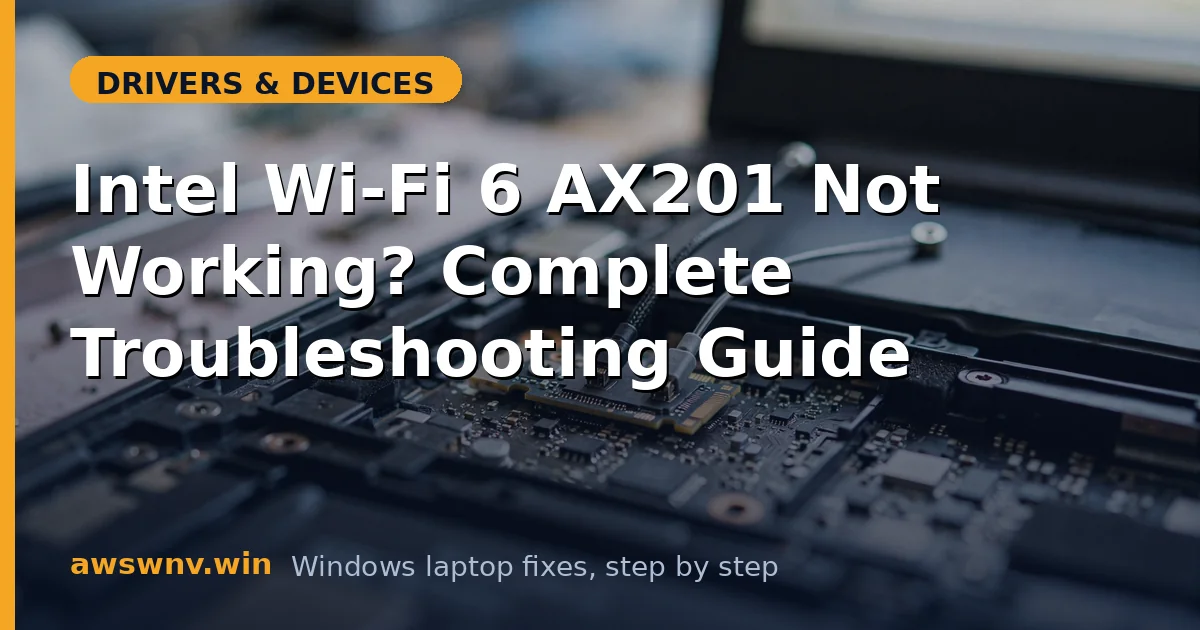
If every driver step fails and the adapter never appears even in the BIOS device list, suspect hardware. On laptops with a socketed M.2 AX201, reseating the card and its antenna leads sometimes revives it — but this requires opening the machine, so check your warranty first. A USB Wi-Fi adapter is a cheap workaround that confirms the rest of the system is healthy while you arrange a repair.
- Boot a Linux live USB — if Wi-Fi works there, the card is fine and Windows is the problem.
- If the card is socketed and warranty allows, reseat the M.2 card and antenna leads.
- Test with a USB Wi-Fi adapter to confirm the OS networking stack is healthy.
- Contact the laptop maker for a wireless card replacement if the card is dead.
Closing
The AX201’s CNVi design is the key insight: chipset driver first, Wi-Fi driver second, and most failures unravel from there. The Intel Driver & Support Assistant plus a clean reinstall resolves the overwhelming majority of cases, and the network reset and power-management fixes catch the stubborn remainder. If the adapter never shows up anywhere — not in Device Manager, not in the BIOS — treat it as hardware and get the card replaced.