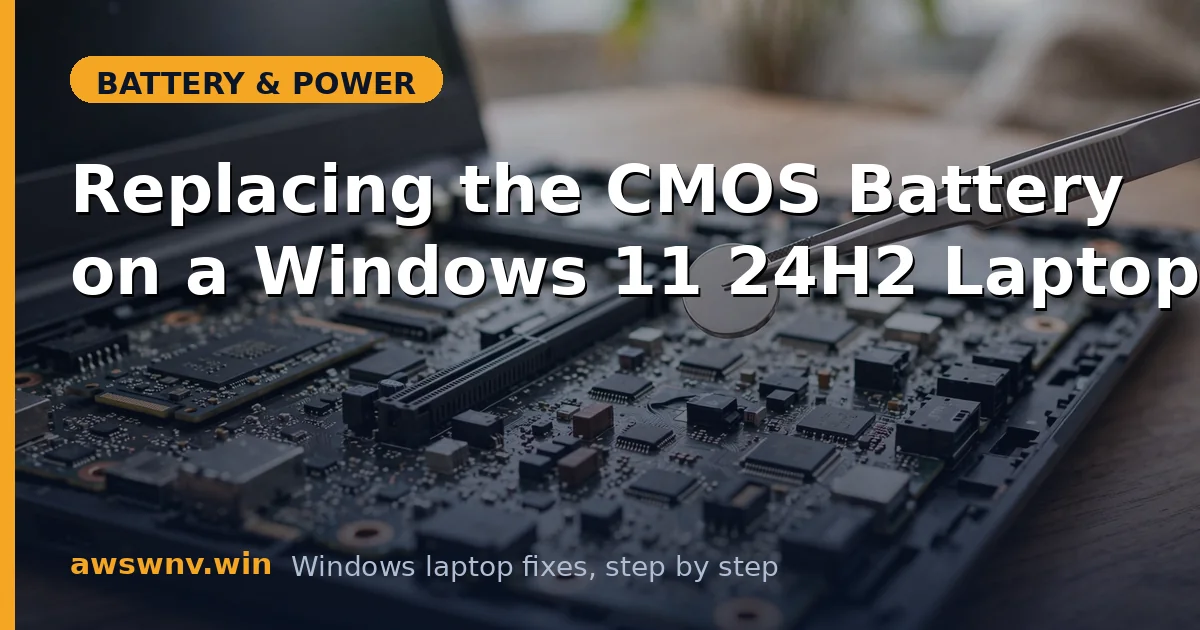
Every morning your laptop insists it’s January 2019, and your BIOS keeps forgetting its settings overnight. That’s not Windows 11 24H2 misbehaving — that’s a dead CMOS battery, the little coin cell that keeps your real-time clock ticking when the machine has no power. It’s a five-dollar part and a twenty-minute job on most laptops, and this guide walks you through it safely.
Before you order anything, make sure the CMOS cell is actually the problem. The symptoms are distinctive, and the fix below covers diagnosis, the right replacement part, and the swap itself — including the BitLocker gotcha that catches people off guard. The procedure here is written for 24H2 but is identical on any Windows 11 build — our general Windows 11 CMOS replacement guide covers the same swap without the 24H2-specific BitLocker note, in case you’re fixing a different machine.
Why this happens
- Coin cells wear out: A CR2032 lasts roughly 3–7 years. Once its voltage drops below about 2.6V, it can no longer hold the real-time clock and CMOS settings overnight.
- Long unplugged storage: Laptops left in a drawer for months drain the CMOS cell faster, since the main battery can’t trickle-charge the clock circuit while disconnected.
- Leaky or corroded holder: Rare, but a corroded battery contact in the holder breaks the circuit even with a fresh cell installed.
- Rechargeable ML1220 cells fail too: Some ultrabooks use rechargeable CMOS cells charged from the main battery. If the main battery is dead, the CMOS cell never recharges and the clock dies with it.
- BIOS resets after every power loss: This is the telltale sign — if settings survive a reboot but vanish after a full shutdown and unplug, the CMOS battery is the culprit, not Windows.
How to fix it
Work through these in order — confirm the diagnosis before you buy parts.
Fix 1: Confirm the CMOS battery is really dead
Don’t order parts on a hunch. Verify with this quick test.
- Boot into BIOS/UEFI (press F2, Del, or your manufacturer’s key at startup) and set the correct date and time.
- Save, boot into Windows, then shut down fully via Start > Power > Shut down.
- Unplug the charger and remove the main battery if it’s removable. Leave the laptop unplugged for at least 30 minutes.
- Power back on and check the clock. If it reset again, the CMOS cell is dead.
If the clock only drifts while Windows is running but survives shutdowns, you have a Windows time-sync problem instead — check Settings > Time & language > Date & time and make sure Set time automatically is on. Microsoft’s Windows support pages cover time-sync troubleshooting in detail.
Fix 2: Identify the correct replacement cell
Buying the wrong cell is the most common mistake in this job.
- Look up your laptop’s service manual on the manufacturer’s support site and search for “CMOS battery” or “RTC battery.”
- Note whether it uses a bare CR2032 in a holder, a CR2032 with a 2-pin wire lead, or a rechargeable ML1220.
- For wired cells, match the connector — they look identical across brands but the pin housing can differ.
- Buy from a reputable seller. Counterfeit coin cells are common and die within months.
If the manual says the CMOS battery is soldered (rare on consumer laptops, more common on some tablets), stop here and take it to a repair shop — desoldering is not a beginner job.
Fix 3: Back up BitLocker keys and BIOS settings
This step saves you from the one nasty surprise in an otherwise simple job.
- If you use BitLocker, save your 48-digit recovery key: open an elevated Command Prompt and run
manage-bde -protectors -get C:then store the key somewhere safe. - Take phone photos of every BIOS settings page you care about — boot order, virtualization toggles, secure boot state.
- Back up anything important, as you would before any hardware work.
Clearing CMOS can trigger a BitLocker recovery prompt on machines where the TPM measurements change. Having the key ready turns a panic moment into a thirty-second detour.
Fix 4: Perform the swap
Set aside twenty unhurried minutes. Rushing is how ribbon cables get torn.
- Shut down fully, unplug everything, and remove the main battery if removable.
- Press and hold the power button for 15 seconds to drain residual charge.
- Remove the bottom cover screws — keep them organized, as lengths often differ. A magnetic mat or an ice-cube tray works.
- Locate the CMOS cell: a silver coin, usually near the center of the board, sometimes under a small piece of tape.
- For holder types, gently push the metal tab aside and lift the cell out. For wired types, unplug the 2-pin connector — pull the plug, never the wires.
- Install the new cell (positive side up for holder types), reconnect the lead for wired types.
- Replace the bottom cover and screws before powering on.
Ground yourself by touching an unpainted metal surface first, and never force a connector. If something resists, you’re pulling the wrong way. For general battery hardware context, our guide on fixing “battery not detected” on a laptop covers related board-level checks.
Fix 5: Reconfigure BIOS and verify
The new cell needs a first-time setup pass.
- Power on and enter BIOS/UEFI immediately.
- Set the correct date and time, then restore any custom settings from your photos.
- Save and boot into Windows.
- Shut down, unplug for an hour, and power back on to confirm the clock survives.
If the clock still resets with a brand-new cell, the holder contacts may be corroded — clean them gently with isopropyl alcohol — or the board’s charging circuit has failed, which is a shop repair. And if the laptop won’t power on at all even with the charger connected, the issue may run deeper than the CMOS cell — see our guide to fixing “battery not detected” on a laptop for the next diagnostic steps.
Fix 6: Sync Windows time and re-enable Secure Boot
Finish up so Windows trusts the corrected clock.
- In Windows, go to Settings > Time & language > Date & time and click Sync now.
- If BitLocker prompted for recovery, re-suspend and re-enable protection afterward with
manage-bde -protectors -disable C:followed bymanage-bde -protectors -enable C:. - Verify Secure Boot is still enabled in BIOS if you use Windows 11’s full security features.
A wrong system clock can break HTTPS, Windows Update, and Microsoft Store sign-ins, so this final sync matters more than people expect.
Closing
A dead CMOS battery announces itself clearly — the clock that forgets, the settings that won’t stick — and the fix is one of the cheapest repairs in all of laptop maintenance. Diagnose first, buy the exact cell your manual specifies, keep your BitLocker key handy, and you’ll have a laptop that remembers what day it is for another five years. If the new cell doesn’t hold either, the board itself needs professional attention, but that’s the exception, not the rule.