Reinstalling a WiFi driver sounds like a single action, but there is a quick way and a right way — and the difference matters. The quick way (uninstall in Device Manager, reboot, let Windows handle it) fixes simple corruption in two minutes. The right way (download the manufacturer’s package first, fully remove the old driver, install clean) fixes the stubborn cases the quick way leaves behind: adapters that vanish, connections that drop every few minutes, and speeds that never recover.
Most WiFi problems that survive a router reboot are driver problems. Windows 11 updates replace wireless drivers aggressively, vendor utilities conflict with new builds, and interrupted updates leave half-installed drivers that misbehave in subtle ways. A proper reinstall cuts through all of it by giving Windows a known-good driver to bind to the hardware.
This guide covers the full progression: the fast reinstall, the clean manufacturer reinstall, and the follow-up steps for when the new driver misbehaves. Read the “download first” warning in Fix 2 before you uninstall anything — it will save you from the classic trap of removing your only path to the internet.
Why this happens
- Windows Update replaced a working driver: Newer is not always better; updated wireless drivers regularly introduce drops and disconnects.
- Corrupted driver files: Interrupted updates or disk errors damage driver files, causing erratic behavior rather than clean failure.
- Vendor utility conflicts: Manufacturer WiFi tools fight Windows 11’s native wireless management for control of the adapter.
- Power management bugs: Driver-level power saving puts the card to sleep and fails to wake it, looking like a dead adapter.
- Wrong driver for the card revision: Similar model numbers ship different wireless chips; a mismatched driver half-works.
- Leftover settings from the old driver: Uninstalling without removing driver software leaves stale configuration behind.
- Hardware actually failing: Worth ruling out last — a dying card mimics driver issues until tested.
How to fix it
Work through these in order — diagnose first, then act.
Fix 1: The quick reinstall via Device Manager
For straightforward corruption — WiFi was fine, then an update or crash broke it — the quick reinstall is enough. Uninstalling the adapter forces Windows to redetect the hardware on reboot and rebuild the driver binding from its driver store. No download needed, two minutes total, and it resolves the simple cases outright.
- Press Win + X and open Device Manager.
- Expand “Network adapters,” right-click your WiFi adapter, and choose “Uninstall device.”
- Do NOT tick “Attempt to remove the driver” for this quick version — keep the driver files.
- Restart the laptop (a full restart, not just sleep/wake).
- After reboot, Windows redetects the adapter and reinstalls the driver — test your connection.
Fix 2: Download the manufacturer’s driver BEFORE uninstalling
This is the step people skip, then regret. If the clean reinstall goes wrong — or if Windows has no driver to fall back on — you need the manufacturer’s package ready on disk, because a laptop with no WiFi driver has no WiFi to download it with. Download first, on a working connection, and you are immune to that trap.
- Find your exact laptop model (sticker on the bottom or System Information).
- On your manufacturer’s support page, locate the Wireless or WiFi driver for Windows 11.
- Download it to a folder you can find easily, like Downloads or the Desktop.
- If you have no working connection on the laptop, use a phone or second computer and a USB drive.
- Confirm the file downloaded completely before touching Device Manager.
Fix 3: Perform a clean driver install
The clean install removes every trace of the old driver — files, settings, and registry entries — before installing the manufacturer’s package onto pristine ground. This is the fix for adapters that appear as unknown devices , drivers that reinstall but misbehave identically, and version conflicts between vendor and Microsoft drivers.
- In Device Manager, right-click the WiFi adapter and choose “Uninstall device.”
- This time TICK “Attempt to remove the driver for this device,” then confirm.
- If the adapter vanishes entirely, click Action, “Scan for hardware changes.”
- Run the manufacturer’s installer you downloaded in Fix 2 and restart when prompted.
- Reconnect to your WiFi network and verify speed and stability over several minutes. Intel’s Driver & Support Assistant can supply the correct package automatically for Intel wireless cards.
Fix 4: Roll back when the new driver is worse
Sometimes the “latest” driver is the problem — you updated hoping for a fix and got new symptoms instead. Windows keeps the previous driver version around specifically for this situation, and rollback restores it in under a minute. Use this whenever trouble started right after a driver update.
- In Device Manager, right-click the WiFi adapter and choose Properties.
- Open the Driver tab and click “Roll Back Driver” if the button is active.
- Pick a reason, confirm, and restart.
- Test thoroughly — the old driver’s stability is the point, not its age.
- If rollback is grayed out, manually install the older version from the manufacturer’s archive.
Fix 5: Reset the network stack after reinstalling
A fresh driver on top of a corrupted network stack still misbehaves — stuck “identifying,” APIPA addresses, or connections that establish but pass no traffic. The stack reset commands rebuild TCP/IP and Winsock to factory state, giving the new driver clean plumbing to work with. Run these after any driver reinstall that did not fully fix things.
- Open Terminal as administrator (Win + X, Terminal (Admin)).
- Run
netsh winsock resetand press Enter. - Run
netsh int ip resetand press Enter. - Restart the laptop.
- Reconnect to WiFi and confirm you receive a proper IP address.
Fix 6: Stop Windows Update from replacing your driver
Reinstalling is pointless if Windows Update swaps your working manufacturer driver for its own version next Tuesday. This is the most common reason WiFi “breaks again” weeks after a successful fix. Blocking driver delivery through Windows Update — while keeping security updates flowing — makes your repair permanent.
- Open Settings, Windows Update, Advanced options.
- Look for driver-update options and disable driver inclusion where available.
- For a durable block, use Group Policy (gpedit.msc): Computer Configuration, Administrative Templates, Windows Components, Windows Update, Manage updates offered from Windows Update — enable “Do not include drivers with Windows Updates.”
- Get future driver updates from the manufacturer instead. Microsoft’s Windows support pages document these update controls.
- Recheck after each feature update, which can reset the policy.
Fix 7: Rule out hardware failure
If no driver — old, new, manufacturer, or Microsoft — makes the adapter work, and it is absent even with hidden devices shown, suspect the card. Confirm with a Linux live USB: no wireless card visible there either means hardware. Most laptop WiFi cards are replaceable M.2 modules, and a USB WiFi adapter is a five-minute workaround that doubles as a permanent fix.
- Boot a Linux live USB and check for wireless interfaces.
- If Linux sees the card but Windows does not, the fault is Windows-side — consider a Windows reset.
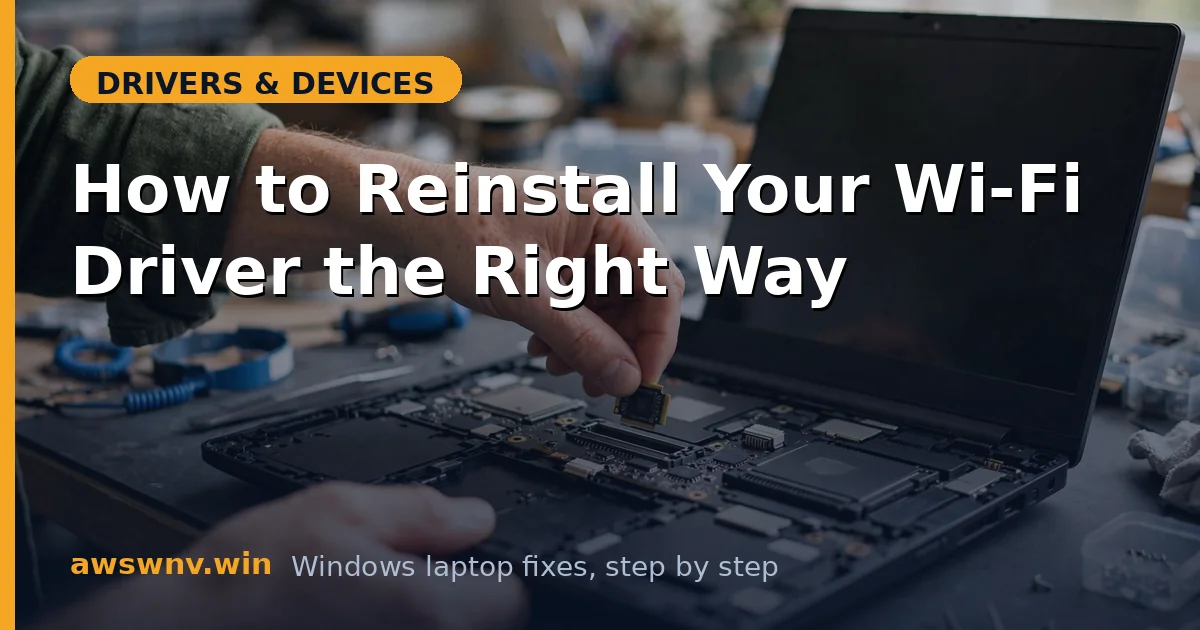
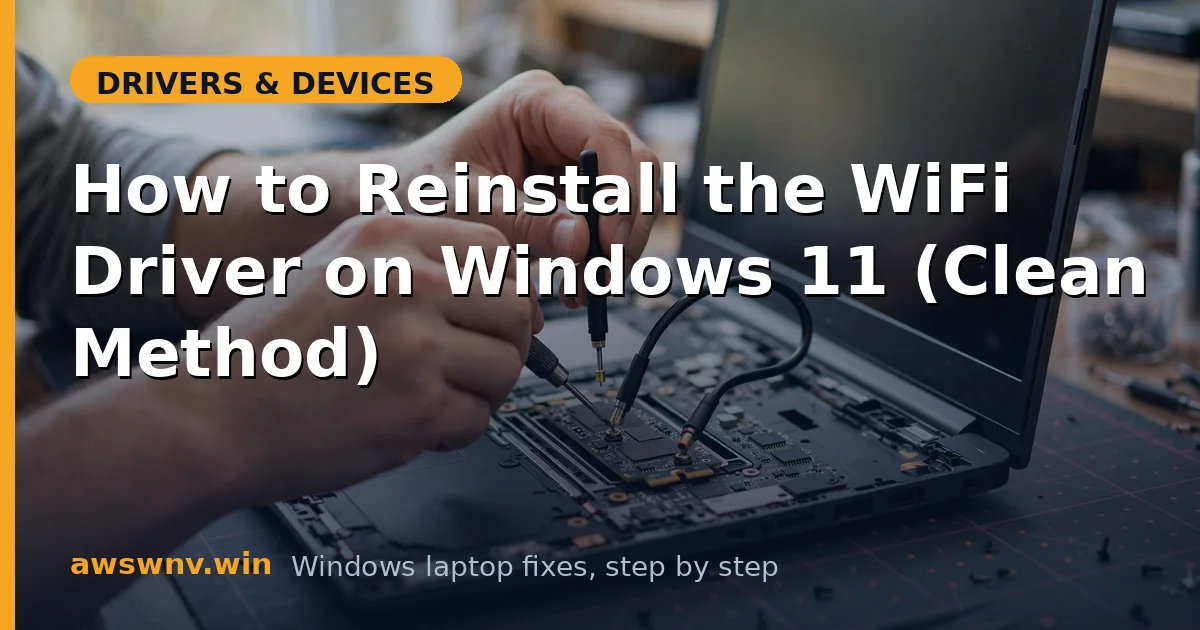
- If neither sees it, reseat the M.2 card (one screw, two antenna wires) if comfortable opening the laptop.
- Alternatively, plug in a USB WiFi adapter and install its driver.
- If the USB adapter works perfectly, the internal card is dead — replace it or keep using USB.
If your adapter is missing rather than misbehaving, start with the WiFi adapter not showing up guide instead. On Windows 10 rather than 11, the companion Windows 10 WiFi driver reinstall covers the same process with that OS’s interface differences.
Closing
WiFi driver problems reward method over haste: download the manufacturer’s package before you uninstall anything, remove the old driver completely, install clean, and then stop Windows Update from undoing your work. The quick Device Manager reinstall handles simple corruption; the full clean install handles everything else. Either way, the fix is software — the card itself is guilty last, not first.