When your laptop has 8GB of RAM and you’re running a browser with twenty tabs, a video call, and a couple of apps, something has to give. That something is virtual memory — disk space Windows uses as overflow when physical RAM fills up. Windows manages this automatically by default, and for most people the defaults are fine. But if you’re hitting “your computer is low on memory” warnings, seeing constant disk thrashing, or running memory-hungry workloads on a laptop with limited RAM, manually tuning the paging file can make the difference between a usable machine and constant crashes.
Virtual memory isn’t magic. Data in the paging file lives on your drive, which is orders of magnitude slower than RAM — even on a fast SSD. Increasing virtual memory won’t make your laptop faster; it gives Windows more headroom before it starts refusing to open programs or killing processes. Think of it as widening the emergency lane, not adding horsepower. The real performance fix for chronic memory pressure is more physical RAM, but when that’s not an option (soldered memory, budget constraints), a properly sized paging file is the next best thing.
This guide shows you how to check your current virtual memory, size it correctly for your system, and configure it manually — plus when to leave the automatic management alone.
Why this happens
- Physical RAM is fully used: When RAM fills up, Windows must page data to disk. An undersized paging file means it runs out of overflow space too.
- Automatic management set too small: On systems with small SSDs, Windows sometimes sets a conservative paging file that doesn’t cover peak usage.
- Memory-hungry applications: Browsers, video editors, virtual machines, and games can each consume gigabytes, quickly exceeding modest RAM.
- Memory leaks: A buggy app that never releases memory gradually fills both RAM and the paging file until the system chokes.
- Paging file on a slow drive: If the paging file sits on an old HDD instead of the SSD, every page fault is painfully slow.
- Multiple paging files misconfigured: Manually-set paging files on multiple drives with wrong sizes can confuse Windows’ memory management.
- Disabled paging file: Some “optimization” guides wrongly advise disabling the paging file, which causes out-of-memory errors even with free RAM.
How to fix it
Work through these in order — diagnose first, then act.
Fix 1: Check your current memory and paging file usage
Before changing anything, confirm that virtual memory is actually your problem and see how Windows currently has it configured.
- Open Task Manager (Ctrl + Shift + Esc) and go to the Performance > Memory tab.
- Note your total RAM and how much is typically in use during your normal workload.
- The Committed value shows RAM + paging file usage versus the total commit limit. If committed regularly approaches the limit, you need a bigger paging file.
- To see the current paging file settings: press Win + R, type
sysdm.cpl, press Enter, go to the Advanced tab, and click Settings under Performance, then the Advanced tab, then Change under Virtual memory.
If committed memory stays well under the limit and you’re still slow, the problem is elsewhere — see our guide on how to speed up a Windows 11 laptop .
Fix 2: Calculate the right paging file size
Sizing matters. Too small and you still crash; excessively large wastes SSD space and can mask memory leaks.
- Note your physical RAM in MB (8GB = 8192 MB, 16GB = 16384 MB).
- Set the Initial size to 1x your RAM (8192 MB for 8GB).
- Set the Maximum size to 1.5x–2x your RAM (12288–16384 MB for 8GB).
- If you have 16GB+ of RAM and rarely max it out, a fixed 4096 MB paging file is plenty as a safety net.
- For systems with very small SSDs, don’t go below 2048 MB — Windows needs minimum headroom for stability.
Fix 3: Set a custom paging file size
Now apply the numbers you calculated. This is the core procedure.
- Press Win + R, type
sysdm.cpl, and press Enter. - Go to the Advanced tab, click Settings under Performance.
- In Performance Options, go to the Advanced tab and click Change under Virtual memory.
- Uncheck Automatically manage paging file size for all drives.
- Select your system drive (usually C:), choose Custom size.
- Enter your Initial size and Maximum size in MB, then click Set.
- Click OK through all dialogs and restart your laptop — the change requires a reboot.
Fix 4: Put the paging file on your fastest drive
If your laptop has both an SSD and an HDD, the paging file should live on the SSD. Paging to a spinning hard drive is dramatically slower and you’ll feel every page fault.
- Open the Virtual Memory settings as described in Fix 3.
- Select the HDD drive, choose No paging file, and click Set.
- Select the SSD drive, choose Custom size or System managed size, and click Set.
- Restart your laptop.
If you only have one drive, skip this — Windows already has it in the only possible place.
Fix 5: Reduce memory pressure instead of just adding paging space
A bigger paging file treats the symptom. Reducing actual memory consumption treats the cause, and your laptop will feel faster for it.
- In Task Manager’s Processes tab, sort by Memory to find the biggest consumers.
- Close browser tabs you don’t need — each one can use hundreds of MB. See our guide on fixing Chrome high CPU and memory use .
- Disable unnecessary startup apps in Task Manager’s Startup apps tab.
- Consider our broader cleanup guide: how to disable background apps on a laptop .
Fix 6: Check for memory leaks
If memory usage climbs steadily over hours until the system crawls, a leaky app — not the paging file size — is the real problem.
- Restart your laptop and note the Committed memory in Task Manager’s Performance tab.
- Use the laptop normally for a few hours without restarting.
- If committed memory has grown enormously with the same apps open, sort Processes by Memory to find the growing process.
- Update or replace the leaky application. Our guide on fixing memory leaks in Windows 11 covers this in depth.
Fix 7: Consider a RAM upgrade
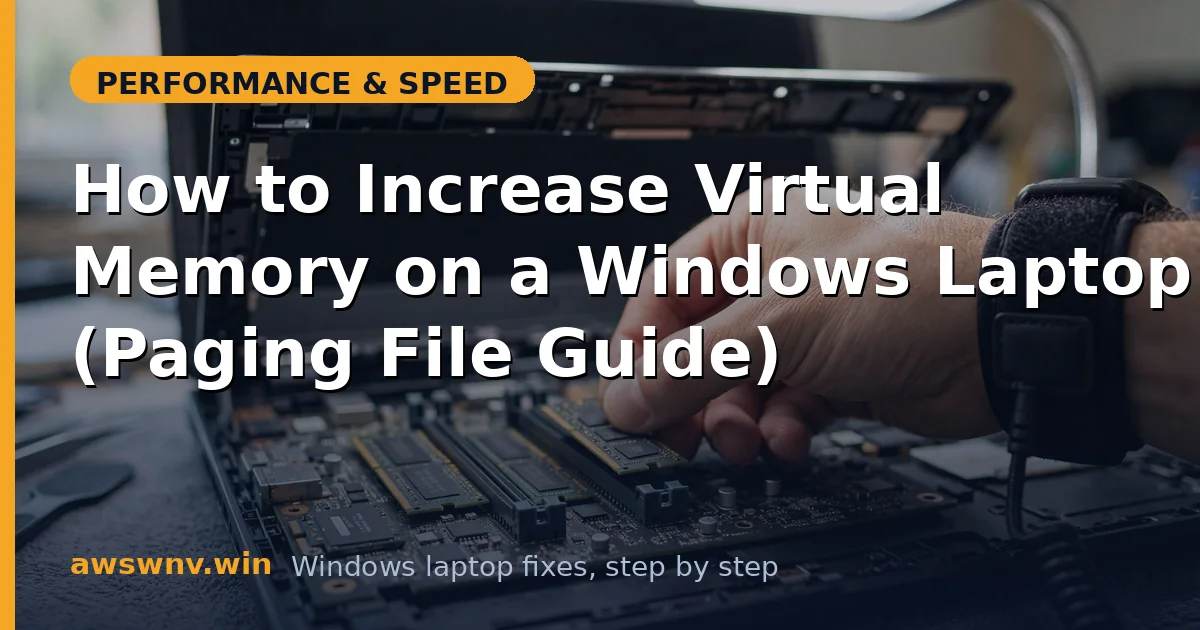
If you constantly exceed physical RAM despite cleanup, no paging file tuning will make the laptop feel fast. Check whether your model supports a memory upgrade.
- Check your laptop’s specs — many laptops have soldered RAM that can’t be upgraded, but many still have an open SO-DIMM slot.
- Use the Intel driver and support assistant or your manufacturer’s tool to identify your chipset and model.
- Check the manufacturer’s support page (Dell , HP , Lenovo) for the maximum supported memory and compatible modules.
- A jump from 8GB to 16GB transforms everyday multitasking on most laptops.
Closing
Increasing virtual memory is a legitimate fix for out-of-memory crashes and stuttering on RAM-limited laptops — set a sensible custom size, keep it on your fastest drive, and restart. But remember what it is: emergency overflow, not extra speed. If you’re paging heavily every day, reducing memory waste and adding physical RAM will do far more for how your laptop feels.