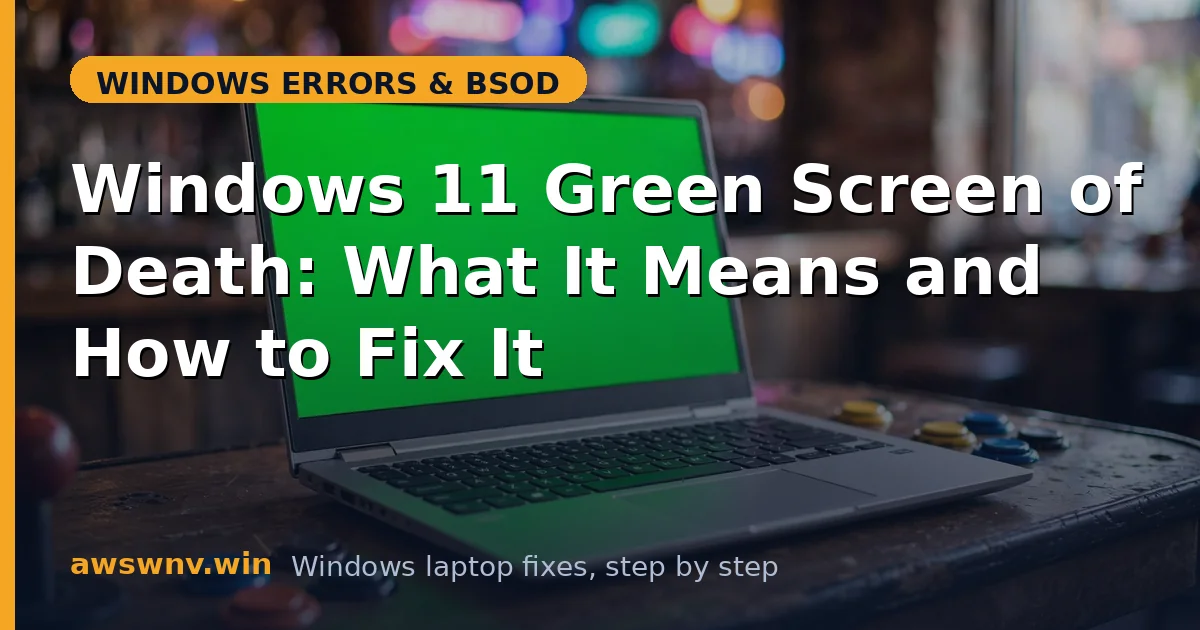
If your crash screen is green instead of blue, nothing exotic has happened — you are running a Windows Insider preview build, and Microsoft colors those crashes green to distinguish them from stable-release blue screens. Same stop codes, same causes, same fixes. If your crash screen is green instead of blue, nothing exotic has happened — you are running a Windows Insider preview build, and Microsoft colors those crashes green to distinguish them from stable-release blue screens. Same stop codes, same causes, same fixes.
The one real difference: some green screens are bugs in the preview build itself, which no amount of driver updating on your part will fix. This guide covers both sides — fixing your stuff, and handling Microsoft’s stuff. The one real difference: some green screens are bugs in the preview build itself, which no amount of driver updating on your part will fix. This guide covers both sides — fixing your stuff, and handling Microsoft’s stuff.
Why this happens
- You are on an Insider preview build. Pre-release code has pre-release bugs; some GSODs are simply Microsoft’s fault.
- The same driver causes as blue screens. Buggy graphics, storage, and filter drivers crash Insider builds too.
- Incompatible software. Some antivirus and system utilities do not support preview kernel changes and crash.
- A bad Insider flight. Occasionally a specific preview build has a known-crashing bug affecting many users.
- Failing hardware. RAM and drive failures cause green screens exactly like blue ones — the color changes nothing here.
- Overclocking. Unstable tuning crashes preview builds just as readily as stable ones.
How to fix it
Work through these in order, from the quickest and most likely fixes to the deeper ones. Stop as soon as the crashes stop.
Fix 1: Note the stop code and check for known flight issues
On Insider builds, your first check is whether Microsoft already knows about it. On Insider builds, your first check is whether Microsoft already knows about it — a surprising number of GSODs are known flight bugs with fixes already in the pipeline.
- Write down the full stop code from the green screen (disable auto-restart first if needed — see our auto-restart guide ).
- Search the Feedback Hub and the Windows Insider blog for the stop code plus your build number (
winvershows it). - If it is a known issue with a fix in the next flight, the correct action is to wait — or roll back, below.
Fix 2: Update your drivers
Preview builds change kernel interfaces; drivers must keep up. Preview builds change kernel interfaces; drivers must keep up — and GPU vendors usually ship Insider-compatible drivers within days of a new flight.
- Update graphics drivers from the GPU maker: NVIDIA , AMD , or the Intel Driver & Support Assistant .
- Update chipset and storage drivers from your laptop maker’s support site.
- Uninstall any system utility that has not released an Insider-compatible version — old filter drivers are GSOD factories on preview builds.
Fix 3: Run the standard corruption repairs
The usual suspects still apply on green builds. The usual suspects still apply on green builds — SFC, DISM, chkdsk, and the memory diagnostic work exactly the same regardless of screen color.
- In an elevated Terminal, run
sfc /scannow. - Follow with
DISM /Online /Cleanup-Image /RestoreHealth. - Run
chkdsk C: /fand reboot for the disk scan. - Test the RAM with
mdsched.exe— hardware does not care what color the crash screen is.
Fix 4: Roll back to the previous Insider build
If the GSODs started with the latest flight, retreat one step. If the GSODs started with the latest flight, retreat one step — the 10-day rollback window is short, so do not sit on a crashing build hoping it fixes itself.
- Go to Settings > System > Recovery > Go back (available for 10 days after a new build installs).
- If that option is gone, download the previous build’s ISO from the Windows Insider ISO page and do an in-place downgrade keeping files.
- Pause Insider updates for a week or two to avoid reinstalling the bad flight immediately.
Fix 5: Leave the Insider program for stable Windows
The permanent fix for preview-build instability is to stop running preview builds. The permanent fix for preview-build instability is to stop running preview builds — stable Windows exists precisely for machines that need to work.
- Go to Settings > Windows Update > Windows Insider Program > Stop getting preview builds.
- Choose to unenroll — on Dev channel this may require a clean install of stable Windows, so back up first.
- Download stable Windows 11 from Microsoft’s official Windows 11 download page and install it.
- Your green screens become blue screens — or better, disappear entirely, since stable builds lack the preview bugs. For general crash troubleshooting on stable, our BSOD guide applies.
Fix 6: File feedback before you leave
If a genuine Microsoft bug caused your crashes, report it so it gets fixed. If a genuine Microsoft bug caused your crashes, report it so it gets fixed — Insider crashes with good feedback get triaged fast.
- Press Win + F to open Feedback Hub.
- File under Install and Update > Windows Insider Program or the relevant hardware category.
- Include the stop code, build number, and steps to reproduce. Attach the minidump from
C:\Windows\Minidumpif the form allows.
Fix 7: Switch Insider channels instead of leaving entirely
If you like early features but Dev-channel chaos is too much, the Beta channel is the middle ground — still preview, far calmer.
- Go to Settings > Windows Update > Windows Insider Program and change to the Beta Channel.
- Beta builds are tied to upcoming releases and go through more validation than Dev builds.
- You may need to wait for the next Beta flight rather than downgrading immediately — check the Insider blog for timing.
- Many chronic GSOD sufferers find Beta gives them the early-access feel without the weekly breakage.
Closing
A green screen of death is a blue screen wearing an Insider badge. Troubleshoot it like any crash — drivers, files, hardware — but keep one eye on the possibility that the preview build itself is the bug. And if stability matters more than early features, the stable channel is always waiting. Green screens are the cost of running preview software — budget for them, report them, and keep stable Windows on any machine you actually depend on.