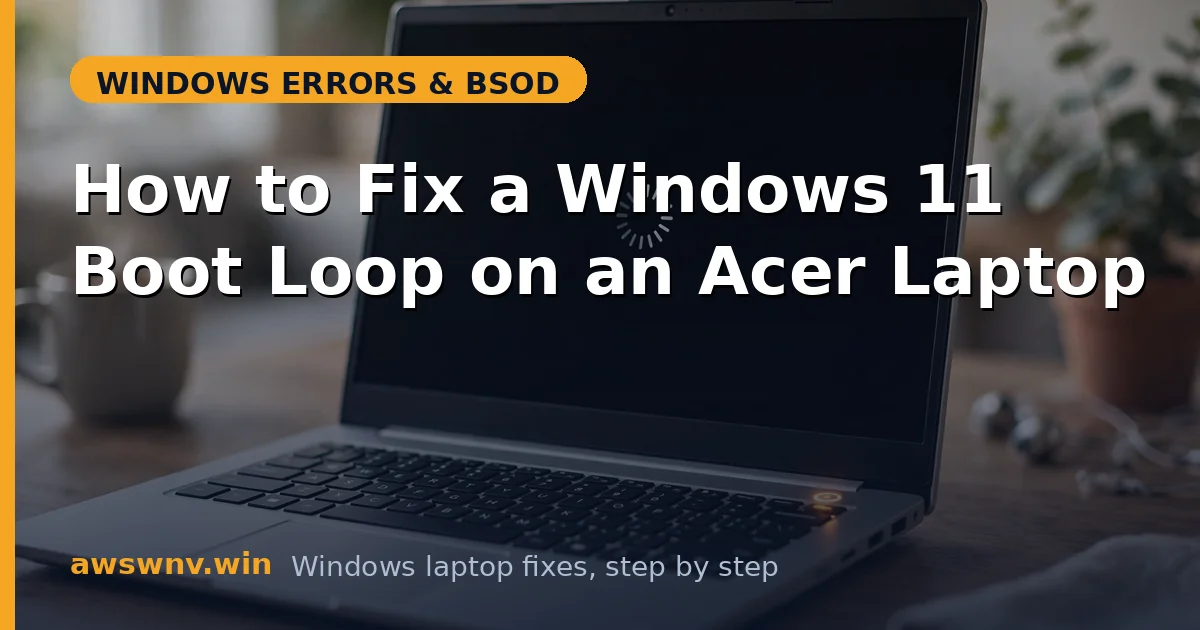
A boot loop — the Acer logo appears, Windows starts loading, then everything restarts and does it again — is one of the most stressful Windows failures because you can’t get in to fix anything. But you don’t need to get into Windows. The recovery environment gives you every tool you need, and most boot loops are a corrupted boot record or a bad driver, both very fixable.
Work through these in order, starting with the gentlest options. If the loop began right after an update, also see automatic repair loop fixes and the HP-specific repair loop guide .
Why this happens
- Corrupted Boot Configuration Data (BCD): The bootloader’s instructions are damaged, so Windows can’t finish starting.
- Failed Windows update: An update that didn’t apply cleanly leaves the system half-migrated.
- Bad driver loading at boot: A crashing storage or display driver restarts the boot process.
- Disk errors: Bad sectors in boot-critical areas.
- Fast Startup glitches: The hibernation-based fast boot preserving a corrupted kernel state across “restarts.”
- Intel RST / storage driver mismatch: Acer laptops with Intel Rapid Storage need the right driver or the boot drive isn’t found.
- Failing drive: A dying SSD/HDD that intermittently drops out during boot.
How to fix it
Work through these in order — start with Fix 1 and stop as soon as the laptop boots normally.
Fix 1: Break the loop with a hard power cycle
Clears stuck hardware states and Fast Startup’s cached boot data.
- Hold the power button for 10 seconds until the laptop fully shuts off.
- Unplug the power adapter and all USB devices.
- If the battery is removable, take it out; otherwise, hold the power button for 30 seconds with everything unplugged to drain residual power.
- Reconnect only the power adapter and try booting.
- If it boots, immediately disable Fast Startup: Control Panel > Power Options > Choose what the power buttons do > uncheck Turn on fast startup.
Fix 2: Enter recovery and run Startup Repair
Let Windows attempt the automatic fix first — it handles simple bootloader issues.
- Force recovery: power on, and when the Acer logo appears, hold the power button to shut down. Repeat twice; the third boot opens Automatic Repair.
- Click Advanced options > Troubleshoot > Advanced options > Startup Repair.
- Select your Windows installation and let it run. (For background on these recovery tools, see Microsoft’s Windows support hub .)
- If it succeeds, great. If it reports it couldn’t repair, continue — the manual fixes below go further.
Fix 3: Boot into Safe Mode
Safe Mode skips the drivers that are usually crashing the boot.
- In recovery, go to Troubleshoot > Advanced options > Startup Settings > Restart.
- Press 4 for Safe Mode.
- If Safe Mode boots, a third-party driver or startup item is the cause — continue to Fix 4.
- If Safe Mode also loops, skip to Fix 5 (System Restore) and Fix 6 (bootrec).
Fix 4: Remove the crashing driver from Safe Mode
In Safe Mode, eliminate the likely culprits.
- Open Device Manager (Win + X > Device Manager).
- Look for devices with yellow warning icons — update or disable them.
- If the loop started after a driver update, roll it back: Properties > Driver > Roll Back Driver.
- Open Settings > Apps > Installed apps and uninstall anything added just before the loop (especially driver updaters and new antivirus).
- Restart normally and test.
Fix 5: Use System Restore
Rolls back to before the loop without touching your files.
- In recovery: Troubleshoot > Advanced options > System Restore.
- Choose a restore point dated before the boot loop began.
- Complete the wizard and restart.
- If no restore points exist, continue — and enable System Protection afterward so you have them next time.
Fix 6: Rebuild the boot files with bootrec
The definitive fix for BCD corruption — the most common deep cause.
- In recovery, open Troubleshoot > Advanced options > Command Prompt.
- Run these commands in order, pressing Enter after each:
bootrec /fixmbrbootrec /fixboot(if “Access denied,” see step 5)bootrec /scanosbootrec /rebuildbcd - When asked to add installations, type Y.
- Type
exit, restart, and test. - If
fixbootgives Access Denied: rundiskpart, thenlist vol, identify the EFI partition (FAT32, ~100 MB),sel vol N,assign letter=Z:,exit, thenbcdboot C:\Windows /s Z: /f UEFI(adjust C: if needed), and restart.
Fix 7: Check the disk and repair system files
Rules out the hardware and corruption causes.
- In the recovery Command Prompt, run
chkdsk C: /f /r(use the correct drive letter — check withdiskpart>list volume). - Let the scan complete fully.
- Then run
sfc /scannow /offbootdir=C:\ /offwindir=C:\Windowsfrom the same prompt. - Restart and test. If CHKDSK finds growing bad sectors, back up and plan a drive replacement.
Fix 8: Reset Windows (keep files) as a last resort
When nothing else breaks the loop, reinstall Windows while preserving data.
- In recovery: Troubleshoot > Reset this PC.
- Choose Keep my files.
- Follow the prompts — this reinstalls Windows 11, removes apps and settings, but preserves personal files.
- Afterward, install drivers only from your laptop maker’s official support site, and create a restore point immediately.
Closing
A Windows 11 boot loop on an Acer feels like a dead laptop, but it’s usually a corrupted bootloader or a bad driver — both fixable without losing anything. The recovery environment is your workshop: Startup Repair for the easy wins, System Restore for the quick rollbacks, and bootrec for the deep BCD repairs that actually end most loops. Work in order, don’t skip the backup if you can reach Safe Mode, and once you’re booting cleanly, disable Fast Startup and keep a restore point handy. Loops love to recur on machines where the original cause — usually a driver — was never addressed. If the loop ever returns, note what changed just before it: the pattern almost always points at the same driver or update.