USB port failures are disorienting because USB is the laptop’s lifeline — mouse, keyboard, drives, chargers, everything. When ports die, the natural reaction is to assume the motherboard is finished. But the reality, the one every repair tech and tutorial walks through, is that USB failures are overwhelmingly software: controller drivers, power management, and enumeration glitches. Physical port death happens, but it’s the exception.
This walkthrough follows the order you’d see in a good video tutorial: start with what you can see and touch, then move into Device Manager, then power settings, then the deeper fixes. Each step is something you can follow along with on screen.
Why this happens
- USB host controller driver corrupted: All ports share controllers; one bad driver kills every port at once.
- USB selective suspend glitch: Power management suspends ports that then fail to wake, making devices appear dead.
- Static charge / power state lockup: Residual charge can leave the USB subsystem in a wedged state that survives reboots.
- Windows Update driver replacement: Microsoft’s USB driver version may not match your chipset, breaking enumeration.
- BIOS USB settings changed: XHCI handoff or USB port toggles in BIOS can disable ports at the hardware level.
- Overcurrent protection tripped: A shorted USB device can trip the port’s protection circuit, shutting down the port or hub.
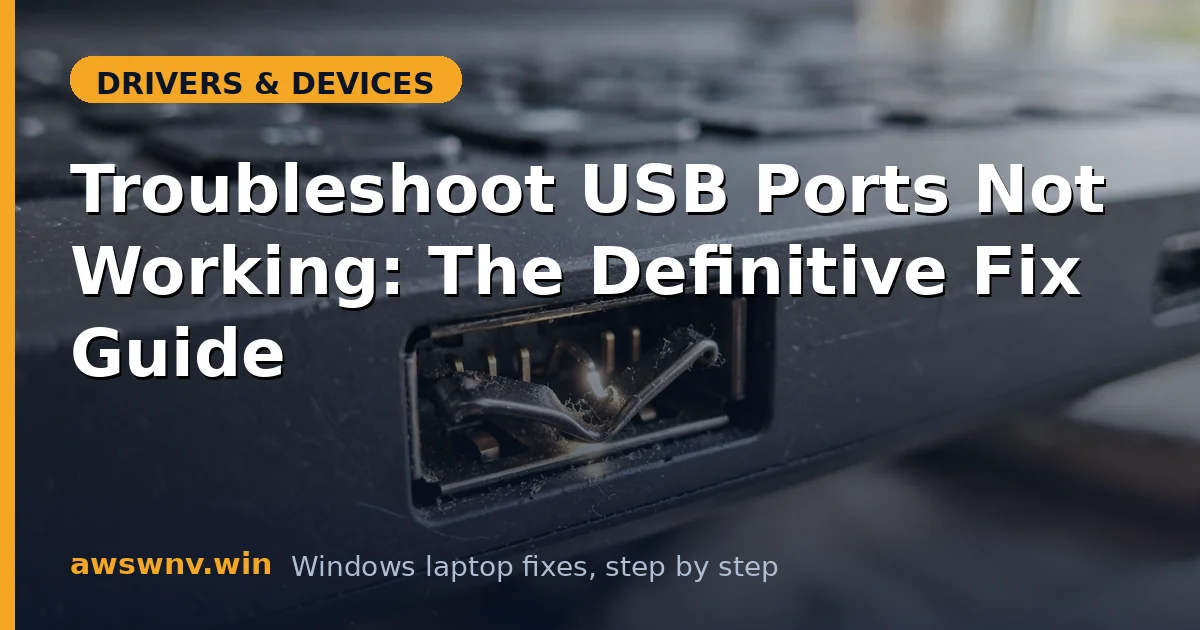
- Physical port damage: Bent pins or broken solder joints from forceful insertions or cable strain.
- Chipset driver missing: The USB controllers are part of the chipset; without correct chipset drivers, ports misbehave.
How to fix it
Work through these in order — diagnose first, then act.
Fix 1: Do the full power reset (watch the ports wake up)
- Shut down the laptop completely and unplug the charger and all USB devices.
- If the battery is removable, remove it. Otherwise, hold the power button for 30–60 seconds with everything unplugged.
- Reconnect only the charger, power on, and then plug in one USB device to test.
- This drains flea power and resets the USB controllers — it fixes more “dead USB” cases than any other single step.
Fix 2: Test every port and identify the pattern
- Try a simple, known-good USB device (a basic flash drive or mouse) in every port, one at a time.
- Note the pattern: all dead (controller/driver issue), only USB 3 dead (xHCI driver issue), one dead (physical damage), or intermittent (power/connection issue).
- Try the device on another computer to confirm the device itself isn’t the problem.
- This two-minute survey directs everything that follows — don’t skip it.
Fix 3: Reinstall the USB host controllers
- Open Device Manager and expand Universal Serial Bus controllers.
- Right-click each USB Root Hub and USB Host Controller entry → Uninstall device. Don’t worry — they’ll come back.
- Restart the laptop. Windows redetects all USB hardware and reinstalls fresh controller drivers.
- Test your devices. This rebuilds the entire USB software stack and resolves the classic USB device not recognized errors too.
Fix 4: Disable USB selective suspend
- Open Control Panel → Power Options → Change plan settings → Change advanced power settings.
- Expand USB settings → USB selective suspend setting and set it to Disabled for both battery and plugged in.
- In Device Manager, for each USB Root Hub → Properties → Power Management, uncheck “Allow the computer to turn off this device to save power.”
- Restart and test, especially with devices that worked briefly then died — that’s the selective-suspend signature.
Fix 5: Update or reinstall chipset drivers
- Go to your laptop maker’s support page and download the latest chipset driver package for your model (see how to install chipset drivers on a laptop if you’re unsure which package you need).
- Install it as Administrator and reboot — this refreshes the USB controller drivers at their source.
- For Intel systems, the Intel Driver & Support Assistant can detect and update chipset components automatically.
- Retest all ports. Chipset-level fixes resolve the stubborn cases where controller reinstalls alone didn’t stick.
Fix 6: Check BIOS USB settings
- Enter BIOS/UEFI setup during boot (F2/Del).
- Look for USB-related options: XHCI Handoff (should be Enabled), USB ports (all Enabled), Legacy USB support.
- If you recently updated BIOS, choose Load Optimized Defaults — updates sometimes reset USB settings badly.
- Save and boot. BIOS-level USB disables are invisible to Windows, so this check catches what Device Manager cannot.
Fix 7: Clear overcurrent trips and inspect for damage
- With the laptop off and unplugged, shine a light into each USB port and look for bent pins, debris, or burn marks.
- A bent pin touching the port wall causes shorts that trip overcurrent protection — carefully straighten it with a plastic toothpick, never metal while powered.
- If Windows ever showed an “overcurrent” or “power surge on USB port” warning, that port’s protection tripped; the power reset in Fix 1 usually clears it.
- Ports with visible burn damage or broken tongues need professional repair — stop using that port to avoid shorting the motherboard.
Fix 8: Test in a clean environment and consider hardware
- Boot into Safe Mode or a Linux live USB and test the ports there. Working ports in Linux prove a Windows driver problem; dead ports everywhere prove hardware failure.
- Check Device Manager for USB entries with yellow warnings that persist across reinstalls — a controller that won’t initialize is a hardware fault.
- For confirmed hardware failure, a powered USB hub can’t fix dead ports, but a USB-C dock can add working ports through a different controller.
- Motherboard-level USB repair is rarely economical out of warranty — document the failure pattern first, as the Microsoft Windows support hub advises for hardware diagnostics.
Closing
USB port failures look scary and fix easy: power reset, controller reinstall, selective suspend off, chipset drivers. That sequence revives the vast majority of “dead” ports — and the pattern test at the start tells you immediately if you’re dealing with software or hardware. Bookmark the sequence; USB gremlins return after major updates often enough that you’ll be glad it’s familiar.