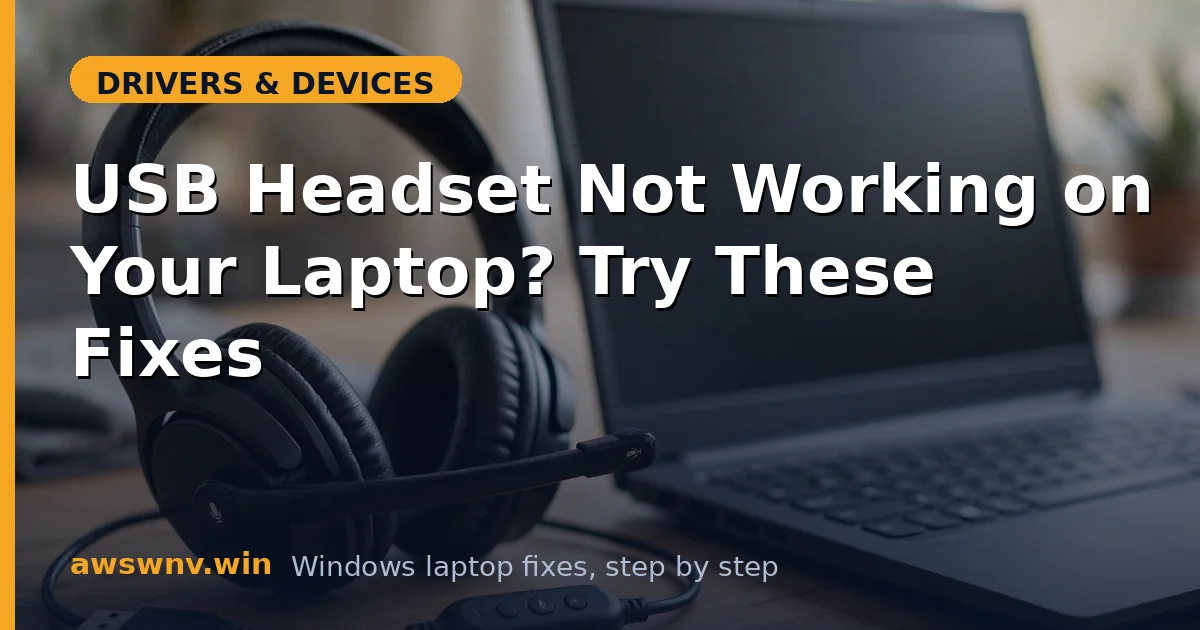
USB headsets should be the simple option: plug in, and Windows switches over automatically. When that does not happen — no sound, no microphone, or the headset not appearing at all — the frustration is sharper because there is no 3.5mm jack logic to fall back on. The headset is its own little sound card, and the failure lives in the USB layer, the device routing, or the driver.
The good news is that USB audio is standardized. Unlike the vendor-specific Realtek stack, USB headsets use class drivers that behave predictably, which makes diagnosis straightforward. The checks run in a natural order: physical port, device selection, driver, power management, and finally the headset hardware itself.
Work through the fixes below in order. Most USB headset problems resolve in the first three.
Why this happens
- Faulty USB port or hub: Underpowered hubs and worn ports fail to sustain the headset’s connection.
- Wrong default device: Windows keeps routing audio to the speakers even with the headset connected.
- Corrupted USB audio driver: The generic USB audio driver can corrupt, especially after updates.
- USB selective suspend: Power management switches the port off, disconnecting the headset mid-session.
- Privacy settings blocking the mic: Windows gates microphone access separately from audio output.
- Conflicting audio software: Enhancement suites and virtual audio devices can hijack the headset’s stream.
- Failed headset hardware: A broken cable or dead DAC in the headset affects every computer it touches.
How to fix it
Work through these in order — diagnose first, then act.
Fix 1: Change the USB port — direct, not hub
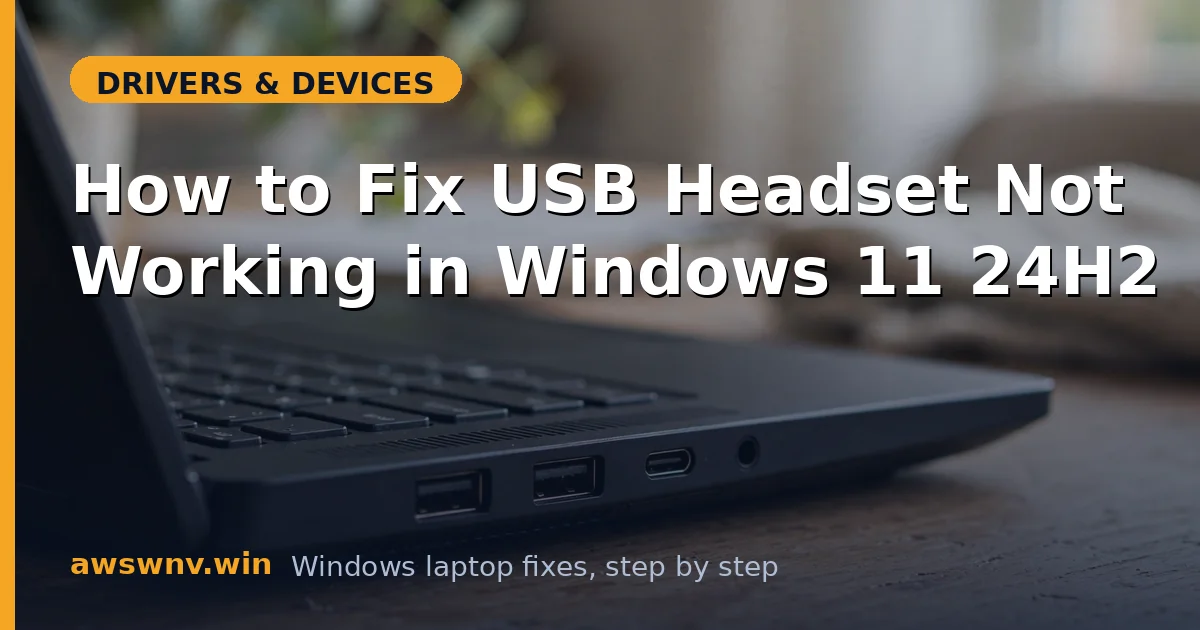
USB headsets are sensitive to the port they use. Unpowered hubs starve them, docks add driver layers, and worn laptop ports make intermittent contact. Plugging directly into a different laptop port — ideally a different USB controller (try a port on the other side) — eliminates the entire physical layer as a suspect in one move.
- Unplug the headset from any hub, dock, or extension and plug it directly into the laptop.
- Try a port on the opposite side of the laptop to use a different USB controller.
- If USB 3.0 fails, try a USB 2.0 port (often marked black instead of blue).
- Listen for the Windows device-connection sound and watch for a notification.
- If the headset appears now, the old port or hub was the problem — stop here.
Fix 2: Set the headset as the default playback and recording device
Windows does not always switch audio to a newly connected USB headset, particularly if a previous default is stubbornly remembered. And the microphone is a separate device that needs its own default setting. Explicitly assigning both takes a minute and fixes the classic “headset connected but silent” complaint.
- Right-click the speaker icon, choose Sound settings, then “More sound settings.”
- On the Playback tab, right-click the USB headset and choose “Set as Default Device.”
- Switch to the Recording tab and set the headset’s microphone as default there too.
- Speak and watch the recording level meter for movement.
- In Sound settings, confirm the Output device dropdown shows the headset.
Fix 3: Reinstall the USB audio driver
When the headset appears in Device Manager with a warning, appears and disappears, or produces distorted sound, its driver binding is corrupt. USB headsets use Windows’ standard USB audio driver, so the fix is removing the broken binding and letting Windows rebuild it cleanly — no download required.
- Open Device Manager and expand “Sound, video and game controllers” and “Audio inputs and outputs.”
- Right-click each entry belonging to the USB headset and choose “Uninstall device.”
- Unplug the headset, wait ten seconds, and plug it back in.
- Let Windows detect it and reinstall the USB audio driver automatically.
- If it still misbehaves, check the manufacturer’s site for a firmware updater for the headset model.
Fix 4: Disable USB selective suspend
If the headset works initially but disconnects after idle periods, or vanishes when the laptop runs on battery, USB selective suspend is the culprit. This feature powers down “idle” USB ports to save energy, but its idle detection mishandles always-on audio devices. Disabling it costs negligible battery and permanently ends the disconnects.
- Open Control Panel, Power Options, and click “Change plan settings” for the active plan.
- Click “Change advanced power settings.”
- Expand “USB settings,” then “USB selective suspend setting.”
- Set it to Disabled for both On battery and Plugged in.
- Click OK, restart, and test the headset over an extended session.
Fix 5: Check microphone privacy and app permissions
A headset whose speakers work but whose mic is dead in every app is usually a permissions issue, not a hardware one. Windows 10 and 11 gate microphone access independently of audio output, and updates revoke it silently. This check matters because everything else — device selection, drivers — can be perfect while the privacy gate stays shut.
- Open Settings, Privacy and security (or Privacy), Microphone.
- Enable microphone access and “Let desktop apps access your microphone.”
- Confirm your calling app is individually allowed.
- Restart the app and test the mic in its audio settings page.
- Also test with Voice Recorder to confirm the mic works system-wide.
Fix 6: Test the headset on another computer
If the headset fails identically on a second computer — not recognized, no sound, dead mic — the headset itself is faulty, and no Windows fix will help. This test is definitive and takes five minutes, and it prevents hours of driver surgery on a broken cable. Borrow any computer; the test needs no special software.
- Plug the headset directly into a different computer’s USB port.
- Check whether it appears as an audio device and produces sound.
- Test the microphone there too.
- If it fails on both machines, the headset hardware is dead — check warranty or replace.
- If it works on the second machine, return to this laptop — the fault is local software (continue to Fix 7).
Fix 7: Remove conflicting audio software and reset the stack
When the headset works elsewhere but not on your laptop despite correct drivers and settings, something is intercepting the audio path — virtual audio cables, enhancement suites, or a corrupted audio stack. Stripping these out restores the clean path the USB audio driver expects. Microsoft’s Windows support pages document the audio stack components involved.
- Uninstall virtual audio devices, equalizers, and audio enhancement apps.
- In Device Manager, remove any grayed-out or duplicate USB audio entries (View, Show hidden devices).
- Run
netsh winsock resetin an admin terminal only if network-adjacent audio apps were involved — otherwise skip. - Restart and reconnect the headset directly to the laptop.
- As a final measure, test with a new Windows user profile to rule out profile-level audio corruption.
For 3.5mm headsets rather than USB, the laptop not detecting headphones guide covers jack-specific issues. If the mic is the only broken part, the Realtek microphone troubleshooting guide goes deeper on input problems.
Closing
USB headsets fail at predictable points: the port, the default-device selection, the USB audio driver, or power management putting the port to sleep. Work that short list in order, prove the hardware on a second computer before blaming Windows, and the headset comes back to life — or you learn definitively that it is time for a replacement.