USB headsets fail in more ways than any other audio device: not detected at all, detected but silent, playback works but the mic is dead, or the classic connect-disconnect loop. That’s because a USB headset is three devices in one — a USB device, an audio playback endpoint, and an audio recording endpoint — and each can fail independently.
This guide works through all three layers, plus the USB port and power issues that masquerade as headset failures. If your problem is laptop speakers rather than a USB headset, our speaker crackling guide covers that separate hardware path. For persistent Realtek-specific issues, see also the Realtek audio driver guide .
Why this happens
- The headset isn’t the default device. Windows routes audio to the previous default; the headset works but receives nothing.
- USB port power or hub issues. Underpowered ports cause dropouts, robotic audio, and disconnect loops.
- Corrupted USB audio driver. The device enumerates but the audio endpoints fail to initialize.
- Microphone privacy permission denied. Windows blocks the mic while playback works fine.
- Exclusive mode conflicts. One app grabs the headset exclusively, starving others.
- Vendor software interference. G Hub, Synapse, and similar tools can wedge the audio pipeline.
- Firmware bugs in the headset. Some headsets need firmware updates delivered through the vendor’s app.
How to fix it
Work through these in order — diagnose first, then act.
Fix 1: Test the port first — direct connection, no hub
Eliminate the physical layer before touching a single setting.
- Unplug the headset from any hub, dock, or extension cable.
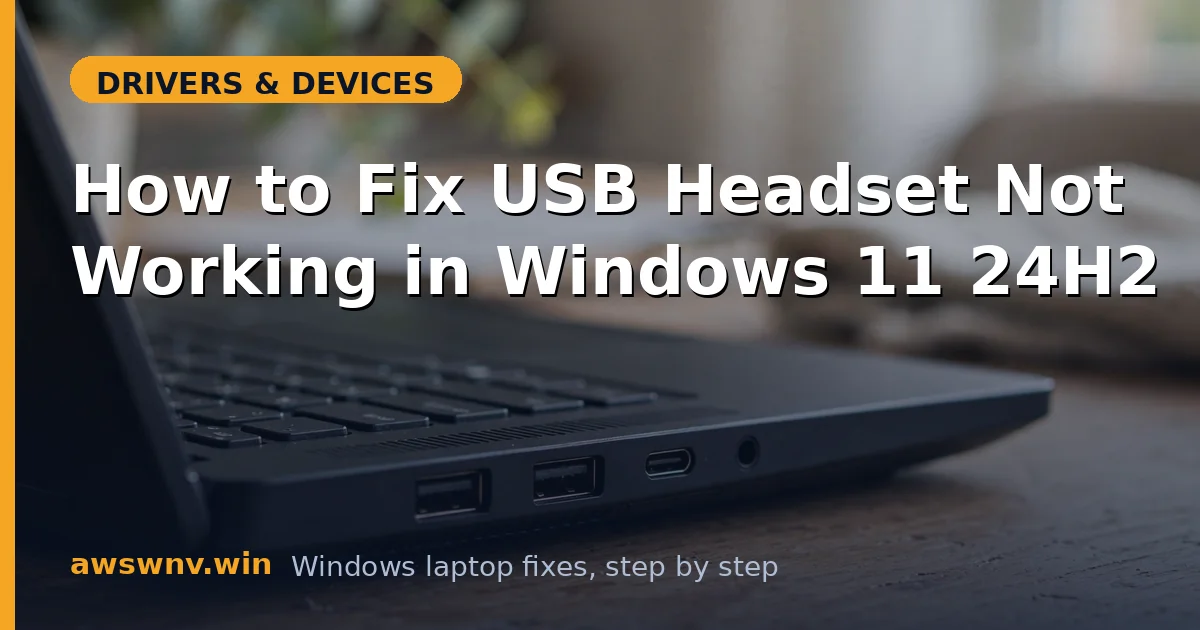
- Plug it directly into a USB port on the laptop itself — try a USB port on the opposite side if the first fails.
- Listen for the Windows device-connect sound and watch Device Manager for the new device.
- If the headset has both USB-A and USB-C options or an included adapter, try the alternate connector.
USB 3.0 ports (blue tongue) are preferable to USB 2.0 for audio headsets — more power headroom. If the headset works on one port but not another, you’ve found a port problem, not a headset problem, and no driver reinstall will fix it.
Fix 2: Set the headset as the default playback and recording device
The most common “not working” is actually “working but not selected.”
- Right-click the speaker icon > Sound settings.
- Under Output, select your USB headset explicitly — don’t assume it’s automatic.
- Scroll to Input, select the headset’s microphone, and speak to watch the input level meter move.
- Click the headset in the device list, open its properties, and confirm the volume isn’t muted at the device level.
Windows’ automatic device switching is unreliable, especially with Bluetooth and USB devices competing. Manual selection is the reliable configuration. Also check the per-app volume mixer — an app can be muted individually while the device is fine.
Fix 3: Grant microphone privacy permission
The classic “I can hear but nobody can hear me” cause.
- Open Settings > Privacy & security > Microphone.
- Turn on Microphone access and Let apps access your microphone.
- Enable Let desktop apps access your microphone — most voice apps (Discord, Teams, game chat) are desktop apps.
- Test with Voice Recorder (a Store app) first to separate Windows permission from app configuration.
If Voice Recorder captures audio but Discord doesn’t, the device and Windows are fine — Discord’s input selector is pointed at the wrong device. Check the app’s own audio settings; they override Windows defaults.
Fix 4: Reinstall the USB audio device
When the device enumerates but endpoints misbehave, rebuild its driver state.
- In Device Manager, expand Audio inputs and outputs and Sound, video and game controllers.
- Right-click every entry belonging to the headset and choose Uninstall device.
- Unplug the headset, wait 10 seconds, and plug it back in — let Windows rediscover it fresh.
- If Windows asks for a driver, let it install automatically; USB Audio Class is inbox.
Also expand Universal Serial Bus controllers and check for warning icons — a struggling USB host controller affects everything downstream. If the headset connects and disconnects in a loop, the USB selective-suspend setting (Fix 6) is the likelier culprit.
Fix 5: Remove vendor software temporarily
Test the headset as a plain USB audio device before involving the vendor’s ecosystem.
- Uninstall the headset vendor’s software (G Hub, SteelSeries GG, Razer Synapse, etc.) via Settings > Apps.
- Restart and test basic playback and mic with the inbox driver.
- If it works, the vendor software was the problem — reinstall it fresh if you want its features.
- Check the vendor’s site for a headset firmware update, which sometimes ships separately from the software.
This isn’t anti-vendor-software snobbery — it’s isolation testing. The vendor stack sits between Windows and the hardware; removing it tells you whether the fault is in that layer. Many “dead headset” cases are actually “crashed vendor service” cases.
Fix 6: Disable USB selective suspend
Power management loves to put USB audio devices to sleep mid-use.
- Open Control Panel > Power Options > Change plan settings > Change advanced power settings.
- Expand USB settings > USB selective suspend setting and set it to Disabled for both battery and plugged in.
- In Device Manager > Universal Serial Bus controllers, right-click each USB Root Hub > Properties > Power Management and uncheck Allow the computer to turn off this device.
- Restart and test over an extended session — selective-suspend issues manifest after minutes of use, not immediately.
The delayed-manifestation pattern is the tell: headset works for ten minutes then goes robotic or disconnects. That’s power management, not a bad headset — and it’s maddening until you know the pattern.
Fix 7: Test on another computer
The final isolation: is it the headset or the laptop?
- Plug the headset into a different computer (any OS) and test playback and mic.
- If it fails there too with the same symptoms, the headset or its cable is faulty — check warranty.
- If it works elsewhere, the fault is your laptop’s USB subsystem — try a powered USB hub as a workaround, which bypasses the laptop’s port power issues.
- As a last software step, check Microsoft’s Windows support for USB audio troubleshooter updates.
A powered hub is a legitimate permanent workaround for laptops with weak USB power delivery — not just a diagnostic step. If the headset is mission-critical and the laptop’s ports are marginal, the hub stays.
Closing
USB headset troubleshooting is layer isolation: port, default device, permissions, driver, vendor software, power management, and finally the headset itself. The order matters because each layer is cheaper to test than the next, and the fix is usually embarrassingly early in the sequence — a wrong default device, a denied mic permission, a hub that should never have been in the chain. Work the layers, and the headset almost always comes back.